
Why port forwarding feature is not working on TP-Link ISP-Customized Router?
 9743
9743Introduction
This article provides some suggestions for troubleshooting potential causes of failed port forwarding.
Troubleshooting
Tip 1. The port forwarding settings are correct
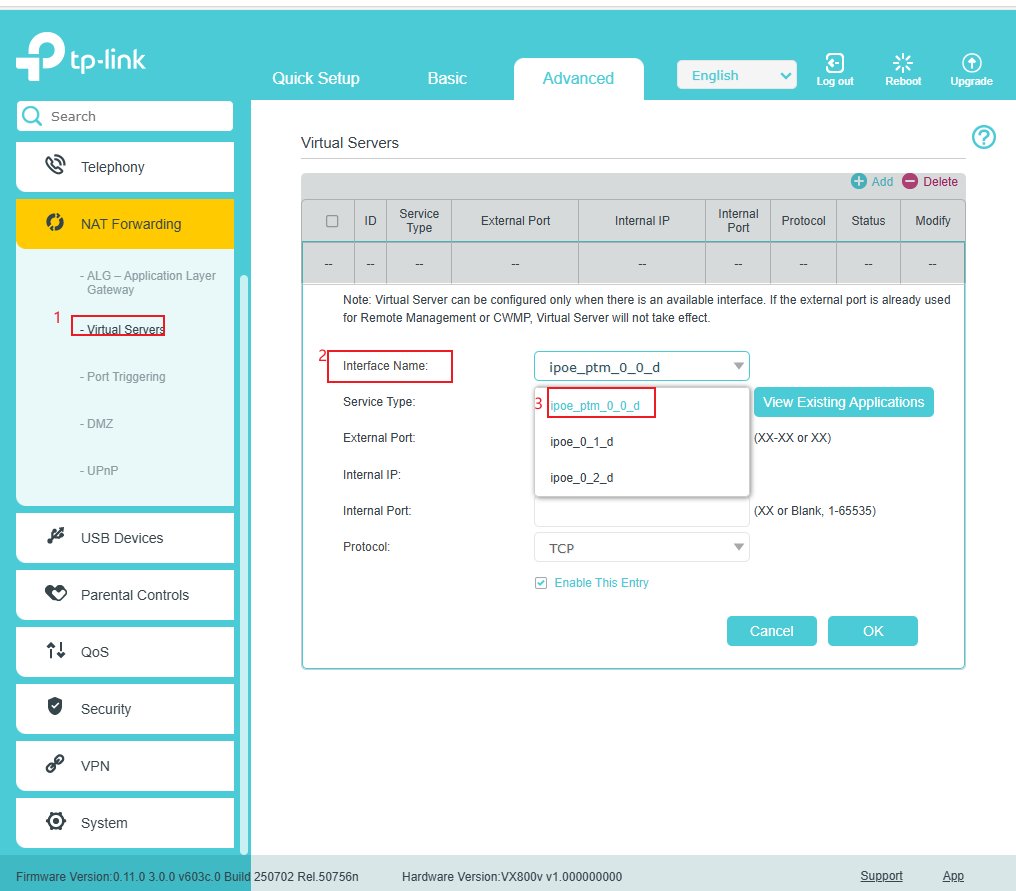
- If you want to use a special WAN, you need to choose it as the interface. Ensure that the correct WAN is chosen.
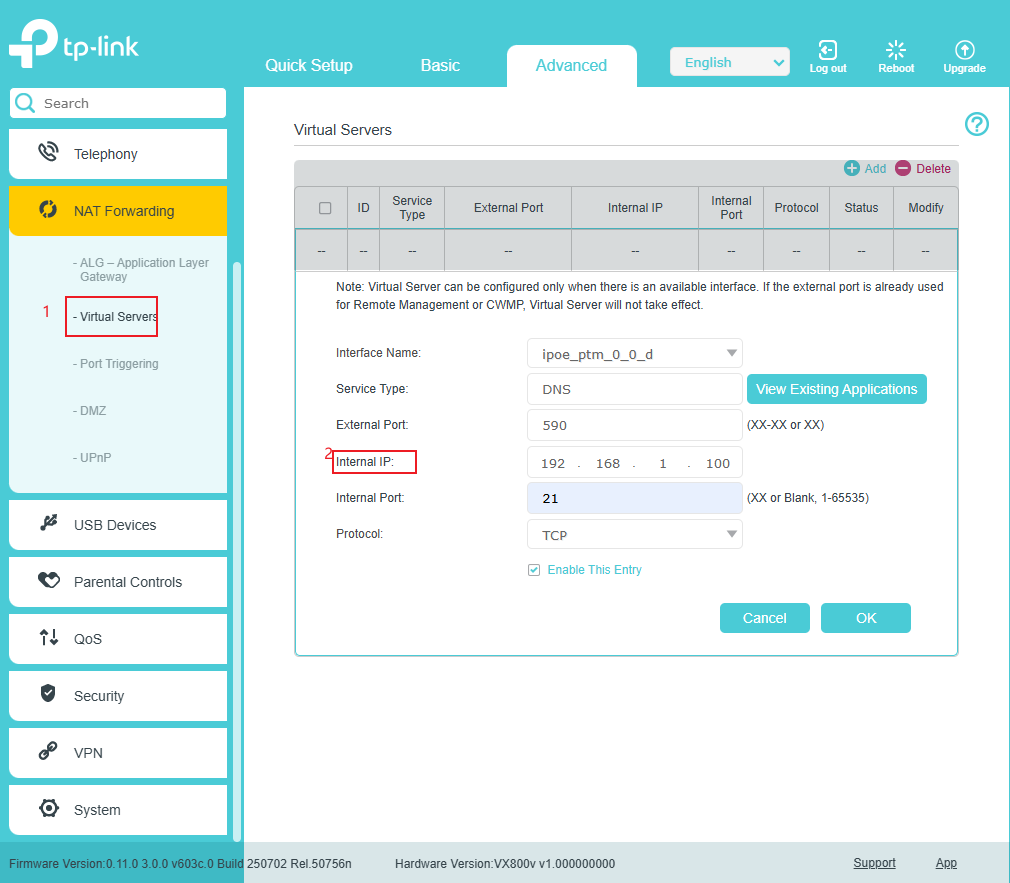
- Ensure that the internal IP address is the actual IP of the target device. It is recommended to use a static IP.
Tip 2. The target device is online in the local network
You may use the ping command to confirm whether the device is reachable. Example: ping 192.168.1.100. The corresponding service (e.g., Web service, FTP, remote desktop) should be enabled on the device.
Tip 3. WAN interface has the WAN IP
Ensure that you can get a reply from the WAN IP via the ping command.
Tip 4. No dual routing problem
To avoid the dual routing problem, it's suggested to use a single router instead of an optical network terminal and a router. It is recommended to set up a bridge mode or configure port forwarding on the upper-level device as well.
Tip 5. No firewall issue
To determine whether the Windows firewall or third-party security software is blocking port access, temporarily disable the firewall for testing to confirm whether it is a firewall issue.
Tip 6. The port is not occupied by the other services
To determine whether other services occupy the port, you may follow the instructions below to test:
Step 1. Open the command line interface.
Step 2. Use the command below to check if this port is occupied in the server.
netstat -ano | findstr :xx (for windows) ,sudo lsof -i :xx(linux&mac)
- Example for Windows
netstat -ano | findstr :80
- Example for Linux & Mac
sudo lsof -i :80
Step 3. If there is a process ID listed in result of step 2’s command, use the below command to end the process, then check whether the port forwarding works.
taskkill /PID xxxx /F
Note: xxxx is the ID of the process.
Here is an example for windows:
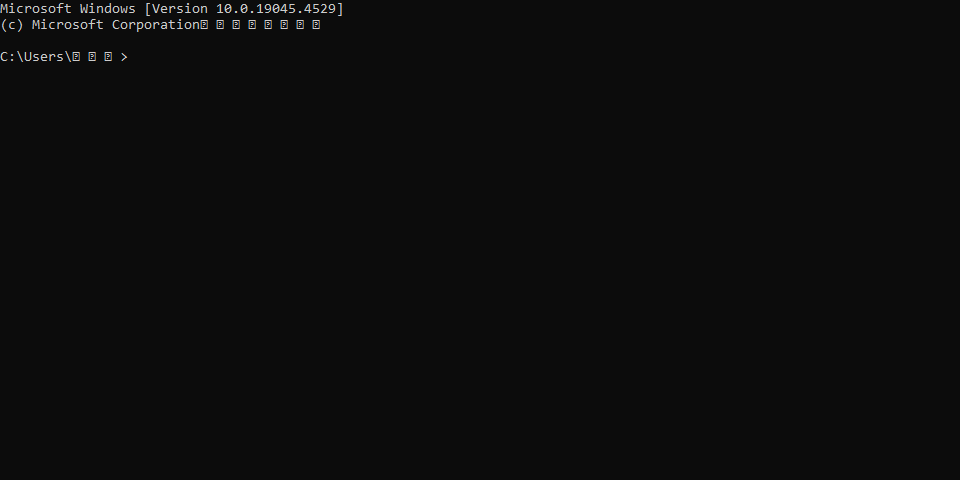
Step 1. Open the command line interface by searching CMD.

Step 2. Input command
netstat -ano | findstr :8080

Step 3. Input command
taskkill /PID 36316 /f
Note: (PID 36316 is the process ID on the right).

Finden Sie diese FAQ hilfreich?
Mit Ihrer Rückmeldung tragen Sie dazu bei, dass wir unsere Webpräsenz verbessern.


Von United States?
Erhalten Sie Produkte, Events und Leistungen speziell für Ihre Region