
Table of Contents
Portable Router User Guide (For web)
About This Guide
This guide introduces each function of your portable router and demonstrates how to configure them.
When using this guide, please notice that features of the router may vary slightly depending on the model and software version you have, and on your location, language, and internet service provider. All screenshots, images, parameters and descriptions documented in this guide are used for demonstration only.
Conventions
In this guide, the following conventions are used:
|
Convention |
Description |
|---|---|
|
Underline |
Underlined words or phrases are hyperlinks. You can click to redirect to a website or a specific section. |
|
Bold |
Contents to be emphasized and texts on the web page are in bold, including the menus, items, buttons and so on. |
|
> |
The menu structures to show the path to load the corresponding page. For example, Settings > System Tools > Firmware Upgrade means the Firmware Upgrade page is under the System Tools menu that is located in the Settings tab. |
|
Note: |
Ignoring this type of note might result in a malfunction or damage to the device. |
|
Tip: |
Indicates important information that helps you make better use of your device. |
More Info
- The latest software, management app and utility are available from the Download Center at https://www.tp-link.com/support.
- The Quick Installation Guide can be found where you find this guide or inside the package of the router.
- Specifications can be found on the product page at https://www.tp-link.com.
- A TP-Link Community is provided for you to discuss our products at https://community.tp-link.com.
- Our Technical Support contact information can be found at the Contact Technical Support page at https://www.tp-link.com/support.
Chapter 1. Log into the Router
This chapter guides you how to log in to your router via Tether app or the router’s web management page.
*Features available on the web management page may vary by model and software version.
1.1 Log In via Tether App
Note:
1. The router in Client mode can’t be managed by Tether. Please set it up using the web management page.
2. Due to Tether app updates, your actual user interface and pathway may differ from those depicted here.
3.The Tether app runs on iOS and Android devices, such as smartphones and tablets.
1. Launch the Apple App Store or Google Play store and search “TP-Link Tether” or simply scan the QR code to download and install the app.

2. Launch the Tether app and log in with your TP-Link ID. If you don’t have a TP-Link ID, create one first.
1.2 Log in via the Web Management Page
With a web-based utility, it is easy to configure and manage the router. The web-based utility can be used on any Windows, Macintosh or UNIX OS with a web browser, such as Microsoft Internet Explorer, Mozilla Firefox or Apple Safari.
1. Set up the TCP/IP Protocol in Obtain an IP address automatically mode on your computer.
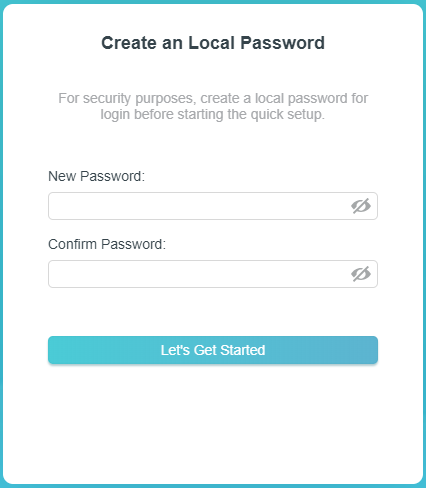
2. Visit http://tplinkwifi.net, and create a login password for secure management purposes. Then click Let’s Get Started to log in.
Note: If the login window does not appear, please refer to FAQ.

Chapter 2. Set Up Internet Connection
This chapter guides you how to set up Internet connection via Tether app or the router’s web management page.
*Features available on the web management page may vary by model and software version.
2.1 Set up via Tether App
1. Launch the Tether app and log in with your TP-Link ID. If you don’t have a TP-Link ID, create one first.
2. Tap the + button and select Add a Device > Add a Router. Follow the steps to complete the setup and connect to the internet.
3. Connect your devices to the newly configured network of the router and enjoy the internet!
2.2 Set up via the Web Management Page
1. Visit http://tplinkwifi.net, and create a login password for secure management purposes. Then click Let’s Get Started to log in.
Note: If the login window does not appear, please refer to FAQ.
2. The Quick Setup Wizard will guide you through the process to set up your router. Follow the step-by-step instructions to complete Quick Setup or go to Advanced > Quick Setup, and follow the instructions to connect your router to the internet.
Router Mode
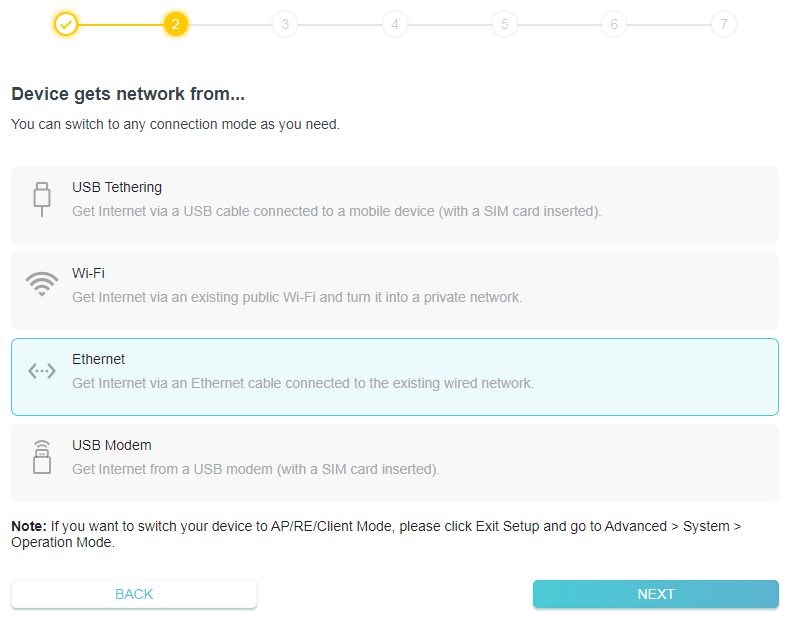
1. Start the Quick Setup, select Ethernet, and click NEXT.
2. Follow the step-by-step instructions to set up the internet connection, and enjoy the internet.
Note: If you have changed the preset wireless network name (SSID) and wireless password during the Quick Setup, all your wireless devices must use the new SSID and password to connect to the router.
USB Tethering Mode
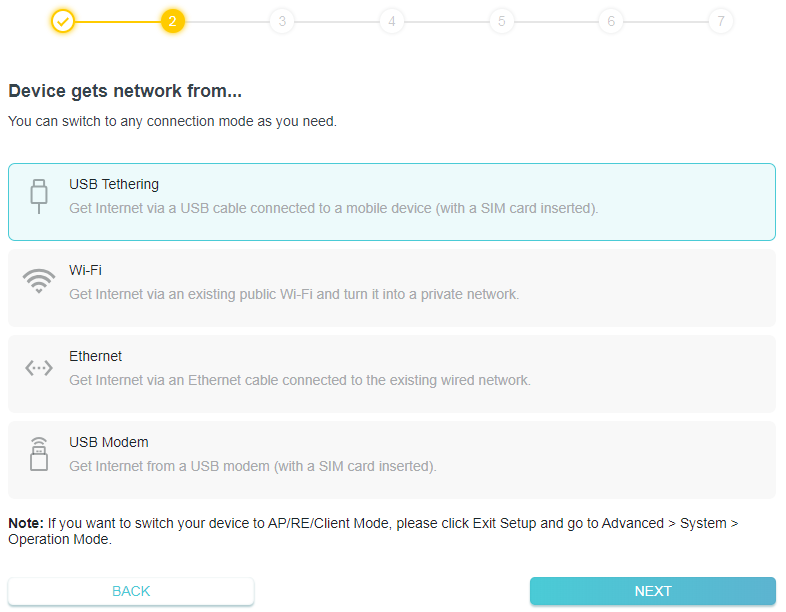
1. Start the Quick Setup, select USB Tethering, and click NEXT.
2. Connect your iPhone/iPad to the router using a USB cable.

3. Follow the step-by-step instructions to set up the internet connection, and enjoy the internet.
Note: If you have changed the preset wireless network name (SSID) and wireless password during the Quick Setup, all your wireless devices must use the new SSID and password to connect to the router.
3G/4G/5G USB Modem Mode
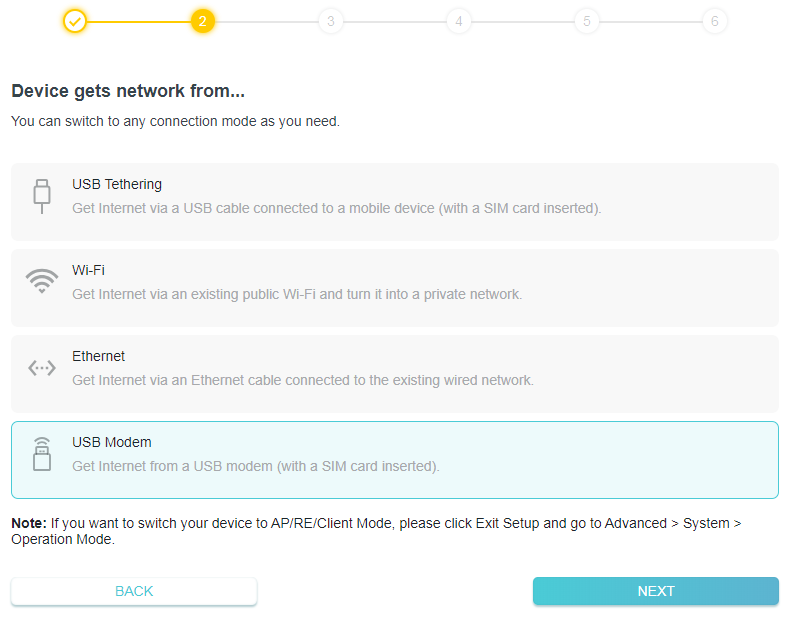
1. Start the Quick Setup, select USB Modem, and click NEXT.
2. Connect your USB modem to the USB 3.0 port of the router.
3. Follow the step-by-step instructions to set up the internet connection, and enjoy the internet.
Note: If you have changed the preset wireless network name (SSID) and wireless password during the Quick Setup, all your wireless devices must use the new SSID and password to connect to the router.
Hotspot Mode
1. Start the Quick Setup, select Wi-Fi, and click NEXT.
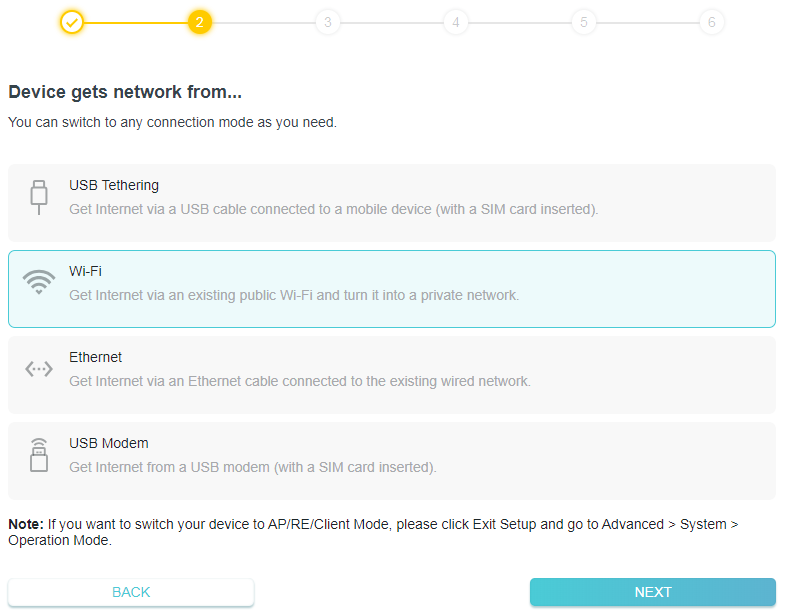
2. Follow the step-by-step instructions to set up the internet connection, and enjoy the internet.
Note:
If the public hotspot requires a Captive Portal Authentication, complete the authentication during the Quick Setup before you can access the network.
If you have changed the preset wireless network name (SSID) and wireless password during the Quick Setup, all your wireless devices must use the new SSID and password to connect to the router.
Access Point/Range Extender/Client Mode
1. To switch your device to AP/RE/Client Mode, please click Exit Setup and go to Advanced > System > Operation Mode.
2. Select AP/RE/Client Mode, and click SAVE.
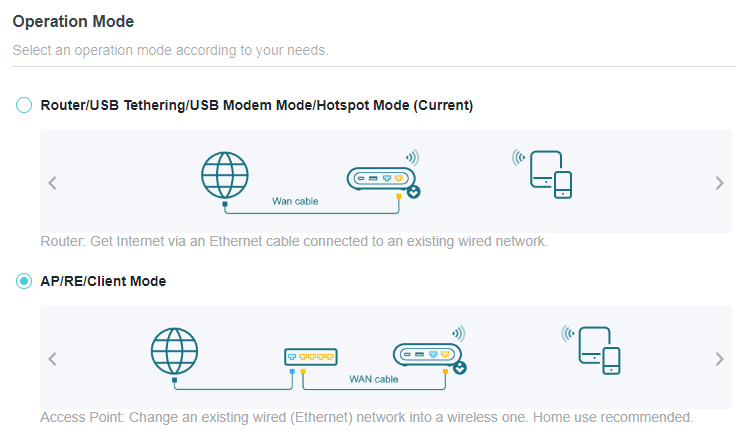
3. Select a desired mode and click REBOOT. The settings will take effect only after the router reboots. Internet access will be disabled temporarily.
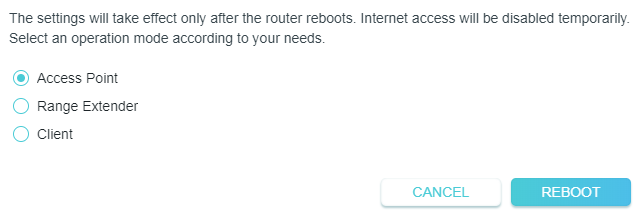
4. Wait until it finishes rebooting and follow the step-by-step instructions to complete the setup, then enjoy the internet.
Note: If you have changed the preset wireless network name (SSID) and wireless password during the Quick Setup, all your wireless devices must use the new SSID and password to connect to the router.
Chapter 3. Configure the Router in Router Mode
This chapter presents how to configure the various features of the router working in Router mode.
*Features available on the web management page may vary by model and software version.
3.1 Set up via Tether App
1. Visit http://tplinkwifi.net, and log in with your TP-Link ID or the password you set for the router.
2. Go to Internet.
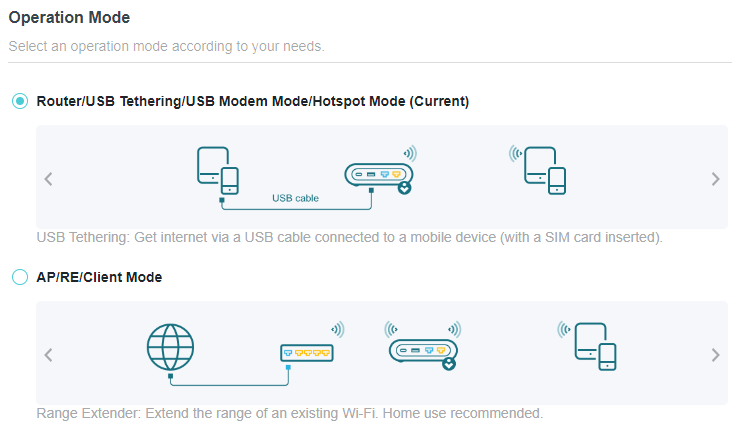
• To view the router’s current mode:
Locate the Connection Settings section. The router’s current operation mode is highlighted.
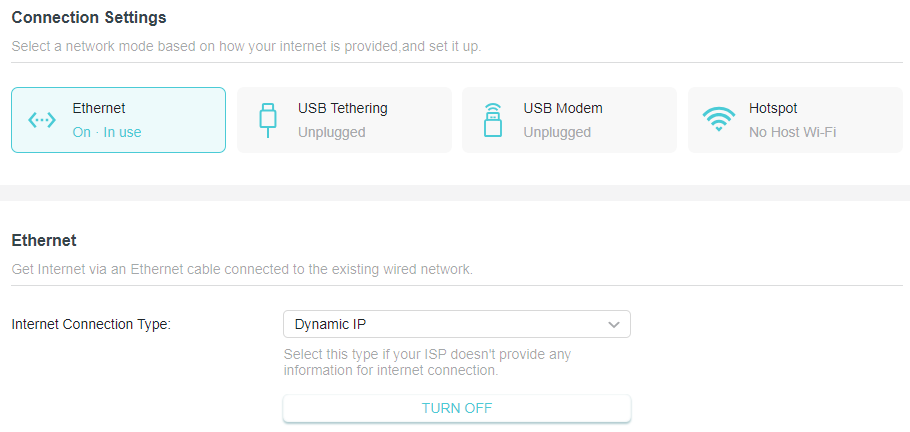
• To change the router’s network mode:
1. Visit http://tplinkwifi.net, and log in with your TP-Link ID or the password you set for the router.
2. Go to Internet > Connection Settings.
3. Select your desired network mode, configure the parameters , and click SAVE.
• To change the router’s operation mode (to AP/RE/Client mode):
1. Visit http://tplinkwifi.net, and log in with your TP-Link ID or the password you set for the router.
2. Go to Advanced > System > Operation Mode.
3. Select your desired operation mode and click SAVE.
3.2 Set up via Tether App
Network Map outlines device connectivity of your network visually and helps you manage general settings of the network.
1. Visit http://tplinkwifi.net, and log in with your TP-Link ID or the password you set for the router..
2. Go to Network Map.
3. Click each network device icon to check and manage general network settings
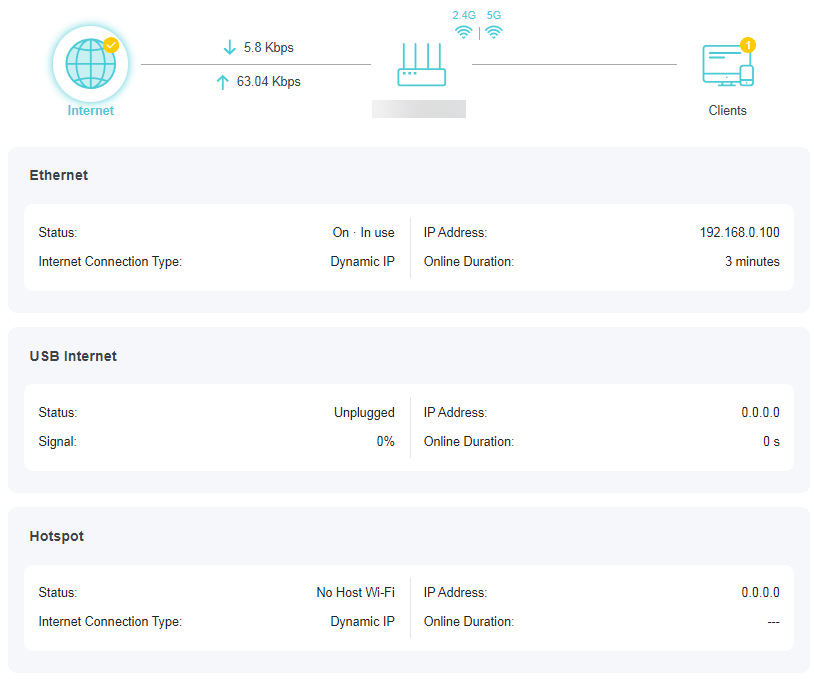
• Click Internet to check internet status.
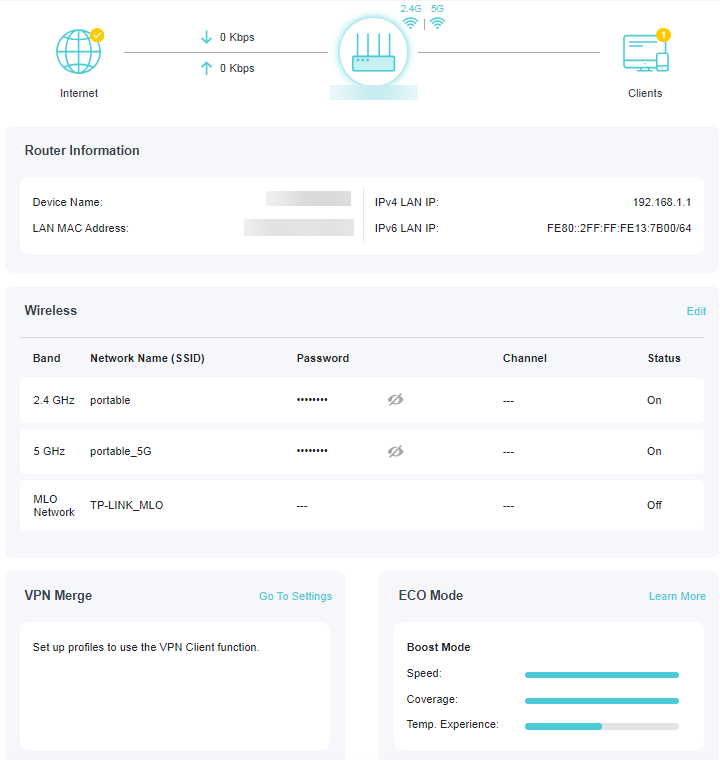
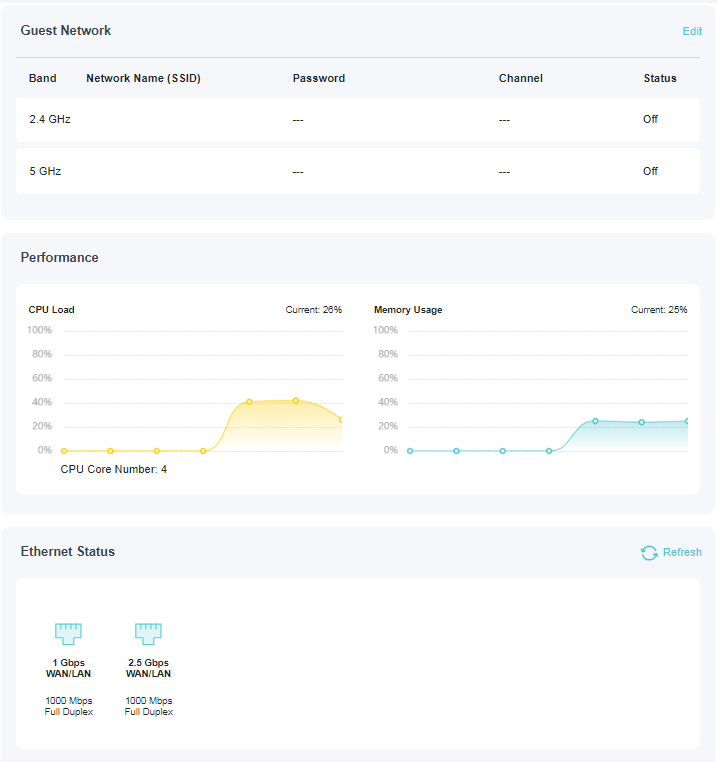
• Click the router to check device status and network settings. You can click Edit to change related settings.
• Click Clients to view the client devices in your network. You can block devices so they cannot access your network.
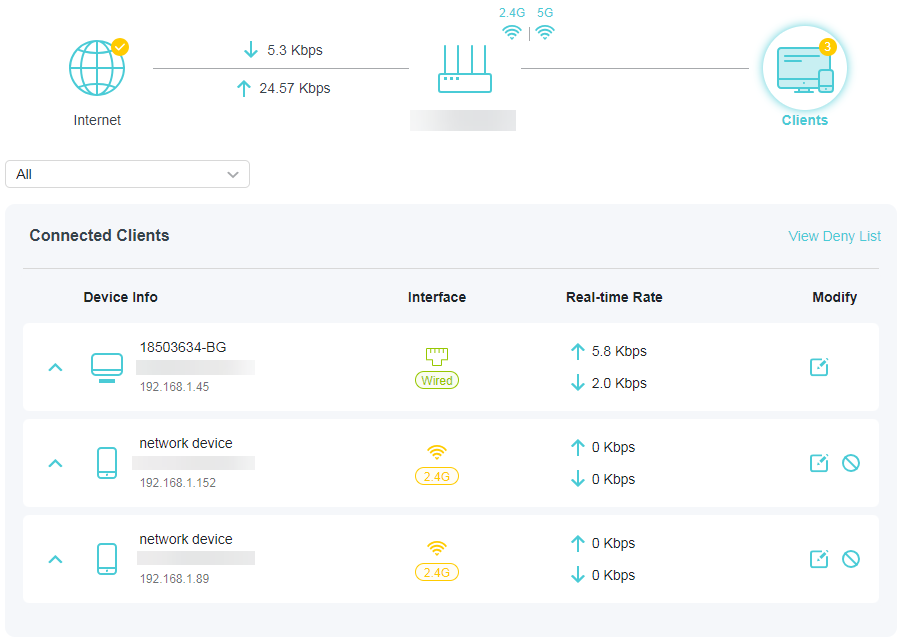
3.3 Network
3.3.1 Status
1. Visit http://tplinkwifi.net, and log in with your TP-Link ID or the password you set for the router.
2. Go to Advanced > Network > Status. You can view the current status information of the router.
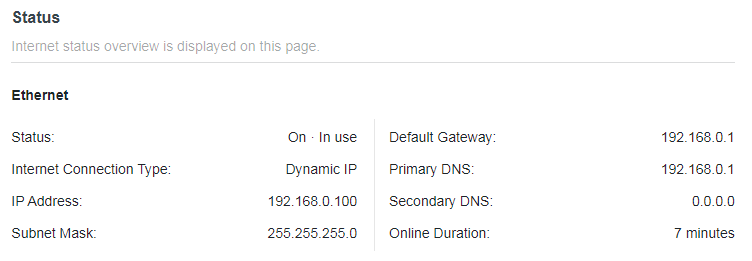
• Ethernet - Displays the current settings of the internet, and you can configure them on the Advanced > Network > Internet page.
• Status - Indicates whether the router has been connected to the internet.
• Internet Connection Type (Only for Router Mode) - Indicates the way in which your router is connected to the internet.
• IP Address - The Internet IP (WAN IP) address of the router.
• Subnet Mask - The subnet mask associated with the Internet IP (WAN IP) address.
• Default Gateway - The Gateway currently used is shown here.
• Primary & Secondary DNS - The IP addresses of DNS (Domain Name System) server.
• Online Duration - Displays how long the router has been connected to the internet.
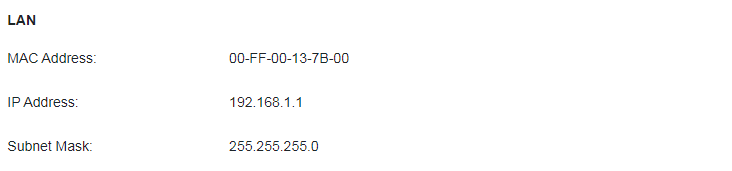
• LAN - This field displays the current settings of the LAN, and you can configure them on the Network > LAN page.
• MAC Address - The physical address of the router.
• IP Address - The LAN IP address of the router.
• Subnet Mask - The subnet mask associated with the LAN IP address.

• DHCP Server - This field displays the current settings of DHCP (Dynamic Host Configuration Protocol) Server, and you can configure them on the Network > DHCP Server page.
• DHCP Server - Indicates whether the DHCP server is enabled or disabled. It is enabled by default and the router acts as a DHCP server.
• IP Address Pool - The IP address range for the DHCP server to assign IP addresses.

• Dynamic DNS - This field displays the current settings of the Dynamic DNS (Domain Name System), and you can configure them on the Advanced > Network > Dynamic DNS page.
• Service Provider - The Dynamic DNS service provider you have signed up for.
3.3.2 Internet Port
1. Visit http://tplinkwifi.net, and log in with your TP-Link ID or the password you set for the router.
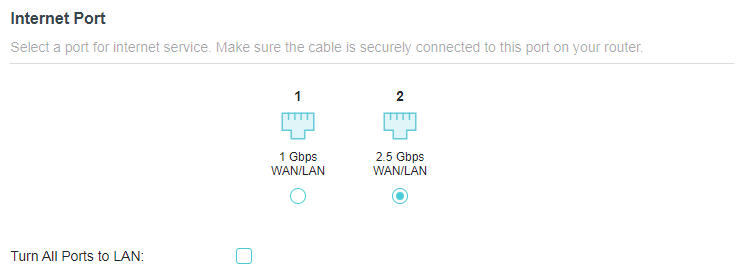
2. Go to Advanced > Network > Internet Port.
3. Select a port for internet service. Make sure the cable is securely connected to this port on your router.
Note: Some models may not support this feature. Images may differ from actual products.
• Turn All Ports to LAN - Enable it and all the Ethernet ports will be used for LAN ports.
3.3.3 Internet Port Negotiation Speed Setting
Note: 3G/4G USB Modem mode and USB Tethering mode don’t have this function.
1. Visit http://tplinkwifi.net, and log in with your TP-Link ID or the password you set for the router.
2. Go to Advanced > Network > Internet Port and locate the Internet Port Negotiation Speed Setting section.
3. Select the duplex type from the drop-down list and click SAVE.

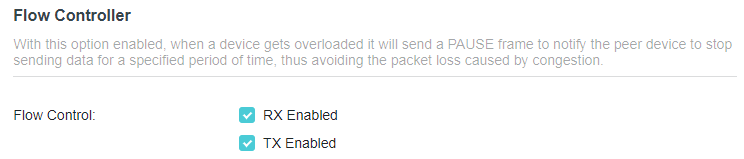
3.3.4 Flow Controller
When enabled, when a device gets overloaded it will send a PAUSE frame to notify the peer device to stop sending data for a specified period of time, thus avoiding the packet loss caused by congestion.
1. Visit http://tplinkwifi.net, and log in with your TP-Link ID or the password you set for the router.
2. Go to Advanced > Network > Internet Port. Locate the Flow Controller section.
3. Select the desired option and click SAVE.
3.3.5 Internet Settings for Router Mode
1. Visit http://tplinkwifi.net, and log in with your TP-Link ID or the password you set for the router.
2. Go to Advanced > Network > Internet.
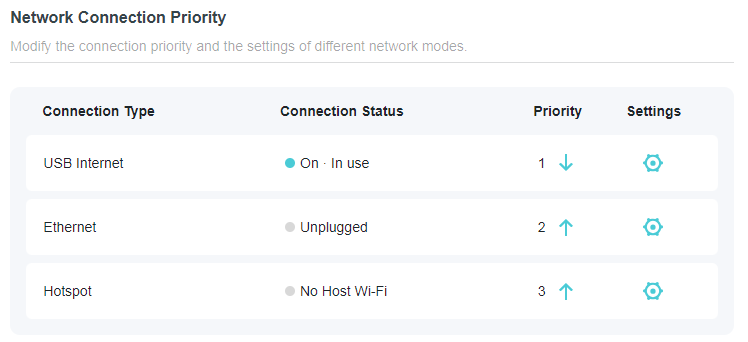
3. Locate the Network Connection Priority section. Select your internet connection type and tap the Settings icon , then enter the settings provided by your ISP.
Dynamic IP
If you choose Dynamic IP, you need to select whether to clone the MAC address. Dynamic IP users are usually equipped with a cable TV or fiber cable.
• Click RENEW to renew the IP parameters from your ISP.
• Click RELEASE to release the IP parameters.
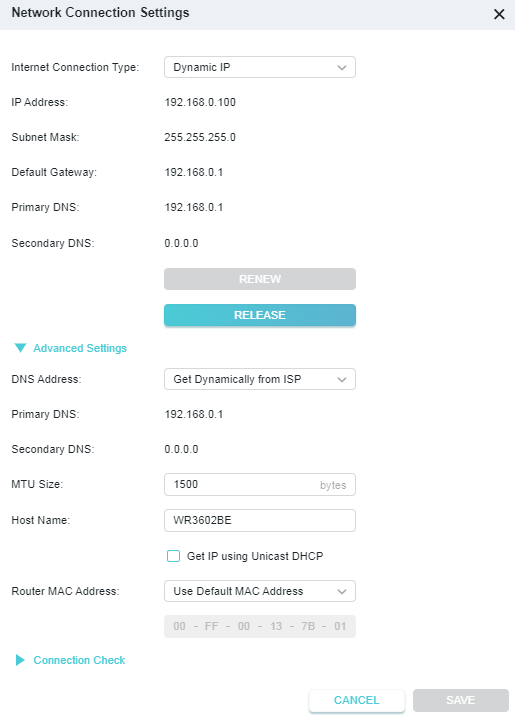
• DNS Address- The default setting is to get an IP address dynamically from your ISP. If your ISP does not automatically assign DNS addresses to the router, please select Use the Following DNS Addresses and enter the IP address in dotted-decimal notation of your ISP’s primary DNS server. If a secondary DNS server address is available, enter it as well.
• MTU Size - The normal MTU (Maximum Transmission Unit) value for most Ethernet networks is 1500 Bytes. It is not recommended that you change the default MTU size unless required by your ISP.
• Host Name - This option specifies the name of the router.
• Router MAC Address :
• Use Default MAC Address - Do not change the default MAC address of your router in case the ISP does not bind the assigned IP address to the MAC address.
• Clone Current Device MAC - Select to copy the current MAC address of the computer that is connected to the router, in case the ISP binds the assigned IP address to the MAC address.
• Use Custom MAC Address - Select if your ISP requires you to register the MAC address and enter the correct MAC address in this field, in case the ISP binds the assigned IP address to the specific MAC address.
Note:
• You can only use the MAC Address Clone function for PCs on the LAN.
• If you have changed the WAN MAC address when the WAN connection is PPPoE, it will not take effect until the connection is re-established.
• Connection Check:
The router uses Ping to check the connection status of the Ethernet/Hotspot/ USB Internet connection type periodically to check whether the internet is available. You can edit the following parameters, and click SAVE.
• Track Interval - The time interval between consecutive ICMP echo requests. You are recommended to keep it as the default.
• Change to unavailable/available if Ping failed/succeeded for X Times - The connection status will change to Disconnected/Connected if the Ping Failure/ Success times reach the value you set.
• IPv4 Track IP/Domain Name - Enter the IP address or domain name of the tested host or other network device that you want to check the connectivity between the router. You can add up to 4 items.
Static IP
If your ISP provides a static or fixed IP address, subnet mask, default gateway and DNS setting, please select Static IP.
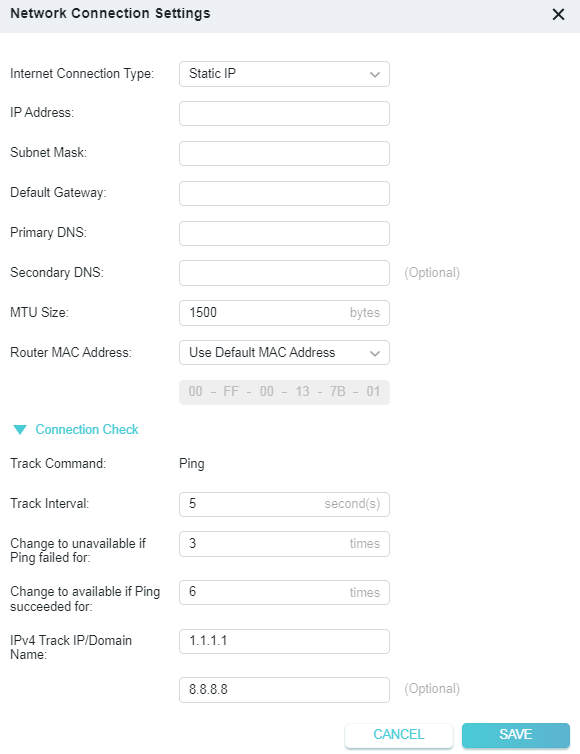
• IP Address - Enter the IP address in dotted-decimal notation provided by your ISP.
• Subnet Mask - Enter the subnet mask in dotted-decimal notation provided by your ISP. Normally 255.255.255.0 is used as the subnet mask.
• Default Gateway - Enter the gateway IP address in dotted-decimal notation provided by your ISP.
• Primary/Secondary DNS - (Optional) Enter one or two DNS addresses in dotteddecimal notation provided by your ISP.
• MTU Size - The normal MTU (Maximum Transmission Unit) value for most Ethernet networks is 1500 Bytes. It is not recommended that you change the default MTU size unless required by your ISP.
• Router MAC Address :
• Use Default MAC Address - Do not change the default MAC address of your router in case the ISP does not bind the assigned IP address to the MAC address.
• Clone Current Device MAC - Select to copy the current MAC address of the computer that is connected to the router, in case the ISP binds the assigned IP address to the MAC address.
• Use Custom MAC Address - Select if your ISP requires you to register the MAC address and enter the correct MAC address in this field, in case the ISP binds the assigned IP address to the specific MAC address.
Note:
• You can only use the MAC Address Clone function for PCs on the LAN.
• If you have changed the WAN MAC address when the WAN connection is PPPoE, it will not take effect until the connection is re-established.
• Connection Check:
The router uses Ping to check the connection status of the Ethernet/Hotspot/ USB Internet connection type periodically to check whether the internet is available. You can edit the following parameters, and click SAVE.
• Track Interval - The time interval between consecutive ICMP echo requests. You are recommended to keep it as the default.
• Change to unavailable/available if Ping failed/succeeded for X Times - The connection status will change to Disconnected/Connected if the Ping Failure/ Success times reach the value you set.
• IPv4 Track IP/Domain Name - Enter the IP address or domain name of the tested host or other network device that you want to check the connectivity between the router. You can add up to 4 items.
PPPoE
If your ISP provides PPPoE connection, select PPPoE.
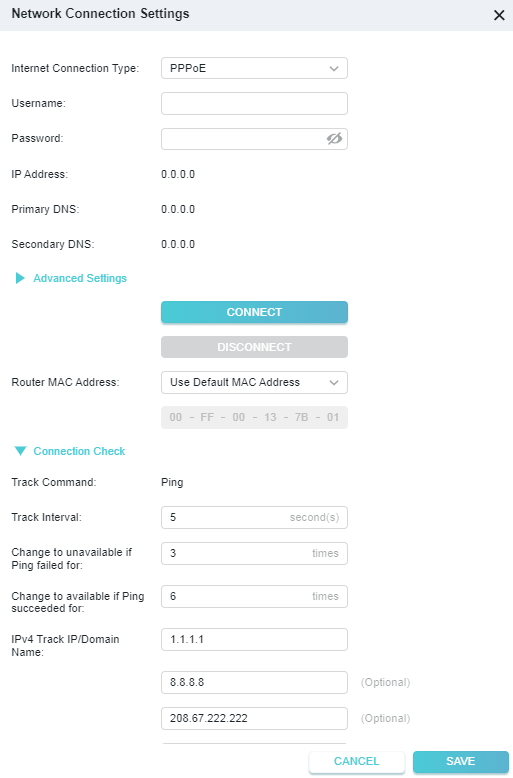
• Username/Password - Enter the username and password provided by your ISP. These fields are case-sensitive.
• Secondary Connection - It’s available only for PPPoE connection. If your ISP provides an extra connection type, select Dynamic IP or Static IP to activate the secondary connection.
• MTU Size - The default MTU size is 1480 bytes. It is not recommended that you change the default MTU size unless required by your ISP.
• Service Name - The service name should not be configured unless you are sure it is necessary for your ISP. In most cases, leaving these fields blank will work.
• Access Concentrator Name - The access concentrator name should not be configured unless you are sure it is necessary for your ISP. In most cases, leaving these fields blank will work.
• Detect Online Interval - The router will detect Access Concentrator online at every interval. The default value is 10. You can input the value between 0 and 120. The value 0 means no detect.
• IP Address - The default setting is to get an IP address dynamically from your ISP. If your ISP does not automatically assign IP addresses to the router, please select Use the Following IP Address and enter the IP address provided by your ISP in dotteddecimal notation.
• DNS Address - The default setting is to get an IP address dynamically from your ISP. If your ISP does not automatically assign DNS addresses to the router, please select Use the Following DNS Addresses and enter the IP address in dotted-decimal notation of your ISP’s primary DNS server. If a secondary DNS server address is available, enter it as well.
• Connection Mode:
• Auto - In this mode, the internet connection reconnects automatically whenever it gets disconnected.
• On Demand - In this mode, the internet connection will be terminated automatically after a specified inactivity period (Max Idle Time) and be reestablished when you attempt to access the internet again.
• Time-based - In this mode, the internet connection will be in effect during the Connection Time you set.
• Manual - In this mode, the internet connection is controlled manually by clicking the Connect/Disconnect button. This mode also supports the Max Idle Time function as On Demand mode. Enter a maximum time (in minutes), the internet connection can be inactive before it is terminated into the Max
Idle Time. The default value is 15 minutes. If you want the internet connection remains active all the time, enter 0 (zero).
• Router MAC Address:
• Use Default MAC Address - Do not change the default MAC address of your router in case the ISP does not bind the assigned IP address to the MAC address.
• Clone Current Device MAC - Select to copy the current MAC address of the computer that is connected to the router, in case the ISP binds the assigned IP address to the MAC address.
• Use Custom MAC Address - Select if your ISP requires you to register the MAC address and enter the correct MAC address in this field, in case the ISP binds the assigned IP address to the specific MAC address.
Note:
• Only when you have configured the system time on the Advaned > System > Time Settings page, will the time-based connecting function take effect.
• Sometimes the connection cannot be terminated although you have specified the Max Idle Time because some applications are visiting the internet continually in the background.
• You can only use the MAC Address Clone function for PCs on the LAN.
• If you have changed the WAN MAC address when the WAN connection is PPPoE, it will not take effect until the connection is re-established.
• Connection Check:
The router uses Ping to check the connection status of the Ethernet/Hotspot/ USB Internet connection type periodically to check whether the internet is available. You can edit the following parameters, and click SAVE.
• Track Interval - The time interval between consecutive ICMP echo requests. You are recommended to keep it as the default.
• Change to unavailable/available if Ping failed/succeeded for X Times - The connection status will change to Disconnected/Connected if the Ping Failure/ Success times reach the value you set.
• IPv4 Track IP/Domain Name - Enter the IP address or domain name of the tested host or other network device that you want to check the connectivity between the router. You can add up to 4 items.
L2TP
If your ISP provides L2TP connection, please select L2TP.
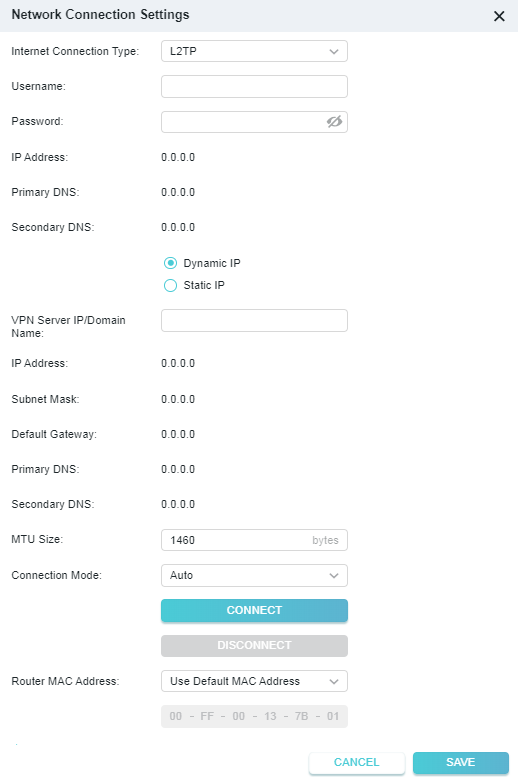
• Username/Password - Enter the username and password provided by your ISP. These fields are case-sensitive.
• VPN Server IP/ Domain Name - Enter the VPN server’s IP address or domain name provided by your ISP.
• MTU Size - The default MTU size is “1460” bytes, which is usually fine. It is not recommended that you change the default MTU Size unless required by your ISP.
• Connection Mode:
• Auto - In this mode, the internet connection reconnects automatically whenever it gets disconnected.
• On Demand - In this mode, the internet connection will be terminated automatically after a specified inactivity period (Max Idle Time) and be reestablished when you attempt to access the internet again.
• Manual - In this mode, the internet connection is controlled manually by clicking the Connect/Disconnect button. This mode also supports the Max Idle Time function as On Demand mode. Enter a maximum time (in minutes), the internet connection can be inactive before it is terminated into the Max Idle Time. The default value is 15 minutes. If you want the internet connection remains active all the time, enter 0 (zero).
• Router MAC Address:
• Use Default MAC Address - Do not change the default MAC address of your router in case the ISP does not bind the assigned IP address to the MAC address.
• Clone Current Device MAC - Select to copy the current MAC address of the computer that is connected to the router, in case the ISP binds the assigned IP address to the MAC address.
• Use Custom MAC Address - Select if your ISP requires you to register the MAC address and enter the correct MAC address in this field, in case the ISP binds the assigned IP address to the specific MAC address.
Note:
• Sometimes the connection cannot be terminated although you have specified the Max Idle Time because some applications are visiting the internet continually in the background.
• You can only use the MAC Address Clone function for PCs on the LAN.
• If you have changed the WAN MAC address when the WAN connection is PPPoE, it will not take effect until the connection is re-established.
• Connection Check:
The router uses Ping to check the connection status of the Ethernet/Hotspot/ USB Internet connection type periodically to check whether the internet is available. You can edit the following parameters, and click SAVE.
• Track Interval - The time interval between consecutive ICMP echo requests. You are recommended to keep it as the default.
• Change to unavailable/available if Ping failed/succeeded for X Times - The connection status will change to Disconnected/Connected if the Ping Failure/ Success times reach the value you set.
• IPv4 Track IP/Domain Name - Enter the IP address or domain name of the tested host or other network device that you want to check the connectivity between the router. You can add up to 4 items.
PPTP
If your ISP provides PPTP connection, please select PPTP.
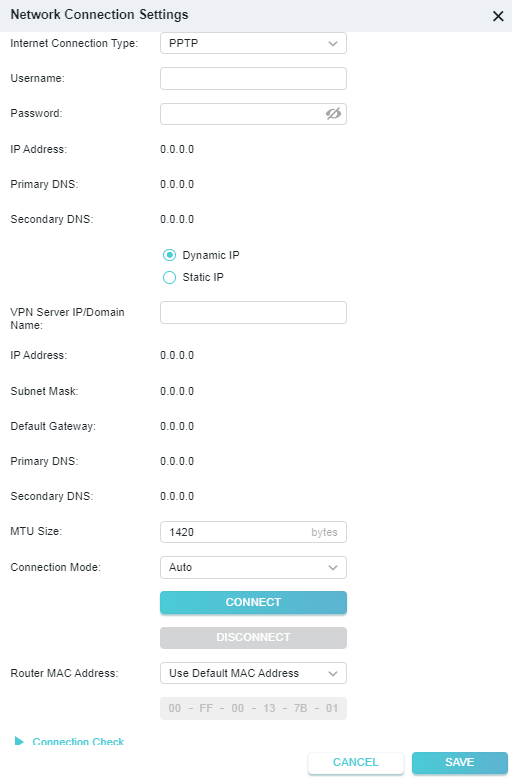
• Username/Password - Enter the username and password provided by your ISP. These fields are case-sensitive.
• VPN Server IP/ Domain Name - Enter the VPN server’s IP address or domain name provided by your ISP.
• MTU Size - The default MTU size is “1420” bytes, which is usually fine. It is not recommended that you change the default MTU Size unless required by your ISP.
• Connection Mode:
• Auto - In this mode, the internet connection reconnects automatically whenever it gets disconnected.
• On Demand - In this mode, the internet connection will be terminated automatically after a specified inactivity period (Max Idle Time) and be reestablished when you attempt to access the internet again.
• Manual - In this mode, the internet connection is controlled manually by clicking the Connect/Disconnect button. This mode also supports the Max Idle Time function as On Demand mode. Enter a maximum time (in minutes),
the internet connection can be inactive before it is terminated into the Max Idle Time. The default value is 15 minutes. If you want the internet connectionremains active all the time, enter 0 (zero).
• Router MAC Address:
• Use Default MAC Address - Do not change the default MAC address of your router in case the ISP does not bind the assigned IP address to the MAC address.
• Clone Current Device MAC - Select to copy the current MAC address of the computer that is connected to the router, in case the ISP binds the assigned IP address to the MAC address.
• Use Custom MAC Address - Select if your ISP requires you to register the MAC address and enter the correct MAC address in this field, in case the ISP binds the assigned IP address to the specific MAC address.
Note:
• Sometimes the connection cannot be terminated although you have specified the Max Idle Time because some applications are visiting the internet continually in the background.
• You can only use the MAC Address Clone function for PCs on the LAN.
• If you have changed the WAN MAC address when the WAN connection is PPPoE, it will not take effect until the connection is re-established.
• Connection Check:
The router uses Ping to check the connection status of the Ethernet/Hotspot/ USB Internet connection type periodically to check whether the internet is available. You can edit the following parameters, and click SAVE.
• Track Interval - The time interval between consecutive ICMP echo requests. You are recommended to keep it as the default.
• Change to unavailable/available if Ping failed/succeeded for X Times - The connection status will change to Disconnected/Connected if the Ping Failure/ Success times reach the value you set.
• IPv4 Track IP/Domain Name - Enter the IP address or domain name of the tested host or other network device that you want to check the connectivity between the router. You can add up to 4 items.
3.3.6 NAT
Note: 3G/4G/5G USB Modem mode and USB Tethering mode don’t have this function.
The router’s NAT (Network Address Translation) feature makes devices on the LAN use the same public IP address to communicate with devices on the internet, which protects the local network by hiding IP addresses of the devices.
1. Visit http://tplinkwifi.net, and log in with your TP-Link ID or the password you set for the router.
2. Go to Advanced > Network > Internet and locate the NAT section.
3. Enable NAT, then click SAVE.

4. NAT is enable by dafault and it’s highly recommended. If you disable it, you may have no access to the internet and NAT Forwarding will not take effect.
3.3.7 DoT/DoH
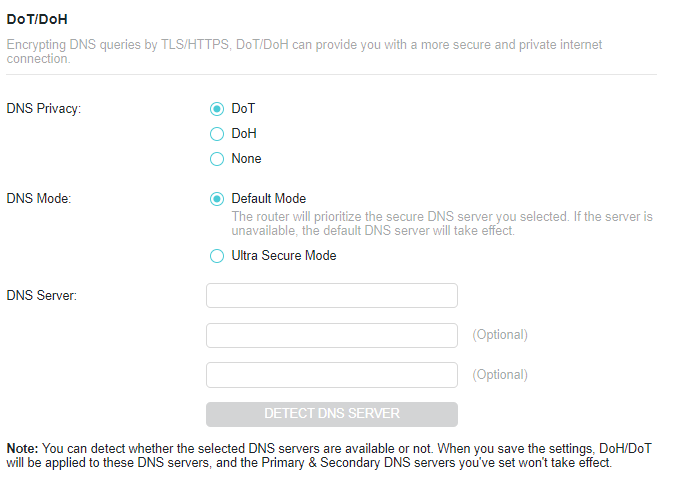
Encrypting DNS queries by TLS/HTTPS, DoT/DoH can provide you with a more secure and private internet connection.
1. Visit http://tplinkwifi.net, and log in with your TP-Link ID or the password you set for the router.
2. Go to Advanced > Network > Internet and locate the DoT/DoH section.
3. Select a DNS Privacy: DoT/DoH.
4. Select a DNS Mode.
• Default Mode: In this mode, the router will prioritize the secure DNS server you selected. If the server is unavailable, the default DNS server will take effect.
• Ultra Secure Mode: In this mode, the router only uses the secure DNS server you selected. If the server is unavailable, the internet connectivity will be affected.
5. Enter the DNS Server. You can detect whether the selected DNS servers are available or not. When you save the settings, DoH/DoT will be applied to these DNS servers, and the Primary & Secondary DNS servers you’ve set won’t take effect.
3.3.8 Multi-WAN Backup
Multi-WAN is supported in the Router/USB Internet/Hotspot mode. When the preferred mode fails, the backup mode will take over network data transmission, ensuring network continuity and reliability.
Note: USB Internet includes the 3G/4G USB Modem mode and USB Tethering mode.
1. Visit http://tplinkwifi.net, and log in with your TP-Link ID or the password you set for the router.
2. Go to Advanced > Network > Internet >Multi-WAN.
3. Enable Backup.

4. In Network Connection Priority, modify the connection priority and the settings of the Router mode and the USB Internet mode.
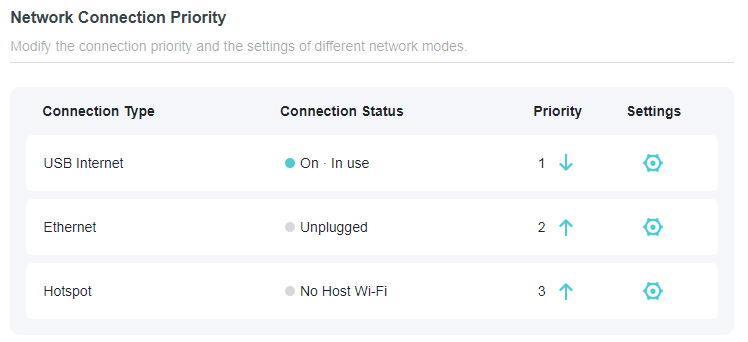
• To set Multi-WAN Backup priority:
Click  /
/  at each mode. The mode with the 1st priority will be set as the preferred mode, and the mode with the 2nd priority will be set as the backup mode. when the preferred mode fails, the backup mode will take over network data transmission.
3.3.9 LAN
1. Visit http://tplinkwifi.net, and log in with your TP-Link ID or the password you set for the router.
2. Go to Advanced > Network > LAN.
3. Configure the IP parameters of the LAN and click SAVE.
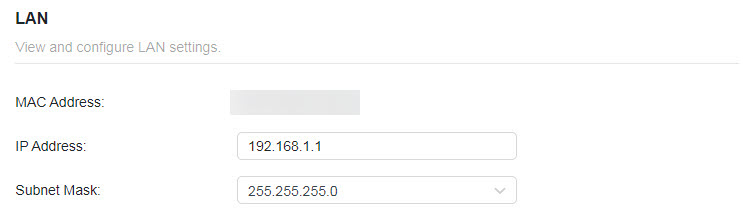
• MAC Address - The physical address of the LAN ports. The value can not be changed.
• IP Address - Enter the IP address in dotted-decimal notation of your router (the default one is 192.168.0.1).
• Subnet Mask - An address code that determines the size of the network. Normally 255.255.255.0 is used as the subnet mask.
Note:
• If you have changed the IP address, you must use the new IP address to log in.
• If the new IP address you set is not in the same subnet as the old one, the IP address pool in the DHCP Server will be configured automatically, but the Virtual Server and DMZ Host will not take effect until they are re-configured.
3.3.10 IGMP
IGMP (Internet Group Management Protocol) helps the router to identify which clients are subscribed to specific multicast groups within a local network. This allows for efficient transmission of multicast data packets, avoiding unnecessary traffic waste and improving network performance.
IGMP can be used to manage multicast transmission in IPTV. If you want to set up IPTV to enable Internet/IPTV/Phone service provided by your internet service provider (ISP), follow the steps:
Before you start, make sure your ISP provides the networking service based on IGMP technology, e.g., British Telecom(BT) and Talk Talk in UK:
1. Visit http://tplinkwifi.net, and log in with your TP-Link ID or the password you set for the router.
2. Go to Advanced > Network > IGMP.
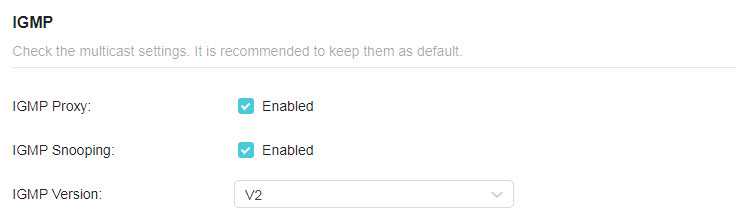
1 ) Tick the IGMP Proxy and IGMP Snooping checkbox, then select the IGMP Version, either V2 or V3, as required by your ISP.
2 ) Click SAVE.
3 ) After configuring IGMP proxy, IPTV can work behind your router now. You can connect your set-top box to any of the router’s Ethernet port.
3.3.11 DHCP Server
By default, the DHCP (Dynamic Host Configuration Protocol) Server is enabled and the router acts as a DHCP server; it dynamically assigns TCP/IP parameters to client devices from the IP Address Pool. You can change the settings of DHCP Server if necessary, and you can reserve LAN IP addresses for specified client devices.
• To specify the IP address that the router assigns:
1. Visit http://tplinkwifi.net, and log in with your TP-Link ID or the password you set for the router.
2. Go to Advanced > Network > DHCP Server and locate the DHCP Server section.
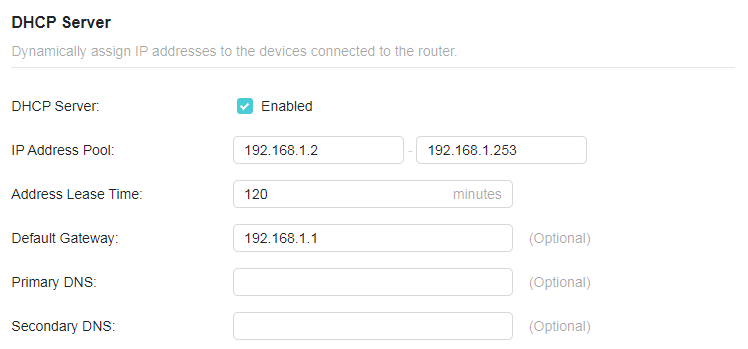
1. Tick the Enable checkbox.
2. Enter the starting and ending IP addresses in the IP Address Pool.
3. Enter other parameters if the ISP offers. The Default Gateway is automatically filled in and is the same as the LAN IP address of the router.
4. Click SAVE.
Note: To use the DHCP server function of the router, you must configure all computers on the LAN as Obtain an IP Address automatically.
• To reserve an IP address for a specified client device:
1. Visit http://tplinkwifi.net, and log in with your TP-Link ID or the password you set for the router.
2. Go to Advanced > Network > DHCP Server and locate the Address Reservation section.
3. Click Add in the Address Reservation section.
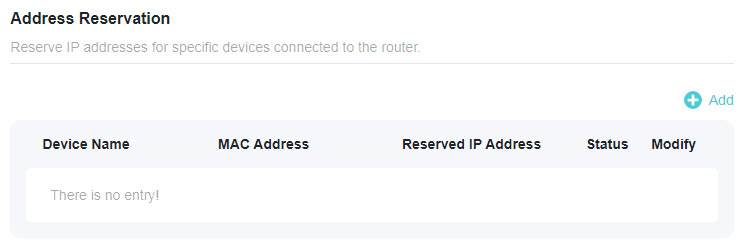
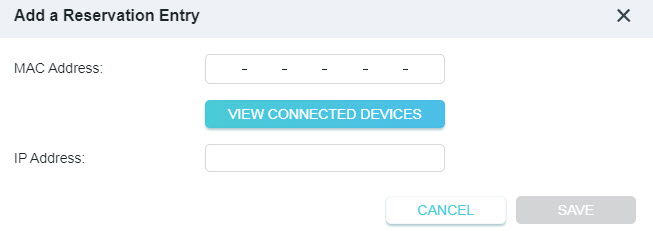
4. Click VIEW CONNECTED DEVICES and select the you device you want to reserve an IP for. Then the MAC and IP Address will be automatically filled in. You can also enter the MAC and IP address of the client device.
• To check the DHCP client list:
1. Visit http://tplinkwifi.net, and log in with your TP-Link ID or the password you set for the router.
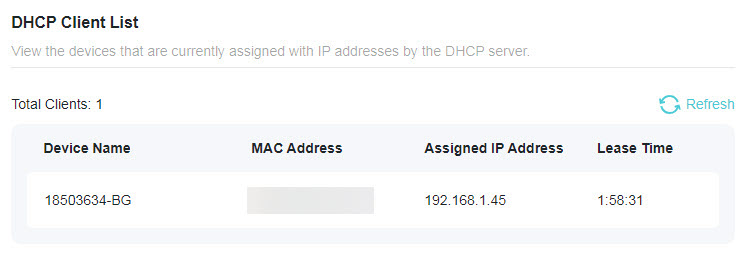
2. Go to Advanced > Network > DHCP Server and locate the DHCP Client List section. You can see the device information of the list.
3. Click Refresh to see the current attached devices.
3.3.12 Dynamic DNS
The router offers the DDNS (Dynamic Domain Name System) feature, which allows the hosting of a website, FTP server, or e-mail server with a fixed domain name (named by yourself) and a dynamic IP address. Thus your friends can connect to your server by entering your domain name no matter what your IP address is.
Before using this feature, you need to sign up for DDNS service providers such as www.comexe.cn, www.dyndns.org, or www.noip.com. The Dynamic DNS client service provider will give you a password or key.
1. Visit http://tplinkwifi.net, and log in with your TP-Link ID or the password you set for the router.
2. Go to Advanced > Network > Dynamic DNS.
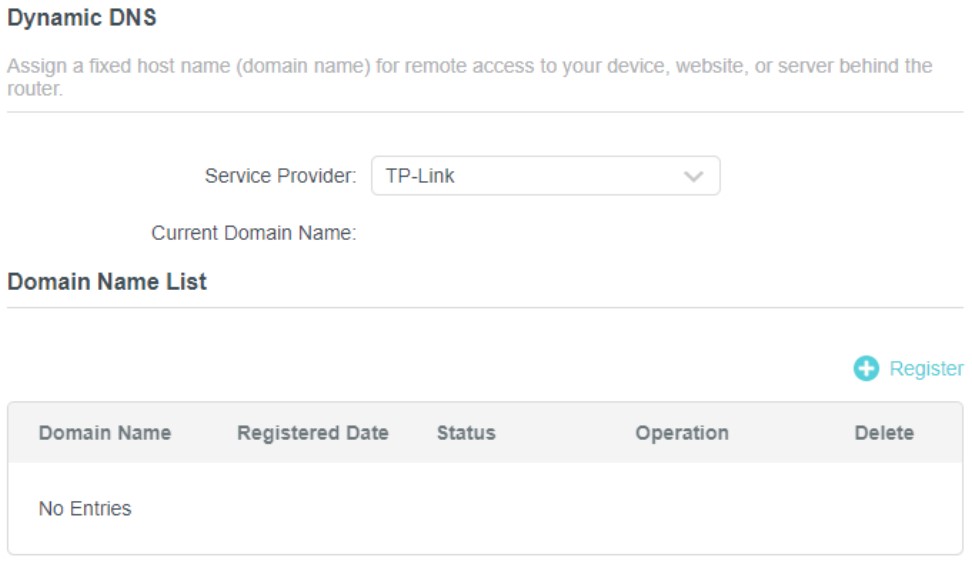
3. Select the DDNS Service Provider: TP-Link, NO-IP or DynDNS. It is recommended to select TP-Link so that you can enjoy TP-Link’s superior DDNS service. Otherwise, please select NO-IP or DynDNS. If you don’t have a DDNS account, you have to register first by clicking Register Now.
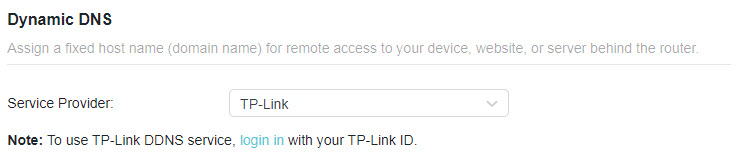
Note: To enjoy TP-Link’s DDNS service, you have to log in with a TP-Link ID. If you have not logged in with one, click log in.
4. Click Register in the Domain Name List if you have selected TP-Link, and enter the Domain Name as needed.
If you have selected NO-IP or DynDNS, enter the username, password and domain name of your account.
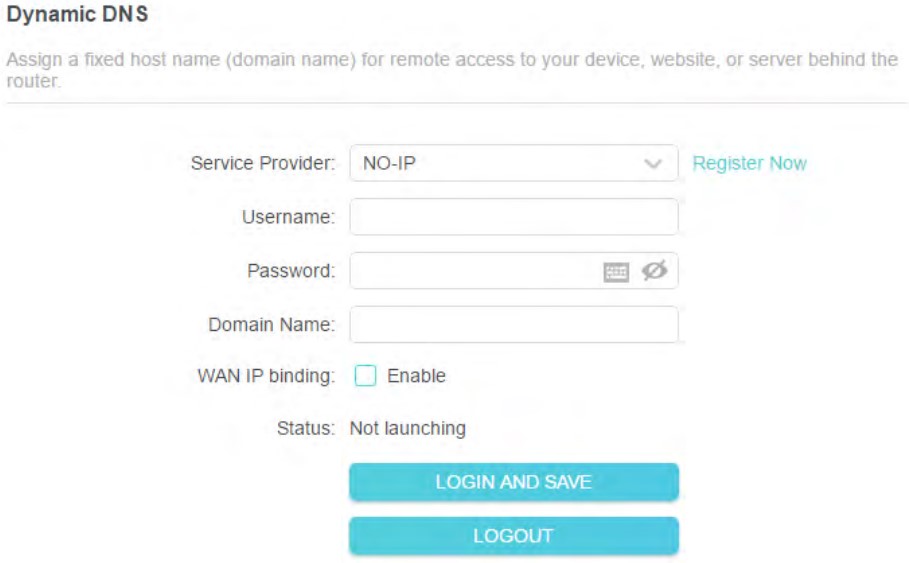
5. Click LOG IN AND SAVE.
Note: If you want to use a new DDNS account, please click LOGOUT first, and then log in with a new account.
3.3.13 Static Routing
Static Routing is a form of routing that is configured manually by a network administrator or a user by adding entries into a routing table. The manually-configured routing information guides the router in forwarding data packets to the specific destination.
I want to:
Visit multiple networks and servers at the same time.
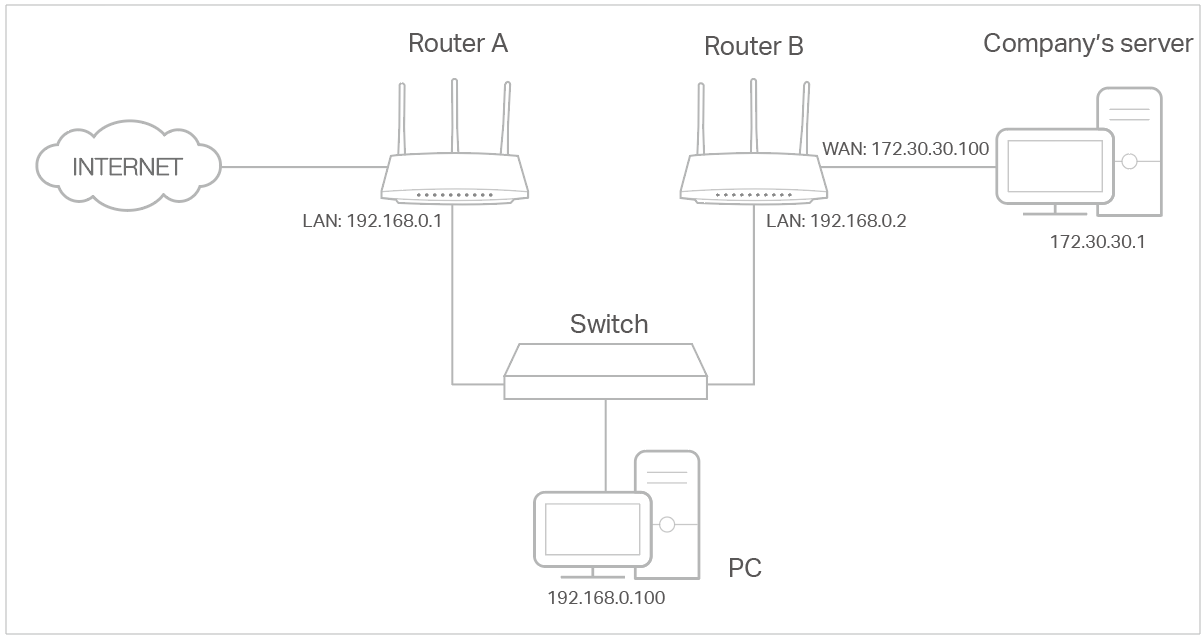
For example, in a small office, my PC can surf the internet through Router A, but I also want to visit my company’s network. Now I have a switch and Router B. I connect the devices as shown in the following figure so that the physical connection between my PC and my company’s server is established. To surf the internet and visit my company’s network at the same time, I need to configure the static routing.
*Image may differ from your actual product.
How can I do that?
1. Change the routers’ LAN IP addresses to two different IP addresses on the same subnet. Disable Router B’s DHCP function.
2. Visit http://tplinkwifi.net, and log in with your TP-Link ID or the password you set for Router A.
3. Go to Advanced > Network > Routing and locate the Static Routing section.
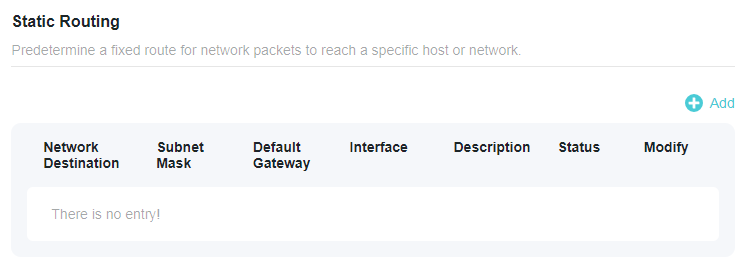
4. Click Add and finish the settings according to the following explanations:
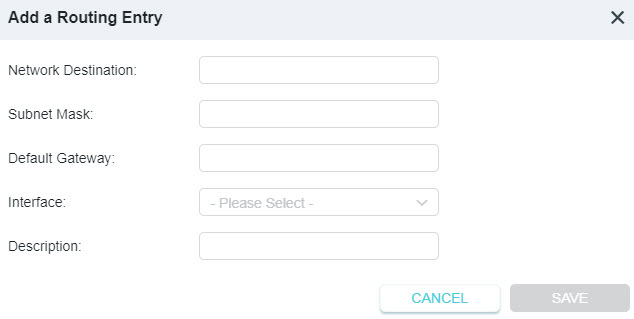
• Network Destination - The destination IP address that you want to assign to a static route, such as 192.168.0.100/24. This IP address cannot be on the same subnet with the WAN IP or LAN IP of Router A.
• Default Gateway - The IP address of the gateway device to which the data packets will be sent. This IP address must be on the same subnet with the router’s IP which sends out data. In the example, the data packets will be sent to the LAN port of Router B and then to the Server, so the default gateway should be 192.168.1.2.
• Interface - Determined by the port (WAN/LAN) that sends out data packets. In the example, the data are sent to the gateway through the LAN port of Router A, so LAN/WLAN should be selected.
• Description - Enter a description for this static routing entry.
5. Click SAVE.
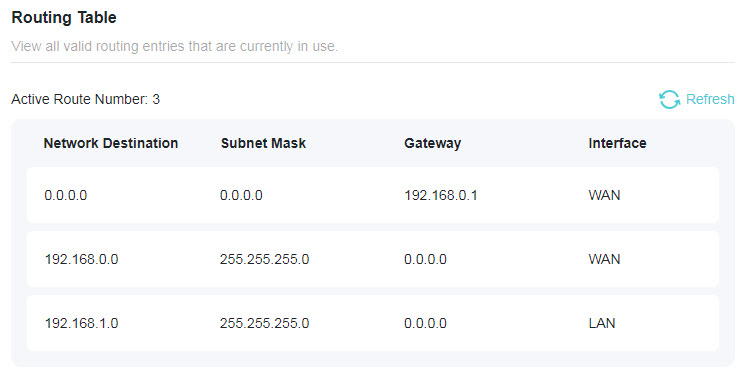
6. Check the Routing Table below. If you can find the entry you’ve set, the static routing is set successfully.
3.4 TP-Link Cloud Service
TP-Link Cloud service provides a better way to manage your cloud devices. Log in to your router with a TP-Link ID, and you can easily monitor and manage your home network when you are out and about via the Tether app. To ensure that your router stays new and gets better over time, the TP-Link Cloud will notify you when an important firmware upgrade is available. Surely you can also manage multiple TP-Link Cloud devices with a single TP-Link ID.
This section introduces how to register a new TP-Link ID, bind or unbind TP-Link IDs to manage your router, and the Tether app with which you can manage your home network no matter where you may find yourself.
3.4.1 Register a TP-Link ID
If you have skipped the registration during the Quick Setup process, you can:
1. Visit http://tplinkwifi.net, and log in with the password you set for the router.
2. Go to Advanced > TP-Link ID or click TP-Link ID on the very top of the page.
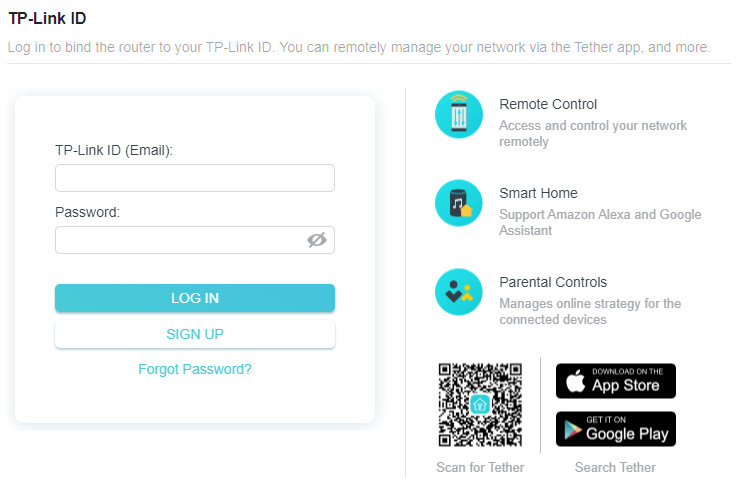
3. Click Sign Up and follow the instructions to register a TP-Link ID.
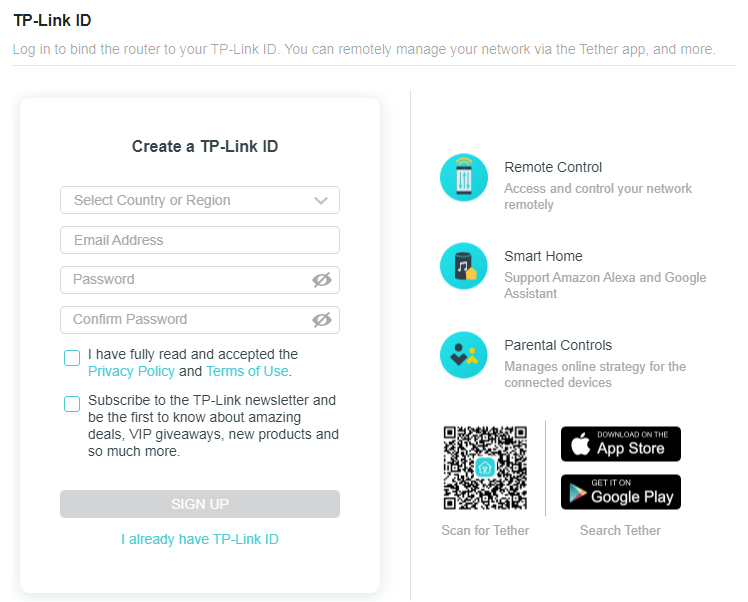
4. After activating your TP-Link ID, come back to the TP-Link ID page to log in. The TP-Link ID used to log in to the router for the first time will be automatically bound as an Admin.
Note:
• To learn more about the Admin and User TP-Link ID, refer to Manage the User TP-Link IDs.
• Once you have registered a TP-Link ID on the web management page, you can only register another TPLink ID via the Tether APP. Please refer to Log In via Tether to install the app.
• If you want to unbind the admin TP-Link ID from your router, please go to Advanced > TP-Link ID, an click Unbind in the Device Information section.
3.4.2 Change Your TP-Link ID Information
Follow the steps below to change your email address and password of your TP-Link ID as needed.
1. Visit http://tplinkwifi.net, and log in with your TP-Link ID.
2. Go to Advanced > TP-Link ID, and focus on the TP-Link ID section.
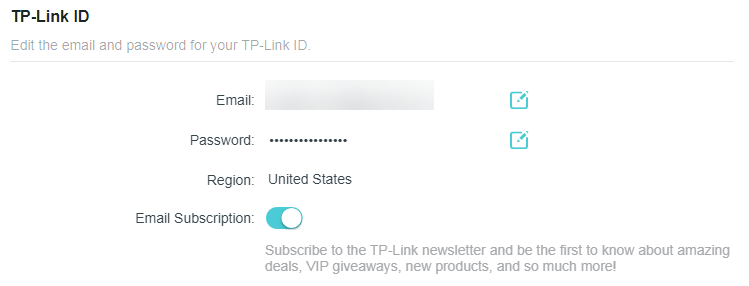
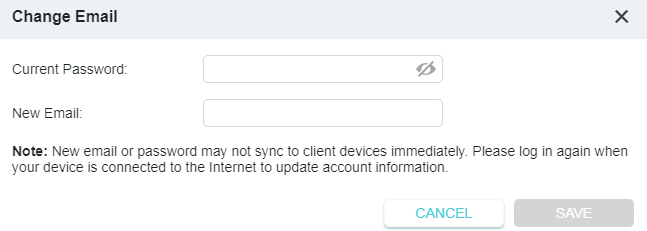
• To change your email address:
1. Click  behind the Email.
2. Enter the password of your TP-Link ID, then a new email address. And click SAVE.
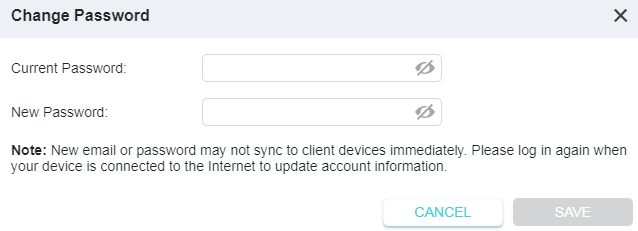
• To change your password:
1. Click behind the Password.
2. Enter the current password, then a new password twice. And click SAVE.
3.4.3 Manage the User TP-Link IDs
The TP-Link ID used to log in to the router for the first time will be automatically bound as the Owner account. The Owner account can add or remove other TP-Link IDs to or from the same router. All accounts can monitor and manage the router locally or remotely, but only the owner account can:
• Reset the router to its factory default settings either on the web management page or in the Tether app.
• Add/remove other TP-Link IDs to/from the router.
Add TP-Link ID to Manage the Router
1. Visit http://tplinkwifi.net, and log in with your TP-Link ID.
2. Go to Advanced > TP-Link ID, and focus on the Bound TP-Link IDs section.
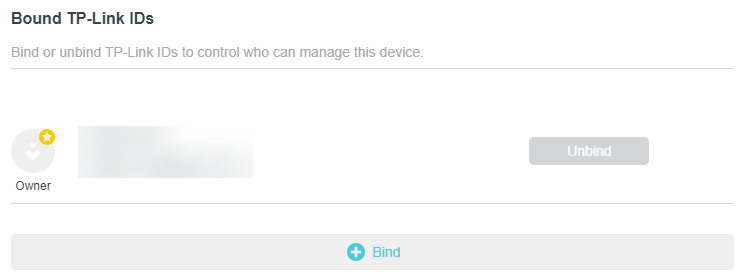
3. Click  , enter another TP-Link ID as needed and click SAVE.
Note: If you need another TP-Link ID, please register a new one via the Tether app. Refer to Manage the Router via the TP-Link Tether App to install the app and register a new TP-Link ID.
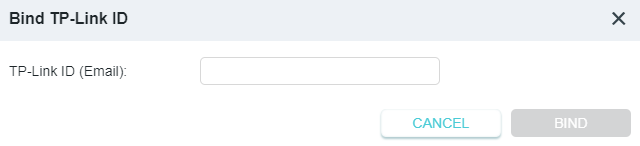
4. The new TP-Link ID will be displayed in the Bound TP-Link IDs table.
Remove TP-Link ID(s) from Managing the Router
1. Visit http://tplinkwifi.net, and log in with your TP-Link ID.
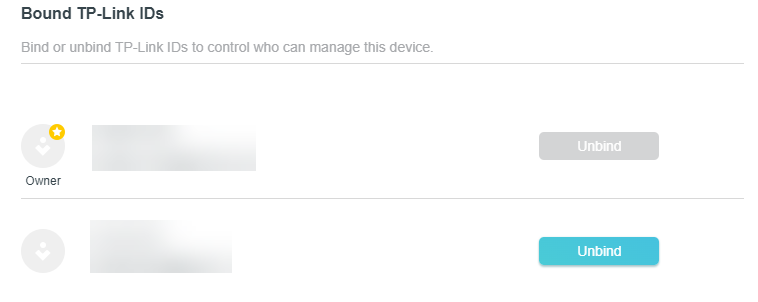
2. Go to Advanced > TP-Link ID, and focus on the Bound TP-Link IDs section.
3. Tick Unbind of the TP-Link ID(s) you want to remove.
3.4.4 Manage the Router via the TP-Link Tether App
The Tether app runs on iOS and Android devices, such as smartphones and tablets.
1. Launch the Apple App Store or Google Play store and search “TP-Link Tether” or simply scan the QR code to download and install the app.

2. Launch the Tether app and log in with your TP-Link ID. If you don’t have a TP-Link ID, create one first.
3. Connect your device to the router’s wireless network.
4. Go back to the Tether app, select the model of your router and log in with the password you set for the router.
5. Manage your router as needed.
Note: If you need to remotely access your router from your smart devices, you need to:
• Log in with your TP-Link ID. If you don’t have one, refer to Register a TP-Link ID.
• Make sure your smartphone or tablet can access the internet with cellular data or a Wi-Fi network.
3.5 Wireless
3.5.1 Wireless Settings
1. Visit http://tplinkwifi.net, and log in with your TP-Link ID or the password you set for the router.
2. Go to Advanced > Wireless > Wireless Settings.
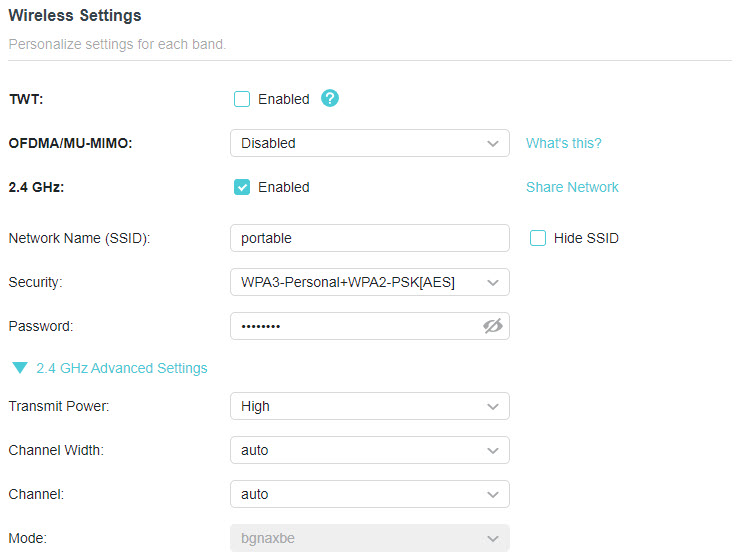
3. Configure the wireless settings for the wireless network and click SAVE.
![a TP-Link router "5 GHz" Wireless Settings configuration page. The network is enabled with the SSID "portable_5G" and security set to WPA3-Personal+WPA2-PSK[AES]. Advanced settings show Transmit Power as High, Channel Width as 80, and Channel and Mode both set to auto.](https://static.tp-link.com/upload/resource-section/Wireless_Settings-2_20251230061914u.jpg)
• TWT - Target Wake Time allows 802.11ax routers and clients to negotiate their periods to transmit and receive data packets. Clients only wake up at TWT sessions and remain in sleep mode for the rest of the time, which significantly extend their battery life.
• OFDMA/MU-MIMO - This feature enables multiple users to transmit data simultaneously, and thus greatly improves speed and efficiency. Noted that only when your clients also support OFDMA, can you fully enjoy the benefits.
• 2.4GHz/5GHz - Select this checkbox to enable the 2.4GHz/5GHz wireless network.
• Share Network- Click to save the Wi-Fi settings for sharing.
• Network Name (SSID) - Enter a value of up to 32 characters. The same Name (SSID) must be assigned to all wireless devices in your network.
• Hide SSID - Select this checkbox if you want to hide the network name (SSID) from the Wi-Fi network list. In this case, you need to manually join the network.
• Security - Select an option from the Security drop-down list. We recommend you don’t change the default settings unless necessary.
• Password - Set a password for the wireless network. The value is case-sensitive.
• Transmit Power - Select High, Middle or Low to specify the data transmit power. The default and recommended setting is High.
• Channel Width - Select a channel width (bandwidth) for the wireless network.
• Channel - Select an operating channel for the wireless network. For the 2.4 GHz and 5GHz bands, it is recommended to leave the channel to Auto, if you are not experiencing the intermittent wireless connection issue.
• Mode - You can choose the appropriate “Mixed” mode.
3.5.2 MLO Network
MLO (Multi-Link Operation) network enables the connected Wi-Fi 7 clients to simultaneously send and receive data across different frequency bands, greatly improving the transmission rate and reliability.
Note: Some models may not have the MLO network. Images may differ from actual products.
1. Go to Advanced > Wireless > Wireless Settings.
2. Locate the MLO Network section and enable MLO Network.
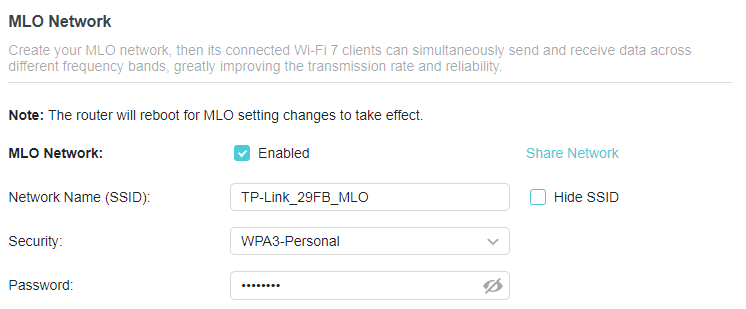
3. Specify an SSID in Network Name (SSID).
4. Select the Security type. Specify a password if the security type you selected requires it. This value is case-sensitive.
5. You can also click Share Network to share the SSID and password with your guests.
6. If you select Hide SSID, your SSID won’t display when you scan for local wireless networks on your wireless device and you need to manually join the MLO network.
7. Click SAVE to save your settings.
3.5.3 Guest Network
Guest Network allows you to provide Wi-Fi access for guests without disclosing your host network. When you have guests in your house, apartment, or workplace, you can create a guest network for them. In addition, you can customize guest network settings to ensure network security and privacy.
• Create a Guest Network
1. Visit http://tplinkwifi.net, and log in with your TP-Link ID or the password you set for the router.
2. Go to Advanced > Wireless > Guest Network.
3. Enable the 2.4GHz/5GHz guest network according to your needs.
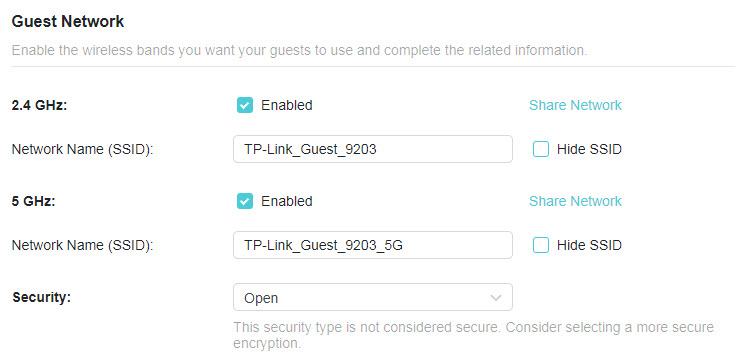
4. Customize the SSID. Don‘t select Hide SSID unless you want your guests to manually input the SSID for guest network access.
5. Select the Security type and customize your own password. If No security is selected, no password is needed to access your guest network.
6. Click SAVE. Now you guests can access your guest network using the SSID and password you set!
• Customize Guest Network Options
1. Visit http://tplinkwifi.net, and log in with your TP-Link ID or the password you set for the router.
2. Go to Advanced > Wireless > Guest Network. Locate the Guest Permissions section.
3. Customize guest network options according to your needs.
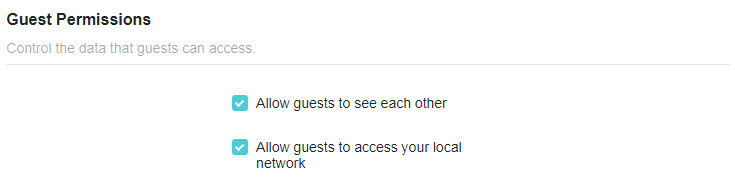
• Allow guests to see each other
Tick this checkbox if you want to allow the wireless clients on your guest network to communicate with each other via methods such as network neighbors and Ping.
• Allow guests to access my local network
Tick this checkbox if you want to allow the wireless clients on your guest network to communicate with the devices connected to your router’s LAN ports or main network via methods such as network neighbors and Ping.
4. Click SAVE. Now you can ensure network security and privacy!
3.5.4 Wireless Schedule
The wireless function can be automatically off at a specific time when you do not need the wireless function.
1. Visit http://tplinkwifi.net, and log in with your TP-Link ID or the password you set for the router.
2. Go to Advanced > Wireless > Wireless Schedule.
3. Enable the Wireless Schedule function.
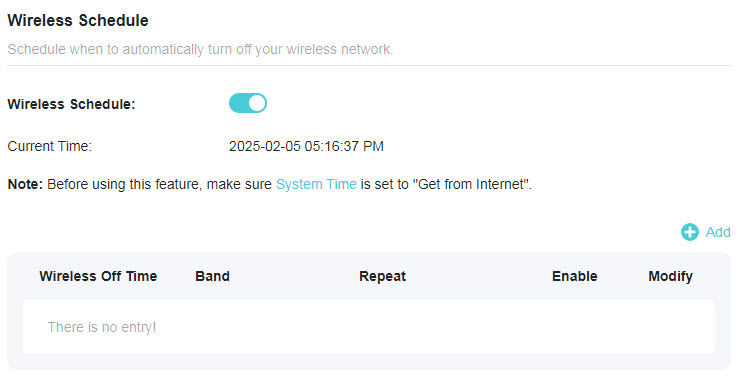
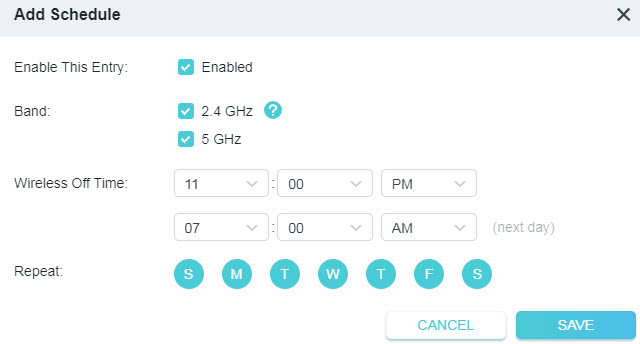
4. Click Add to specify a wireless off period during which you need the wireless off automatically, and click SAVE.
Note:
• The effective wireless schedule is based on the time of the router. You can go to Advanced > System > Time to modify the time.
• The wireless network will be automatically turned on after the time period you set.
3.5.5 WPS
WPS (Wi-Fi Protected Setup) can help you to quickly and securely connect to a network. This section will guide you to add a new wireless device to your router’s network quickly via WPS.
Note:
• The WPS function cannot be configured if the wireless function of the router is disabled. Please make sure the wireless function is enabled before configuration.
1. Visit http://tplinkwifi.net, and log in with your TP-Link ID or the password you set for the router.
2. Go to Advanced > Wireless > WPS.
3. Follow one of the following methods to connect your client device to the router’s Wi-Fi network.
Method 1: Using a PIN
• Connects via the Client’s PIN
1. Keep the WPS Status as Enabled and select Client’s PIN.
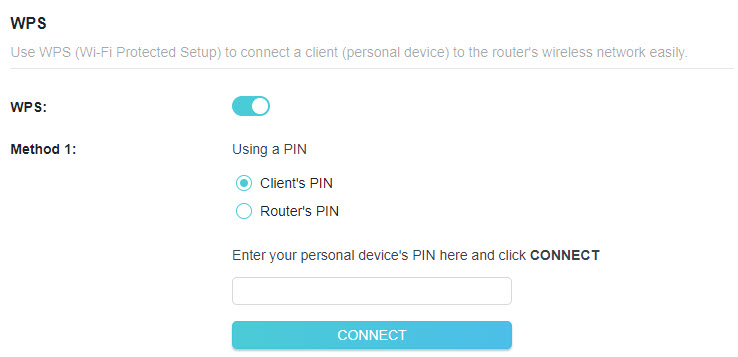
2. Enter the PIN of your device and click CONNECT. Then your device will get connected to the router.
• Connects via the Router’s PIN
1. Keep the WPS Status as Enabled and select Router’s PIN.
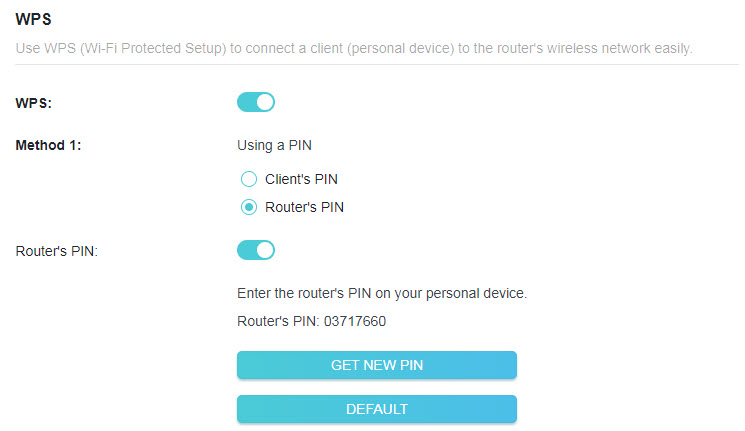
2. Enter the router’s PIN on your personal device. You can also generate a new one.
Note: PIN (Personal Identification Number) is an eight-character identification number preset to each router. WPS supported devices can connect to your router with the PIN.
Method 2: Using the WPS Button on the Web Screen
Click Start on the screen. Within two minutes, enable WPS on your personal device.
A Device-(XX-XX-XX-XX-XX-XX) Connected message should appear on the screen, indicating successful WPS connection.
Note: XX-XX-XX-XX-XX-XX is the MAC address of your device.
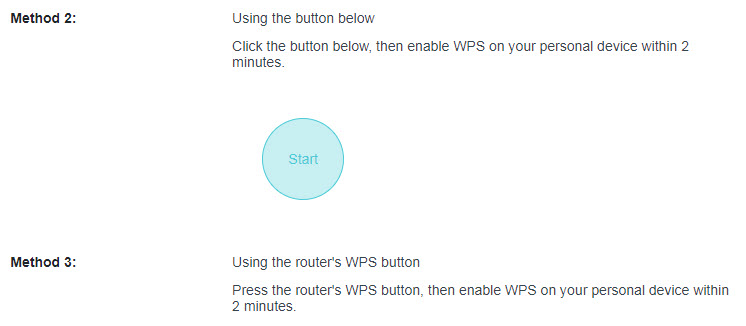
Method 3: Using the WPS Button on the Router
Press the router’s WPS button. Within two minutes, enable WPS on your personal device.
3.5.6 Additional Settings
1. Visit http://tplinkwifi.net, and log in with your TP-Link ID or the password you set for the router.
2. Go to Advanced > Wireless > Additional Settings.
3. Configure the advanced settings of your wireless network and click SAVE.
Note: If you are not familiar with the setting items on this page, it’s strongly recommended to keep the provided default values; otherwise it may result in lower wireless network performance.
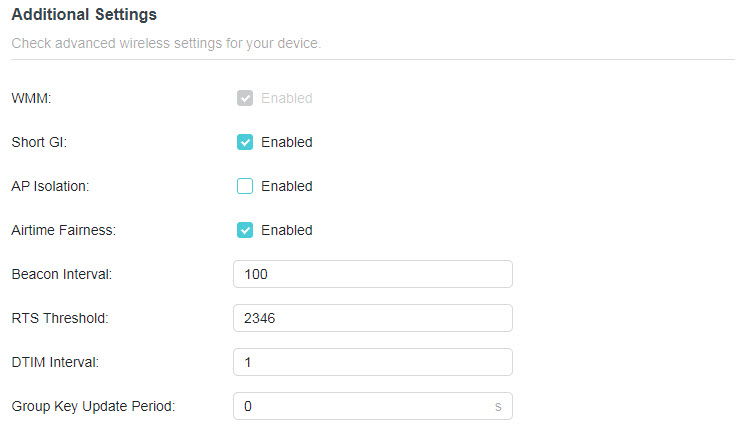
• WMM - WMM function can guarantee the packets with high-priority messages being transmitted preferentially.
• Short GI - This function reduces the time between data packets to potentially increase the throughput of wireless network.
• AP Isolation - This function isolates all connected wireless stations so that wireless stations cannot access each other through WLAN.
• Airtime Fairness - This function can improve the overall network performance by sacrificing a little bit of network time on your slow devices.
• Beacon Interval - Enter a value between 40-1000 milliseconds for Beacon Interval here. Beacon Interval value determines the time interval of the beacons. The beacons are the packets sent by the router to synchronize a wireless network. The default value is 100.
• RTS Threshold - Here you can specify the RTS (Request to Send) Threshold. If the packet is larger than the specified RTS Threshold size, the router will send RTS frames to a particular receiving station and negotiate the sending of a data frame. The default value is 2346.
• DTIM Interval - This value determines the interval of the Delivery Traffic Indication Message (DTIM). A DTIM field is a countdown field informing clients of the next window for listening to broadcast and multicast messages. When the router has buffered broadcast or multicast messages for associated clients, it sends the next DTIM with a DTIM Interval value. You can specify the value between 1-255 Beacon Intervals. The default value is 1, which indicates the DTIM Interval is the same as Beacon Interval.
• Group Key Update Period - Enter a number of seconds (minimum 30) to control the time interval for the encryption key automatic renewal. The default value is 0, meaning no key renewal.
3.6 USB Storage Device
Insert your USB storage device into the router’s USB port and then access files stored there locally or remotely.
Tips:
• If you use USB hubs, make sure no more than 4 devices are connected to the router.
• If the USB storage device requires using bundled external power, make sure the external power has been connected.
• If you use a USB hard drive, make sure its file system is FAT32, exFat, NTFS or HFS+.
• Before you physically disconnect a USB device from the router, safely remove it to avoid data damage: Go to Advanced > USB > Storage Device and click Remove.
3.6.1 Access the USB Device Locally
Insert your USB storage device into the router’s USB port and then refer to the following table to access files stored on your USB storage device.
| Windows computer |
• Method 1:
• Method 2:
|
|---|---|
| Mac |
1 ) Select Go > Connect to Server.
4 ) When prompted, select the Guest radio box. (If you have set up a username and a password to deny anonymous access to the USB disks, you should select the Registered User radio box. To learn how to set up an account for the access, refer to To Set Up Authentication for Data Security.) |
| Tablet | Use a third-party app for network files management. |
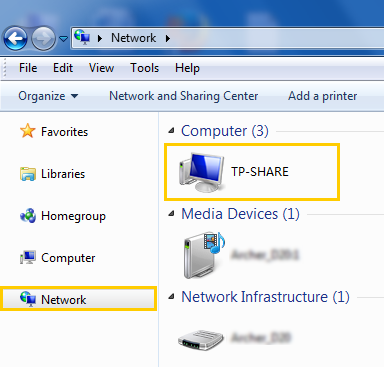
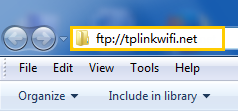
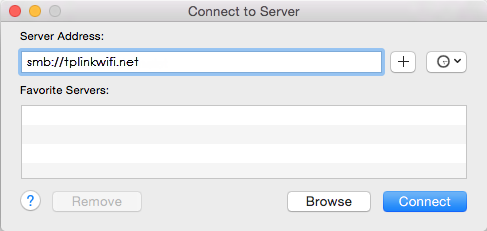
Tips:
You can also access your USB storage device by using your Network/Media Server Name as the server address. Refer to To Customize the Address of the USB Storage Device to learn more.
3.6.2 Access the USB Device Remotely
You can access your USB disk outside the local area network. For example, you can:
• Share photos and other large files with your friends without logging in to (and paying for) a photo-sharing site or email system.
• Get a safe backup for the materials for a presentation.
• Remove the files on your camera’s memory card from time to time during the journey.
Note: If your ISP assigns a private WAN IP address (such as 192.168.x.x or 10.x.x.x), you cannot use this feature because private addresses are not routed on the internet.
Follow the steps below to configure remote access settings.
1. Visit http://tplinkwifi.net, and log in with your TP-Link ID or the password you set for the router.
2. Go to Advanced > USB > Storage Device.
3. Tick the Internet FTP checkbox, and then click SAVE.
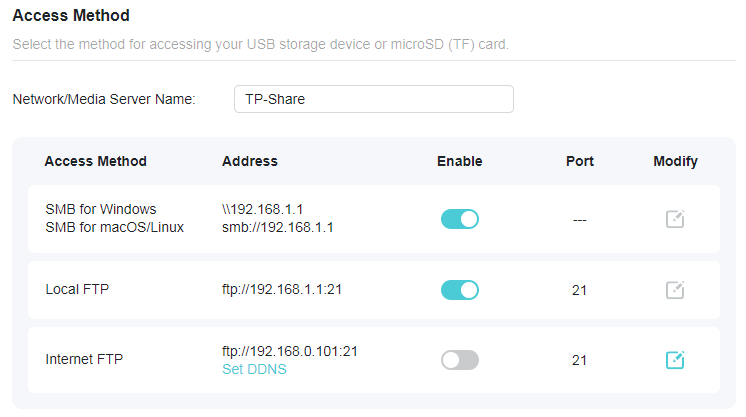
4. Refer to the following table to access your USB disk remotely.
| Computer |
1 ) Open the Windows Explorer (or go to Computer, only for Windows users) or open a web browser.
3 ) Press Enter on the keyboard. |
|---|---|
| Tablet | Use a third-party app for network files management. |
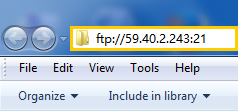
Tips: Click Dynamic DNS to learn how to set up a domain name for you router.
3.6.3 Customize the Access Settings
By default, all the network clients can access all folders on your USB disk. You can customize your sharing settings by setting a sharing account, sharing specific contents and setting a new sharing address on the router’s web management page.
1. Visit http://tplinkwifi.net, and log in with your TP-Link ID or the password you set for the router.
2. Go to Advanced > USB > Storage Device.
• To Customize the Address of the USB Storage Device
You can customize the server name and use the name to access your USB storage device.
1. In the Access Method session, make sure Samba for Windows Samba for macOS/ Linux is enabled, and enter a Network/Media Server Name as you like, such as MyShare, then click SAVE.
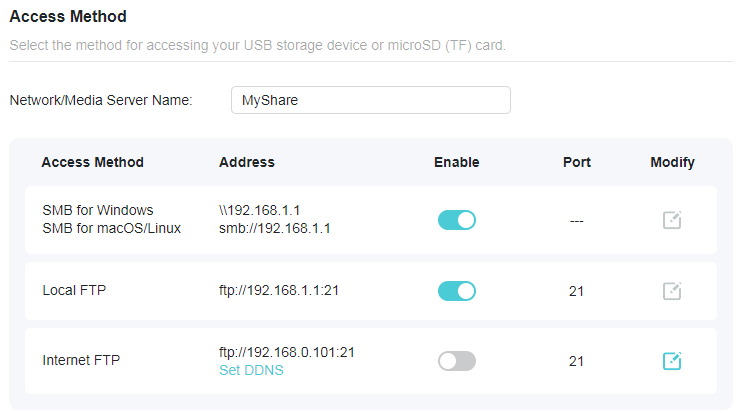
2. Now you can access the USB storage device by visiting \\MyShare (for Windows) or smb://MyShare (for Mac).
• To Only Share Specific Content
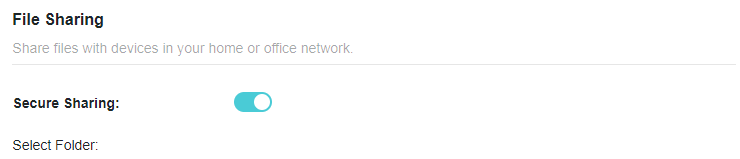
Focus on the File Sharing section. Specify sharing folders that you want to share and click SAVE.
• To Set Up Authentication for Data Security
You can set up authentication for your USB storage device so that network clients will be required to enter username and password when accessing the USB storage device.
1. In the File Sharing section, enable Secure Sharing.
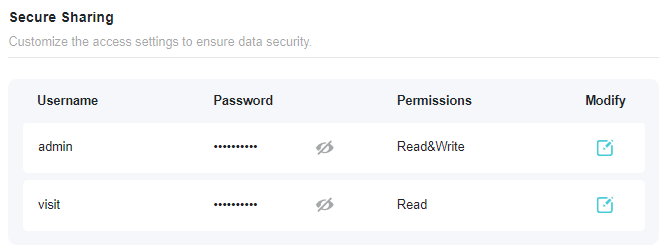
2. Click to modify the access account, and pay attention to the default username and password. Accessing as an administrator can read and modify the shared folders while visitors can only read the shared folders.
Note:
1. For Windows users, do not set the sharing username the same as the Windows username. Otherwise, Windows credential mechanism may cause the following problems:
• If the sharing password is also the same as the Windows password, authentication will not work since the Windows will automatically use its account information for USB access.
• If the sharing password is different from the Windows password, the Windows will be unable to remember your credentials and you will always be required to enter the sharing password for USB access.
2. Due to Windows credential mechanism, you might be unable to access the USB disk after changing Authentication settings. Please log out from the Windows and try to access again. Or you can change the address of the USB disk by referring to To Customize the Address of the USB Storage Device.
3.6.4 Media Sharing
The feature of Media Sharing allows you to view photos, play music and watch movies stored on the USB storage device directly from DLNA-supported devices, such as your computer, tablet and PS2/3/4.
Note: Some models may not support this feature. Images may differ from actual products.
1. Visit http://tplinkwifi.net, and log in with your TP-Link ID or the password you set for the router.
2. Go to Advanced > USB > Storage Device.
3. Enable Media Sharing.

4. When your USB storage device is inserted into the router, your DLNA-supported devices (such as your computer and pad) connected to the router can detect and play the media files on the USB storage devices.
5. Refer to the following table for detailed instructions.
| Windows Computer |
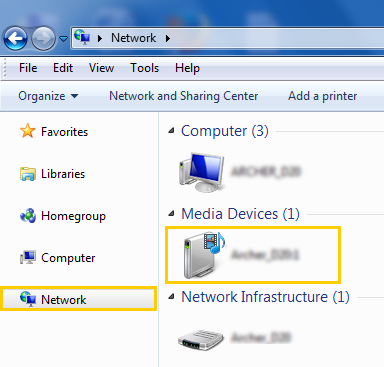
Go to Computer > Network, then click the Media Server Name (Model number-share by default) in the Media Devices section.
|
|---|---|
| Tablet | • Use a third-party DLNA-supported player. |
3.7 NAT Forwarding
The router’s NAT (Network Address Translation) feature makes the devices on the LAN use the same public IP address to communicate on the internet, which protects the local network by hiding IP addresses of the devices. However, it also brings about the problem that external hosts cannot initiatively communicate with the specified devices in the local network.
With the forwarding feature, the router can traverse the isolation of NAT so that clients on the internet can reach devices on the LAN and realize some specific functions. The Mercusys router includes four forwarding rules. If two or more rules are set, the priority of implementation from high to low is Port Forwarding, Port Triggering, UPNP and DMZ.
3.7.1 Port Forwarding
When you build up a server in the local network and want to share it on the internet, Port Forwarding can realize the service and provide it to internet users. At the same time Port Forwarding can keep the local network safe as other services are still invisible from the internet.
Port Forwarding can be used to set up public services in your local network, such as HTTP, FTP, DNS, POP3/SMTP and Telnet. Different service uses different service port. Port 80 is used in HTTP service, port 21 in FTP service, port 25 in SMTP service and port 110 in POP3 service. Please verify the service port number before the configuration.
I want to:
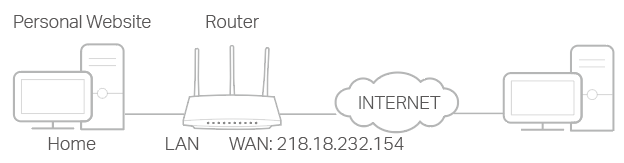
Share my personal website I’ve built in local network with my friends through the internet.
For example, the personal website has been built in my home PC (192.168.1.100). I hope that my friends on the internet can visit my website in some way. My PC is connected to the router with the WAN IP address 218.18.232.154.
1. Set your PC to a static IP address, for example 192.168.1.100.
2. Visit http://tplinkwifi.net, and log in with your TP-Link ID or the password you set for the router.
3. Go to Advanced > NAT Forwarding > Port Forwarding.
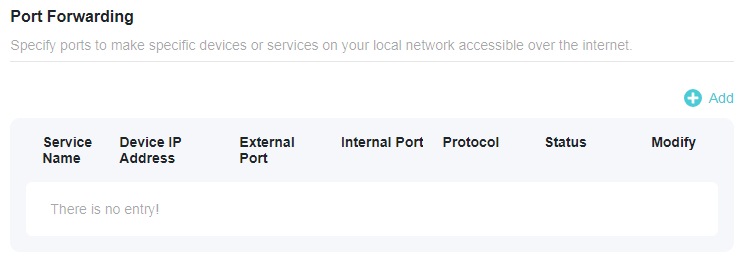
4. Click Add.
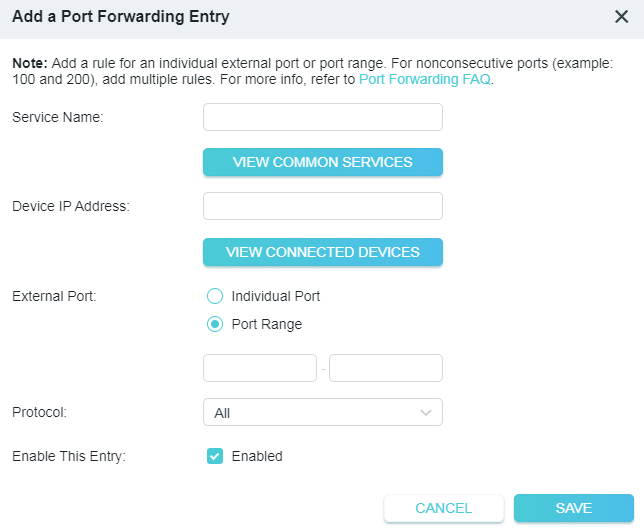
5. Click VIEW COMMON SERVICES and select HTTP. The External Port, Internal Port and Protocol will be automatically filled in.
6. Click VIEW CONNECTED DEVICES and select your home PC. The Device IP Address will be automatically filled in. Or enter the PC’s IP address 192.168.0.100 manually in the Device IP Address field.
7. Click SAVE.
Tips:
• It is recommended to keep the default settings of Internal Port and Protocol if you are not clear about which port and protocol to use.
• If the service you want to use is not in the common services list, you can enter the corresponding parameters manually. You should verify the port number that the service needs.
• You can add multiple port forwarding rules if you want to provide several services in a router. Please note that the External Port should not be overlapped.
Done!
Users on the internet can enter http:// WAN IP (in this example: http:// 218.18.232.154) to visit your personal website.
Tips:
• The WAN IP should be a public IP address. For the WAN IP is assigned dynamically by the ISP, it is recommended to apply and register a domain name for the WAN referring to Dynamic DNS. Then users on the internet can use http:// domain name to visit the website.
• If you have changed the default External Port, you should use http:// WAN IP: External Port or http:// domain name: External Port to visit the website.
3.7.2 Port Triggering
Port Triggering can specify a triggering port and its corresponding external ports. When a host on the local network initiates a connection to the triggering port, all the external ports will be opened for subsequent connections. The router can record the IP address of the host. When the data from the internet return to the external ports, the router can forward them to the corresponding host. Port Triggering is mainly applied to online games, VoIPs, video players and common applications including MSN Gaming Zone, Dialpad and Quick Time 4 players, etc.
Follow the steps below to configure the Port Triggering rules:
1. Visit http://tplinkwifi.net, and log in with your TP-Link ID or the password you set for the router.
2. Go to Advanced > NAT Forwarding > Port Triggering and click .
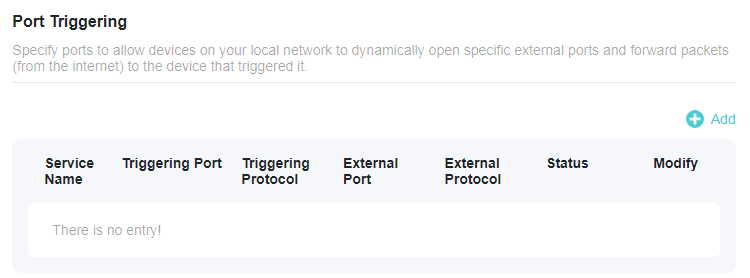
3. Click VIEW COMMON SERVICES, and select the desired application. The Triggering Port, Triggering Protocol and External Port will be automatically filled in. The following picture takes application MSN Gaming Zone as an example.
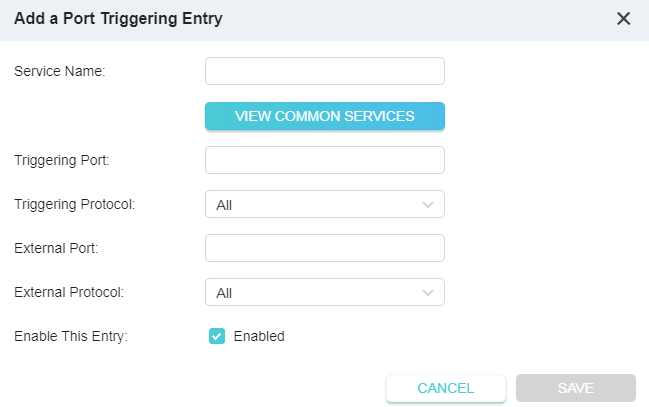
4. Click SAVE.
Tips:
• You can add multiple port triggering rules according to your network need.
• The triggering ports can not be overlapped.
• If the application you need is not listed in the Existing Applications list, please enter the parameters manually. You should verify the external ports the application uses first and enter them into External Port field according to the format the page displays.
3.7.3 UPnP
The UPnP (Universal Plug and Play) protocol allows applications or host devices to automatically find the front-end NAT device and send request to it to open the corresponding ports. With UPnP enabled, the applications or host devices on the local network and the internet can freely communicate with each other thus realizing the seamless connection of the network. You may need to enable the UPnP if you want to use applications for multiplayer gaming, peer-to-peer connections, real-time communication (such as VoIP or telephone conference) or remote assistance, etc.
Tips:
• UPnP is enabled by default in this router.
• Only the application supporting UPnP protocol can use this feature.
• UPnP feature needs the support of operating system (e.g. Windows Vista/ Windows 7/ Windows 8, etc. Some of operating system need to install the UPnP components).
For example, when you connect your Xbox to the router which has connected to the internet to play online games, UPnP will send request to the router to open the corresponding ports allowing the following data penetrating the NAT to transmit. Therefore, you can play Xbox online games without a hitch.
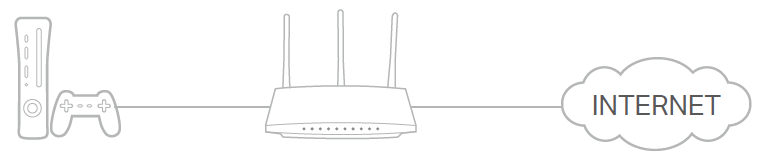
If necessary, you can follow the steps to change the status of UPnP.
1. Visit http://tplinkwifi.net, and log in with your TP-Link ID or the password you set for the router.
2. Go to Advanced > NAT Forwarding > UPnP and toggle on or off according to your needs.

3.7.4 DMZ
When a PC is set to be a DMZ (Demilitarized Zone) host on the local network, it is totally exposed to the internet, which can realize the unlimited bidirectional communication between internal hosts and external hosts. The DMZ host becomes a virtual server with all ports opened. When you are not clear about which ports to open in some special applications, such as IP camera and database software, you can set the PC to be a DMZ host.
Note:
When DMZ is enabled, the DMZ host is totally exposed to the internet, which may bring some potential safety hazards. If DMZ is not in use, please disable it in time.
I want to:
Make the home PC join the internet online game without port restriction.
For example, due to some port restriction, when playing the online games, you can log in normally but cannot join a team with other players. To solve this problem, set your PC as a DMZ host with all ports open.
How can I do that?
1. Assign a static IP address to your PC, for example 192.168.0.100.
2. Visit http://tplinkwifi.net, and log in with your TP-Link ID or the password you set for the router.
3. Go to Advanced > NAT Forwarding > DMZ and tick to enable DMZ.
4. Click VIEW CONNECTED DEVICES and select your PC. The Device IP Address will be automatically filled in. Or enter the PC’s IP address 192.168.0.100 manually in the DMZ Host IP Address field.
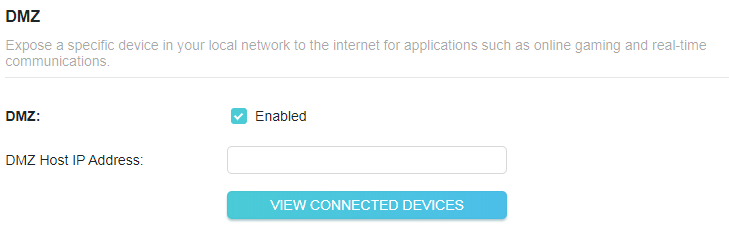
5. Click SAVE.
Done!
The configuration is completed. You’ve set your PC to a DMZ host and now you can make a team to game with other players.
3.8 Security
3.8.1 Protect the Network from Cyber Attacks
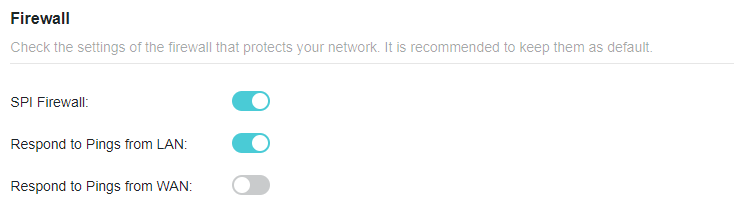
The SPI (Stateful Packet Inspection) Firewall protects the router from cyber attacks and validate the traffic that is passing through the router based on the protocol. This function is enabled by default.
1. Visit http://tplinkwifi.net, and log in with your TP-Link ID or the password you set for the router.
2. Go to Advanced > Security > Firewall. It’s recommended to keep the default settings.
3.8.2 Access Control
Access Control is used to block or allow specific client devices to access your network (via wired or wireless) based on a list of blocked devices (Deny List) or a list of allowed devices (Allow List).
I want to:
Block or allow specific client devices to access my network (via wired or wireless).
How can I do that?
1. Visit http://tplinkwifi.net, and log in with your TP-Link ID or the password you set for the router.
2. Go to Advanced > Security > Access Control.
3. Toggle on to enable Access Control.
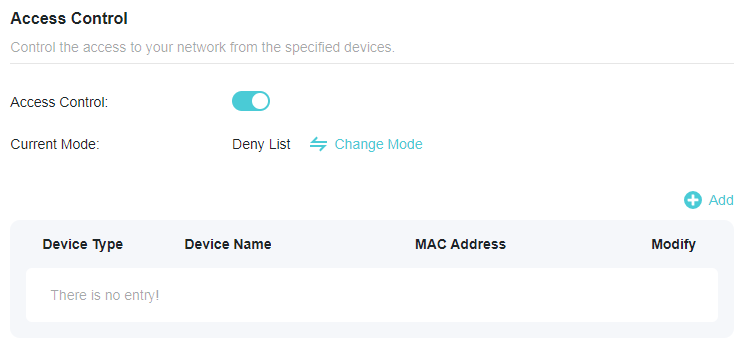
4. Click Change Mode to select the access mode to either block (recommended) or allow the device(s) in the list.
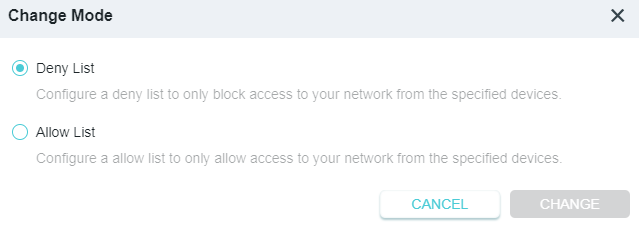
To block specific device(s):
1 ) Select Deny List.
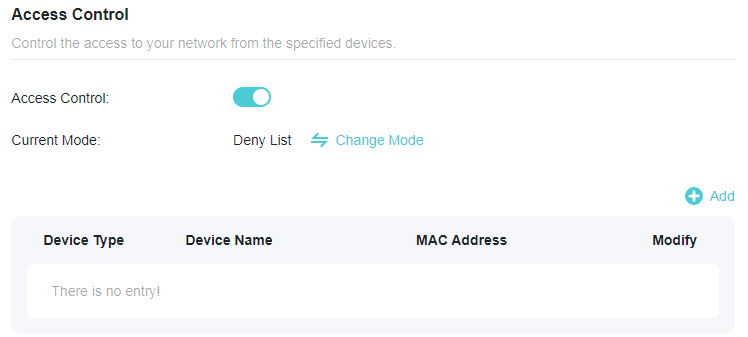
2 ) Click  and select devices you want to be blocked, or enter the MAC address manually, and click ADD.
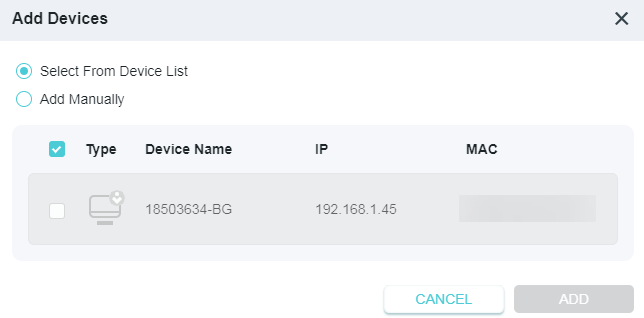
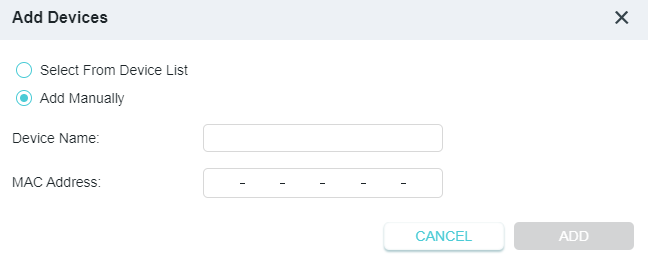
3 ) The Operation Succeeded message will appear on the screen, which means the selected devices have been successfully added to the Deny List.
To allow specific device(s):
1 ) Select Allow List and click CHANGE.
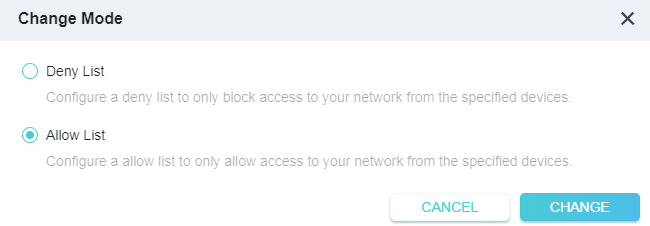
2 ) Your own device is in the Allow List by default and cannot be deleted. Click to add other devices to the Allow List.
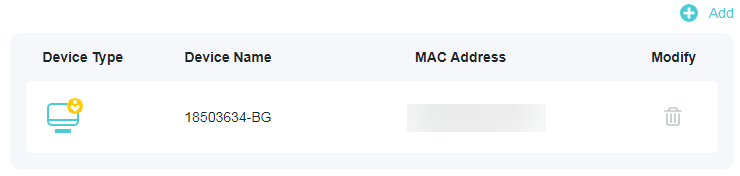
• Add connected devices
1 ) Click Select From Device List.
2 ) Select the devices you want to be allowed and click ADD.
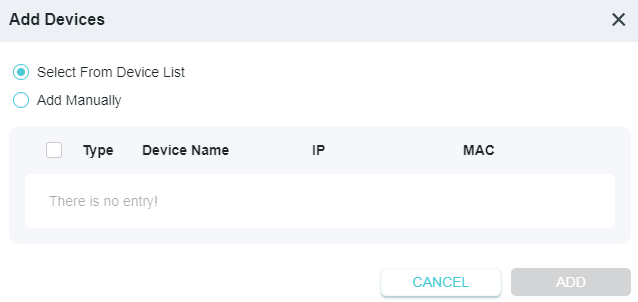
3 ) The Operation Succeeded message will appear on the screen, which means the selected devices have been successfully added to the Allow List.
• Add unconnected devices
1 ) Click Add Manually.
2 ) Enter the Device Name and MAC Address of the device you want to be allowed and click ADD.
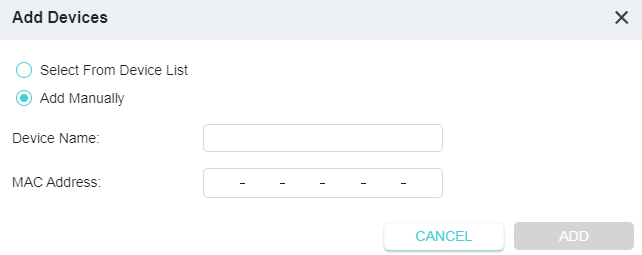
3 ) The Operation Succeeded message will appear on the screen, which means the device has been successfully added to the Allow List.
Done!
Now you can block or allow specific client devices to access your network (via wired or wireless) using the Deny List or Allow List.
3.8.3 IP & MAC Binding
IP & MAC Binding, namely, ARP (Address Resolution Protocol) Binding, is used to bind network device’s IP address to its MAC address. This will prevent ARP Spoofing and other ARP attacks by denying network access to an device with matching IP address in the Binding list, but unrecognized MAC address.
I want to:
Prevent ARP spoofing and ARP attacks.
How can I do that?
1. Visit http://tplinkwifi.net, and log in with your TP-Link ID or the password you set for the router.
2. Go to Advanced > Security > IP & MAC Binding.
3. Enable IP & MAC Binding.

4. Bind your device(s) according to your need.
To bind the connected device(s):
1 ) Locate the ARP List section and enable Bind to bind the IP and MAC addresses of a specific device.
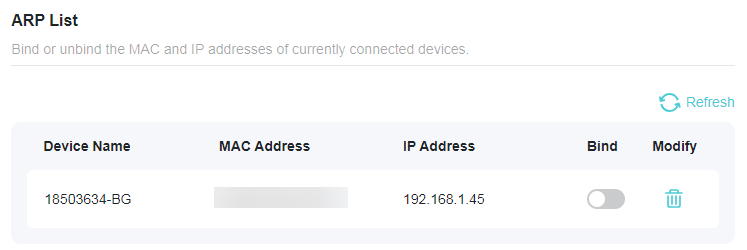
To add a binding entry:
1 ) Click in the Binding List section.
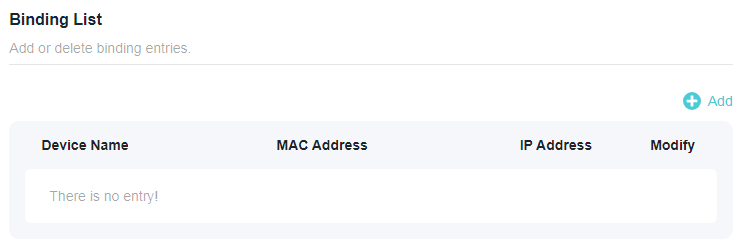
2 ) Click VIEW CONNECTED DEVICES and select the device you want to bind. The MAC Address and IP Address fields will be automatically filled in.
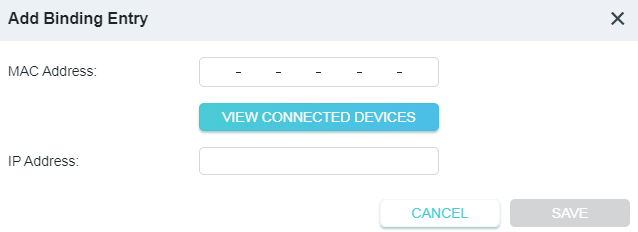
3 ) Click SAVE.
Done!
Now you don’t need to worry about ARP spoofing and ARP attacks!
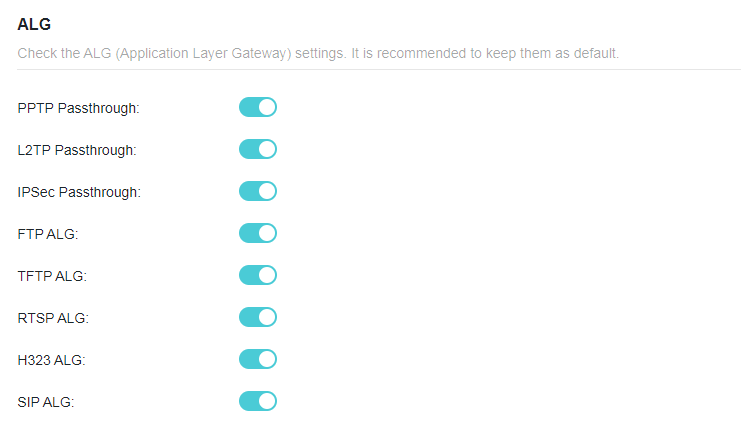
3.8.4 ALG
ALG allows customized Network Address Translation (NAT) traversal filters to be plugged into the gateway to support address and port translation for certain application layer “control/data” protocols such as FTP, TFTP, H323 etc. It is recommended to keep the default settings.
You may need to disable SIP ALG when you are using voice and video applications to create and accept a call through the router, since some voice and video communication applications do not work well with SIP ALG.
Visit http://tplinkwifi.net, and log in with your TP-Link ID or the password you set for the router. Go to Advanced > Security > ALG.
3.9 VPN Server&Merge
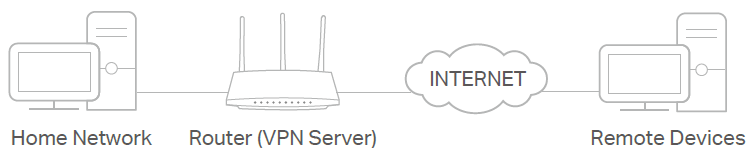
The router offers several ways to set up VPN connections:
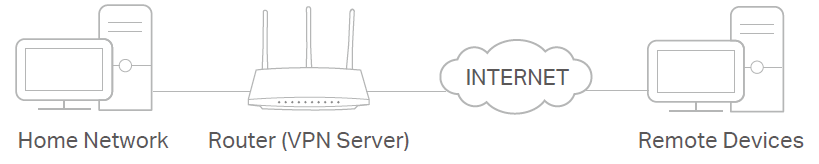
VPN Server allows remote devices to access your home network in a secured way through the internet. The router supports four types of VPN Server:
OpenVPN is somewhat complex but with higher security and more stability, suitable for restricted environments such as campus network and company intranet.
PPTP VPN is easy to use with the built-in VPN software of computers and mobile devices, but it is vulnerable and may be blocked by some ISPs.
L2TP/IPSec VPN is more secure but slower than PPTP VPN, and may have trouble getting around firewalls.
WireGuard VPN is a secure, fast and modern VPN protocol. It is based on the UDP protocol and uses modern encryption algorithms to improve work efficiency. VPN Merge allows your client devices to simultaneously access multiple VPN servers to satisfy your work, gaming, and video streaming needs.
3.9.1 Use OpenVPN to Access Your Home Network
OpenVPN Server is used to create an OpenVPN connection for remote devices to access your home network.
To use the VPN feature, you need to enable OpenVPN Server on your router, and install and run VPN Merge software on remote devices. Please follow the steps below to set up an OpenVPN connection.
Step1. Set up OpenVPN Server on Your Router
1. Visit http://tplinkwifi.net, and log in with your TP-Link ID or the password you set for the router.
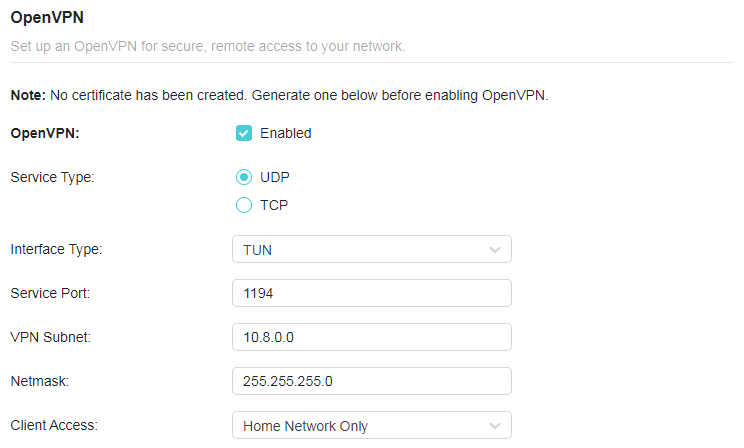
2. Go to Advanced > VPN Server > OpenVPN, and tick the Enable box of OpenVPN.
Note:
• Before you enable VPN Server, we recommend you configure Dynamic DNS Service (recommended) or assign a static IP address for router’s WAN port and synchronize your System Time with internet.
• The first time you configure the OpenVPN Server, you may need to generate a certificate before you enable the VPN Server.
3. Select the Service Type (communication protocol) for OpenVPN Server: UDP, TCP.
4. Enter a VPN Service Port to which a VPN device connects, and the port number should be between 1024 and 65535.
5. In the VPN Subnet/Netmask fields, enter the range of IP addresses that can be leased to the device by the OpenVPN server.
6. Select your Client Access type. Select Home Network Only if you only want the remote device to access your home network; select Internet and Home Network if you also want the remote device to access internet through the VPN Server.
7. Click SAVE.
8. Click GENERATE to get a new certificate.

Note: If you have already generated one, please skip this step, or click GENERATE to update the certificate.
9. Click EXPORT to save the OpenVPN configuration file which will be used by the remote device to access your router.

Step 2. Configure OpenVPN Connection on Your Remote Device
1. Visit http://openvpn.net/index.php/download/community-downloads.html to download the OpenVPN software, and install it on your device where you want to run the OpenVPN client utility.
Note: You need to install the OpenVPN client utility on each device that you plan to apply the VPN function to access your router. Mobile devices should download a third-party app from Google Play or Apple App Store.
2. After the installation, copy the file exported from your router to the OpenVPN client utility’s “config” folder (for example, C:\Program Files\OpenVPN\config on Windows). The path depends on where the OpenVPN client utility is installed.
3. Run the OpenVPN client utility and connect it to OpenVPN Server.
3.9.2 Use PPTP VPN to Access Your Home Network
PPTP VPN Server is used to create a PPTP VPN connection for remote devices to access your home network.
To use the VPN feature, you need to set up PPTP VPN Server on your router, and configure the PPTP connection on remote devices. Please follow the steps below to set up a PPTP VPN connection.
Step 1. Set up PPTP VPN Server on Your Router
1. Visit http://tplinkwifi.net, and log in with your TP-Link ID or the password you set for the router.
2. Go to Advanced > VPN Server > PPTP, and tick the Enable box of PPTP.
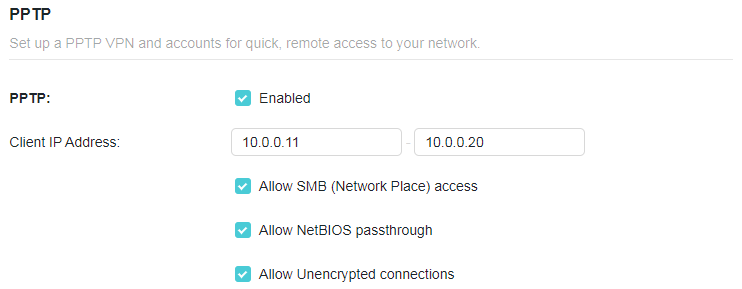
Note: Before you enable VPN Server, we recommend you configure Dynamic DNS Service (recommended) or assign a static IP address for router’s WAN port and synchronize your System Time with internet.
3. In the Client IP Address field, enter the range of IP addresses (up to 10) that can be leased to the devices by the PPTP VPN server.
4. Set the PPTP connection permission according to your needs.
• Select Allow Samba (Network Place) access to allow your VPN device to access your local Samba server.
• Select Allow NetBIOS passthrough to allow your VPN device to access your Samba server using NetBIOS name.
• Select Allow Unencrypted connections to allow unencrypted connections to your VPN server.
5. Click SAVE.
6. Configure the PPTP VPN connection account for the remote device. You can create up to 16 accounts.
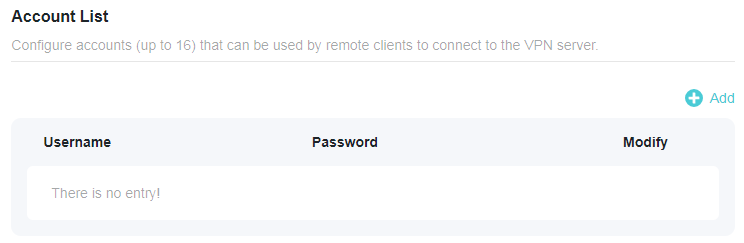
7. Click Add.
8. Enter the Username and Password to authenticate devices to the PPTP VPN Server.
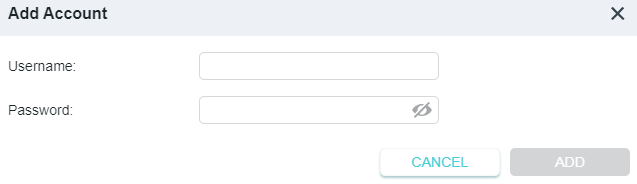
9. Click ADD.
Step 2. Configure PPTP VPN Connection on Your Remote Device
The remote device can use the Windows built-in PPTP software or a third-party PPTP software to connect to PPTP Server. Here we use the Windows built-in PPTP software as an example.
1. Go to Start > Control Panel > Network and Internet > Network and Sharing Center.
2. Select Set up a new connection or network.
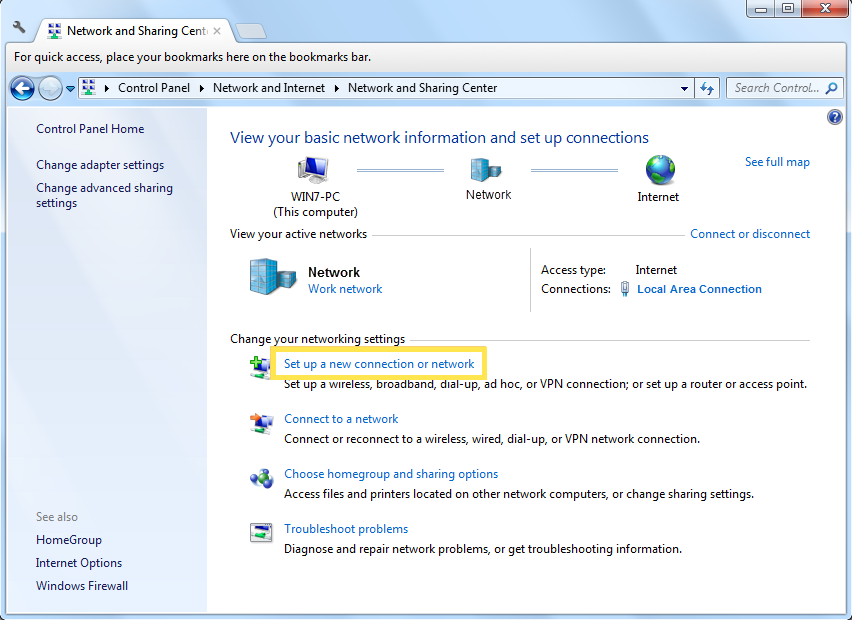
3. Select Connect to a workplace and click Next.
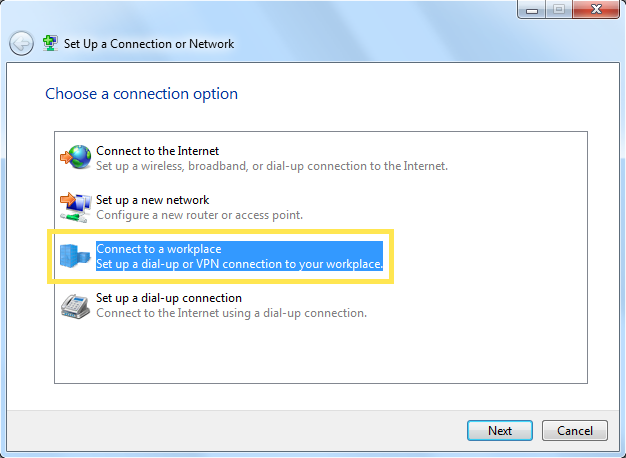
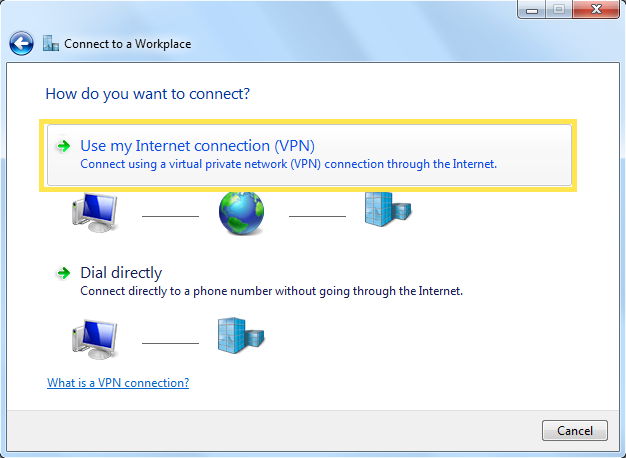
4. Select Use my Internet connection (VPN).
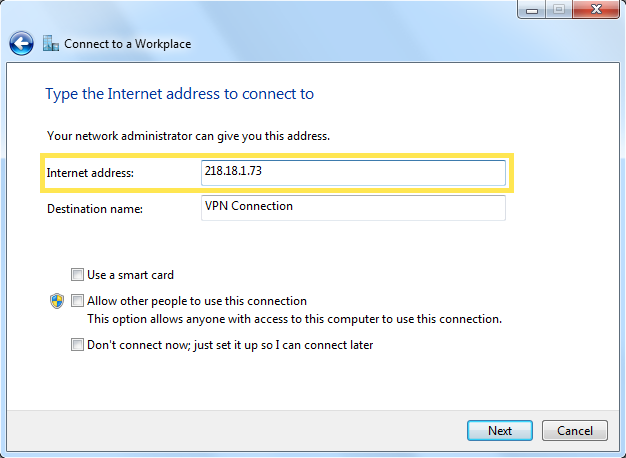
5. Enter the internet IP address of the router (for example: 218.18.1.73) in the Internet address field. Click Next.
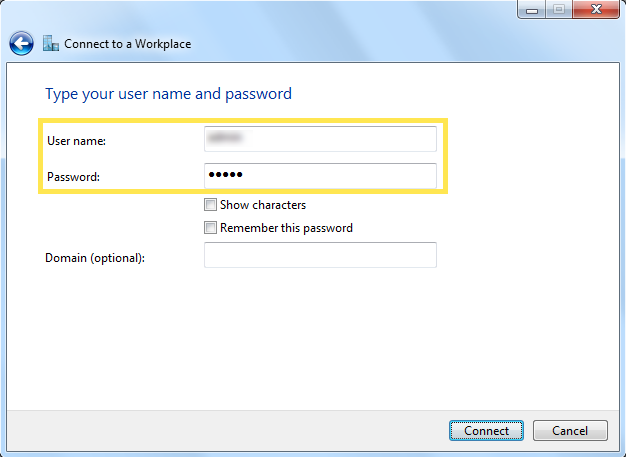
6. Enter the User name and Password you have set for the PPTP VPN server on your router, and click Connect.
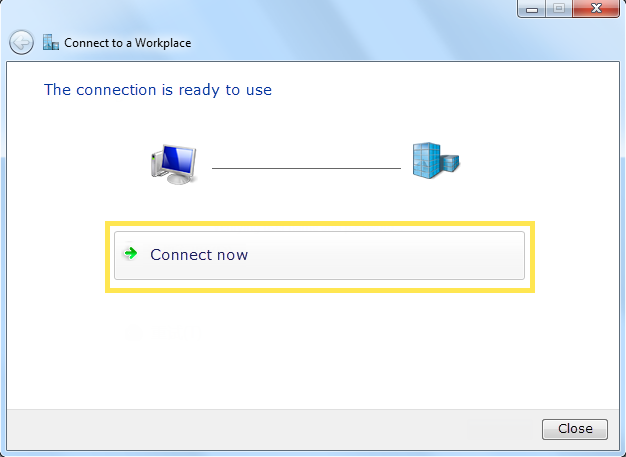
7. Click Connect Now when the VPN connection is ready to use.
3.9.3 Use L2TP/IPSec VPN to Access Your Home Network
L2TP/IPSec VPN Server is used to create a L2TP/IPSec VPN connection for remote devices to access your home network.
To use the VPN feature, you need to set up L2TP/IPSec VPN Server on your router, and configure the L2TP/IPSec connection on remote devices. Please follow the steps below to set up the L2TP/IPSec VPN connection.
Step 1. Set up L2TP/IPSec VPN Server on Your Router
1. Visit http://tplinkwifi.net, and log in with your TP-Link ID or the password you set for the router.
2. Go to Advanced > VPN Server > L2TP/IPSec, and enable L2TP/IPSec.
Note:
• Firmware update may be required to support L2TP/IPSec VPN Server.
• Before you enable VPN Server, we recommend you configure Dynamic DNS Service (recommended) or assign a static IP address for router’s WAN port and synchronize your System Time with internet.
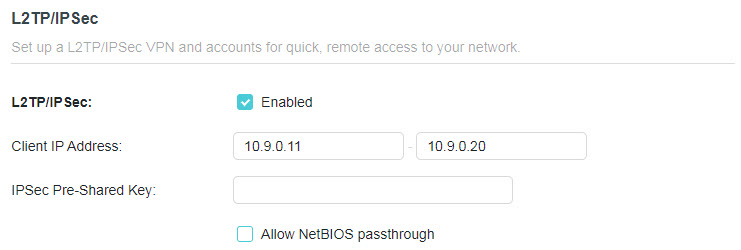
3. In the Client IP Address field, enter the range of IP addresses (up to 10) that can be leased to the devices by the L2TP/IPSec VPN server.
4. Create an IPSec Pre-Shared Key.
5. Configure the L2TP/IPSec VPN connection account for the remote device. You can create up to 16 accounts.
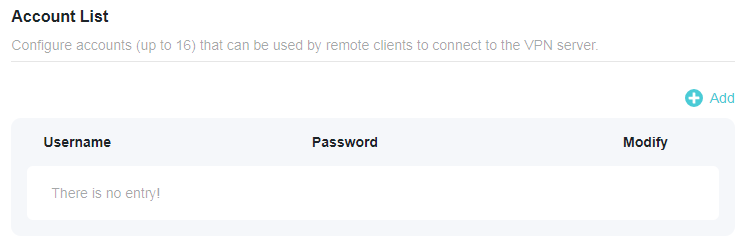
1 ) Click Add.
2 ) Enter the Username and Password to authenticate devices to the L2TP/IPSec VPN Server.
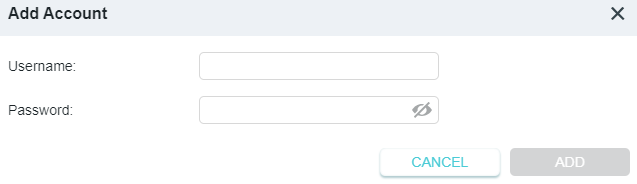
3 ) Click ADD.
6. Click SAVE.
Step 2. Configure L2TP/IPSec VPN Connection on Your Remote Device
The remote device can use the Windows or Mac OS built-in L2TP/IPSec software or a third-party L2TP/IPSec software to connect to L2TP/IPSec Server. Here we use the Windows built-in L2TP/IPSec software as an example.
1. Go to Start > Control Panel > Network and Internet > Network and Sharing Center.
2. Select Set up a new connection or network.
3. Select Connect to a workplace and click Next.
4. Select Use my Internet connection (VPN).
5. Enter the internet IP address of the router (for example: 218.18.1.73) in the Internet address field, and select the checkbox Don’t connect now; just set it up so I can connect later. Click Next.
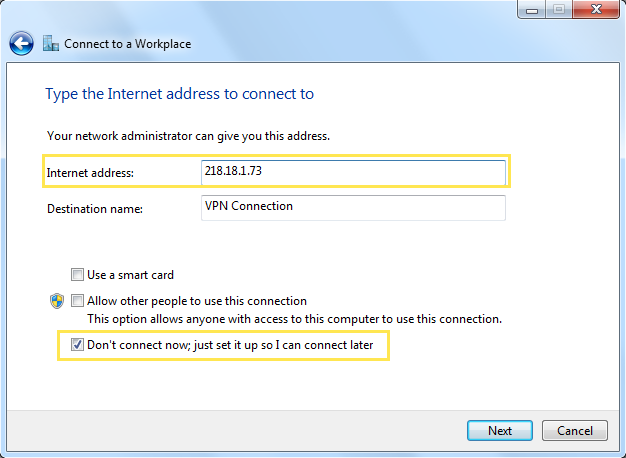
6. Enter the User name and Password you have set for the L2TP/IPSec VPN server on your router, and click Connect.
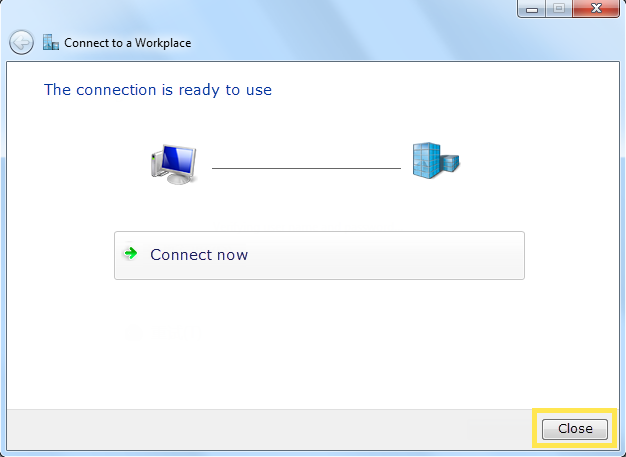
7. Click Close when the VPN connection is ready to use.
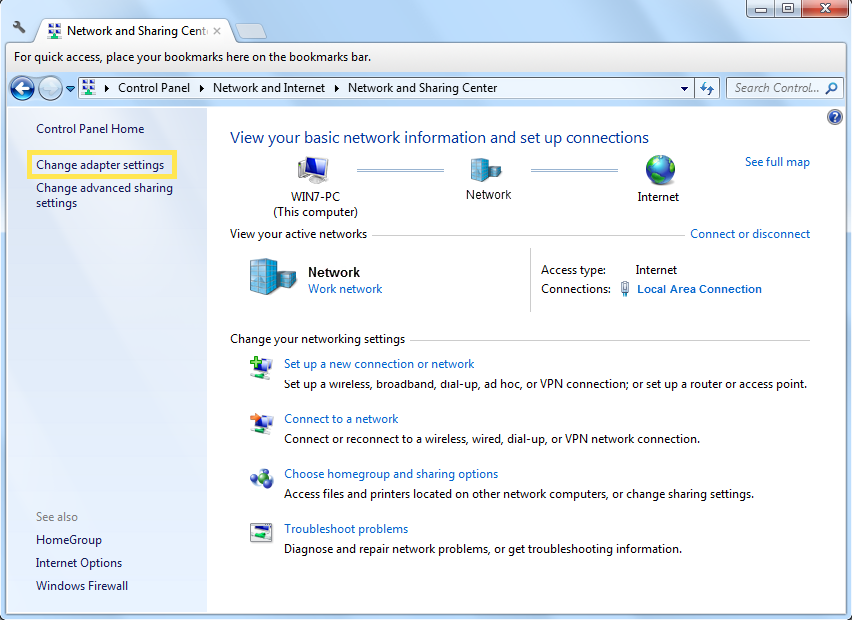
8. Go to Network and Sharing Center and click Change adapter settings.
9. Find the VPN connection you created, then double-click it.
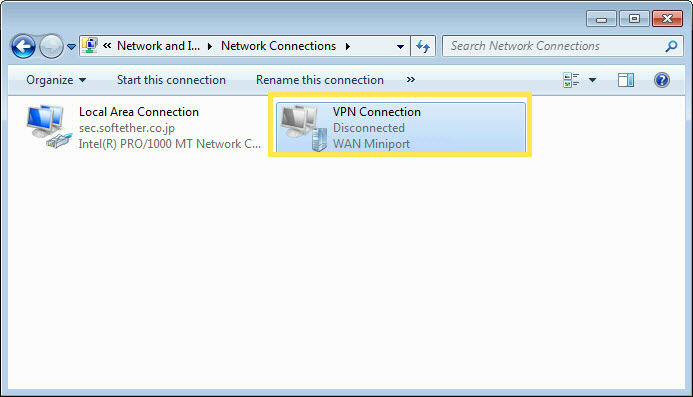
10. Enter the User name and Password you have set for the L2TP/IPSec VPN server on your router, and click Properties.
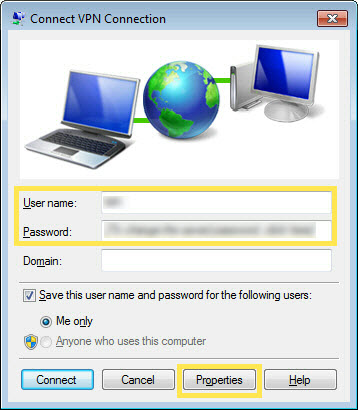
11. Switch to the Security tab, select Layer 2 Tunneling Protocol with IPsec (L2TP/ IPSec) and click Advanced settings.
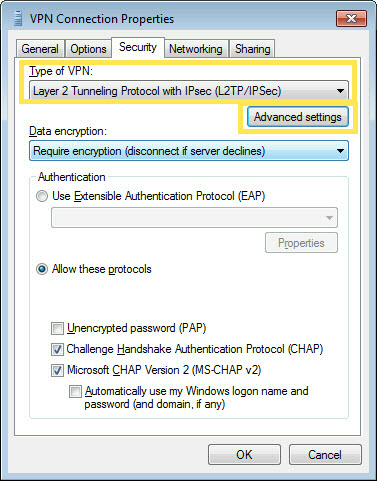
12. Select Use preshared key for authentication and enter the IPSec Pre-Shared Key you have set for the L2TP/IPSec VPN server on your router. Then click OK.
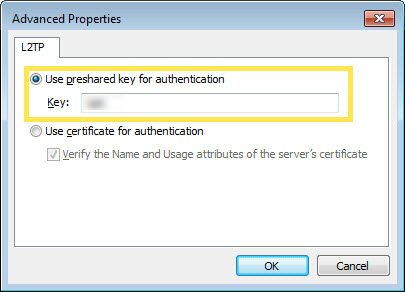
Done! Click Connect to start VPN connection.
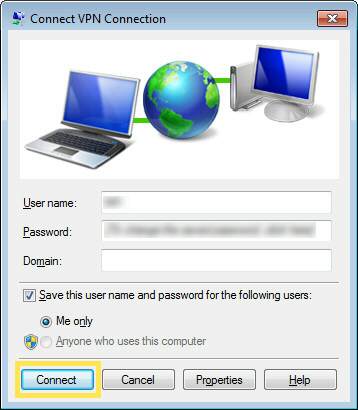
3.9.4 Use WireGuard VPN to Access Your Home Network
WireGuard VPN Server is used to create a Wire Guard VPN connection for remote devices to access your home network.
Step 1. Set up WireGuard VPN Server on Your Router
1. Visit http://tplinkwifi.net, and log in with your TP-Link ID or the password you set for the router.
2. Go to Advanced > VPN Server > WireGuard, and tick the Enable box of WireGuard.
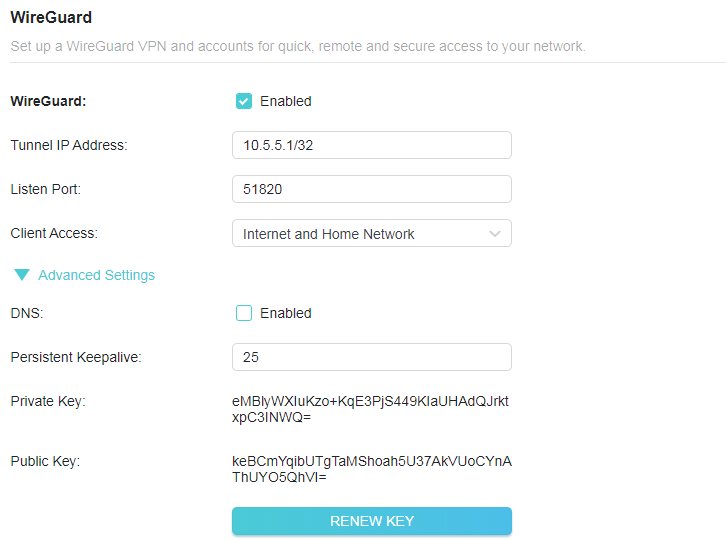
3. Set the tunnel IP address and listen port. Do NOT change it unless necessary.
4. Select your Client Access type. Select Home Network Only if you only want the remote device to access your home network; select Internet and Home Network if you also want the remote device to access internet through the VPN Server.
5. (Optional) Click Advanced Settings to display more settings. If DNS is turned on, the router will become the DNS server of the VPN client that establishes a connection with it. Change the Persistent Keepalive time (25 seconds by default) to send out heartbeat regularly, you can also click RENEW KEY to update the private key and public key.
Step 2. Create accounts that can be used by remote clients to connect to the VPN server.
1. Locate the Account List section.
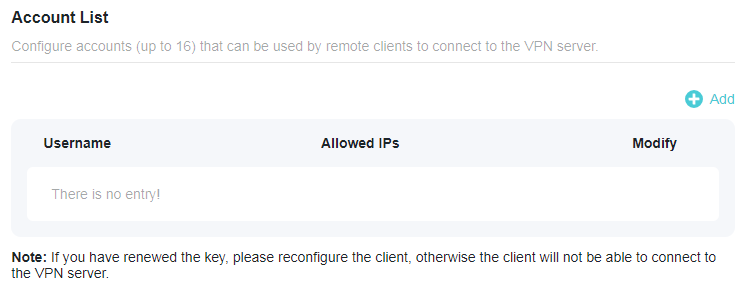
2. Click Add to create an account.
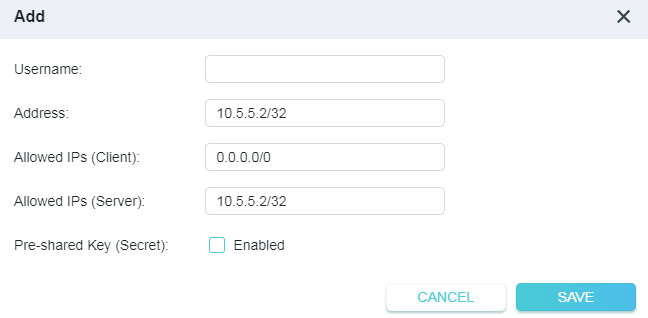
3. Give a name to this account.
4. Enter the address of the virtual interface assigned to this account. Do NOT change it unless necessary.
5. Traffic sent from the WireGard VPN client to the allowed IPs (client) will be transmitted through the tunnel. By default, all network traffic from clients will be transmitted through the tunnel. Do NOT change it unless necessary.
6. Traffic sent from the WireGard VPN server to the allowed IPs (server) will be transmitted through the tunnel. Do NOT change it unless necessary.
7. Enable or disable pre-shared key.
8. Click SAVE.
Note: One account can only be used by one WireGuard VPN client at the same time to connect to the WireGuard VPN server.
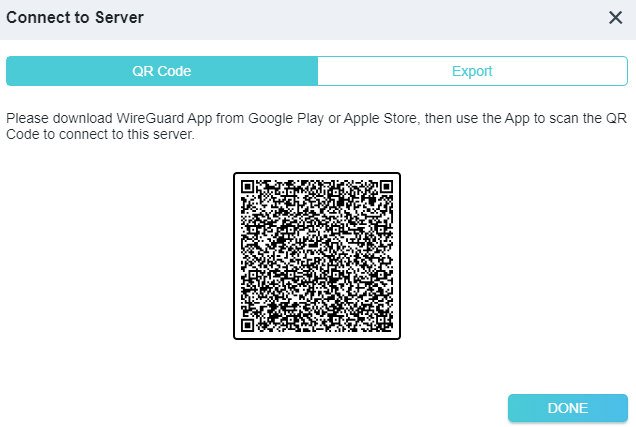
9. Connect to the WireGuard server.
• For mobile phones, download WireGuard App from Google Play or Apple Store, then use the App to scan the QR Code to connect to this server.
• For other devices (e.g. TP-Link WireGuard VPN client), Click EXPORT to save the WireGuard VPN configuration file which will be used by the remote device to access your router.
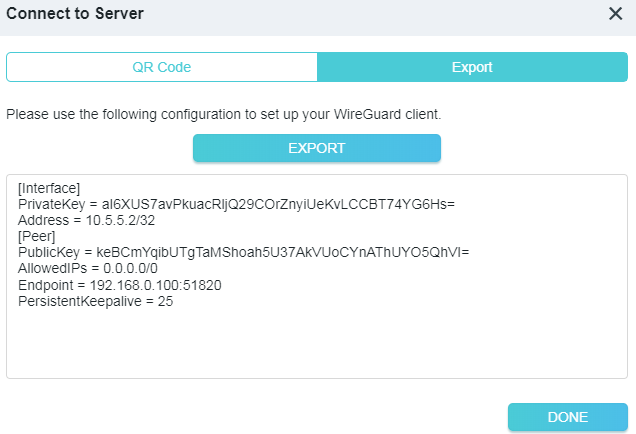
10. On the account list, you can click the button to modify the VPN server settings, connect to the server, or delete the account.
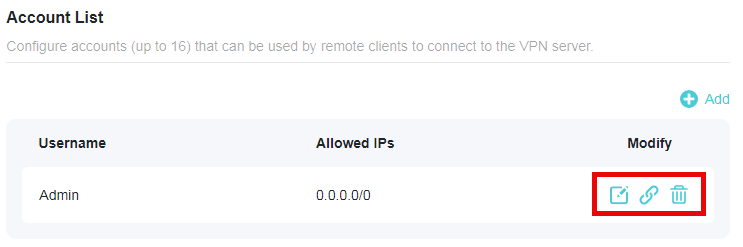
3.9.5 Use VPN Merge to Access a Remote VPN Server
VPN Merge allows your client devices to simultaneously access multiple VPN servers to satisfy your work, gaming, and video streaming needs.
To use the VPN Merge feature, simply add remote VPN servers on your router and assign the VPN servers to your client devices. Please follow the steps below:
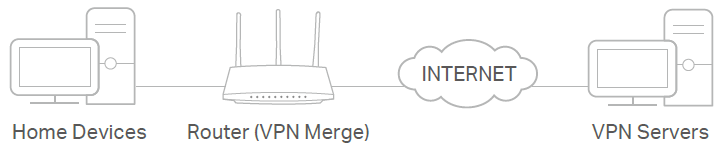
1. Visit http://tplinkwifi.net, and log in with your TP-Link ID or the password you set for the router.
2. Go to Advanced > VPN Merge, and enable VPN Merge.
Note: Firmware update may be required to support VPN Merge.

3. Add VPN servers, and enable the one you need.
1 ) In the Server List section, click Add.
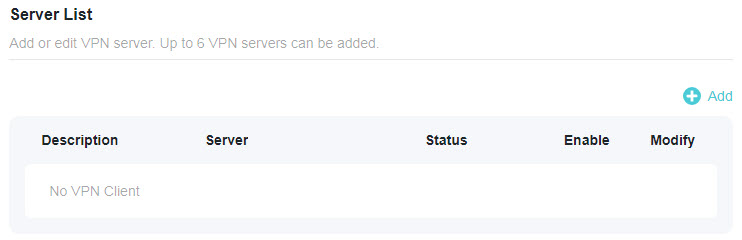
2 ) Specify a description for the VPN, and choose the VPN type.
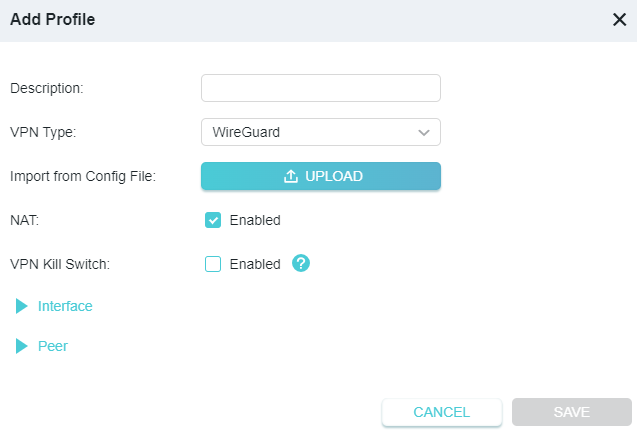
• VPN Kill Switch: When enabled, your device’s internet access will be blocked if the VPN connection drops, keeping your data safe.
3 ) Enter the VPN information provided by your VPN provider.
• OpenVPN: Enter the VPN username and password if required by your VPN provider, otherwise simply leave them empty. Then import the configuration file provided by your VPN provider.
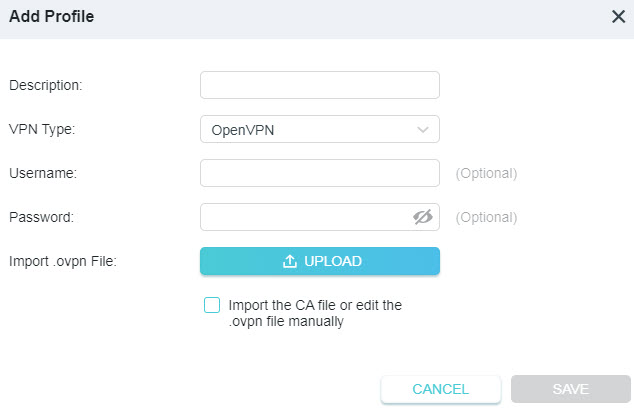
Note: You can also check the box of Import the CA file or edit the . ovpn file manually, then upload the CA file or manually configure the settings.
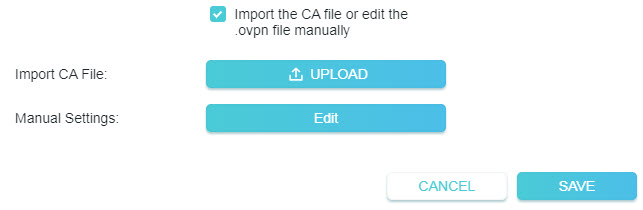
• PPTP: Enter the VPN server address (for example: 218.18.1.73) and the VPN username and password provided by your VPN provider.
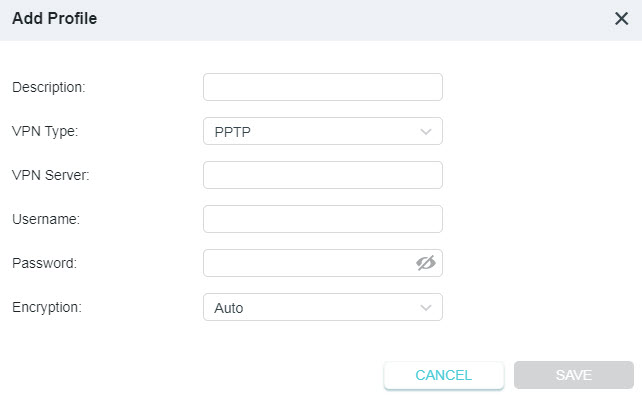
• L2TP/IPSec VPN: Enter the VPN server address (for example: 218.18.1.73), VPN username and password, and IPSec pre-shared key provided by your VPN provider.
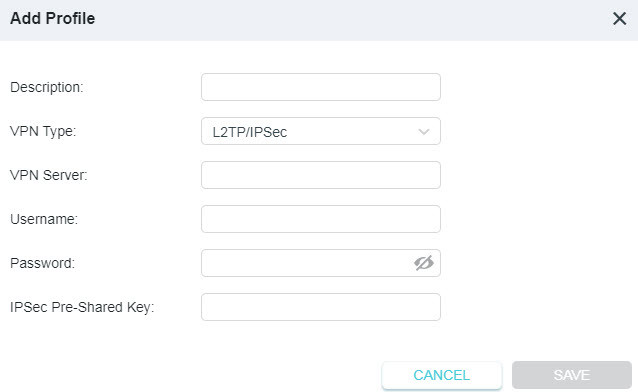
• WireGuard VPN: Give a description, and click BROWSE to import the WireGuard VPN server configuration. Then you will see the detailed parameters. Do NOT change the parameters unless necessary.
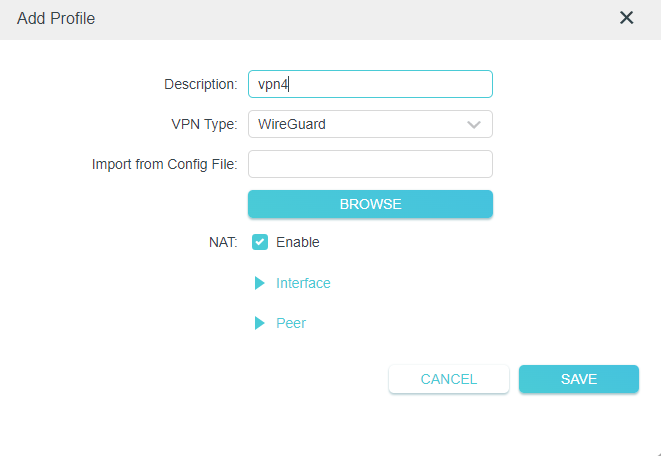
4 ) Save the settings.
5 ) In the server list, enable the one you need.
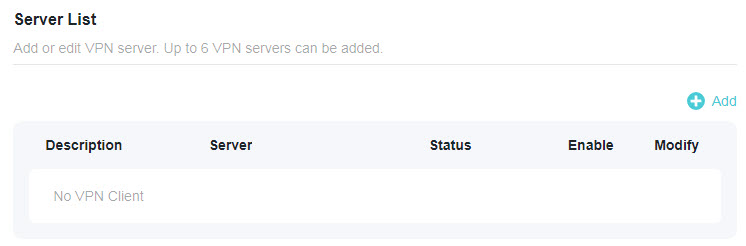
4. Add and manage the devices that will use the VPN function. You can click Change Mode to switch between different modes.
1 ) In the Client List section, click Add Devices.
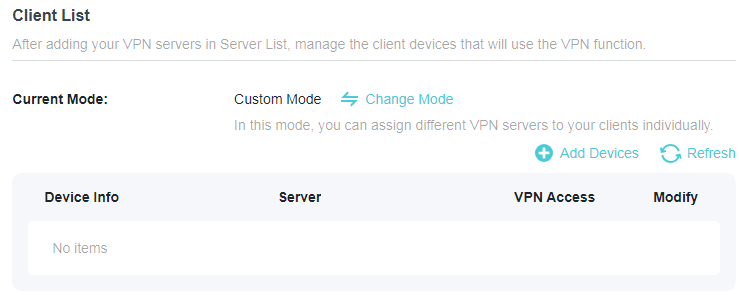
2 ) Choose and add the devices that will access the VPN server you have configured.
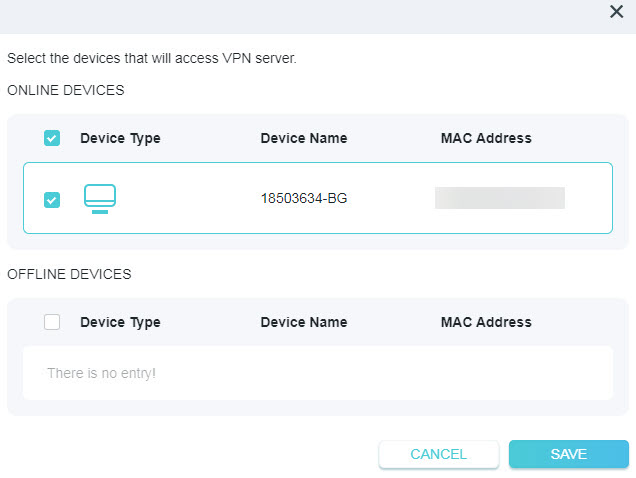
5. Save the settings.
Done! Now the devices you specified can access the VPN server you enabled.
3.10 IPv6
3.10.1 Set up an IPv6 Internet Connection
This function allows you to set up an IPv6 internet connection using the information provided by your ISP (internet service provider).
Note: Some models may not support this feature. Images may differ from actual products.
1. Visit http://tplinkwifi.net, and log in with your TP-Link ID or the password you set for the router.
2. Go to Advanced > IPv6.
3. Enable IPv6 and select the internet connection type provided by your ISP.
Note: If you do not know what your internet connection type is, contact your ISP.
4. Fill in information as required by different connection types.
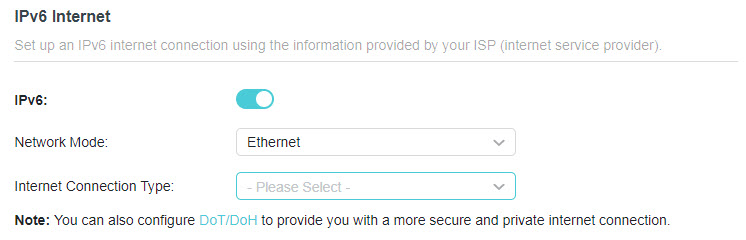
• Static IP: Fill in blanks and save the settings.
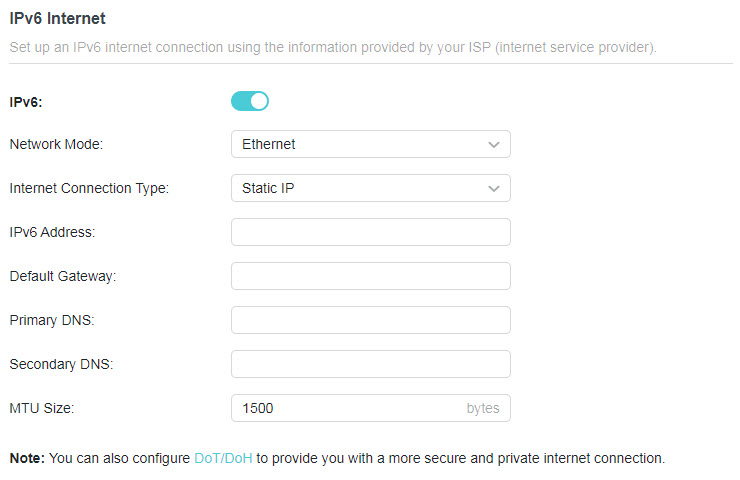
• Dynamic IP(SLAAC/DHCPv6): Click Advanced Settings to input further information if your ISP requires. Save the settings and click RENEW.
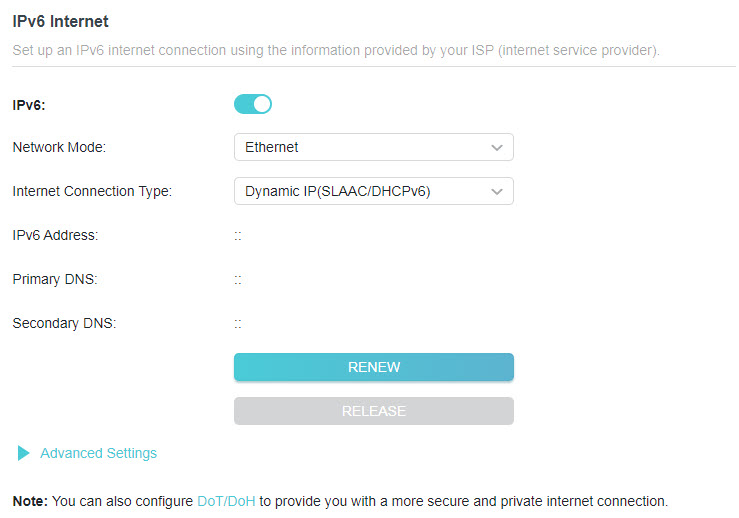
• PPPoE: By default, the router uses the IPv4 account to connect to the IPv6 server. Click Advanced Settings to input further information if your ISP requires. Save the settings and click CONNECT.
Note: If your ISP provides two separate accounts for the IPv4 and IPv6 connections, manually enter the username and password for the IPv6 connection.
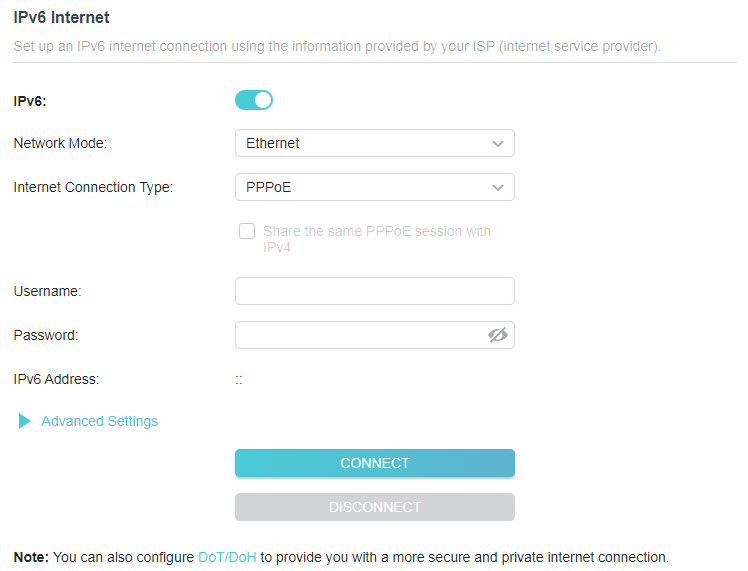
• 6to4 Tunnel: An IPv4 internet connection type is a prerequisite for this connection type. Please manually set up your internet connection first. Click Advanced Settings to input further information if your ISP requires. Save the settings and click CONNECT.
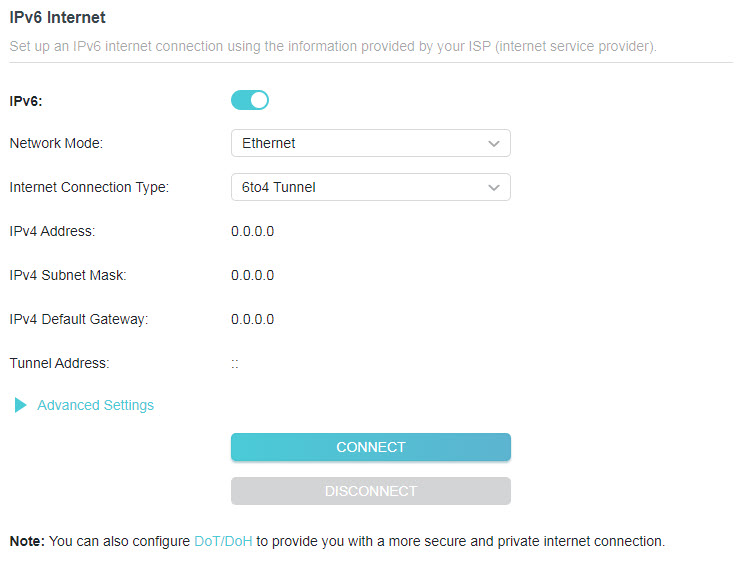
• Pass-Through (Bridge): Save the settings. No configuration is required.
5. Configure LAN ports. Windows users are recommended to choose from DHCPv6 and SLAAC+Stateless DHCP.
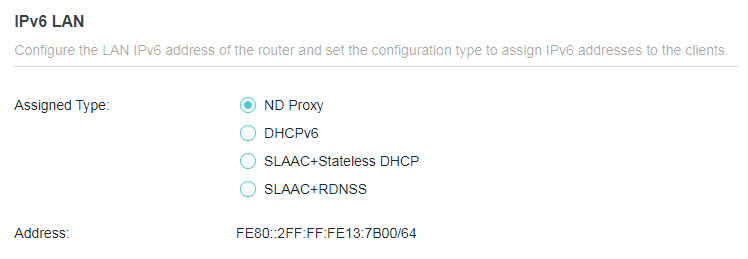
Note: You don’t need to configure IPv6 LAN if the Internet Connection Type is Pass-Through (Bridge).
6. In MAC Clone section, set the MAC address of your router. Use the default address unless your ISP allows internet access from only a specific MAC address.
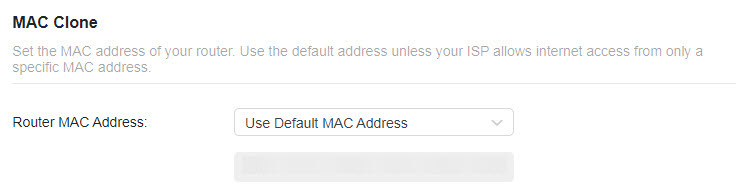
3.11 System
3.11.1 Firmware Upgrade
TP-Link aims at providing better network experience for users. We will inform you through the web management page if there’s any update firmware available for your router. Also, the latest firmware will be released at the TP-Link official website www.tp-link.com, and you can download it from the Support page for free.
Note:
• Backup your router configuration before firmware upgrade.
• Do NOT turn off the router during the firmware upgrade.
Auto Update
Enable Auto Update and set the update time. The router will update firmware automatically at the specified time when new version is available.
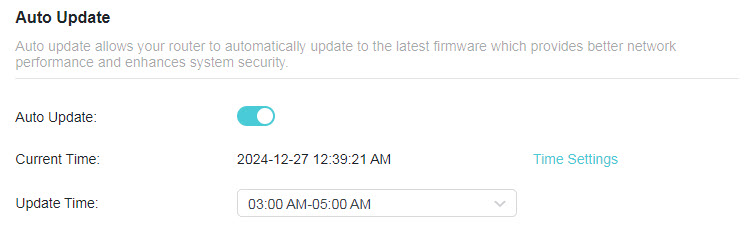
Online Upgrade
1. Visit http://tplinkwifi.net, and log in with your TP-Link ID or the password you set for the router.
2. When the latest firmware is available for your router, the upgrade icon will display in the top-right corner of the page. Click the icon  to go to the Firmware Upgrade page. Alternatively, you can go to Advanced > System > Firmware Upgrade, and click CHECK FOR UPGRADES to see whether the latest firmware is released.
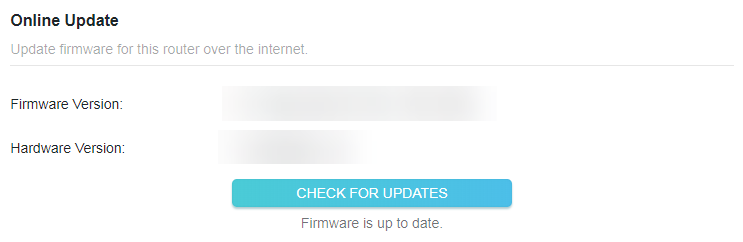
3. Click UPGRADE if there is new firmware.
4. Wait a few minutes for the upgrade and reboot to complete.
Tips: If there’s a new and important firmware update for your router, you will see the prompt notification on your computer as long as a web browser is opened. Click UPGRADE, and log in to the web management page with the username and password you set for the router. You will see the Firmware Upgrade page.
Local Upgrade
1. Download the latest firmware file for the router from www.tp-link.com.
2. Visit http://tplinkwifi.net, and log in with your TP-Link ID or the password you set for the router.
3. Go to Advanced > System > Firmware Upgrade.
4. Focus on the Local Upgrade section. Click BROWSE to locate the downloaded new firmware file, and click UPGRADE.
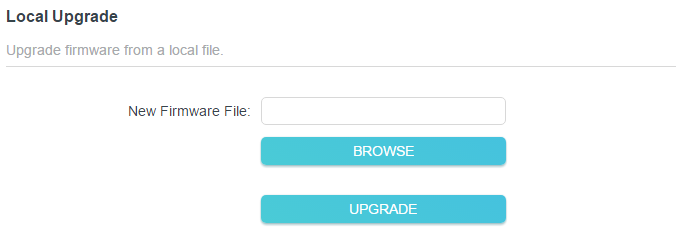
5. Wait a few minutes for the upgrade and reboot to complete.
Note: If you fail to upgrade the firmware for the router, please contact our Technical Support.
3.11.2 Backup and Restore Configuration Settings
The configuration settings are stored as a configuration file in the router. You can backup the configuration file to your computer for future use and restore the router to a previous settings from the backup file when needed. Moreover, if necessary you can erase the current settings and reset the router to the default factory settings.
1. Visit http://tplinkwifi.net, and log in with your TP-Link ID or the password you set for the router.
2. Go to Advanced > System > Backup & Restore.
• To backup configuration settings:
Click BACK UP to save a copy of the current settings to your local computer. A ‘.bin’ file of the current settings will be stored to your computer.

• To restore configuration settings:
1. Click UPLOAD to locate the backup configuration file stored on your computer, and click RESTORE.
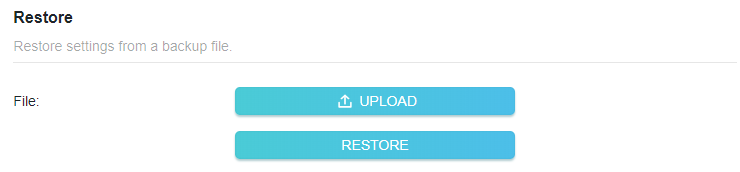
2. Wait a few minutes for the restoring and rebooting.
Note: During the restoring process, do not turn off or reset the router.
• To reset the router except your login password and TP-Link ID:
1. In the Factory Default Restore section, click RESTORE.
2. Wait a few minutes for the resetting and rebooting.
Note:
• During the resetting process, do not turn off the router.
• After reset, you can still use the current login password or the TP-Link ID to log in to the web management page.
• To reset the router to factory default settings:
1. Click FACTORY RESTORE to reset the router.

2. Wait a few minutes for the resetting and rebooting.
Note:
• During the resetting process, do not turn off or reset the router.
• We strongly recommend you backup the current configuration settings before resetting the router.
3.11.3 Change the Login Password
The account management feature allows you to change your login password of the web management page.
Note: If you are using a TP-Link ID to log in to the web management page, the account management feature will be disabled. To manage the TP-Link ID, go to Advanced > TP-Link ID.
1. Visit http://tplinkwifi.net, and log in with your TP-Link ID or the password you set for the router.
2. Go to Advanced > System > Administration and focus on the Change Password section.
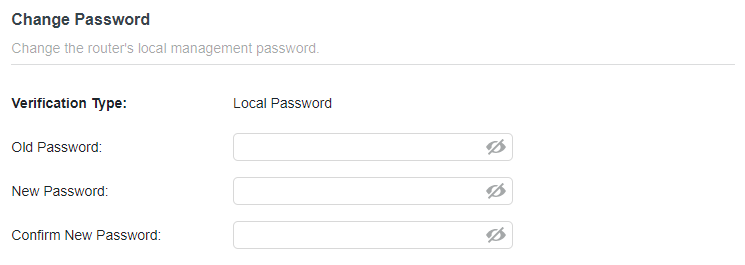
3. Enter the old password, then a new password twice (both case-sensitive). Click SAVE.
4. Use the new password for future logins.
3.11.4 Admin Password Recovery
This feature allows you to recover the login password you set for you router in case you forget it.
Note: If you are using a TP-Link ID to log in to the web management page, the Password Recovery feature will be disabled. To manage the TP-Link ID, go to Advanced > TP-Link ID.
1. Visit http://tplinkwifi.net, and log in with the password you set for the router.
2. Go to Advanced > System > Administration and focus on the Admin Password Recovery section.
3. Click Question Settings to set security question settings.
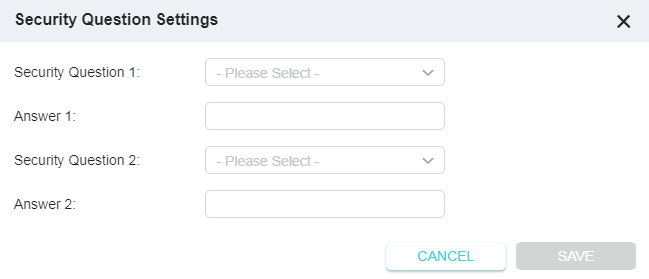
4. Tick the Enable box of Password Recovery.
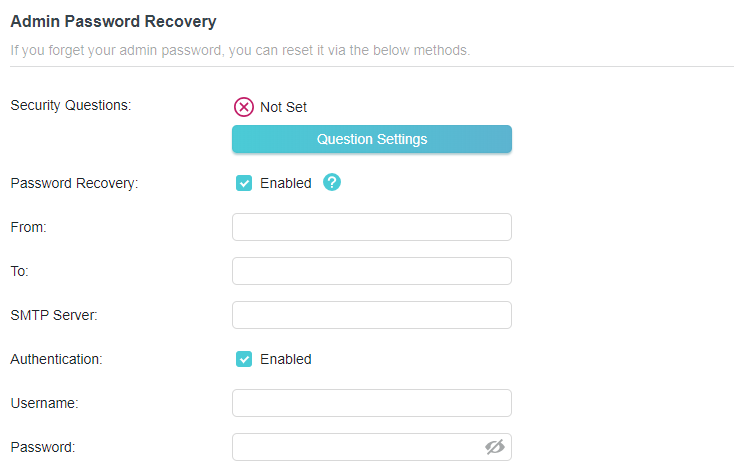
5. Specify a mailbox (From) for sending the recovery letter and enter its SMTP Server address. Specify a mailbox (To) for receiving the recovery letter. If the mailbox (From) to send the recovery letter requires encryption, Tick the Enable box of Authentication and enter its username and password.
Tips:
• SMTP server is available for users in most webmail systems. For example, the SMTP server address of Gmail is smtp.gmail.com.
• Generally, Authentication should be enabled if the login of the mailbox requires username and password.
6. Click SAVE.
To recover the login password, please visit http://tplinkwifi.net, click Forgot Password? on the login page and follow the instructions to set a new password.
3.11.5 Local Management
This feature allows you to limit the number of client devices on your LAN from accessing the router by using the MAC address-based authentication.
1. Visit http://tplinkwifi.net, and log in with your TP-Link ID or the password you set for the router.
2. Go to Advanced > System > Administration and complete the settings In Local Management section as needed.
• Access the router via HTTPS and HTTP:
Tick the Enable box of Local Management via HTTPS to access the router via HTTPS and HTTP, or keep it disabled to access the router only via HTTP.
• Allow all LAN connected devices to manage the router:
Select All Devices for Local Managers.
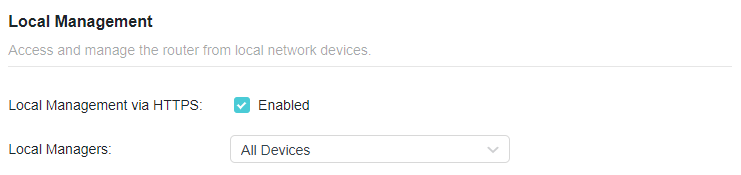
• Allow specific devices to manage the router:
1. Select Specified Devices for Local Managers and click SAVE.
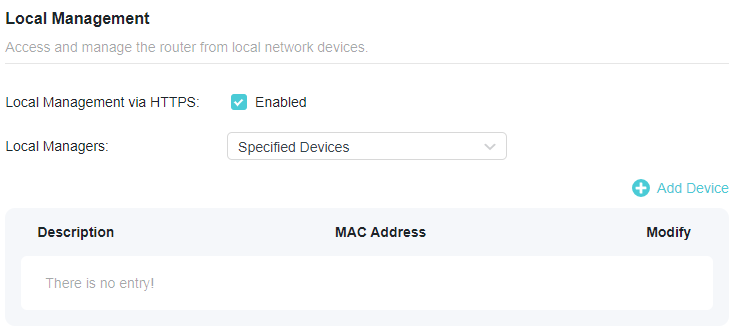
2. Click Add Device.
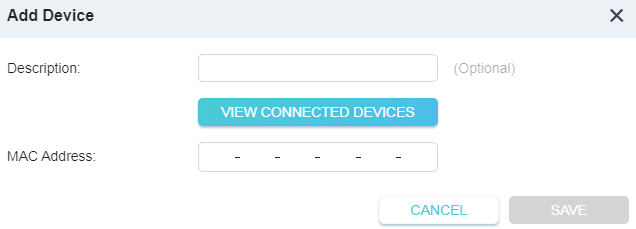
3. Click VIEW CONNECTED DEVICES and select the device to manage the router from the Connected Devices list, or enter the MAC address of the device manually.
4. Specify a Description for this entry.
5. Click SAVE.
3.11.6 Remote Management
This feature allows you to control remote devices’ authority to manage the router.
1. Visit http://tplinkwifi.net, and log in with your TP-Link ID or the password you set for the router.
2. Go to Advanced > System > Administration and complete the settings in Remote Management section as needed.
• Forbid all devices to manage the router remotely:
Do not tick the Enable checkbox of Remote Management.
• Allow all devices to manage the router remotely:
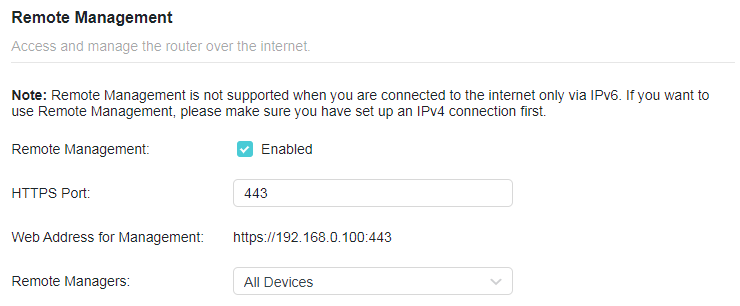
1. Tick the Enable checkbox of Remote Management.
2. Keep the HTTPS port as default settings (recommended) or enter a value between 1024 and 65535.
3. Select All Devices for Remote Managers.
4. Click SAVE. Devices on the internet can log in to https://Router’s WAN IP address:port number (such as https://113.116.60.229:1024) to manage the router.
Tips:
• You can find the WAN IP address of the router on Network Map > Internet.
• The router’s WAN IP is usually a dynamic IP. Please refer to Dynamic DNS if you want to log in to the router through a domain name.
• Allow a specific device to manage the router remotely:
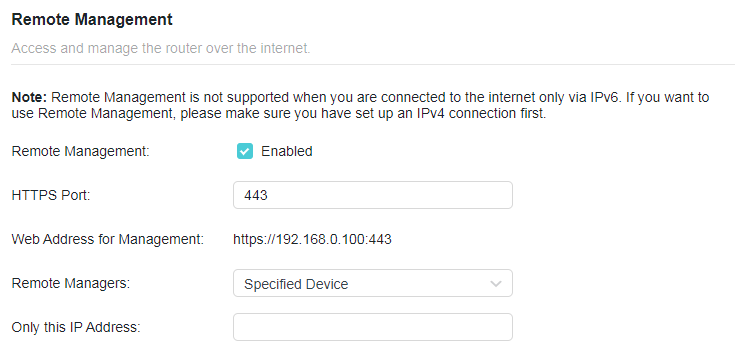
1. Tick the Enable checkbox of Remote Management.
2. Keep the HTTPS port as default settings (recommended) or enter a value between 1024 and 65535.
3. Select Specified Device for Remote Managers.
4. In the Only this IP Address field, enter the IP address of the remote device to manage the router.
5. Click SAVE.
Devices using this WAN IP can manage the router by logging in to https://Router’s WAN IP:port number (such as https://113.116.60.229:1024).
Tips: The router’s WAN IP is usually a dynamic IP. Please refer to Dynamic DNS if you want to log in to the router through a domain name.
3.11.7 System Log
When the router does not work normally, you can save the system log and send it to the technical support for troubleshooting.
• To save the system log locally:
1. Visit http://tplinkwifi.net, and log in your TP-Link ID or the password you set for the router.
2. Go to Advanced > System > System Log.
3. Choose the type and level of the system logs as needed.
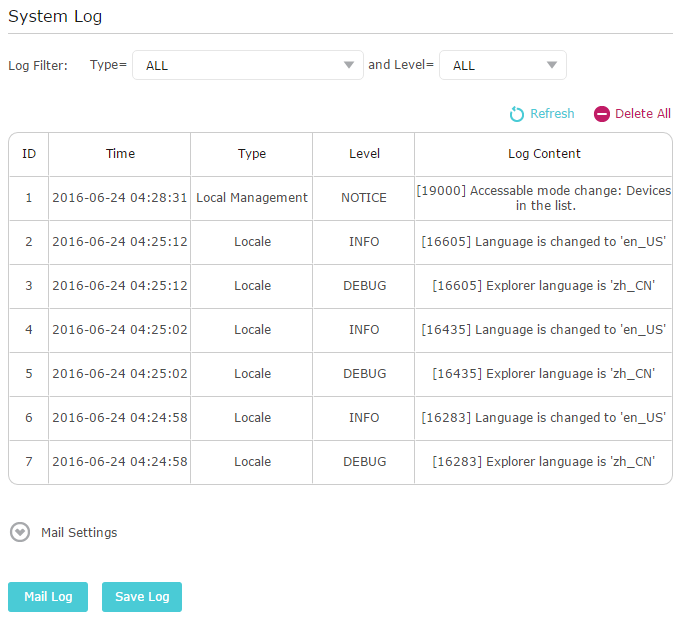
4. In the Save Log section, click SAVE TO LOCAL to save the system logs to a local disk.
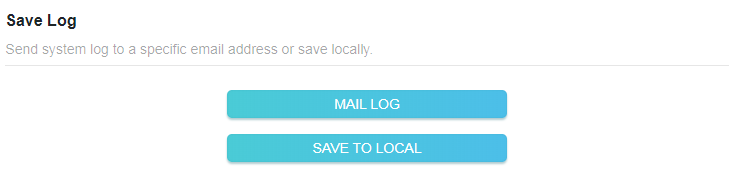
• To send the system log to a mailbox at a fixed time:
For example, I want to check my router’s working status at a fixed time every day, however, it’s too troublesome to log in to the web management page every time I want to go checking. It would be great if the system logs could be sent to my mailbox at 8 a.m. every day.
1. Visit http://tplinkwifi.net, and log in with your TP-Link ID or the password you set for the router.
2. Go to Advanced > System > System Log.
3. In the Save Log section, click MAIL LOG.
4. Enter the information required:
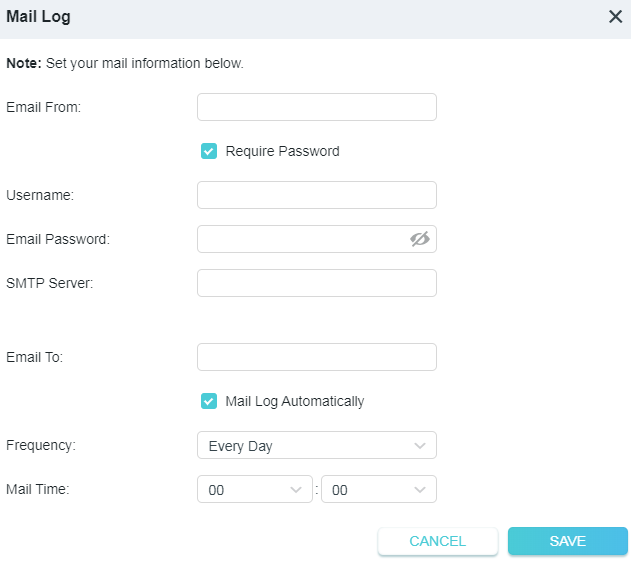
• Email From: Enter the email address used for sending the system log.
• Select Require Password.
Tips: Generally, Require Password should be selected if the login of the mailbox requires username and password.
• Username: Enter the email address used for sending the system log.
• Email Password: Enter the password to login the sender’s email address.
• SMTP Server: Enter the SMTP server address.
Tips: SMTP server is available for users in most webmail systems. For example, the SMTP server address of Hotmail is smtp-mail.outlook.com.
• Email To: Enter the recipient’s email address, which can be the same as or different from the sender’s email address.
• Select Mail Log Automatically.
Tips: The router will send the system log to the designated email address if this option is enabled.
• Frequency: This determines how often the recipient will receive the system log .
5. Click SAVE.
3.11.8 Test the Network Connectivity
Diagnostics is used to test the connectivity between the router and the host or other network devices.
1. Visit http://tplinkwifi.net, and log in with your TP-Link ID or the password you set for the router.
2. Go to Advanced > System > Diagnostics.
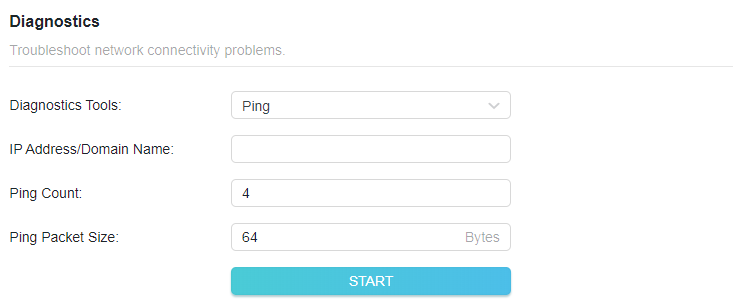
3. Enter the information:
1 ) Choose Ping or Traceroute as the diagnostic tool to test the connectivity;
• Ping is used to test the connectivity between the router and the tested host, and measure the round-trip time.
• Traceroute is used to display the route (path) your router has passed to reach the tested host, and measure transit delays of packets across an Internet Protocol network.
2 ) Enter the IP Address or Domain Name of the tested host.
3 ) Modify the Ping Count number and the Ping Packet Size. It’s recommended to keep the default value.
4 ) If you have chosen Traceroute, you can modify the Traceroute Max TTL. It’s recommended to keep the default value.
4. Click START to begin the diagnostics.
The figure below indicates the proper connection between the router and the Yahoo server (www.Yahoo.com) tested through Ping.
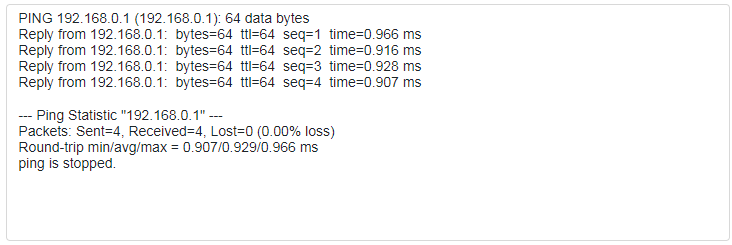
The figure below indicates the proper connection between the router and the Yahoo server (www.Yahoo.com) tested through Traceroute.
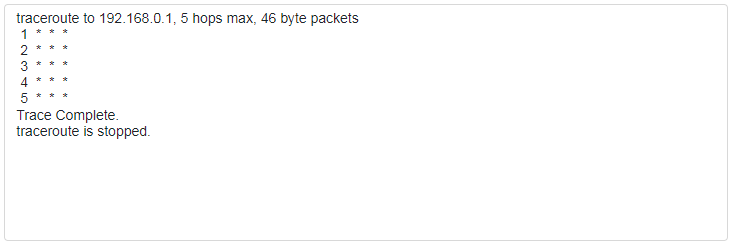
3.11.9 Set Up System Time
System time is the time displayed while the router is running. The system time you configure here will be used for other time-based functions like Parental Controls. You can choose the way to obtain the system time as needed.
1. Visit http://tplinkwifi.net, and log in with your TP-Link ID or the password you set for the router.
2. Go to Advanced > System > Time Settings.
• To get time from the internet:
1. Enable 24-Hour Time if you want the time to display in a 24-hour way.
2. In the Set Time field, select Get from Internet.
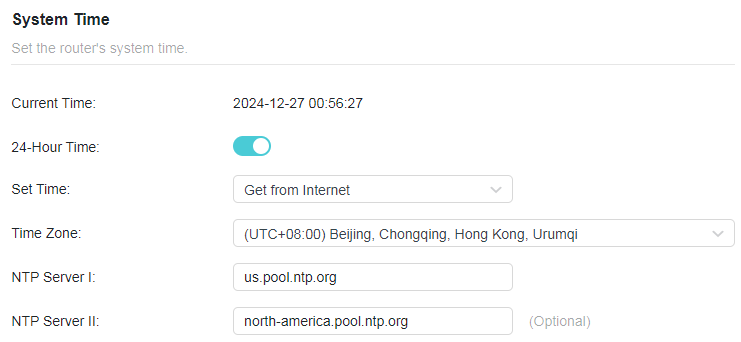
3. Select your local Time Zone from the drop-down list.
4. In the NTP Server I field, enter the IP address or domain name of your desired NTP Server.
5. (Optional) In the NTP Server II field, enter the IP address or domain name of the second NTP Server.
6. Click SAVE.
• To get time from your computer:
1. In the Set Time field, select Get from Managing Device.
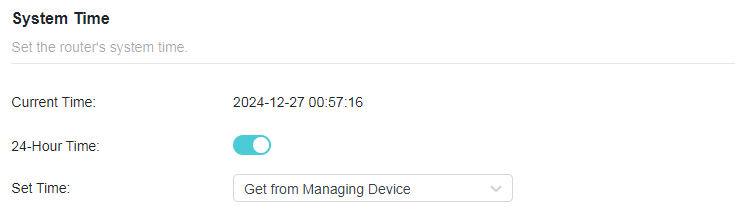
2. The time of your computer will then be displayed and click SAVE.
• To manually set the date and time:
1. In the Set Time field, select Manually.
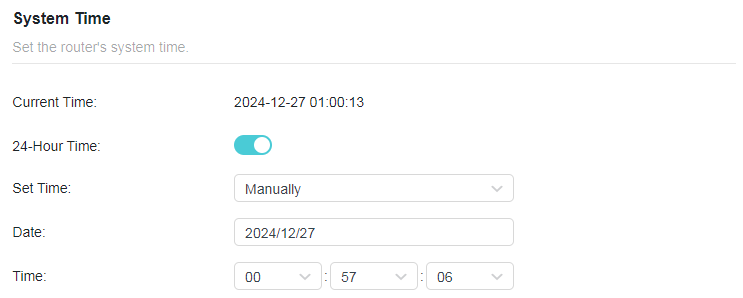
2. Set the current Date (In MM/DD/YYYY format).
3. Set the current Time (In HH/MM/SS format).
4. Click SAVE.
• To set up Daylight Saving Time:
1. Tick the Enable box of Daylight Saving Time.
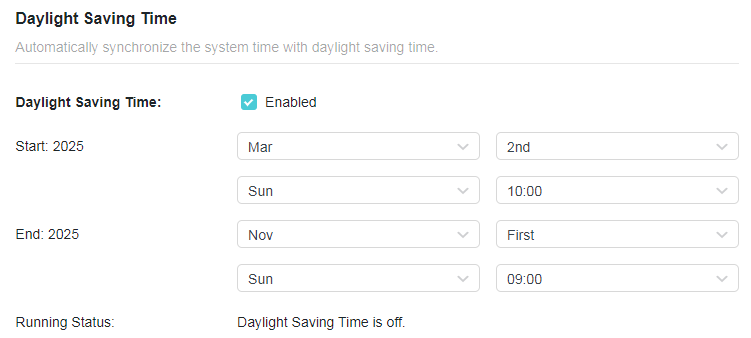
2. Select the correct Start date and time when daylight saving time starts at your local time zone.
3. Select the correct End date and time when daylight saving time ends at your local time zone.
4. Click SAVE.
3.11.10 Set the Router to Reboot Regularly
The Scheduled Reboot feature cleans the cache to enhance the running performance of the router.
1. Visit http://tplinkwifi.net, and log in with your TP-Link ID or the password you set for the router.
2. Go to Advanced > System > Reboot.
3. Tick the Enable box of Reboot Schedule.
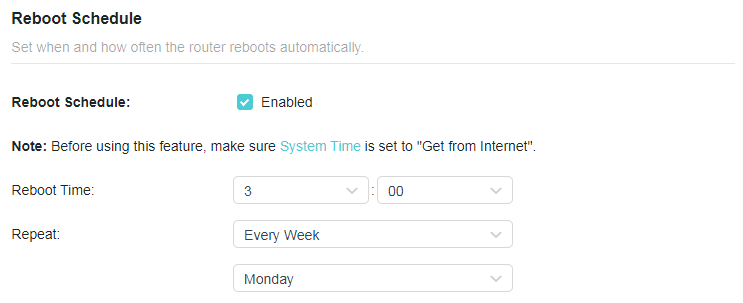
4. Specify the Reboot Time when the router reboots and Repeat to decide how often it reboots.
5. Click SAVE.
3.11.11 Control the LED
The LED of the router indicates its activities and status. You can enable the Night Mode feature to specify a time period during which the LED is off.
1. Visit http://tplinkwifi.net, and log in with your TP-Link ID or the password you set for the router.
2. Go to Advanced > System > LED Control.
3. Enable Night Mode.
4. Specify the LED Off time, and the LED will be off during this period every day.
5. Click SAVE.
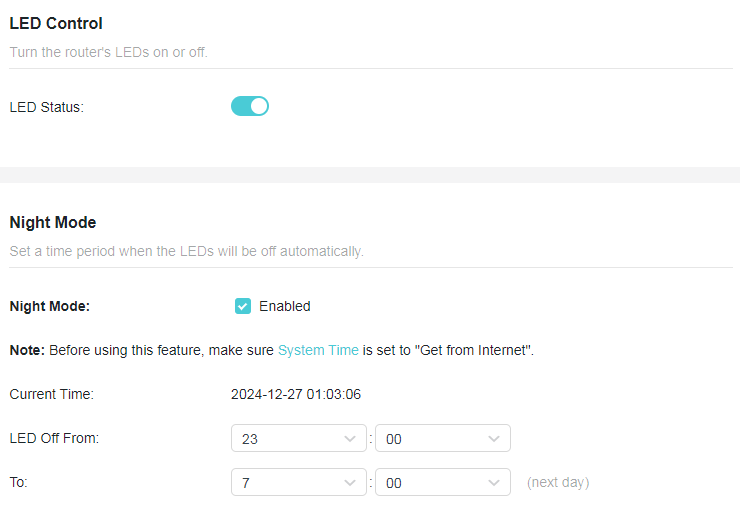
3.11.12 Action Switch
The customizable action switch offers you a physical shortcut to control a variety of functions, including Wi-Fi, LED and VPN Merge.
1. Visit http://tplinkwifi.net, and log in with your TP-Link ID or the password you set for the router.
2. Go to Advanced > System > Action Switch.
3. Select a quick control option, and click SAVE.
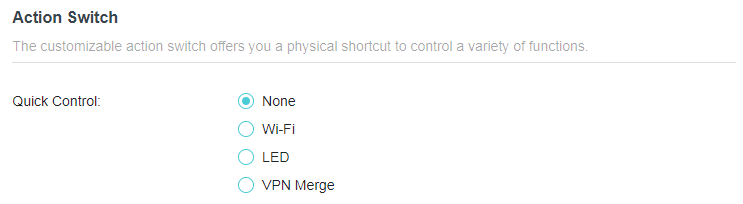
3.11.13 ECO Mode
An ECO Mode switch is used to change the power saving mode of the router. To change the ECO Mode, please toggle the Mode Switch on the device to your desired mode.
1. Visit http://tplinkwifi.net, and log in with your TP-Link ID or the password you set for the router.
2. Go to Advanced > System > ECO Mode.
3. Select a preference mode and click SAVE.
• Boost Mode: Favors wireless range and transmission speed but may increase energy consumption and raise device temperature.
• Balance Mode: Automatically balances wireless range and transmission speed while considering energy consumption and device temperature.
• ECO Mode: Saves energy and lowers device temperature by reducing device’s wireless range and transmission speed.
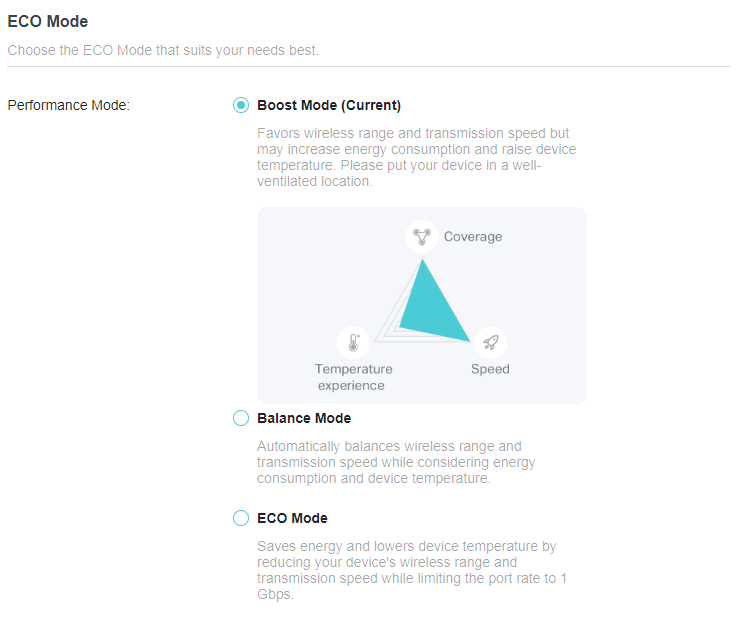
3.11.14 Authorize Third-Party Services
Share your clients’ information to a third-party services to identify your clients better. We won’t save your private information.
1. Visit http://tplinkwifi.net, and log in with your TP-Link ID or the password you set for the router.
2. Go to Advanced > System > Authorize Third-Party Services.
3. Enable Client Identification.

Chapter 4. Configure the Router in USB Internet Mode
This chapter presents how to configure the various features of the router working in 3G/4G/5G USB Modem mode, and USB Tethering mode.
*Features available on the web management page may vary by model and software version.
4.1 Operation Mode
1. Visit http://tplinkwifi.net, and log in with your TP-Link ID or the password you set for the router.
2. Go to Internet.
• To view the router’s current mode:
Locate the Connection Settings section. The router’s current operation mode is highlighted.
USB Tethering Mode:
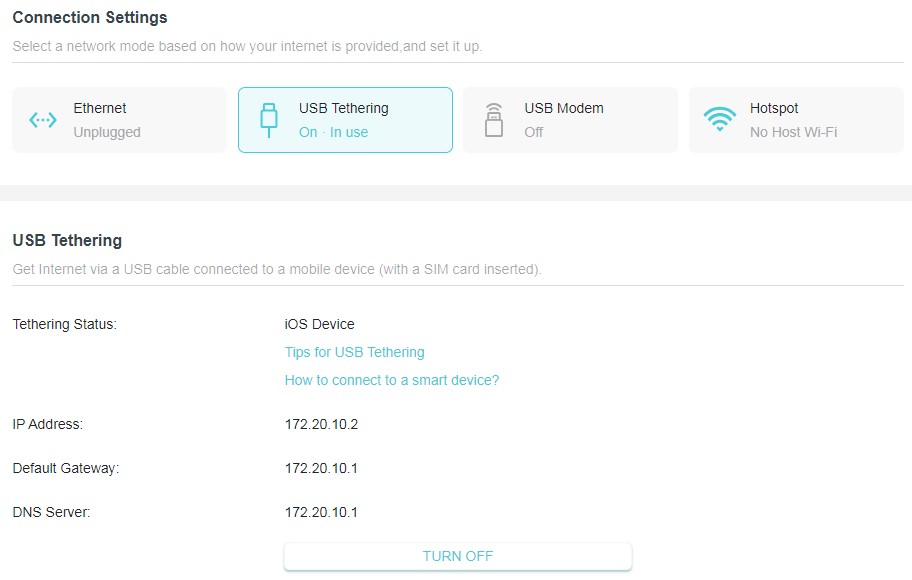
• Tethering Status - Displays the connection info of the current mode.
• IP Address - The internet IP (WAN IP) address of the router.
• Default Gateway - The Gateway currently used is shown here.
• DNS Server - Displays the DNS server which resolves the domain names to the corresponding IP addresses.
USB Modem Mode:
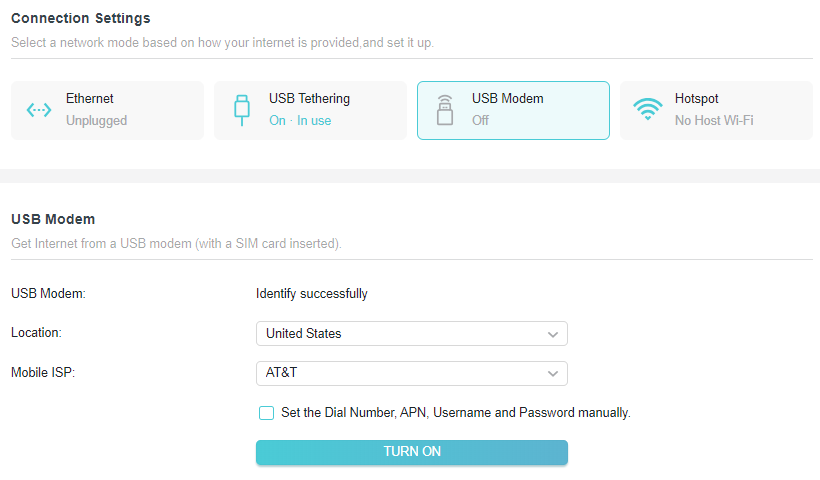
• USB Modem - Displays the connection status of the current mode.
• Location - Please select the location where you are enjoying the 3G/4G/5G USB modem service.
• Mobile ISP - Please select the ISP providing the 3G/4G/5G USB modem service. The router will automatically fill in the default Dial Number and APN of that ISP.
• Username/Password - Enter the username and password provided by your ISP if any.
• To change the router’s network mode:
1. Visit http://tplinkwifi.net, and log in with your TP-Link ID or the password you set for the router.
2. Go to Internet > Connection Settings.
3. Select your desired network mode, configure the parameters , and click SAVE.
• To change the router’s operation mode (to AP/RE/Client mode):
1. Visit http://tplinkwifi.net, and log in with your TP-Link ID or the password you set for the router.
2. Go to Advanced > System > Operation Mode.
3. Select your desired operation mode and click SAVE.
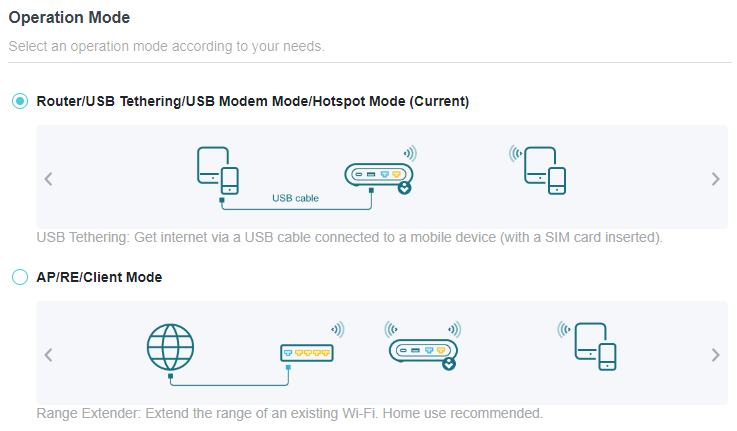
4.2 Network Map
Network Map outlines device connectivity of your network visually and helps you manage general settings of the network.
1. Visit http://tplinkwifi.net, and log in with your TP-Link ID or the password you set for the router.
2. Go to Network Map.
3. Click each network device icon to check and manage general network settings.
• Click Internet to check internet status.
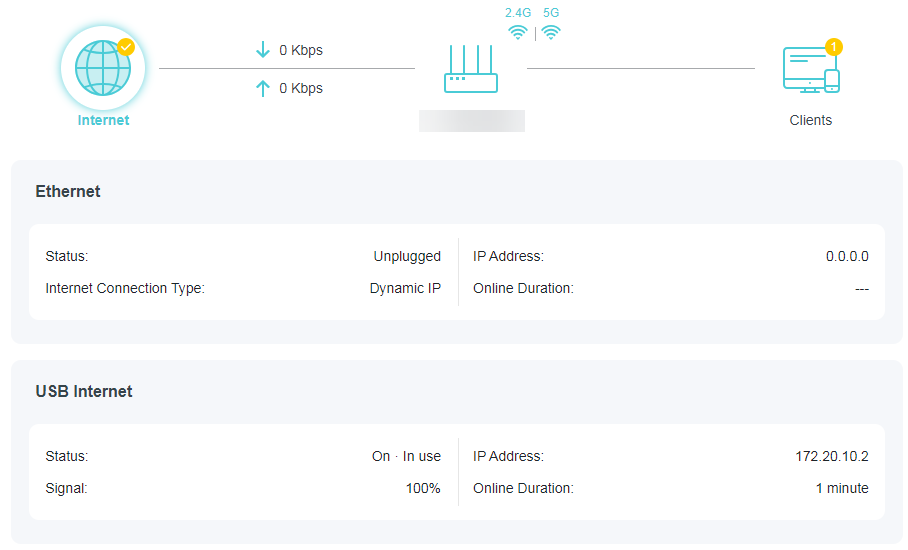
• Click the router to check device status and network settings. You can click Edit to change related settings.
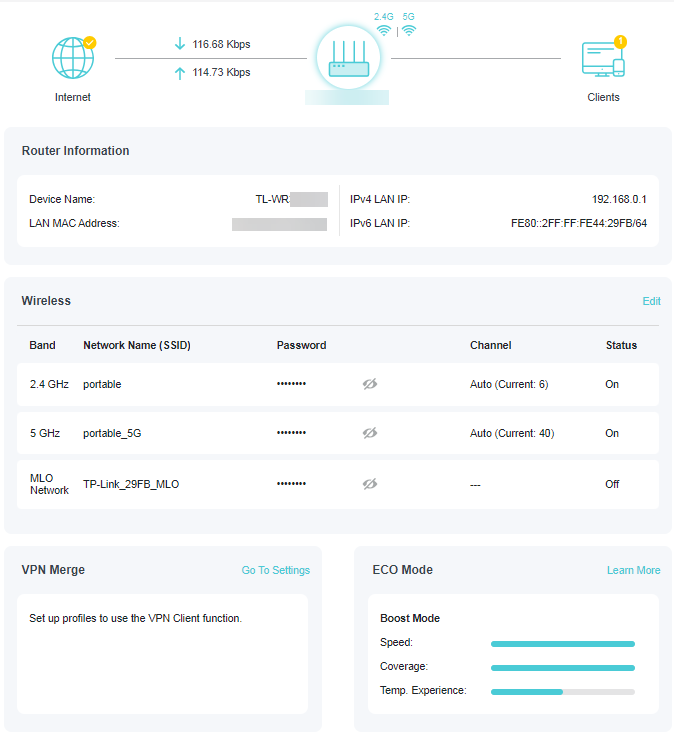
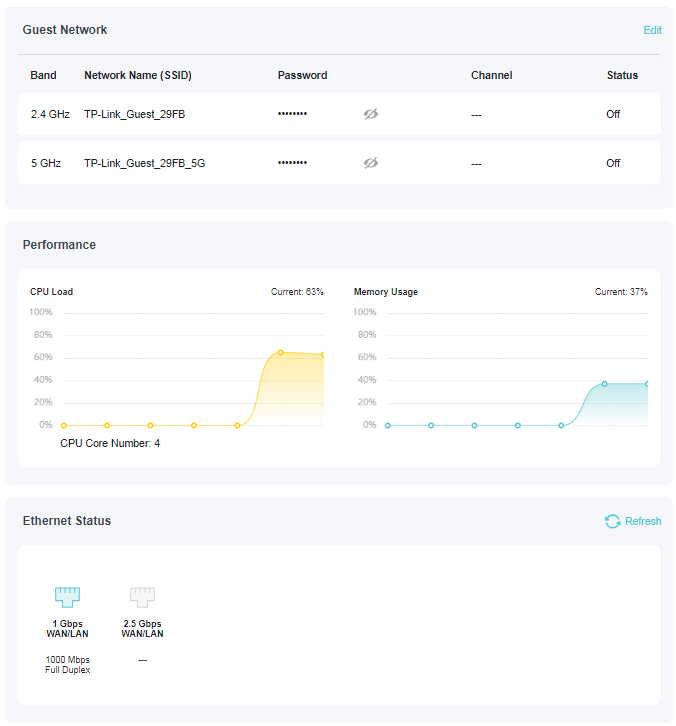
• Click Clients to view the client devices in your network. You can block devices so they cannot access your network.
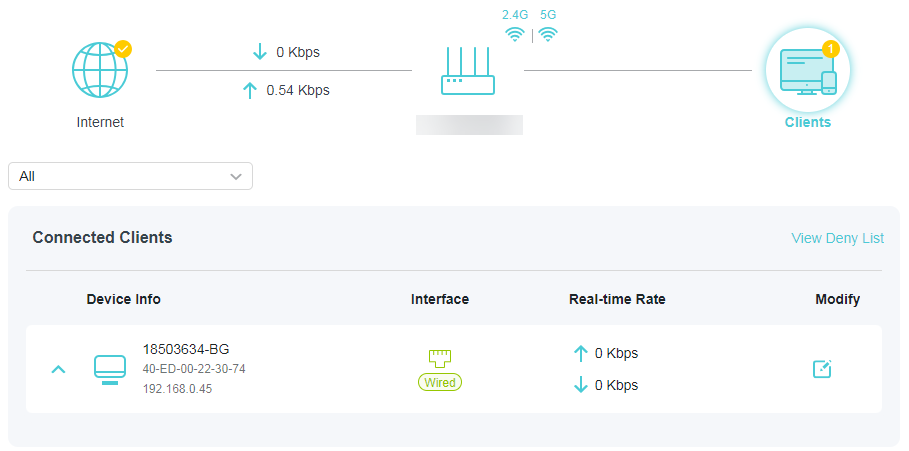
4.3 Network
4.3.1 Status
1. Visit http://tplinkwifi.net, and log in with the username and password you set for the router.
2. Go to Advanced > Network > Status. You can view the current status information of the router.
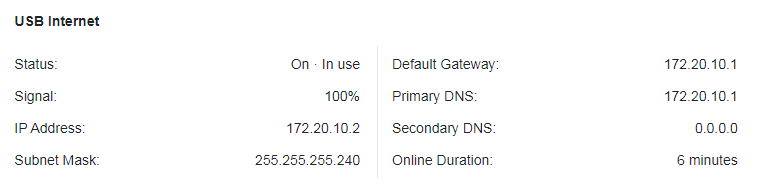
• USB Internet - Displays the current settings of the internet, and you can configure them on the Advanced > Network > Internet page.
• Status - Indicates whether the router has been connected to the internet.
• Signal - The internet signal of the mobile device that your router connected.
• IP Address - The Internet IP (WAN IP) address of the router.
• Subnet Mask - The subnet mask associated with the Internet IP (WAN IP) address.
• Default Gateway - The Gateway currently used is shown here.
• Primary & Secondary DNS - The IP addresses of DNS (Domain Name System) server.
• Online Duration - Displays how long the router has been connected to the internet.
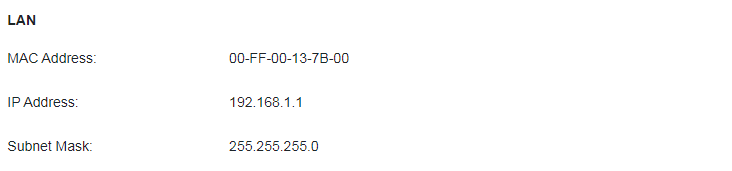
• LAN - This field displays the current settings of the LAN, and you can configure them on the Network > LAN page.
• MAC Address - The physical address of the router.
• IP Address - The LAN IP address of the router.
• Subnet Mask - The subnet mask associated with the LAN IP address.

• DHCP Server - Indicates whether the DHCP server is enabled or disabled. It is enabled by default and the router acts as a DHCP server.
• IP Address Pool - The IP address range for the DHCP server to assign IP addresses.

• Dynamic DNS - This field displays the current settings of the Dynamic DNS (Domain Name System), and you can configure them on the Advanced > Network > Dynamic DNS page.
• Service Provider - The Dynamic DNS service provider you have signed up for.
4.3.2 Internet Port
1. Visit http://tplinkwifi.net, and log in with the username and password you set for the router.
2. Go to Advanced > Network > Internet Port.
3. Select a port for internet service. Make sure the cable is securely connected to this port on your router.
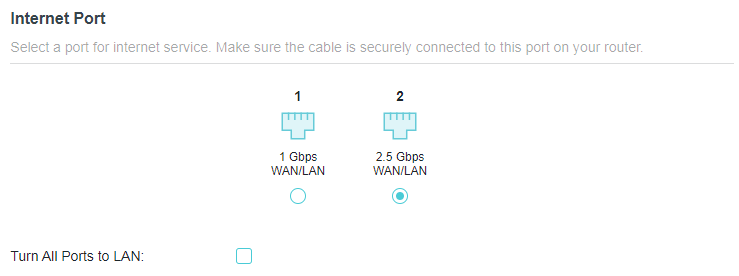
• Turn All Ports to LAN - Enable it and all the Ethernet ports will be used for LAN ports.
4.3.3 Internet Port Negotiation Speed Setting
Note: 3G/4G USB Modem mode and USB Tethering mode don’t have this function.
1. Visit http://tplinkwifi.net, and log in with the username and password you set for the router.
2. Go to Advanced > Network > Internet Port and locate the Internet Port Negotiation Speed Setting section.
3. Select the duplex type from the drop-down list and click SAVE.

4.3.4 Flow Controller
When enabled, when a device gets overloaded it will send a PAUSE frame to notify the peer device to stop sending data for a specified period of time, thus avoiding the packet loss caused by congestion.
1. Visit http://tplinkwifi.net, and log in with the username and password you set for the router.
2. Go to Advanced > Network > Internet Port. Locate the Flow Controller section.
3. Select the desired option and click SAVE.
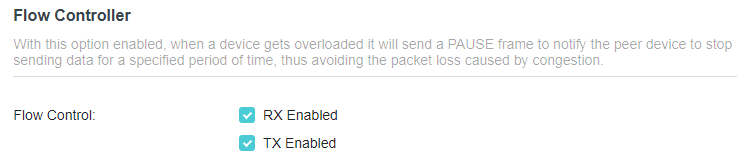
4.3.5 Internet Settings for USB Tethering Mode
1. Visit http://tplinkwifi.net, and log in with the username and password you set for the router.
2. Go to Advanced > Network > Internet.
3. Locate the Network Connection Priority section. Click the Settings icon  , then enter the settings provided by your ISP.
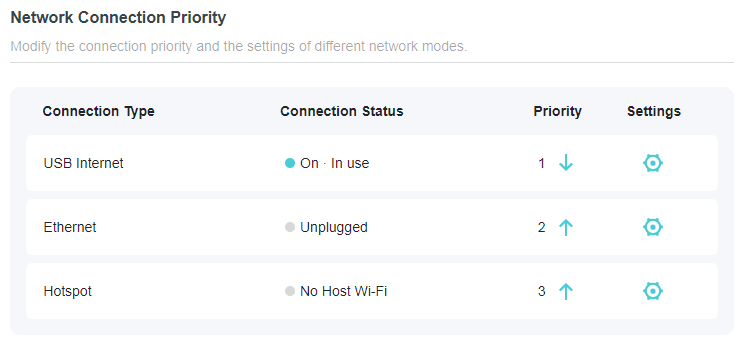
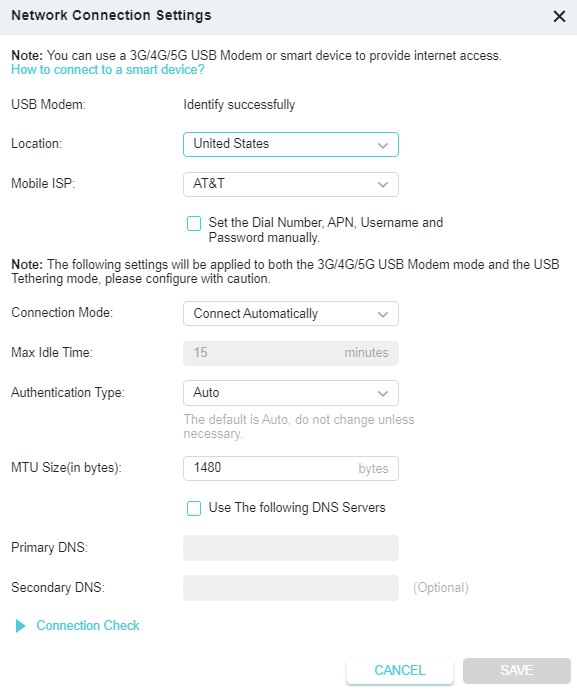
• USB Modem - Displays the connection status of the current mode.
• Location - Please select the location where you are enjoying the 3G/4G USB modem service.
• Mobile ISP - Please select the ISP providing the 3G/4G USB modem service. The router will automatically fill in the default Dial Number and APN of that ISP.
• Username/Password - Enter the username and password provided by your ISP if any.
• Connection Mode
• Connect Automatically - In this mode, the 3G/4G connection reconnects automatically whenever it gets disconnected.
• Connect on Demand - In this mode, the 3G/4G connection will be terminated automatically after a specified inactivity period (Max Idle Time) and be reestablished when you attempt to access the internet again.
• Authentication Type - Some ISPs require authentication to access the internet. Please select Auto or consult your ISP.
• Auto - The router will have dynamic negotiation with the dialing server and the authentication type doesn’t need to be specified.
• PAP - Password Authentication Protocol. Select PAP if required by your ISP.
• CHAP - Challenge Handshake Authentication Protocol. Select CHAP if required by your ISP.
• MTU size (in bytes) - The typical MTU (Maximum Transmission Unit) size for 3G or 4G network is 1480 Bytes.
• Primary/Secondary DNS - (Optional) Enter one or two DNS addresses in dotteddecimal notation provided by your ISP. The 3G/4G/5G USB modem connection will only use the specified DNS server(s).
• Connection Check - The router uses Ping to check the connection status of the Ethernet/Hotspot/USB Internet connection type periodically to check whether the internet is available. You can edit the following parameters, and click SAVE.
• Track Interval - The time interval between consecutive ICMP echo requests. You are recommended to keep it as the default.
4.3.6 NAT
Note: 3G/4G/5G USB Modem mode and USB Tethering mode don’t have this function.
The router’s NAT (Network Address Translation) feature makes devices on the LAN use the same public IP address to communicate with devices on the internet, which protects the local network by hiding IP addresses of the devices.
1. Visit http://tplinkwifi.net, and log in with the username and password you set for the router.
2. Go to Advanced > Network > Internet and locate the NAT section.
3. Enable NAT, then click SAVE.

4. NAT is enable by dafault and it’s highly recommended. If you disable it, you may have no access to the internet and NAT Forwarding will not take effect.
4.3.7 DoT/DoH
Encrypting DNS queries by TLS/HTTPS, DoT/DoH can provide you with a more secure and private internet connection.
1. Visit http://tplinkwifi.net, and log in with the username and password you set for the router.
2. Go to Advanced > Network > Internet and locate the DoT/DoH section.
3. Select a DNS Privacy: DoT/DoH.
4. Select a DNS Mode.
• Default Mode: In this mode, the router will prioritize the secure DNS server you selected. If the server is unavailable, the default DNS server will take effect.
• Ultra Secure Mode: In this mode, the router only uses the secure DNS server you selected. If the server is unavailable, the internet connectivity will be affected.
5. Enter the DNS Server. You can detect whether the selected DNS servers are available or not. When you save the settings, DoH/DoT will be applied to these DNS servers, and the Primary & Secondary DNS servers you’ve set won’t take effect.
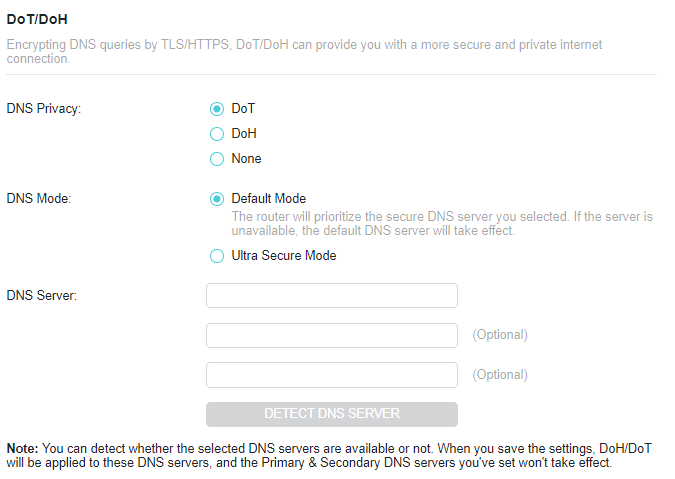
4.3.8 Multi-WAN Backup
Multi-WAN is supported in the Router/USB Internet/Hotspot mode. When the preferred mode fails, the backup mode will take over network data transmission, ensuring network continuity and reliability.
Note: USB Internet includes the 3G/4G USB Modem mode and USB Tethering mode.
1. Visit http://tplinkwifi.net, and log in with the username and password you set for the router.
2. Go to Advanced > Network > Internet >Multi-WAN.
3. Enable Backup.

4. In Network Connection Priority, modify the connection priority and the settings of the Router mode and the USB Internet mode.
• To set Multi-WAN Backup priority:
Click / at each mode. The mode with the 1st priority will be set as the preferred mode, and the mode with the 2nd priority will be set as the backup mode. when the preferred mode fails, the backup mode will take over network data transmission.
4.3.9 LAN
1. Visit http://tplinkwifi.net, and log in with your TP-Link ID or the password you set for the router.
2. Go to Advanced > Network > LAN.
3. Configure the IP parameters of the LAN and click SAVE.
• MAC Address - The physical address of the LAN ports. The value can not be changed.
• IP Address - Enter the IP address in dotted-decimal notation of your router (the default one is 192.168.0.1).
• Subnet Mask - An address code that determines the size of the network. Normally 255.255.255.0 is used as the subnet mask.
Note:
• If you have changed the IP address, you must use the new IP address to log in.
• If the new IP address you set is not in the same subnet as the old one, the IP address pool in the DHCP Server will be configured automatically, but the Virtual Server and DMZ Host will not take effect until they are re-configured.
4.3.10 IGMP
IGMP (Internet Group Management Protocol) helps the router to identify which clients are subscribed to specific multicast groups within a local network. This allows for efficient transmission of multicast data packets, avoiding unnecessary traffic waste and improving network performance.
IGMP can be used to manage multicast transmission in IPTV. If you want to set up IPTV to enable Internet/IPTV/Phone service provided by your internet service provider (ISP), follow the steps:
Before you start, make sure your ISP provides the networking service based on IGMP technology, e.g., British Telecom(BT) and Talk Talk in UK:
1. Visit http://tplinkwifi.net, and log in with your TP-Link ID or the password you set for the router.
2. Go to Advanced > Network > IGMP.
1 ) Tick the IGMP Proxy and IGMP Snooping checkbox, then select the IGMP Version, either V2 or V3, as required by your ISP.
2 ) Click SAVE.
3 ) After configuring IGMP proxy, IPTV can work behind your router now. You can connect your set-top box to any of the router’s Ethernet port.
4.3.11 DHCP Server
By default, the DHCP (Dynamic Host Configuration Protocol) Server is enabled and the router acts as a DHCP server; it dynamically assigns TCP/IP parameters to client devices from the IP Address Pool. You can change the settings of DHCP Server if necessary, and you can reserve LAN IP addresses for specified client devices.
• To specify the IP address that the router assigns:
1. Visit http://tplinkwifi.net, and log in with your TP-Link ID or the password you set for the router.
2. Go to Advanced > Network > DHCP Server and locate the DHCP Server section.
1. Tick the Enable checkbox.
2. Enter the starting and ending IP addresses in the IP Address Pool.
3. Enter other parameters if the ISP offers. The Default Gateway is automatically filled in and is the same as the LAN IP address of the router.
4. Click SAVE.
Note: To use the DHCP server function of the router, you must configure all computers on the LAN as Obtain an IP Address automatically.
• To reserve an IP address for a specified client device:
1. Visit http://tplinkwifi.net, and log in with your TP-Link ID or the password you set for the router.
2. Go to Advanced > Network > DHCP Server and locate the Address Reservation section.
3. Click Add in the Address Reservation section.
4. Click VIEW CONNECTED DEVICES and select the you device you want to reserve an IP for. Then the MAC and IP Address will be automatically filled in. You can also enter the MAC and IP address of the client device.
• To check the DHCP client list:
1. Visit http://tplinkwifi.net, and log in with your TP-Link ID or the password you set for the router.
2. Go to Advanced > Network > DHCP Server and locate the DHCP Client List section. You can see the device information of the list.
3. Click Refresh to see the current attached devices.
4.3.12 Dynamic DNS
The router offers the DDNS (Dynamic Domain Name System) feature, which allows the hosting of a website, FTP server, or e-mail server with a fixed domain name (named by yourself) and a dynamic IP address. Thus your friends can connect to your server by entering your domain name no matter what your IP address is.
Before using this feature, you need to sign up for DDNS service providers such as www.comexe.cn, www.dyndns.org, or www.noip.com. The Dynamic DNS client service provider will give you a password or key.
1. Visit http://tplinkwifi.net, and log in with your TP-Link ID or the password you set for the router.
2. Go to Advanced > Network > Dynamic DNS.
3. Select the DDNS Service Provider: TP-Link, NO-IP or DynDNS. It is recommended to select TP-Link so that you can enjoy TP-Link’s superior DDNS service. Otherwise, please select NO-IP or DynDNS. If you don’t have a DDNS account, you have to register first by clicking Register Now.
Note: To enjoy TP-Link’s DDNS service, you have to log in with a TP-Link ID. If you have not logged in with one, click log in.
4. Click Register in the Domain Name List if you have selected TP-Link, and enter the Domain Name as needed.
If you have selected NO-IP or DynDNS, enter the username, password and domain name of your account.
5. Click LOG IN AND SAVE.
Note: If you want to use a new DDNS account, please click LOGOUT first, and then log in with a new account.
4.3.13 Static Routing
Static Routing is a form of routing that is configured manually by a network administrator or a user by adding entries into a routing table. The manually-configured routing information guides the router in forwarding data packets to the specific destination.
I want to:
Visit multiple networks and servers at the same time.
For example, in a small office, my PC can surf the internet through Router A, but I also want to visit my company’s network. Now I have a switch and Router B. I connect the devices as shown in the following figure so that the physical connection between my PC and my company’s server is established. To surf the internet and visit my company’s network at the same time, I need to configure the static routing.
*Image may differ from your actual product.
How can I do that?
1. Change the routers’ LAN IP addresses to two different IP addresses on the same subnet. Disable Router B’s DHCP function.
2. Visit http://tplinkwifi.net, and log in with your TP-Link ID or the password you set for Router A.
3. Go to Advanced > Network > Routing and locate the Static Routing section.
4. Click Add and finish the settings according to the following explanations:
• Network Destination - The destination IP address that you want to assign to a static route, such as 192.168.0.100/24. This IP address cannot be on the same subnet with the WAN IP or LAN IP of Router A.
• Default Gateway - The IP address of the gateway device to which the data packets will be sent. This IP address must be on the same subnet with the router’s IP which sends out data. In the example, the data packets will be sent to the LAN port of Router B and then to the Server, so the default gateway should be 192.168.1.2.
• Interface - Determined by the port (WAN/LAN) that sends out data packets. In the example, the data are sent to the gateway through the LAN port of Router A, so LAN/WLAN should be selected.
• Description - Enter a description for this static routing entry.
5. Click SAVE.
6. Check the Routing Table below. If you can find the entry you’ve set, the static routing is set successfully.
4.4 TP-Link Cloud Service
TP-Link Cloud service provides a better way to manage your cloud devices. Log in to your router with a TP-Link ID, and you can easily monitor and manage your home network when you are out and about via the Tether app. To ensure that your router stays new and gets better over time, the TP-Link Cloud will notify you when an important firmware upgrade is available. Surely you can also manage multiple TP-Link Cloud devices with a single TP-Link ID.
This section introduces how to register a new TP-Link ID, bind or unbind TP-Link IDs to manage your router, and the Tether app with which you can manage your home network no matter where you may find yourself.
4.4.1 Register a TP-Link ID
If you have skipped the registration during the Quick Setup process, you can:
1. Visit http://tplinkwifi.net, and log in with the password you set for the router.
2. Go to Advanced > TP-Link ID or click TP-Link ID on the very top of the page.
3. Click Sign Up and follow the instructions to register a TP-Link ID.
4. After activating your TP-Link ID, come back to the TP-Link ID page to log in. The TP-Link ID used to log in to the router for the first time will be automatically bound as an Admin.
Note:
• To learn more about the Admin and User TP-Link ID, refer to Manage the User TP-Link IDs.
• Once you have registered a TP-Link ID on the web management page, you can only register another TPLink ID via the Tether APP. Please refer to Log In via Tether to install the app.
• If you want to unbind the admin TP-Link ID from your router, please go to Advanced > TP-Link ID, an click Unbind in the Device Information section.
4.4.2 Change Your TP-Link ID Information
Follow the steps below to change your email address and password of your TP-Link ID as needed.
1. Visit http://tplinkwifi.net, and log in with your TP-Link ID.
2. Go to Advanced > TP-Link ID, and focus on the TP-Link ID section.
• To change your email address:
1. Click behind the Email.
2. Enter the password of your TP-Link ID, then a new email address. And click SAVE.
• To change your password:
1. Click behind the Password.
2. Enter the current password, then a new password twice. And click SAVE.
4.4.3 Manage the User TP-Link IDs
The TP-Link ID used to log in to the router for the first time will be automatically bound as the Owner account. The Owner account can add or remove other TP-Link IDs to or from the same router. All accounts can monitor and manage the router locally or remotely, but only the owner account can:
• Reset the router to its factory default settings either on the web management page or in the Tether app.
• Add/remove other TP-Link IDs to/from the router.
Add TP-Link ID to Manage the Router
1. Visit http://tplinkwifi.net, and log in with your TP-Link ID.
2. Go to Advanced > TP-Link ID, and focus on the Bound TP-Link IDs section.
3. Click , enter another TP-Link ID as needed and click SAVE.
Note: If you need another TP-Link ID, please register a new one via the Tether app. Refer to Manage the Router via the TP-Link Tether App to install the app and register a new TP-Link ID.
4. The new TP-Link ID will be displayed in the Bound TP-Link IDs table.
Remove TP-Link ID(s) from Managing the Router
1. Visit http://tplinkwifi.net, and log in with your TP-Link ID.
2. Go to Advanced > TP-Link ID, and focus on the Bound TP-Link IDs section.
3. Tick Unbind of the TP-Link ID(s) you want to remove.
4.4.4 Manage the Router via the TP-Link Tether App
The Tether app runs on iOS and Android devices, such as smartphones and tablets.
1. Launch the Apple App Store or Google Play store and search “TP-Link Tether” or simply scan the QR code to download and install the app.
2. Launch the Tether app and log in with your TP-Link ID. If you don’t have a TP-Link ID, create one first.
3. Connect your device to the router’s wireless network.
4. Go back to the Tether app, select the model of your router and log in with the password you set for the router.
5. Manage your router as needed.
Note: If you need to remotely access your router from your smart devices, you need to:
• Log in with your TP-Link ID. If you don’t have one, refer to Register a TP-Link ID.
• Make sure your smartphone or tablet can access the internet with cellular data or a Wi-Fi network.
4.5 Wireless
4.5.1 Wireless Settings
1. Visit http://tplinkwifi.net, and log in with your TP-Link ID or the password you set for the router.
2. Go to Advanced > Wireless > Wireless Settings.
3. Configure the wireless settings for the wireless network and click SAVE.
• TWT - Target Wake Time allows 802.11ax routers and clients to negotiate their periods to transmit and receive data packets. Clients only wake up at TWT sessions and remain in sleep mode for the rest of the time, which significantly extend their battery life.
• OFDMA/MU-MIMO - This feature enables multiple users to transmit data simultaneously, and thus greatly improves speed and efficiency. Noted that only when your clients also support OFDMA, can you fully enjoy the benefits.
• 2.4GHz/5GHz - Select this checkbox to enable the 2.4GHz/5GHz wireless network.
• Share Network- Click to save the Wi-Fi settings for sharing.
• Network Name (SSID) - Enter a value of up to 32 characters. The same Name (SSID) must be assigned to all wireless devices in your network.
• Hide SSID - Select this checkbox if you want to hide the network name (SSID) from the Wi-Fi network list. In this case, you need to manually join the network.
• Security - Select an option from the Security drop-down list. We recommend you don’t change the default settings unless necessary.
• Password - Set a password for the wireless network. The value is case-sensitive.
• Transmit Power - Select High, Middle or Low to specify the data transmit power. The default and recommended setting is High.
• Channel Width - Select a channel width (bandwidth) for the wireless network.
• Channel - Select an operating channel for the wireless network. For the 2.4 GHz and 5GHz bands, it is recommended to leave the channel to Auto, if you are not experiencing the intermittent wireless connection issue.
• Mode - You can choose the appropriate “Mixed” mode.
4.5.2 MLO Network
MLO (Multi-Link Operation) network enables the connected Wi-Fi 7 clients to simultaneously send and receive data across different frequency bands, greatly improving the transmission rate and reliability.
Note: Some models may not have the MLO network. Images may differ from actual products.
1. Go to Advanced > Wireless > Wireless Settings.
2. Locate the MLO Network section and enable MLO Network.
3. Specify an SSID in Network Name (SSID).
4. Select the Security type. Specify a password if the security type you selected requires it. This value is case-sensitive.
5. You can also click Share Network to share the SSID and password with your guests.
6. If you select Hide SSID, your SSID won’t display when you scan for local wireless networks on your wireless device and you need to manually join the MLO network.
7. Click SAVE to save your settings.
4.5.3 Guest Network
Guest Network allows you to provide Wi-Fi access for guests without disclosing your host network. When you have guests in your house, apartment, or workplace, you can create a guest network for them. In addition, you can customize guest network settings to ensure network security and privacy.
• Create a Guest Network
1. Visit http://tplinkwifi.net, and log in with your TP-Link ID or the password you set for the router.
2. Go to Advanced > Wireless > Guest Network.
3. Enable the 2.4GHz/5GHz guest network according to your needs.
4. Customize the SSID. Don‘t select Hide SSID unless you want your guests to manually input the SSID for guest network access.
5. Select the Security type and customize your own password. If No security is selected, no password is needed to access your guest network.
6. Click SAVE. Now you guests can access your guest network using the SSID and password you set!
• Customize Guest Network Options
1. Visit http://tplinkwifi.net, and log in with your TP-Link ID or the password you set for the router.
2. Go to Advanced > Wireless > Guest Network. Locate the Guest Permissions section.
3. Customize guest network options according to your needs.
• Allow guests to see each other
Tick this checkbox if you want to allow the wireless clients on your guest network to communicate with each other via methods such as network neighbors and Ping.
• Allow guests to access my local network
Tick this checkbox if you want to allow the wireless clients on your guest network to communicate with the devices connected to your router’s LAN ports or main network via methods such as network neighbors and Ping.
4. Click SAVE. Now you can ensure network security and privacy!
4.5.4 Wireless Schedule
The wireless function can be automatically off at a specific time when you do not need the wireless function.
1. Visit http://tplinkwifi.net, and log in with your TP-Link ID or the password you set for the router.
2. Go to Advanced > Wireless > Wireless Schedule.
3. Enable the Wireless Schedule function.
4. Click Add to specify a wireless off period during which you need the wireless off automatically, and click SAVE.
Note:
• The effective wireless schedule is based on the time of the router. You can go to Advanced > System > Time to modify the time.
• The wireless network will be automatically turned on after the time period you set.
4.5.5 WPS
WPS (Wi-Fi Protected Setup) can help you to quickly and securely connect to a network. This section will guide you to add a new wireless device to your router’s network quickly via WPS.
Note:
• The WPS function cannot be configured if the wireless function of the router is disabled. Please make sure the wireless function is enabled before configuration.
1. Visit http://tplinkwifi.net, and log in with your TP-Link ID or the password you set for the router.
2. Go to Advanced > Wireless > WPS.
3. Follow one of the following methods to connect your client device to the router’s Wi-Fi network.
Method 1: Using a PIN
• Connects via the Client’s PIN
1. Keep the WPS Status as Enabled and select Client’s PIN.
2. Enter the PIN of your device and click CONNECT. Then your device will get connected to the router.
• Connects via the Router’s PIN
1. Keep the WPS Status as Enabled and select Router’s PIN.
2. Enter the router’s PIN on your personal device. You can also generate a new one.
Note: PIN (Personal Identification Number) is an eight-character identification number preset to each router. WPS supported devices can connect to your router with the PIN.
Method 2: Using the WPS Button on the Web Screen
Click Start on the screen. Within two minutes, enable WPS on your personal device.
A Device-(XX-XX-XX-XX-XX-XX) Connected message should appear on the screen, indicating successful WPS connection.
Note: XX-XX-XX-XX-XX-XX is the MAC address of your device.
Method 3: Using the WPS Button on the Router
Press the router’s WPS button. Within two minutes, enable WPS on your personal device.
4.5.6 Additional Settings
1. Visit http://tplinkwifi.net, and log in with your TP-Link ID or the password you set for the router.
2. Go to Advanced > Wireless > Additional Settings.
3. Configure the advanced settings of your wireless network and click SAVE.
Note: If you are not familiar with the setting items on this page, it’s strongly recommended to keep the provided default values; otherwise it may result in lower wireless network performance.
• WMM - WMM function can guarantee the packets with high-priority messages being transmitted preferentially.
• Short GI - This function reduces the time between data packets to potentially increase the throughput of wireless network.
• AP Isolation - This function isolates all connected wireless stations so that wireless stations cannot access each other through WLAN.
• Airtime Fairness - This function can improve the overall network performance by sacrificing a little bit of network time on your slow devices.
• Beacon Interval - Enter a value between 40-1000 milliseconds for Beacon Interval here. Beacon Interval value determines the time interval of the beacons. The beacons are the packets sent by the router to synchronize a wireless network. The default value is 100.
• RTS Threshold - Here you can specify the RTS (Request to Send) Threshold. If the packet is larger than the specified RTS Threshold size, the router will send RTS frames to a particular receiving station and negotiate the sending of a data frame. The default value is 2346.
• DTIM Interval - This value determines the interval of the Delivery Traffic Indication Message (DTIM). A DTIM field is a countdown field informing clients of the next window for listening to broadcast and multicast messages. When the router has buffered broadcast or multicast messages for associated clients, it sends the next DTIM with a DTIM Interval value. You can specify the value between 1-255 Beacon Intervals. The default value is 1, which indicates the DTIM Interval is the same as Beacon Interval.
• Group Key Update Period - Enter a number of seconds (minimum 30) to control the time interval for the encryption key automatic renewal. The default value is 0, meaning no key renewal.
4.6 USB Storage Device
Insert your USB storage device into the router’s USB port and then access files stored there locally or remotely.
Tips:
• If you use USB hubs, make sure no more than 4 devices are connected to the router.
• If the USB storage device requires using bundled external power, make sure the external power has been connected.
• If you use a USB hard drive, make sure its file system is FAT32, exFat, NTFS or HFS+.
• Before you physically disconnect a USB device from the router, safely remove it to avoid data damage: Go to Advanced > USB > Storage Device and click Remove.
4.6.1 Access the USB Device Locally
Insert your USB storage device into the router’s USB port and then refer to the following table to access files stored on your USB storage device.
| Windows computer |
• Method 1:
• Method 2:
|
|---|---|
| Mac |
1 ) Select Go > Connect to Server.
4 ) When prompted, select the Guest radio box. (If you have set up a username and a password to deny anonymous access to the USB disks, you should select the Registered User radio box. To learn how to set up an account for the access, refer to To Set Up Authentication for Data Security.) |
| Tablet | Use a third-party app for network files management. |
Tips:
You can also access your USB storage device by using your Network/Media Server Name as the server address. Refer to To Customize the Address of the USB Storage Device to learn more.
4.6.2 Access the USB Device Remotely
You can access your USB disk outside the local area network. For example, you can:
• Share photos and other large files with your friends without logging in to (and paying for) a photo-sharing site or email system.
• Get a safe backup for the materials for a presentation.
• Remove the files on your camera’s memory card from time to time during the journey.
Note: If your ISP assigns a private WAN IP address (such as 192.168.x.x or 10.x.x.x), you cannot use this feature because private addresses are not routed on the internet.
Follow the steps below to configure remote access settings.
1. Visit http://tplinkwifi.net, and log in with your TP-Link ID or the password you set for the router.
2. Go to Advanced > USB > Storage Device.
3. Tick the Internet FTP checkbox, and then click SAVE.
4. Refer to the following table to access your USB disk remotely.
| Computer |
1 ) Open the Windows Explorer (or go to Computer, only for Windows users) or open a web browser.
3 ) Press Enter on the keyboard. |
|---|---|
| Tablet | Use a third-party app for network files management. |
Tips: Click Dynamic DNS to learn how to set up a domain name for you router.
4.6.3 Customize the Access Settings
By default, all the network clients can access all folders on your USB disk. You can customize your sharing settings by setting a sharing account, sharing specific contents and setting a new sharing address on the router’s web management page.
1. Visit http://tplinkwifi.net, and log in with your TP-Link ID or the password you set for the router.
2. Go to Advanced > USB > Storage Device.
• To Customize the Address of the USB Storage Device
You can customize the server name and use the name to access your USB storage device.
1. In the Access Method session, make sure Samba for Windows Samba for macOS/ Linux is enabled, and enter a Network/Media Server Name as you like, such as MyShare, then click SAVE.
2. Now you can access the USB storage device by visiting \\MyShare (for Windows) or smb://MyShare (for Mac).
• To Only Share Specific Content
Focus on the File Sharing section. Specify sharing folders that you want to share and click SAVE.
• To Set Up Authentication for Data Security
You can set up authentication for your USB storage device so that network clients will be required to enter username and password when accessing the USB storage device.
1. In the File Sharing section, enable Secure Sharing.
2. Click to modify the access account, and pay attention to the default username and password. Accessing as an administrator can read and modify the shared folders while visitors can only read the shared folders.
Note:
1. For Windows users, do not set the sharing username the same as the Windows username. Otherwise, Windows credential mechanism may cause the following problems:
• If the sharing password is also the same as the Windows password, authentication will not work since the Windows will automatically use its account information for USB access.
• If the sharing password is different from the Windows password, the Windows will be unable to remember your credentials and you will always be required to enter the sharing password for USB access.
2. Due to Windows credential mechanism, you might be unable to access the USB disk after changing Authentication settings. Please log out from the Windows and try to access again. Or you can change the address of the USB disk by referring to To Customize the Address of the USB Storage Device.
4.6.4 Media Sharing
The feature of Media Sharing allows you to view photos, play music and watch movies stored on the USB storage device directly from DLNA-supported devices, such as your computer, tablet and PS2/3/4.
Note: Some models may not support this feature. Images may differ from actual products.
1. Visit http://tplinkwifi.net, and log in with your TP-Link ID or the password you set for the router.
2. Go to Advanced > USB > Storage Device.
3. Enable Media Sharing.
4. When your USB storage device is inserted into the router, your DLNA-supported devices (such as your computer and pad) connected to the router can detect and play the media files on the USB storage devices.
5. Refer to the following table for detailed instructions.
| Windows Computer |
Go to Computer > Network, then click the Media Server Name (Model number-share by default) in the Media Devices section.
|
|---|---|
| Tablet | • Use a third-party DLNA-supported player. |
4.7 NAT Forwarding
The router’s NAT (Network Address Translation) feature makes the devices on the LAN use the same public IP address to communicate on the internet, which protects the local network by hiding IP addresses of the devices. However, it also brings about the problem that external hosts cannot initiatively communicate with the specified devices in the local network.
With the forwarding feature, the router can traverse the isolation of NAT so that clients on the internet can reach devices on the LAN and realize some specific functions. The Mercusys router includes four forwarding rules. If two or more rules are set, the priority of implementation from high to low is Port Forwarding, Port Triggering, UPNP and DMZ.
4.7.1 Port Forwarding
When you build up a server in the local network and want to share it on the internet, Port Forwarding can realize the service and provide it to internet users. At the same time Port Forwarding can keep the local network safe as other services are still invisible from the internet.
Port Forwarding can be used to set up public services in your local network, such as HTTP, FTP, DNS, POP3/SMTP and Telnet. Different service uses different service port. Port 80 is used in HTTP service, port 21 in FTP service, port 25 in SMTP service and port 110 in POP3 service. Please verify the service port number before the configuration.
I want to:
Share my personal website I’ve built in local network with my friends through the internet.
For example, the personal website has been built in my home PC (192.168.1.100). I hope that my friends on the internet can visit my website in some way. My PC is connected to the router with the WAN IP address 218.18.232.154.
1. Set your PC to a static IP address, for example 192.168.1.100.
2. Visit http://tplinkwifi.net, and log in with your TP-Link ID or the password you set for the router.
3. Go to Advanced > NAT Forwarding > Port Forwarding.
4. Click Add.
5. Click VIEW COMMON SERVICES and select HTTP. The External Port, Internal Port and Protocol will be automatically filled in.
6. Click VIEW CONNECTED DEVICES and select your home PC. The Device IP Address will be automatically filled in. Or enter the PC’s IP address 192.168.0.100 manually in the Device IP Address field.
7. Click SAVE.
Tips:
• It is recommended to keep the default settings of Internal Port and Protocol if you are not clear about which port and protocol to use.
• If the service you want to use is not in the common services list, you can enter the corresponding parameters manually. You should verify the port number that the service needs.
• You can add multiple port forwarding rules if you want to provide several services in a router. Please note that the External Port should not be overlapped.
Done!
Users on the internet can enter http:// WAN IP (in this example: http:// 218.18.232.154) to visit your personal website.
Tips:
• The WAN IP should be a public IP address. For the WAN IP is assigned dynamically by the ISP, it is recommended to apply and register a domain name for the WAN referring to Dynamic DNS. Then users on the internet can use http:// domain name to visit the website.
• If you have changed the default External Port, you should use http:// WAN IP: External Port or http:// domain name: External Port to visit the website.
4.7.2 Port Triggering
Port Triggering can specify a triggering port and its corresponding external ports. When a host on the local network initiates a connection to the triggering port, all the external ports will be opened for subsequent connections. The router can record the IP address of the host. When the data from the internet return to the external ports, the router can forward them to the corresponding host. Port Triggering is mainly applied to online games, VoIPs, video players and common applications including MSN Gaming Zone, Dialpad and Quick Time 4 players, etc.
Follow the steps below to configure the Port Triggering rules:
1. Visit http://tplinkwifi.net, and log in with your TP-Link ID or the password you set for the router.
2. Go to Advanced > NAT Forwarding > Port Triggering and click .
3. Click VIEW COMMON SERVICES, and select the desired application. The Triggering Port, Triggering Protocol and External Port will be automatically filled in. The following picture takes application MSN Gaming Zone as an example.
4. Click SAVE.
Tips:
• You can add multiple port triggering rules according to your network need.
• The triggering ports can not be overlapped.
• If the application you need is not listed in the Existing Applications list, please enter the parameters manually. You should verify the external ports the application uses first and enter them into External Port field according to the format the page displays.
4.7.3 UPnP
The UPnP (Universal Plug and Play) protocol allows applications or host devices to automatically find the front-end NAT device and send request to it to open the corresponding ports. With UPnP enabled, the applications or host devices on the local network and the internet can freely communicate with each other thus realizing the seamless connection of the network. You may need to enable the UPnP if you want to use applications for multiplayer gaming, peer-to-peer connections, real-time communication (such as VoIP or telephone conference) or remote assistance, etc.
Tips:
• UPnP is enabled by default in this router.
• Only the application supporting UPnP protocol can use this feature.
• UPnP feature needs the support of operating system (e.g. Windows Vista/ Windows 7/ Windows 8, etc. Some of operating system need to install the UPnP components).
For example, when you connect your Xbox to the router which has connected to the internet to play online games, UPnP will send request to the router to open the corresponding ports allowing the following data penetrating the NAT to transmit. Therefore, you can play Xbox online games without a hitch.
If necessary, you can follow the steps to change the status of UPnP.
1. Visit http://tplinkwifi.net, and log in with your TP-Link ID or the password you set for the router.
2. Go to Advanced > NAT Forwarding > UPnP and toggle on or off according to your needs.
4.7.4 DMZ
When a PC is set to be a DMZ (Demilitarized Zone) host on the local network, it is totally exposed to the internet, which can realize the unlimited bidirectional communication between internal hosts and external hosts. The DMZ host becomes a virtual server with all ports opened. When you are not clear about which ports to open in some special applications, such as IP camera and database software, you can set the PC to be a DMZ host.
Note:
When DMZ is enabled, the DMZ host is totally exposed to the internet, which may bring some potential safety hazards. If DMZ is not in use, please disable it in time.
I want to:
Make the home PC join the internet online game without port restriction.
For example, due to some port restriction, when playing the online games, you can log in normally but cannot join a team with other players. To solve this problem, set your PC as a DMZ host with all ports open.
How can I do that?
1. Assign a static IP address to your PC, for example 192.168.0.100.
2. Visit http://tplinkwifi.net, and log in with your TP-Link ID or the password you set for the router.
3. Go to Advanced > NAT Forwarding > DMZ and tick to enable DMZ.
4. Click VIEW CONNECTED DEVICES and select your PC. The Device IP Address will be automatically filled in. Or enter the PC’s IP address 192.168.0.100 manually in the DMZ Host IP Address field.
5. Click SAVE.
Done!
The configuration is completed. You’ve set your PC to a DMZ host and now you can make a team to game with other players.
4.8 Security
4.8.1 Protect the Network from Cyber Attacks
The SPI (Stateful Packet Inspection) Firewall protects the router from cyber attacks and validate the traffic that is passing through the router based on the protocol. This function is enabled by default.
1. Visit http://tplinkwifi.net, and log in with your TP-Link ID or the password you set for the router.
2. Go to Advanced > Security > Firewall. It’s recommended to keep the default settings.
4.8.2 Access Control
Access Control is used to block or allow specific client devices to access your network (via wired or wireless) based on a list of blocked devices (Deny List) or a list of allowed devices (Allow List).
I want to:
Block or allow specific client devices to access my network (via wired or wireless).
How can I do that?
1. Visit http://tplinkwifi.net, and log in with your TP-Link ID or the password you set for the router.
2. Go to Advanced > Security > Access Control.
3. Toggle on to enable Access Control.
4. Click Change Mode to select the access mode to either block (recommended) or allow the device(s) in the list.
To block specific device(s):
1 ) Select Deny List.
2 ) Click and select devices you want to be blocked, or enter the MAC address manually, and click ADD.
3 ) The Operation Succeeded message will appear on the screen, which means the selected devices have been successfully added to the Deny List.
To allow specific device(s):
1 ) Select Allow List and click CHANGE.
2 ) Your own device is in the Allow List by default and cannot be deleted. Click to add other devices to the Allow List.
• Add connected devices
1 ) Click Select From Device List.
2 ) Select the devices you want to be allowed and click ADD.
3 ) The Operation Succeeded message will appear on the screen, which means the selected devices have been successfully added to the Allow List.
• Add unconnected devices
1 ) Click Add Manually.
2 ) Enter the Device Name and MAC Address of the device you want to be allowed and click ADD.
3 ) The Operation Succeeded message will appear on the screen, which means the device has been successfully added to the Allow List.
Done!
Now you can block or allow specific client devices to access your network (via wired or wireless) using the Deny List or Allow List.
4.8.3 IP & MAC Binding
IP & MAC Binding, namely, ARP (Address Resolution Protocol) Binding, is used to bind network device’s IP address to its MAC address. This will prevent ARP Spoofing and other ARP attacks by denying network access to an device with matching IP address in the Binding list, but unrecognized MAC address.
I want to:
Prevent ARP spoofing and ARP attacks.
How can I do that?
1. Visit http://tplinkwifi.net, and log in with your TP-Link ID or the password you set for the router.
2. Go to Advanced > Security > IP & MAC Binding.
3. Enable IP & MAC Binding.
4. Bind your device(s) according to your need.
To bind the connected device(s):
1 ) Locate the ARP List section and enable Bind to bind the IP and MAC addresses of a specific device.
To add a binding entry:
1 ) Click in the Binding List section.
2 ) Click VIEW CONNECTED DEVICES and select the device you want to bind. The MAC Address and IP Address fields will be automatically filled in.
3 ) Click SAVE.
Done!
Now you don’t need to worry about ARP spoofing and ARP attacks!
4.8.4 ALG
ALG allows customized Network Address Translation (NAT) traversal filters to be plugged into the gateway to support address and port translation for certain application layer “control/data” protocols such as FTP, TFTP, H323 etc. It is recommended to keep the default settings.
You may need to disable SIP ALG when you are using voice and video applications to create and accept a call through the router, since some voice and video communication applications do not work well with SIP ALG.
Visit http://tplinkwifi.net, and log in with your TP-Link ID or the password you set for the router. Go to Advanced > Security > ALG.
4.9 VPN Server&Merge
The router offers several ways to set up VPN connections:
VPN Server allows remote devices to access your home network in a secured way through the internet. The router supports four types of VPN Server:
OpenVPN is somewhat complex but with higher security and more stability, suitable for restricted environments such as campus network and company intranet.
PPTP VPN is easy to use with the built-in VPN software of computers and mobile devices, but it is vulnerable and may be blocked by some ISPs.
L2TP/IPSec VPN is more secure but slower than PPTP VPN, and may have trouble getting around firewalls.
WireGuard VPN is a secure, fast and modern VPN protocol. It is based on the UDP protocol and uses modern encryption algorithms to improve work efficiency. VPN Merge allows your client devices to simultaneously access multiple VPN servers to satisfy your work, gaming, and video streaming needs.
4.9.1 Use OpenVPN to Access Your Home Network
OpenVPN Server is used to create an OpenVPN connection for remote devices to access your home network.
To use the VPN feature, you need to enable OpenVPN Server on your router, and install and run VPN Merge software on remote devices. Please follow the steps below to set up an OpenVPN connection.
Step1. Set up OpenVPN Server on Your Router
1. Visit http://tplinkwifi.net, and log in with your TP-Link ID or the password you set for the router.
2. Go to Advanced > VPN Server > OpenVPN, and tick the Enable box of OpenVPN.
Note:
• Before you enable VPN Server, we recommend you configure Dynamic DNS Service (recommended) or assign a static IP address for router’s WAN port and synchronize your System Time with internet.
• The first time you configure the OpenVPN Server, you may need to generate a certificate before you enable the VPN Server.
3. Select the Service Type (communication protocol) for OpenVPN Server: UDP, TCP.
4. Enter a VPN Service Port to which a VPN device connects, and the port number should be between 1024 and 65535.
5. In the VPN Subnet/Netmask fields, enter the range of IP addresses that can be leased to the device by the OpenVPN server.
6. Select your Client Access type. Select Home Network Only if you only want the remote device to access your home network; select Internet and Home Network if you also want the remote device to access internet through the VPN Server.
7. Click SAVE.
8. Click GENERATE to get a new certificate.
Note: If you have already generated one, please skip this step, or click GENERATE to update the certificate.
9. Click EXPORT to save the OpenVPN configuration file which will be used by the remote device to access your router.
Step 2. Configure OpenVPN Connection on Your Remote Device
1. Visit http://openvpn.net/index.php/download/community-downloads.html to download the OpenVPN software, and install it on your device where you want to run the OpenVPN client utility.
Note: You need to install the OpenVPN client utility on each device that you plan to apply the VPN function to access your router. Mobile devices should download a third-party app from Google Play or Apple App Store.
2. After the installation, copy the file exported from your router to the OpenVPN client utility’s “config” folder (for example, C:\Program Files\OpenVPN\config on Windows). The path depends on where the OpenVPN client utility is installed.
3. Run the OpenVPN client utility and connect it to OpenVPN Server.
4.9.2 Use PPTP VPN to Access Your Home Network
PPTP VPN Server is used to create a PPTP VPN connection for remote devices to access your home network.
To use the VPN feature, you need to set up PPTP VPN Server on your router, and configure the PPTP connection on remote devices. Please follow the steps below to set up a PPTP VPN connection.
Step 1. Set up PPTP VPN Server on Your Router
1. Visit http://tplinkwifi.net, and log in with your TP-Link ID or the password you set for the router.
2. Go to Advanced > VPN Server > PPTP, and tick the Enable box of PPTP.
Note: Before you enable VPN Server, we recommend you configure Dynamic DNS Service (recommended) or assign a static IP address for router’s WAN port and synchronize your System Time with internet.
3. In the Client IP Address field, enter the range of IP addresses (up to 10) that can be leased to the devices by the PPTP VPN server.
4. Set the PPTP connection permission according to your needs.
• Select Allow Samba (Network Place) access to allow your VPN device to access your local Samba server.
• Select Allow NetBIOS passthrough to allow your VPN device to access your Samba server using NetBIOS name.
• Select Allow Unencrypted connections to allow unencrypted connections to your VPN server.
5. Click SAVE.
6. Configure the PPTP VPN connection account for the remote device. You can create up to 16 accounts.
7. Click Add.
8. Enter the Username and Password to authenticate devices to the PPTP VPN Server.
9. Click ADD.
Step 2. Configure PPTP VPN Connection on Your Remote Device
The remote device can use the Windows built-in PPTP software or a third-party PPTP software to connect to PPTP Server. Here we use the Windows built-in PPTP software as an example.
1. Go to Start > Control Panel > Network and Internet > Network and Sharing Center.
2. Select Set up a new connection or network.
3. Select Connect to a workplace and click Next.
4. Select Use my Internet connection (VPN).
5. Enter the internet IP address of the router (for example: 218.18.1.73) in the Internet address field. Click Next.
6. Enter the User name and Password you have set for the PPTP VPN server on your router, and click Connect.
7. Click Connect Now when the VPN connection is ready to use.
4.9.3 Use L2TP/IPSec VPN to Access Your Home Network
L2TP/IPSec VPN Server is used to create a L2TP/IPSec VPN connection for remote devices to access your home network.
To use the VPN feature, you need to set up L2TP/IPSec VPN Server on your router, and configure the L2TP/IPSec connection on remote devices. Please follow the steps below to set up the L2TP/IPSec VPN connection.
Step 1. Set up L2TP/IPSec VPN Server on Your Router
1. Visit http://tplinkwifi.net, and log in with your TP-Link ID or the password you set for the router.
2. Go to Advanced > VPN Server > L2TP/IPSec, and enable L2TP/IPSec.
Note:
• Firmware update may be required to support L2TP/IPSec VPN Server.
• Before you enable VPN Server, we recommend you configure Dynamic DNS Service (recommended) or assign a static IP address for router’s WAN port and synchronize your System Time with internet.
3. In the Client IP Address field, enter the range of IP addresses (up to 10) that can be leased to the devices by the L2TP/IPSec VPN server.
4. Create an IPSec Pre-Shared Key.
5. Configure the L2TP/IPSec VPN connection account for the remote device. You can create up to 16 accounts.
1 ) Click Add.
2 ) Enter the Username and Password to authenticate devices to the L2TP/IPSec VPN Server.
3 ) Click ADD.
6. Click SAVE.
Step 2. Configure L2TP/IPSec VPN Connection on Your Remote Device
The remote device can use the Windows or Mac OS built-in L2TP/IPSec software or a third-party L2TP/IPSec software to connect to L2TP/IPSec Server. Here we use the Windows built-in L2TP/IPSec software as an example.
1. Go to Start > Control Panel > Network and Internet > Network and Sharing Center.
2. Select Set up a new connection or network.
3. Select Connect to a workplace and click Next.
4. Select Use my Internet connection (VPN).
5. Enter the internet IP address of the router (for example: 218.18.1.73) in the Internet address field, and select the checkbox Don’t connect now; just set it up so I can connect later. Click Next.
6. Enter the User name and Password you have set for the L2TP/IPSec VPN server on your router, and click Connect.
7. Click Close when the VPN connection is ready to use.
8. Go to Network and Sharing Center and click Change adapter settings.
9. Find the VPN connection you created, then double-click it.
10. Enter the User name and Password you have set for the L2TP/IPSec VPN server on your router, and click Properties.
11. Switch to the Security tab, select Layer 2 Tunneling Protocol with IPsec (L2TP/ IPSec) and click Advanced settings.
12. Select Use preshared key for authentication and enter the IPSec Pre-Shared Key you have set for the L2TP/IPSec VPN server on your router. Then click OK.
Done! Click Connect to start VPN connection.
4.9.4 Use WireGuard VPN to Access Your Home Network
WireGuard VPN Server is used to create a Wire Guard VPN connection for remote devices to access your home network.
Step 1. Set up WireGuard VPN Server on Your Router
1. Visit http://tplinkwifi.net, and log in with your TP-Link ID or the password you set for the router.
2. Go to Advanced > VPN Server > WireGuard, and tick the Enable box of WireGuard.
3. Set the tunnel IP address and listen port. Do NOT change it unless necessary.
4. Select your Client Access type. Select Home Network Only if you only want the remote device to access your home network; select Internet and Home Network if you also want the remote device to access internet through the VPN Server.
5. (Optional) Click Advanced Settings to display more settings. If DNS is turned on, the router will become the DNS server of the VPN client that establishes a connection with it. Change the Persistent Keepalive time (25 seconds by default) to send out heartbeat regularly, you can also click RENEW KEY to update the private key and public key.
Step 2. Create accounts that can be used by remote clients to connect to the VPN server.
1. Locate the Account List section.
2. Click Add to create an account.
3. Give a name to this account.
4. Enter the address of the virtual interface assigned to this account. Do NOT change it unless necessary.
5. Traffic sent from the WireGard VPN client to the allowed IPs (client) will be transmitted through the tunnel. By default, all network traffic from clients will be transmitted through the tunnel. Do NOT change it unless necessary.
6. Traffic sent from the WireGard VPN server to the allowed IPs (server) will be transmitted through the tunnel. Do NOT change it unless necessary.
7. Enable or disable pre-shared key.
8. Click SAVE.
Note: One account can only be used by one WireGuard VPN client at the same time to connect to the WireGuard VPN server.
9. Connect to the WireGuard server.
• For mobile phones, download WireGuard App from Google Play or Apple Store, then use the App to scan the QR Code to connect to this server.
• For other devices (e.g. TP-Link WireGuard VPN client), Click EXPORT to save the WireGuard VPN configuration file which will be used by the remote device to access your router.
10. On the account list, you can click the button to modify the VPN server settings, connect to the server, or delete the account.
4.9.5 Use VPN Merge to Access a Remote VPN Server
VPN Merge allows your client devices to simultaneously access multiple VPN servers to satisfy your work, gaming, and video streaming needs.
To use the VPN Merge feature, simply add remote VPN servers on your router and assign the VPN servers to your client devices. Please follow the steps below:
1. Visit http://tplinkwifi.net, and log in with your TP-Link ID or the password you set for the router.
2. Go to Advanced > VPN Merge, and enable VPN Merge.
Note: Firmware update may be required to support VPN Merge.
3. Add VPN servers, and enable the one you need.
1 ) In the Server List section, click Add.
2 ) Specify a description for the VPN, and choose the VPN type.
• VPN Kill Switch: When enabled, your device’s internet access will be blocked if the VPN connection drops, keeping your data safe.
3 ) Enter the VPN information provided by your VPN provider.
• OpenVPN: Enter the VPN username and password if required by your VPN provider, otherwise simply leave them empty. Then import the configuration file provided by your VPN provider.
Note: You can also check the box of Import the CA file or edit the . ovpn file manually, then upload the CA file or manually configure the settings.
• PPTP: Enter the VPN server address (for example: 218.18.1.73) and the VPN username and password provided by your VPN provider.
• L2TP/IPSec VPN: Enter the VPN server address (for example: 218.18.1.73), VPN username and password, and IPSec pre-shared key provided by your VPN provider.
• WireGuard VPN: Give a description, and click BROWSE to import the WireGuard VPN server configuration. Then you will see the detailed parameters. Do NOT change the parameters unless necessary.
4 ) Save the settings.
5 ) In the server list, enable the one you need.
4. Add and manage the devices that will use the VPN function. You can click Change Mode to switch between different modes.
1 ) In the Client List section, click Add Devices.
2 ) Choose and add the devices that will access the VPN server you have configured.
5. Save the settings.
Done! Now the devices you specified can access the VPN server you enabled.
4.10 IPv6
4.10.1 Set up an IPv6 Internet Connection
This function allows you to set up an IPv6 internet connection using the information provided by your ISP (internet service provider).
Note: Some models may not support this feature. Images may differ from actual products.
1. Visit http://tplinkwifi.net, and log in with your TP-Link ID or the password you set for the router.
2. Go to Advanced > IPv6.
3. Enable IPv6 and select the internet connection type provided by your ISP.
Note: If you do not know what your internet connection type is, contact your ISP.
4. Fill in information as required by different connection types.
• Static IP: Fill in blanks and save the settings.
• Dynamic IP(SLAAC/DHCPv6): Click Advanced Settings to input further information if your ISP requires. Save the settings and click RENEW.
• PPPoE: By default, the router uses the IPv4 account to connect to the IPv6 server. Click Advanced Settings to input further information if your ISP requires. Save the settings and click CONNECT.
Note: If your ISP provides two separate accounts for the IPv4 and IPv6 connections, manually enter the username and password for the IPv6 connection.
• 6to4 Tunnel: An IPv4 internet connection type is a prerequisite for this connection type. Please manually set up your internet connection first. Click Advanced Settings to input further information if your ISP requires. Save the settings and click CONNECT.
• Pass-Through (Bridge): Save the settings. No configuration is required.
5. Configure LAN ports. Windows users are recommended to choose from DHCPv6 and SLAAC+Stateless DHCP.
Note: You don’t need to configure IPv6 LAN if the Internet Connection Type is Pass-Through (Bridge).
6. In MAC Clone section, set the MAC address of your router. Use the default address unless your ISP allows internet access from only a specific MAC address.
4.11 System
4.11.1 Firmware Upgrade
TP-Link aims at providing better network experience for users. We will inform you through the web management page if there’s any update firmware available for your router. Also, the latest firmware will be released at the TP-Link official website www.tp-link.com, and you can download it from the Support page for free.
Note:
• Backup your router configuration before firmware upgrade.
• Do NOT turn off the router during the firmware upgrade.
Auto Update
Enable Auto Update and set the update time. The router will update firmware automatically at the specified time when new version is available.
Online Upgrade
1. Visit http://tplinkwifi.net, and log in with your TP-Link ID or the password you set for the router.
2. When the latest firmware is available for your router, the upgrade icon will display in the top-right corner of the page. Click the icon to go to the Firmware Upgrade page. Alternatively, you can go to Advanced > System > Firmware Upgrade, and click CHECK FOR UPGRADES to see whether the latest firmware is released.
3. Click UPGRADE if there is new firmware.
4. Wait a few minutes for the upgrade and reboot to complete.
Tips: If there’s a new and important firmware update for your router, you will see the prompt notification on your computer as long as a web browser is opened. Click UPGRADE, and log in to the web management page with the username and password you set for the router. You will see the Firmware Upgrade page.
Local Upgrade
1. Download the latest firmware file for the router from www.tp-link.com.
2. Visit http://tplinkwifi.net, and log in with your TP-Link ID or the password you set for the router.
3. Go to Advanced > System > Firmware Upgrade.
4. Focus on the Local Upgrade section. Click BROWSE to locate the downloaded new firmware file, and click UPGRADE.
5. Wait a few minutes for the upgrade and reboot to complete.
Note: If you fail to upgrade the firmware for the router, please contact our Technical Support.
4.11.2 Backup and Restore Configuration Settings
The configuration settings are stored as a configuration file in the router. You can backup the configuration file to your computer for future use and restore the router to a previous settings from the backup file when needed. Moreover, if necessary you can erase the current settings and reset the router to the default factory settings.
1. Visit http://tplinkwifi.net, and log in with your TP-Link ID or the password you set for the router.
2. Go to Advanced > System > Backup & Restore.
• To backup configuration settings:
Click BACK UP to save a copy of the current settings to your local computer. A ‘.bin’ file of the current settings will be stored to your computer.
• To restore configuration settings:
1. Click UPLOAD to locate the backup configuration file stored on your computer, and click RESTORE.
2. Wait a few minutes for the restoring and rebooting.
Note: During the restoring process, do not turn off or reset the router.
• To reset the router except your login password and TP-Link ID:
1. In the Factory Default Restore section, click RESTORE.
2. Wait a few minutes for the resetting and rebooting.
Note:
• During the resetting process, do not turn off the router.
• After reset, you can still use the current login password or the TP-Link ID to log in to the web management page.
• To reset the router to factory default settings:
1. Click FACTORY RESTORE to reset the router.
2. Wait a few minutes for the resetting and rebooting.
Note:
• During the resetting process, do not turn off or reset the router.
• We strongly recommend you backup the current configuration settings before resetting the router.
4.11.3 Change the Login Password
The account management feature allows you to change your login password of the web management page.
Note: If you are using a TP-Link ID to log in to the web management page, the account management feature will be disabled. To manage the TP-Link ID, go to Advanced > TP-Link ID.
1. Visit http://tplinkwifi.net, and log in with your TP-Link ID or the password you set for the router.
2. Go to Advanced > System > Administration and focus on the Change Password section.
3. Enter the old password, then a new password twice (both case-sensitive). Click SAVE.
4. Use the new password for future logins.
4.11.4 Admin Password Recovery
This feature allows you to recover the login password you set for you router in case you forget it.
Note: If you are using a TP-Link ID to log in to the web management page, the Password Recovery feature will be disabled. To manage the TP-Link ID, go to Advanced > TP-Link ID.
1. Visit http://tplinkwifi.net, and log in with the password you set for the router.
2. Go to Advanced > System > Administration and focus on the Admin Password Recovery section.
3. Click Question Settings to set security question settings.
4. Tick the Enable box of Password Recovery.
5. Specify a mailbox (From) for sending the recovery letter and enter its SMTP Server address. Specify a mailbox (To) for receiving the recovery letter. If the mailbox (From) to send the recovery letter requires encryption, Tick the Enable box of Authentication and enter its username and password.
Tips:
• SMTP server is available for users in most webmail systems. For example, the SMTP server address of Gmail is smtp.gmail.com.
• Generally, Authentication should be enabled if the login of the mailbox requires username and password.
6. Click SAVE.
To recover the login password, please visit http://tplinkwifi.net, click Forgot Password? on the login page and follow the instructions to set a new password.
4.11.5 Local Management
This feature allows you to limit the number of client devices on your LAN from accessing the router by using the MAC address-based authentication.
1. Visit http://tplinkwifi.net, and log in with your TP-Link ID or the password you set for the router.
2. Go to Advanced > System > Administration and complete the settings In Local Management section as needed.
• Access the router via HTTPS and HTTP:
Tick the Enable box of Local Management via HTTPS to access the router via HTTPS and HTTP, or keep it disabled to access the router only via HTTP.
• Allow all LAN connected devices to manage the router:
Select All Devices for Local Managers.
• Allow specific devices to manage the router:
1. Select Specified Devices for Local Managers and click SAVE.
2. Click Add Device.
3. Click VIEW CONNECTED DEVICES and select the device to manage the router from the Connected Devices list, or enter the MAC address of the device manually.
4. Specify a Description for this entry.
5. Click SAVE.
4.11.6 Remote Management
This feature allows you to control remote devices’ authority to manage the router.
1. Visit http://tplinkwifi.net, and log in with your TP-Link ID or the password you set for the router.
2. Go to Advanced > System > Administration and complete the settings in Remote Management section as needed.
• Forbid all devices to manage the router remotely:
Do not tick the Enable checkbox of Remote Management.
• Allow all devices to manage the router remotely:
1. Tick the Enable checkbox of Remote Management.
2. Keep the HTTPS port as default settings (recommended) or enter a value between 1024 and 65535.
3. Select All Devices for Remote Managers.
4. Click SAVE. Devices on the internet can log in to https://Router’s WAN IP address:port number (such as https://113.116.60.229:1024) to manage the router.
Tips:
• You can find the WAN IP address of the router on Network Map > Internet.
• The router’s WAN IP is usually a dynamic IP. Please refer to Dynamic DNS if you want to log in to the router through a domain name.
• Allow a specific device to manage the router remotely:
1. Tick the Enable checkbox of Remote Management.
2. Keep the HTTPS port as default settings (recommended) or enter a value between 1024 and 65535.
3. Select Specified Device for Remote Managers.
4. In the Only this IP Address field, enter the IP address of the remote device to manage the router.
5. Click SAVE.
Devices using this WAN IP can manage the router by logging in to https://Router’s WAN IP:port number (such as https://113.116.60.229:1024).
Tips: The router’s WAN IP is usually a dynamic IP. Please refer to Dynamic DNS if you want to log in to the router through a domain name.
4.11.7 System Log
When the router does not work normally, you can save the system log and send it to the technical support for troubleshooting.
• To save the system log locally:
1. Visit http://tplinkwifi.net, and log in your TP-Link ID or the password you set for the router.
2. Go to Advanced > System > System Log.
3. Choose the type and level of the system logs as needed.
4. In the Save Log section, click SAVE TO LOCAL to save the system logs to a local disk.
• To send the system log to a mailbox at a fixed time:
For example, I want to check my router’s working status at a fixed time every day, however, it’s too troublesome to log in to the web management page every time I want to go checking. It would be great if the system logs could be sent to my mailbox at 8 a.m. every day.
1. Visit http://tplinkwifi.net, and log in with your TP-Link ID or the password you set for the router.
2. Go to Advanced > System > System Log.
3. In the Save Log section, click MAIL LOG.
4. Enter the information required:
• Email From: Enter the email address used for sending the system log.
• Select Require Password.
Tips: Generally, Require Password should be selected if the login of the mailbox requires username and password.
• Username: Enter the email address used for sending the system log.
• Email Password: Enter the password to login the sender’s email address.
• SMTP Server: Enter the SMTP server address.
Tips: SMTP server is available for users in most webmail systems. For example, the SMTP server address of Hotmail is smtp-mail.outlook.com.
• Email To: Enter the recipient’s email address, which can be the same as or different from the sender’s email address.
• Select Mail Log Automatically.
Tips: The router will send the system log to the designated email address if this option is enabled.
• Frequency: This determines how often the recipient will receive the system log .
5. Click SAVE.
4.11.8 Test the Network Connectivity
Diagnostics is used to test the connectivity between the router and the host or other network devices.
1. Visit http://tplinkwifi.net, and log in with your TP-Link ID or the password you set for the router.
2. Go to Advanced > System > Diagnostics.
3. Enter the information:
1 ) Choose Ping or Traceroute as the diagnostic tool to test the connectivity;
• Ping is used to test the connectivity between the router and the tested host, and measure the round-trip time.
• Traceroute is used to display the route (path) your router has passed to reach the tested host, and measure transit delays of packets across an Internet Protocol network.
2 ) Enter the IP Address or Domain Name of the tested host.
3 ) Modify the Ping Count number and the Ping Packet Size. It’s recommended to keep the default value.
4 ) If you have chosen Traceroute, you can modify the Traceroute Max TTL. It’s recommended to keep the default value.
4. Click START to begin the diagnostics.
The figure below indicates the proper connection between the router and the Yahoo server (www.Yahoo.com) tested through Ping.
The figure below indicates the proper connection between the router and the Yahoo server (www.Yahoo.com) tested through Traceroute.
4.11.9 Set Up System Time
System time is the time displayed while the router is running. The system time you configure here will be used for other time-based functions like Parental Controls. You can choose the way to obtain the system time as needed.
1. Visit http://tplinkwifi.net, and log in with your TP-Link ID or the password you set for the router.
2. Go to Advanced > System > Time Settings.
• To get time from the internet:
1. Enable 24-Hour Time if you want the time to display in a 24-hour way.
2. In the Set Time field, select Get from Internet.
3. Select your local Time Zone from the drop-down list.
4. In the NTP Server I field, enter the IP address or domain name of your desired NTP Server.
5. (Optional) In the NTP Server II field, enter the IP address or domain name of the second NTP Server.
6. Click SAVE.
• To get time from your computer:
1. In the Set Time field, select Get from Managing Device.
2. The time of your computer will then be displayed and click SAVE.
• To manually set the date and time:
1. In the Set Time field, select Manually.
2. Set the current Date (In MM/DD/YYYY format).
3. Set the current Time (In HH/MM/SS format).
4. Click SAVE.
• To set up Daylight Saving Time:
1. Tick the Enable box of Daylight Saving Time.
2. Select the correct Start date and time when daylight saving time starts at your local time zone.
3. Select the correct End date and time when daylight saving time ends at your local time zone.
4. Click SAVE.
4.11.10 Set the Router to Reboot Regularly
The Scheduled Reboot feature cleans the cache to enhance the running performance of the router.
1. Visit http://tplinkwifi.net, and log in with your TP-Link ID or the password you set for the router.
2. Go to Advanced > System > Reboot.
3. Tick the Enable box of Reboot Schedule.
4. Specify the Reboot Time when the router reboots and Repeat to decide how often it reboots.
5. Click SAVE.
4.11.11 Control the LED
The LED of the router indicates its activities and status. You can enable the Night Mode feature to specify a time period during which the LED is off.
1. Visit http://tplinkwifi.net, and log in with your TP-Link ID or the password you set for the router.
2. Go to Advanced > System > LED Control.
3. Enable Night Mode.
4. Specify the LED Off time, and the LED will be off during this period every day.
5. Click SAVE.
4.11.12 Action Switch
The customizable action switch offers you a physical shortcut to control a variety of functions, including Wi-Fi, LED and VPN Merge.
1. Visit http://tplinkwifi.net, and log in with your TP-Link ID or the password you set for the router.
2. Go to Advanced > System > Action Switch.
3. Select a quick control option, and click SAVE.
4.11.13 ECO Mode
An ECO Mode switch is used to change the power saving mode of the router. To change the ECO Mode, please toggle the Mode Switch on the device to your desired mode.
1. Visit http://tplinkwifi.net, and log in with your TP-Link ID or the password you set for the router.
2. Go to Advanced > System > ECO Mode.
3. Select a preference mode and click SAVE.
• Boost Mode: Favors wireless range and transmission speed but may increase energy consumption and raise device temperature.
• Balance Mode: Automatically balances wireless range and transmission speed while considering energy consumption and device temperature.
• ECO Mode: Saves energy and lowers device temperature by reducing device’s wireless range and transmission speed.
4.11.14 Authorize Third-Party Services
Share your clients’ information to a third-party services to identify your clients better. We won’t save your private information.
1. Visit http://tplinkwifi.net, and log in with your TP-Link ID or the password you set for the router.
2. Go to Advanced > System > Authorize Third-Party Services.
3. Enable Client Identification.
Chapter 5. Configure the Router in Hotspot Mode
This chapter presents how to configure the various features of the router working in Hotspot mode.
*Features available on the web management page may vary by model and software version.
5.1 Operation Mode
1. Visit http://tplinkwifi.net, and log in with your TP-Link ID or the password you set for the router.
2. Go to Internet.
• To view the router’s current mode:
Locate the Connection Settings section. The router’s current operation mode is highlighted.
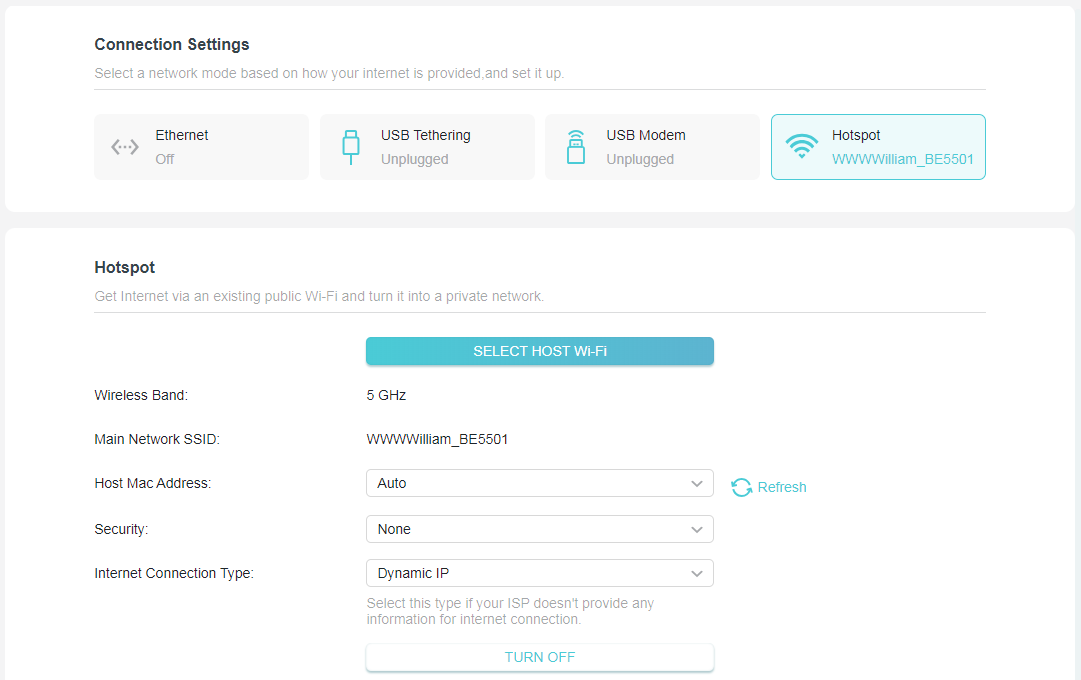
• To change the router’s network mode:
1. Visit http://tplinkwifi.net, and log in with your TP-Link ID or the password you set for the router.
2. Go to Internet > Connection Settings.
3. Select your desired network mode, configure the parameters , and click SAVE.
• To change the router’s operation mode (to AP/RE/Client mode):
1. Visit http://tplinkwifi.net, and log in with your TP-Link ID or the password you set for the router.
2. Go to Advanced > System > Operation Mode.
3. Select your desired operation mode and click SAVE.
5.2 Network Map
Network Map outlines device connectivity of your network visually and helps you manage general settings of the network.
1. Visit http://tplinkwifi.net, and log in with your TP-Link ID or the password you set for the router.
2. Go to Network Map.
3. Click each network device icon to check and manage general network settings.
• Click Public Wi-Fi to check internet status.
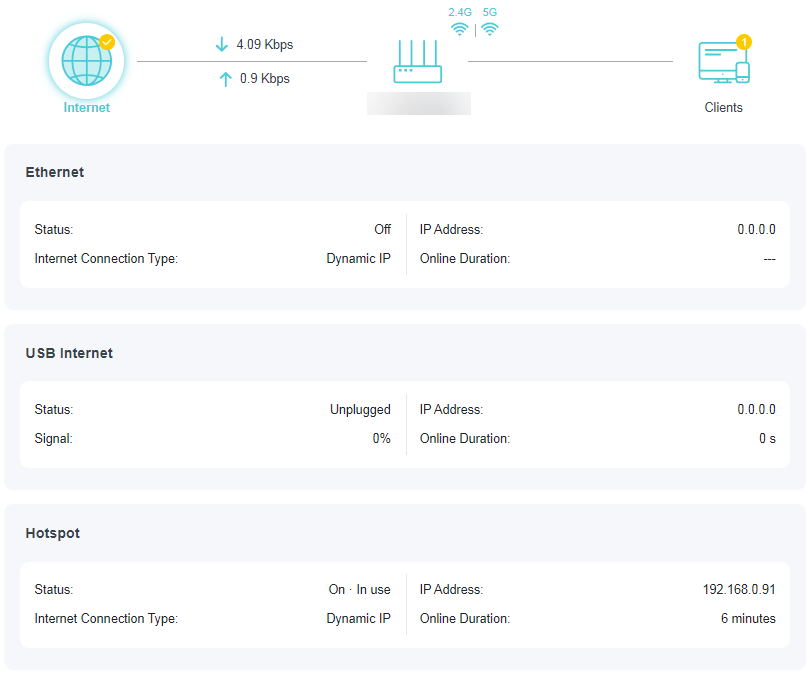
• Click the router to check device status and network settings. You can click Edit to change related settings.
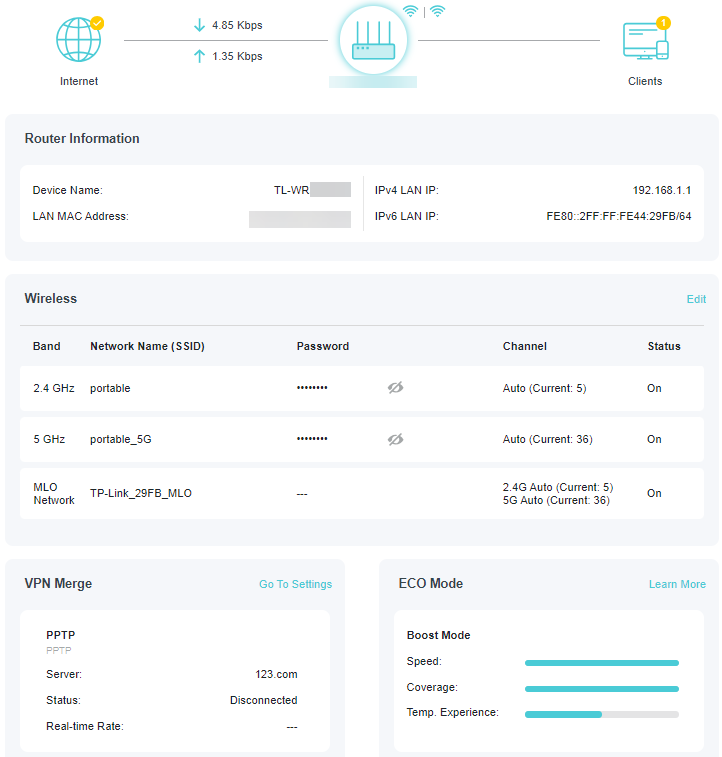
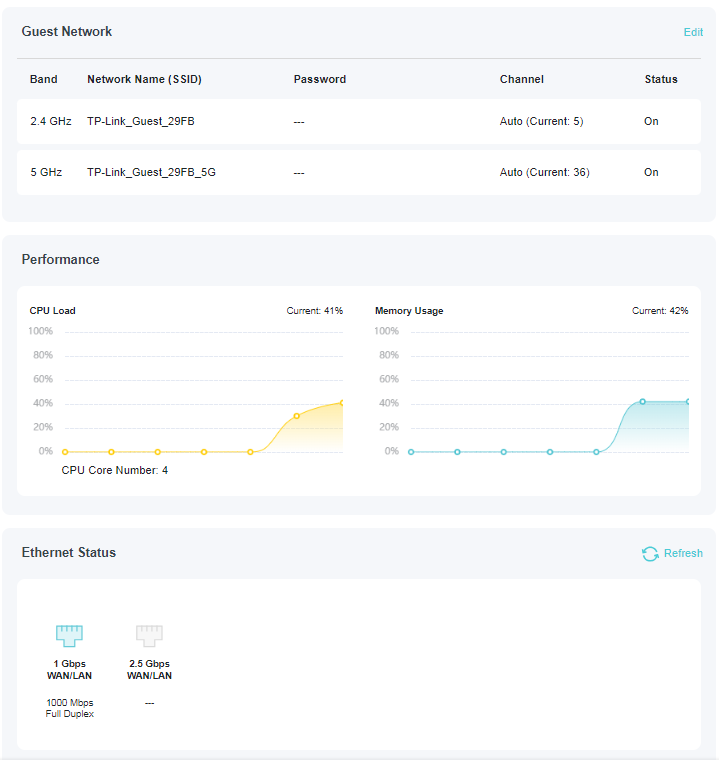
• Click Clients to view the client devices in your network. You can block devices so they cannot access your network.
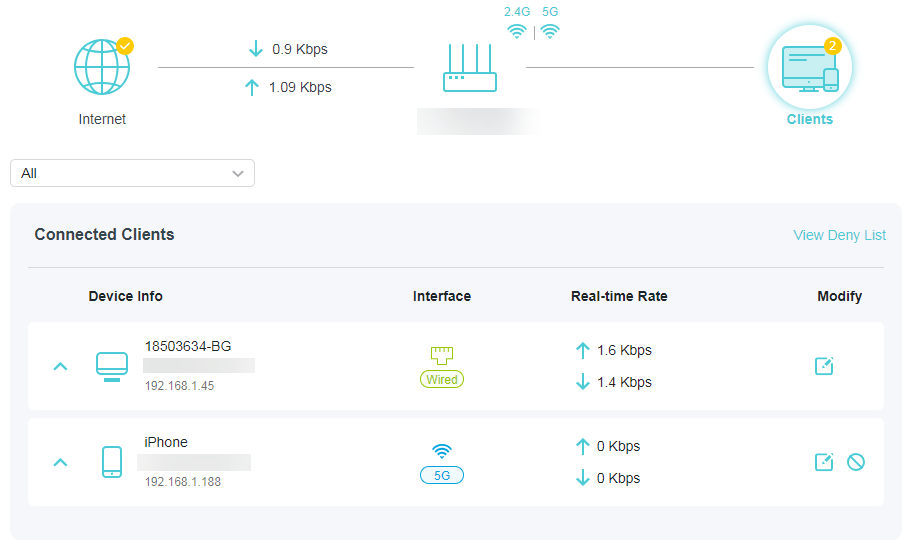
5.3 Network
5.3.1 Status
1. Visit http://tplinkwifi.net, and log in with the username and password you set for the router.
2. Go to Advanced > Network > Status. You can view the current status information of the router.
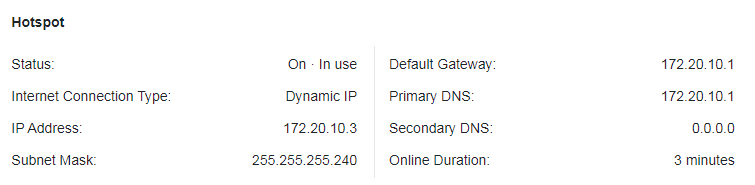
• Hotspot - This field displays the current settings of the internet, and you can configure them on the Advanced > Network > Internet page.• Status - Indicates whether the router has been connected to the internet.
• Internet Connection Type - Indicates the way in which your router is connected to the internet.
• IP Address - The WAN IP address of the router.
• Subnet Mask - The subnet mask associated with the WAN IP address.
• Default Gateway - The Gateway currently used is shown here.
• Primary & Secondary DNS - The IP addresses of DNS (Domain Name System) server.
• Online Duration - Displays how long the router has been connected to the internet.
• LAN - This field displays the current settings of the LAN, and you can configure them on the Network > LAN page.
• MAC Address - The physical address of the router.
• IP Address - The LAN IP address of the router.
• Subnet Mask - The subnet mask associated with the LAN IP address.
• DHCP Server - Indicates whether the DHCP server is enabled or disabled. It is enabled by default and the router acts as a DHCP server.
• IP Address Pool - The IP address range for the DHCP server to assign IP addresses.
• Dynamic DNS - This field displays the current settings of the Dynamic DNS (Domain Name System), and you can configure them on the Advanced > Network > Dynamic DNS page.
• Service Provider - The Dynamic DNS service provider you have signed up for.
4.3.2 Internet Port
1. Visit http://tplinkwifi.net, and log in with the username and password you set for the router.
2. Go to Advanced > Network > Internet Port.
3. Select a port for internet service. Make sure the cable is securely connected to this port on your router.
• Turn All Ports to LAN - Enable it and all the Ethernet ports will be used for LAN ports.
5.3.3 Internet Port Negotiation Speed Setting
Note: 3G/4G USB Modem mode and USB Tethering mode don’t have this function.
1. Visit http://tplinkwifi.net, and log in with the username and password you set for the router.
2. Go to Advanced > Network > Internet Port and locate the Internet Port Negotiation Speed Setting section.
3. Select the duplex type from the drop-down list and click SAVE.
5.3.4 Flow Controller
When enabled, when a device gets overloaded it will send a PAUSE frame to notify the peer device to stop sending data for a specified period of time, thus avoiding the packet loss caused by congestion.
1. Visit http://tplinkwifi.net, and log in with the username and password you set for the router.
2. Go to Advanced > Network > Internet Port. Locate the Flow Controller section.
3. Select the desired option and click SAVE.
5.3.5 Internet Settings
1. Visit http://tplinkwifi.net, and log in with your TP-Link ID or the password you set for the router.
2. Go to Advanced > Network > Internet.
3. Locate the Network Connection Priority section. Select your internet connection type and tap the Settings icon , then enter the settings provided by your ISP.
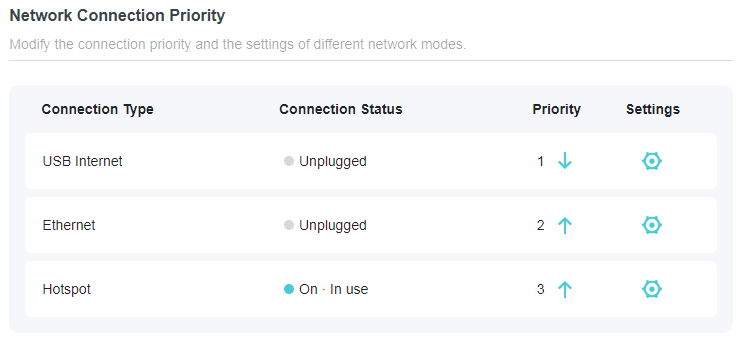
Dynamic IP
If you choose Dynamic IP, you need to select whether to clone the MAC address. Dynamic IP users are usually equipped with a cable TV or fiber cable.
• Click RENEW to renew the IP parameters from your ISP.
• Click RELEASE to release the IP parameters.
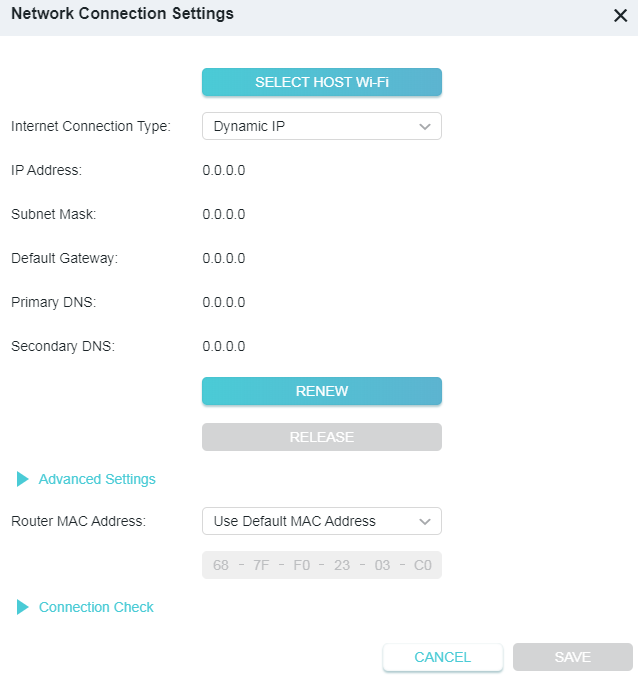
• DNS Address- The default setting is to get an IP address dynamically from your ISP. If your ISP does not automatically assign DNS addresses to the router, please select Use the Following DNS Addresses and enter the IP address in dotted-decimal notation of your ISP’s primary DNS server. If a secondary DNS server address is available, enter it as well.
• MTU Size - The normal MTU (Maximum Transmission Unit) value for most Ethernet networks is 1500 Bytes. It is not recommended that you change the default MTU size unless required by your ISP.
• Host Name - This option specifies the name of the router.
• Get IP with Unicast DHCP - A few ISPs’ DHCP servers do not support the broadcast applications. If you cannot get the IP address normally, you can choose this option. (It is rarely required.)
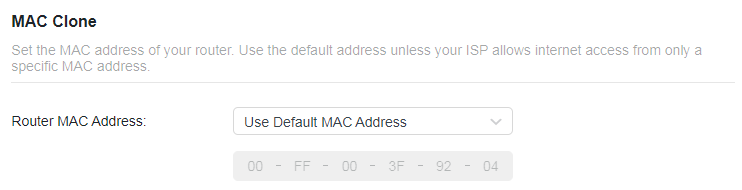
• Router MAC Address :
• Use Default MAC Address - Do not change the default MAC address of your router in case the ISP does not bind the assigned IP address to the MAC address.
• Clone Current Device MAC - Select to copy the current MAC address of the computer that is connected to the router, in case the ISP binds the assigned IP address to the MAC address.
• Use Custom MAC Address - Select if your ISP requires you to register the MAC address and enter the correct MAC address in this field, in case the ISP binds the assigned IP address to the specific MAC address.
Note: You can only use the MAC Address Clone function for PCs on the LAN.
• Connection Check:
The router uses Ping to check the connection status of the Ethernet/Hotspot/ USB Internet connection type periodically to check whether the internet is available. You can edit the following parameters, and click SAVE.
• Track Interval - The time interval between consecutive ICMP echo requests. You are recommended to keep it as the default.
• Change to unavailable/available if Ping failed/succeeded for X Times - The connection status will change to Disconnected/Connected if the Ping Failure/ Success times reach the value you set.
• IPv4 Track IP/Domain Name - Enter the IP address or domain name of the tested host or other network device that you want to check the connectivity between the router. You can add up to 4 items.
Static IP
If your ISP provides a static or fixed IP address, subnet mask, default gateway and DNS setting, please select Static IP.
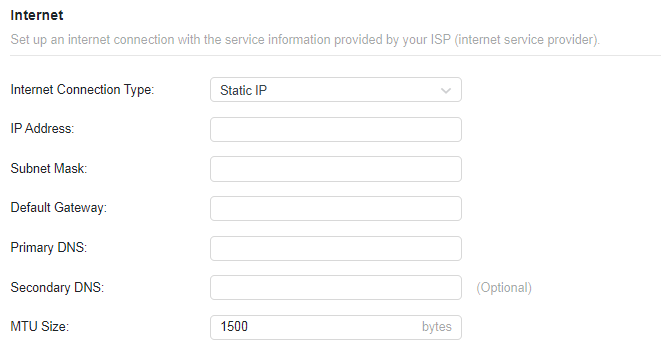
• IP Address - Enter the IP address in dotted-decimal notation provided by your ISP.
• Subnet Mask - Enter the subnet mask in dotted-decimal notation provided by your ISP. Normally 255.255.255.0 is used as the subnet mask.
• Default Gateway - Enter the gateway IP address in dotted-decimal notation provided by your ISP.
• Primary/Secondary DNS - (Optional) Enter one or two DNS addresses in dotteddecimal notation provided by your ISP.
• MTU Size - The normal MTU (Maximum Transmission Unit) value for most Ethernet networks is 1500 Bytes. It is not recommended that you change the default MTU size unless required by your ISP.
• Router MAC Address :
• Use Default MAC Address - Do not change the default MAC address of your router in case the ISP does not bind the assigned IP address to the MAC address.
• Clone Current Device MAC - Select to copy the current MAC address of the computer that is connected to the router, in case the ISP binds the assigned IP address to the MAC address.
• Use Custom MAC Address - Select if your ISP requires you to register the MAC address and enter the correct MAC address in this field, in case the ISP binds the assigned IP address to the specific MAC address.
Note:
• You can only use the MAC Address Clone function for PCs on the LAN.
• If you have changed the WAN MAC address when the WAN connection is PPPoE, it will not take effect until the connection is re-established.
• Connection Check:
The router uses Ping to check the connection status of the Ethernet/Hotspot/ USB Internet connection type periodically to check whether the internet is available. You can edit the following parameters, and click SAVE.
• Track Interval - The time interval between consecutive ICMP echo requests. You are recommended to keep it as the default.
• Change to unavailable/available if Ping failed/succeeded for X Times - The connection status will change to Disconnected/Connected if the Ping Failure/ Success times reach the value you set.
• IPv4 Track IP/Domain Name - Enter the IP address or domain name of the tested host or other network device that you want to check the connectivity between the router. You can add up to 4 items.
5.3.6 NAT
Note: 3G/4G/5G USB Modem mode and USB Tethering mode don’t have this function.
The router’s NAT (Network Address Translation) feature makes devices on the LAN use the same public IP address to communicate with devices on the internet, which protects the local network by hiding IP addresses of the devices.
1. Visit http://tplinkwifi.net, and log in with the username and password you set for the router.
2. Go to Advanced > Network > Internet and locate the NAT section.
3. Enable NAT, then click SAVE.
4. NAT is enable by dafault and it’s highly recommended. If you disable it, you may have no access to the internet and NAT Forwarding will not take effect.
5.3.7 DoT/DoH
Encrypting DNS queries by TLS/HTTPS, DoT/DoH can provide you with a more secure and private internet connection.
1. Visit http://tplinkwifi.net, and log in with the username and password you set for the router.
2. Go to Advanced > Network > Internet and locate the DoT/DoH section.
3. Select a DNS Privacy: DoT/DoH.
4. Select a DNS Mode.
• Default Mode: In this mode, the router will prioritize the secure DNS server you selected. If the server is unavailable, the default DNS server will take effect.
• Ultra Secure Mode: In this mode, the router only uses the secure DNS server you selected. If the server is unavailable, the internet connectivity will be affected.
5. Enter the DNS Server. You can detect whether the selected DNS servers are available or not. When you save the settings, DoH/DoT will be applied to these DNS servers, and the Primary & Secondary DNS servers you’ve set won’t take effect.
5.3.8 LAN
1. Visit http://tplinkwifi.net, and log in with your TP-Link ID or the password you set for the router.
2. Go to Advanced > Network > LAN.
3. Configure the IP parameters of the LAN and click SAVE.
• MAC Address - The physical address of the LAN ports. The value can not be changed.
• IP Address - Enter the IP address in dotted-decimal notation of your router (the default one is 192.168.0.1).
• Subnet Mask - An address code that determines the size of the network. Normally 255.255.255.0 is used as the subnet mask.
Note:
• If you have changed the IP address, you must use the new IP address to log in.
• If the new IP address you set is not in the same subnet as the old one, the IP address pool in the DHCP Server will be configured automatically, but the Virtual Server and DMZ Host will not take effect until they are re-configured.
5.3.9 IGMP
IGMP (Internet Group Management Protocol) helps the router to identify which clients are subscribed to specific multicast groups within a local network. This allows for efficient transmission of multicast data packets, avoiding unnecessary traffic waste and improving network performance.
IGMP can be used to manage multicast transmission in IPTV. If you want to set up IPTV to enable Internet/IPTV/Phone service provided by your internet service provider (ISP), follow the steps:
Before you start, make sure your ISP provides the networking service based on IGMP technology, e.g., British Telecom(BT) and Talk Talk in UK:
1. Visit http://tplinkwifi.net, and log in with your TP-Link ID or the password you set for the router.
2. Go to Advanced > Network > IGMP.
1 ) Tick the IGMP Proxy and IGMP Snooping checkbox, then select the IGMP Version, either V2 or V3, as required by your ISP.
2 ) Click SAVE.
3 ) After configuring IGMP proxy, IPTV can work behind your router now. You can connect your set-top box to any of the router’s Ethernet port.
5.3.10 DHCP Server
By default, the DHCP (Dynamic Host Configuration Protocol) Server is enabled and the router acts as a DHCP server; it dynamically assigns TCP/IP parameters to client devices from the IP Address Pool. You can change the settings of DHCP Server if necessary, and you can reserve LAN IP addresses for specified client devices.
• To specify the IP address that the router assigns:
1. Visit http://tplinkwifi.net, and log in with your TP-Link ID or the password you set for the router.
2. Go to Advanced > Network > DHCP Server and locate the DHCP Server section.
1. Tick the Enable checkbox.
2. Enter the starting and ending IP addresses in the IP Address Pool.
3. Enter other parameters if the ISP offers. The Default Gateway is automatically filled in and is the same as the LAN IP address of the router.
4. Click SAVE.
Note: To use the DHCP server function of the router, you must configure all computers on the LAN as Obtain an IP Address automatically.
• To reserve an IP address for a specified client device:
1. Visit http://tplinkwifi.net, and log in with your TP-Link ID or the password you set for the router.
2. Go to Advanced > Network > DHCP Server and locate the Address Reservation section.
3. Click Add in the Address Reservation section.
4. Click VIEW CONNECTED DEVICES and select the you device you want to reserve an IP for. Then the MAC and IP Address will be automatically filled in. You can also enter the MAC and IP address of the client device.
• To check the DHCP client list:
1. Visit http://tplinkwifi.net, and log in with your TP-Link ID or the password you set for the router.
2. Go to Advanced > Network > DHCP Server and locate the DHCP Client List section. You can see the device information of the list.
3. Click Refresh to see the current attached devices.
5.3.11 Dynamic DNS
The router offers the DDNS (Dynamic Domain Name System) feature, which allows the hosting of a website, FTP server, or e-mail server with a fixed domain name (named by yourself) and a dynamic IP address. Thus your friends can connect to your server by entering your domain name no matter what your IP address is.
Before using this feature, you need to sign up for DDNS service providers such as www.comexe.cn, www.dyndns.org, or www.noip.com. The Dynamic DNS client service provider will give you a password or key.
1. Visit http://tplinkwifi.net, and log in with your TP-Link ID or the password you set for the router.
2. Go to Advanced > Network > Dynamic DNS.
3. Select the DDNS Service Provider: TP-Link, NO-IP or DynDNS. It is recommended to select TP-Link so that you can enjoy TP-Link’s superior DDNS service. Otherwise, please select NO-IP or DynDNS. If you don’t have a DDNS account, you have to register first by clicking Register Now.
Note: To enjoy TP-Link’s DDNS service, you have to log in with a TP-Link ID. If you have not logged in with one, click log in.
4. Click Register in the Domain Name List if you have selected TP-Link, and enter the Domain Name as needed.
If you have selected NO-IP or DynDNS, enter the username, password and domain name of your account.
5. Click LOG IN AND SAVE.
Note: If you want to use a new DDNS account, please click LOGOUT first, and then log in with a new account.
5.3.12 Static Routing
Static Routing is a form of routing that is configured manually by a network administrator or a user by adding entries into a routing table. The manually-configured routing information guides the router in forwarding data packets to the specific destination.
I want to:
Visit multiple networks and servers at the same time.
For example, in a small office, my PC can surf the internet through Router A, but I also want to visit my company’s network. Now I have a switch and Router B. I connect the devices as shown in the following figure so that the physical connection between my PC and my company’s server is established. To surf the internet and visit my company’s network at the same time, I need to configure the static routing.
*Image may differ from your actual product.
How can I do that?
1. Change the routers’ LAN IP addresses to two different IP addresses on the same subnet. Disable Router B’s DHCP function.
2. Visit http://tplinkwifi.net, and log in with your TP-Link ID or the password you set for Router A.
3. Go to Advanced > Network > Routing and locate the Static Routing section.
4. Click Add and finish the settings according to the following explanations:
• Network Destination - The destination IP address that you want to assign to a static route, such as 192.168.0.100/24. This IP address cannot be on the same subnet with the WAN IP or LAN IP of Router A.
• Default Gateway - The IP address of the gateway device to which the data packets will be sent. This IP address must be on the same subnet with the router’s IP which sends out data. In the example, the data packets will be sent to the LAN port of Router B and then to the Server, so the default gateway should be 192.168.1.2.
• Interface - Determined by the port (WAN/LAN) that sends out data packets. In the example, the data are sent to the gateway through the LAN port of Router A, so LAN/WLAN should be selected.
• Description - Enter a description for this static routing entry.
5. Click SAVE.
6. Check the Routing Table below. If you can find the entry you’ve set, the static routing is set successfully.
5.4 TP-Link Cloud Service
TP-Link Cloud service provides a better way to manage your cloud devices. Log in to your router with a TP-Link ID, and you can easily monitor and manage your home network when you are out and about via the Tether app. To ensure that your router stays new and gets better over time, the TP-Link Cloud will notify you when an important firmware upgrade is available. Surely you can also manage multiple TP-Link Cloud devices with a single TP-Link ID.
This section introduces how to register a new TP-Link ID, bind or unbind TP-Link IDs to manage your router, and the Tether app with which you can manage your home network no matter where you may find yourself.
5.4.1 Register a TP-Link ID
If you have skipped the registration during the Quick Setup process, you can:
1. Visit http://tplinkwifi.net, and log in with the password you set for the router.
2. Go to Advanced > TP-Link ID or click TP-Link ID on the very top of the page.
3. Click Sign Up and follow the instructions to register a TP-Link ID.
4. After activating your TP-Link ID, come back to the TP-Link ID page to log in. The TP-Link ID used to log in to the router for the first time will be automatically bound as an Admin.
Note:
• To learn more about the Admin and User TP-Link ID, refer to Manage the User TP-Link IDs.
• Once you have registered a TP-Link ID on the web management page, you can only register another TPLink ID via the Tether APP. Please refer to Log In via Tether to install the app.
• If you want to unbind the admin TP-Link ID from your router, please go to Advanced > TP-Link ID, an click Unbind in the Device Information section.
5.4.2 Change Your TP-Link ID Information
Follow the steps below to change your email address and password of your TP-Link ID as needed.
1. Visit http://tplinkwifi.net, and log in with your TP-Link ID.
2. Go to Advanced > TP-Link ID, and focus on the TP-Link ID section.
• To change your email address:
1. Click behind the Email.
2. Enter the password of your TP-Link ID, then a new email address. And click SAVE.
• To change your password:
1. Click behind the Password.
2. Enter the current password, then a new password twice. And click SAVE.
5.4.3 Manage the User TP-Link IDs
The TP-Link ID used to log in to the router for the first time will be automatically bound as the Owner account. The Owner account can add or remove other TP-Link IDs to or from the same router. All accounts can monitor and manage the router locally or remotely, but only the owner account can:
• Reset the router to its factory default settings either on the web management page or in the Tether app.
• Add/remove other TP-Link IDs to/from the router.
Add TP-Link ID to Manage the Router
1. Visit http://tplinkwifi.net, and log in with your TP-Link ID.
2. Go to Advanced > TP-Link ID, and focus on the Bound TP-Link IDs section.
3. Click , enter another TP-Link ID as needed and click SAVE.
Note: If you need another TP-Link ID, please register a new one via the Tether app. Refer to Manage the Router via the TP-Link Tether App to install the app and register a new TP-Link ID.
4. The new TP-Link ID will be displayed in the Bound TP-Link IDs table.
Remove TP-Link ID(s) from Managing the Router
1. Visit http://tplinkwifi.net, and log in with your TP-Link ID.
2. Go to Advanced > TP-Link ID, and focus on the Bound TP-Link IDs section.
3. Tick Unbind of the TP-Link ID(s) you want to remove.
5.4.4 Manage the Router via the TP-Link Tether App
The Tether app runs on iOS and Android devices, such as smartphones and tablets.
1. Launch the Apple App Store or Google Play store and search “TP-Link Tether” or simply scan the QR code to download and install the app.
2. Launch the Tether app and log in with your TP-Link ID. If you don’t have a TP-Link ID, create one first.
3. Connect your device to the router’s wireless network.
4. Go back to the Tether app, select the model of your router and log in with the password you set for the router.
5. Manage your router as needed.
Note: If you need to remotely access your router from your smart devices, you need to:
• Log in with your TP-Link ID. If you don’t have one, refer to Register a TP-Link ID.
• Make sure your smartphone or tablet can access the internet with cellular data or a Wi-Fi network.
5.5 Wireless
5.5.1 Wireless Settings
1. Visit http://tplinkwifi.net, and log in with your TP-Link ID or the password you set for the router.
2. Go to Advanced > Wireless > Wireless Settings.
3. Configure the wireless settings for the wireless network and click SAVE.
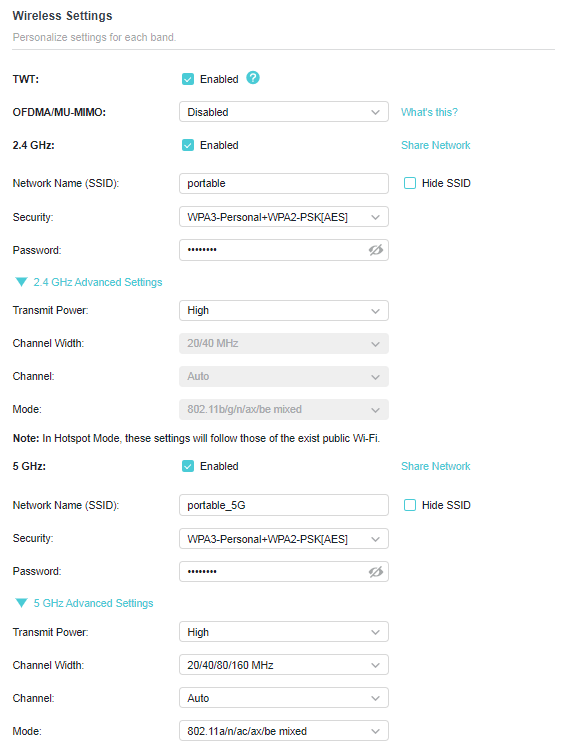
• TWT - Target Wake Time allows 802.11ax routers and clients to negotiate their periods to transmit and receive data packets. Clients only wake up at TWT sessions and remain in sleep mode for the rest of the time, which significantly extend their battery life.
• OFDMA/MU-MIMO - This feature enables multiple users to transmit data simultaneously, and thus greatly improves speed and efficiency. Noted that only when your clients also support OFDMA, can you fully enjoy the benefits.
• 2.4GHz/5GHz - Select this checkbox to enable the 2.4GHz/5GHz wireless network.
• Share Network- Click to save the Wi-Fi settings for sharing.
• Network Name (SSID) - Enter a value of up to 32 characters. The same Name (SSID) must be assigned to all wireless devices in your network.
• Hide SSID - Select this checkbox if you want to hide the network name (SSID) from the Wi-Fi network list. In this case, you need to manually join the network.
• Security - Select an option from the Security drop-down list. We recommend you don’t change the default settings unless necessary.
• Password - Set a password for the wireless network. The value is case-sensitive.
• Transmit Power - Select High, Middle or Low to specify the data transmit power. The default and recommended setting is High.
• Channel Width - Select a channel width (bandwidth) for the wireless network.
• Channel - Select an operating channel for the wireless network. For the 2.4 GHz and 5GHz bands, it is recommended to leave the channel to Auto, if you are not experiencing the intermittent wireless connection issue.
• Mode - You can choose the appropriate “Mixed” mode.
5.5.2 MLO Network
MLO (Multi-Link Operation) network enables the connected Wi-Fi 7 clients to simultaneously send and receive data across different frequency bands, greatly improving the transmission rate and reliability.
Note: Some models may not have the MLO network. Images may differ from actual products.
1. Go to Advanced > Wireless > Wireless Settings.
2. Locate the MLO Network section and enable MLO Network.
3. Specify an SSID in Network Name (SSID).
4. Select the Security type. Specify a password if the security type you selected requires it. This value is case-sensitive.
5. You can also click Share Network to share the SSID and password with your guests.
6. If you select Hide SSID, your SSID won’t display when you scan for local wireless networks on your wireless device and you need to manually join the MLO network.
7. Click SAVE to save your settings.
5.5.3 Guest Network
Guest Network allows you to provide Wi-Fi access for guests without disclosing your host network. When you have guests in your house, apartment, or workplace, you can create a guest network for them. In addition, you can customize guest network settings to ensure network security and privacy.
• Create a Guest Network
1. Visit http://tplinkwifi.net, and log in with your TP-Link ID or the password you set for the router.
2. Go to Advanced > Wireless > Guest Network.
3. Enable the 2.4GHz/5GHz guest network according to your needs.
4. Customize the SSID. Don‘t select Hide SSID unless you want your guests to manually input the SSID for guest network access.
5. Select the Security type and customize your own password. If No security is selected, no password is needed to access your guest network.
6. Click SAVE. Now you guests can access your guest network using the SSID and password you set!
• Customize Guest Network Options
1. Visit http://tplinkwifi.net, and log in with your TP-Link ID or the password you set for the router.
2. Go to Advanced > Wireless > Guest Network. Locate the Guest Permissions section.
3. Customize guest network options according to your needs.
• Allow guests to see each other
Tick this checkbox if you want to allow the wireless clients on your guest network to communicate with each other via methods such as network neighbors and Ping.
• Allow guests to access my local network
Tick this checkbox if you want to allow the wireless clients on your guest network to communicate with the devices connected to your router’s LAN ports or main network via methods such as network neighbors and Ping.
4. Click SAVE. Now you can ensure network security and privacy!
5.5.4 Wireless Schedule
The wireless function can be automatically off at a specific time when you do not need the wireless function.
1. Visit http://tplinkwifi.net, and log in with your TP-Link ID or the password you set for the router.
2. Go to Advanced > Wireless > Wireless Schedule.
3. Enable the Wireless Schedule function.
4. Click Add to specify a wireless off period during which you need the wireless off automatically, and click SAVE.
Note:
• The effective wireless schedule is based on the time of the router. You can go to Advanced > System > Time to modify the time.
• The wireless network will be automatically turned on after the time period you set.
5.5.5 WPS
WPS (Wi-Fi Protected Setup) can help you to quickly and securely connect to a network. This section will guide you to add a new wireless device to your router’s network quickly via WPS.
Note:
• The WPS function cannot be configured if the wireless function of the router is disabled. Please make sure the wireless function is enabled before configuration.
1. Visit http://tplinkwifi.net, and log in with your TP-Link ID or the password you set for the router.
2. Go to Advanced > Wireless > WPS.
3. Follow one of the following methods to connect your client device to the router’s Wi-Fi network.
Method 1: Using a PIN
• Connects via the Client’s PIN
1. Keep the WPS Status as Enabled and select Client’s PIN.
2. Enter the PIN of your device and click CONNECT. Then your device will get connected to the router.
• Connects via the Router’s PIN
1. Keep the WPS Status as Enabled and select Router’s PIN.
2. Enter the router’s PIN on your personal device. You can also generate a new one.
Note: PIN (Personal Identification Number) is an eight-character identification number preset to each router. WPS supported devices can connect to your router with the PIN.
Method 2: Using the WPS Button on the Web Screen
Click Start on the screen. Within two minutes, enable WPS on your personal device.
A Device-(XX-XX-XX-XX-XX-XX) Connected message should appear on the screen, indicating successful WPS connection.
Note: XX-XX-XX-XX-XX-XX is the MAC address of your device.
Method 3: Using the WPS Button on the Router
Press the router’s WPS button. Within two minutes, enable WPS on your personal device.
5.5.6 Additional Settings
1. Visit http://tplinkwifi.net, and log in with your TP-Link ID or the password you set for the router.
2. Go to Advanced > Wireless > Additional Settings.
3. Configure the advanced settings of your wireless network and click SAVE.
Note: If you are not familiar with the setting items on this page, it’s strongly recommended to keep the provided default values; otherwise it may result in lower wireless network performance.
• WMM - WMM function can guarantee the packets with high-priority messages being transmitted preferentially.
• Short GI - This function reduces the time between data packets to potentially increase the throughput of wireless network.
• AP Isolation - This function isolates all connected wireless stations so that wireless stations cannot access each other through WLAN.
• Airtime Fairness - This function can improve the overall network performance by sacrificing a little bit of network time on your slow devices.
• Beacon Interval - Enter a value between 40-1000 milliseconds for Beacon Interval here. Beacon Interval value determines the time interval of the beacons. The beacons are the packets sent by the router to synchronize a wireless network. The default value is 100.
• RTS Threshold - Here you can specify the RTS (Request to Send) Threshold. If the packet is larger than the specified RTS Threshold size, the router will send RTS frames to a particular receiving station and negotiate the sending of a data frame. The default value is 2346.
• DTIM Interval - This value determines the interval of the Delivery Traffic Indication Message (DTIM). A DTIM field is a countdown field informing clients of the next window for listening to broadcast and multicast messages. When the router has buffered broadcast or multicast messages for associated clients, it sends the next DTIM with a DTIM Interval value. You can specify the value between 1-255 Beacon Intervals. The default value is 1, which indicates the DTIM Interval is the same as Beacon Interval.
• Group Key Update Period - Enter a number of seconds (minimum 30) to control the time interval for the encryption key automatic renewal. The default value is 0, meaning no key renewal.
5.6 USB Storage Device
Insert your USB storage device into the router’s USB port and then access files stored there locally or remotely.
Tips:
• If you use USB hubs, make sure no more than 4 devices are connected to the router.
• If the USB storage device requires using bundled external power, make sure the external power has been connected.
• If you use a USB hard drive, make sure its file system is FAT32, exFat, NTFS or HFS+.
• Before you physically disconnect a USB device from the router, safely remove it to avoid data damage: Go to Advanced > USB > Storage Device and click Remove.
5.6.1 Access the USB Device Locally
Insert your USB storage device into the router’s USB port and then refer to the following table to access files stored on your USB storage device.
| Windows computer |
• Method 1:
• Method 2:
|
|---|---|
| Mac |
1 ) Select Go > Connect to Server.
4 ) When prompted, select the Guest radio box. (If you have set up a username and a password to deny anonymous access to the USB disks, you should select the Registered User radio box. To learn how to set up an account for the access, refer to To Set Up Authentication for Data Security.) |
| Tablet | Use a third-party app for network files management. |
Tips:
You can also access your USB storage device by using your Network/Media Server Name as the server address. Refer to To Customize the Address of the USB Storage Device to learn more.
5.6.2 Access the USB Device Remotely
You can access your USB disk outside the local area network. For example, you can:
• Share photos and other large files with your friends without logging in to (and paying for) a photo-sharing site or email system.
• Get a safe backup for the materials for a presentation.
• Remove the files on your camera’s memory card from time to time during the journey.
Note: If your ISP assigns a private WAN IP address (such as 192.168.x.x or 10.x.x.x), you cannot use this feature because private addresses are not routed on the internet.
Follow the steps below to configure remote access settings.
1. Visit http://tplinkwifi.net, and log in with your TP-Link ID or the password you set for the router.
2. Go to Advanced > USB > Storage Device.
3. Tick the Internet FTP checkbox, and then click SAVE.
4. Refer to the following table to access your USB disk remotely.
| Computer |
1 ) Open the Windows Explorer (or go to Computer, only for Windows users) or open a web browser.
3 ) Press Enter on the keyboard. |
|---|---|
| Tablet | Use a third-party app for network files management. |
Tips: Click Dynamic DNS to learn how to set up a domain name for you router.
5.6.3 Customize the Access Settings
By default, all the network clients can access all folders on your USB disk. You can customize your sharing settings by setting a sharing account, sharing specific contents and setting a new sharing address on the router’s web management page.
1. Visit http://tplinkwifi.net, and log in with your TP-Link ID or the password you set for the router.
2. Go to Advanced > USB > Storage Device.
• To Customize the Address of the USB Storage Device
You can customize the server name and use the name to access your USB storage device.
1. In the Access Method session, make sure Samba for Windows Samba for macOS/ Linux is enabled, and enter a Network/Media Server Name as you like, such as MyShare, then click SAVE.
2. Now you can access the USB storage device by visiting \\MyShare (for Windows) or smb://MyShare (for Mac).
• To Only Share Specific Content
Focus on the File Sharing section. Specify sharing folders that you want to share and click SAVE.
• To Set Up Authentication for Data Security
You can set up authentication for your USB storage device so that network clients will be required to enter username and password when accessing the USB storage device.
1. In the File Sharing section, enable Secure Sharing.
2. Click to modify the access account, and pay attention to the default username and password. Accessing as an administrator can read and modify the shared folders while visitors can only read the shared folders.
Note:
1. For Windows users, do not set the sharing username the same as the Windows username. Otherwise, Windows credential mechanism may cause the following problems:
• If the sharing password is also the same as the Windows password, authentication will not work since the Windows will automatically use its account information for USB access.
• If the sharing password is different from the Windows password, the Windows will be unable to remember your credentials and you will always be required to enter the sharing password for USB access.
2. Due to Windows credential mechanism, you might be unable to access the USB disk after changing Authentication settings. Please log out from the Windows and try to access again. Or you can change the address of the USB disk by referring to To Customize the Address of the USB Storage Device.
5.6.4 Media Sharing
The feature of Media Sharing allows you to view photos, play music and watch movies stored on the USB storage device directly from DLNA-supported devices, such as your computer, tablet and PS2/3/4.
Note: Some models may not support this feature. Images may differ from actual products.
1. Visit http://tplinkwifi.net, and log in with your TP-Link ID or the password you set for the router.
2. Go to Advanced > USB > Storage Device.
3. Enable Media Sharing.
4. When your USB storage device is inserted into the router, your DLNA-supported devices (such as your computer and pad) connected to the router can detect and play the media files on the USB storage devices.
5. Refer to the following table for detailed instructions.
| Windows Computer |
Go to Computer > Network, then click the Media Server Name (Model number-share by default) in the Media Devices section.
|
|---|---|
| Tablet | • Use a third-party DLNA-supported player. |
5.7 NAT Forwarding
The router’s NAT (Network Address Translation) feature makes the devices on the LAN use the same public IP address to communicate on the internet, which protects the local network by hiding IP addresses of the devices. However, it also brings about the problem that external hosts cannot initiatively communicate with the specified devices in the local network.
With the forwarding feature, the router can traverse the isolation of NAT so that clients on the internet can reach devices on the LAN and realize some specific functions. The Mercusys router includes four forwarding rules. If two or more rules are set, the priority of implementation from high to low is Port Forwarding, Port Triggering, UPNP and DMZ.
5.7.1 Port Forwarding
When you build up a server in the local network and want to share it on the internet, Port Forwarding can realize the service and provide it to internet users. At the same time Port Forwarding can keep the local network safe as other services are still invisible from the internet.
Port Forwarding can be used to set up public services in your local network, such as HTTP, FTP, DNS, POP3/SMTP and Telnet. Different service uses different service port. Port 80 is used in HTTP service, port 21 in FTP service, port 25 in SMTP service and port 110 in POP3 service. Please verify the service port number before the configuration.
I want to:
Share my personal website I’ve built in local network with my friends through the internet.
For example, the personal website has been built in my home PC (192.168.1.100). I hope that my friends on the internet can visit my website in some way. My PC is connected to the router with the WAN IP address 218.18.232.154.
1. Set your PC to a static IP address, for example 192.168.1.100.
2. Visit http://tplinkwifi.net, and log in with your TP-Link ID or the password you set for the router.
3. Go to Advanced > NAT Forwarding > Port Forwarding.
4. Click Add.
5. Click VIEW COMMON SERVICES and select HTTP. The External Port, Internal Port and Protocol will be automatically filled in.
6. Click VIEW CONNECTED DEVICES and select your home PC. The Device IP Address will be automatically filled in. Or enter the PC’s IP address 192.168.0.100 manually in the Device IP Address field.
7. Click SAVE.
Tips:
• It is recommended to keep the default settings of Internal Port and Protocol if you are not clear about which port and protocol to use.
• If the service you want to use is not in the common services list, you can enter the corresponding parameters manually. You should verify the port number that the service needs.
• You can add multiple port forwarding rules if you want to provide several services in a router. Please note that the External Port should not be overlapped.
Done!
Users on the internet can enter http:// WAN IP (in this example: http:// 218.18.232.154) to visit your personal website.
Tips:
• The WAN IP should be a public IP address. For the WAN IP is assigned dynamically by the ISP, it is recommended to apply and register a domain name for the WAN referring to Dynamic DNS. Then users on the internet can use http:// domain name to visit the website.
• If you have changed the default External Port, you should use http:// WAN IP: External Port or http:// domain name: External Port to visit the website.
5.7.2 Port Triggering
Port Triggering can specify a triggering port and its corresponding external ports. When a host on the local network initiates a connection to the triggering port, all the external ports will be opened for subsequent connections. The router can record the IP address of the host. When the data from the internet return to the external ports, the router can forward them to the corresponding host. Port Triggering is mainly applied to online games, VoIPs, video players and common applications including MSN Gaming Zone, Dialpad and Quick Time 4 players, etc.
Follow the steps below to configure the Port Triggering rules:
1. Visit http://tplinkwifi.net, and log in with your TP-Link ID or the password you set for the router.
2. Go to Advanced > NAT Forwarding > Port Triggering and click .
3. Click VIEW COMMON SERVICES, and select the desired application. The Triggering Port, Triggering Protocol and External Port will be automatically filled in. The following picture takes application MSN Gaming Zone as an example.
4. Click SAVE.
Tips:
• You can add multiple port triggering rules according to your network need.
• The triggering ports can not be overlapped.
• If the application you need is not listed in the Existing Applications list, please enter the parameters manually. You should verify the external ports the application uses first and enter them into External Port field according to the format the page displays.
5.7.3 UPnP
The UPnP (Universal Plug and Play) protocol allows applications or host devices to automatically find the front-end NAT device and send request to it to open the corresponding ports. With UPnP enabled, the applications or host devices on the local network and the internet can freely communicate with each other thus realizing the seamless connection of the network. You may need to enable the UPnP if you want to use applications for multiplayer gaming, peer-to-peer connections, real-time communication (such as VoIP or telephone conference) or remote assistance, etc.
Tips:
• UPnP is enabled by default in this router.
• Only the application supporting UPnP protocol can use this feature.
• UPnP feature needs the support of operating system (e.g. Windows Vista/ Windows 7/ Windows 8, etc. Some of operating system need to install the UPnP components).
For example, when you connect your Xbox to the router which has connected to the internet to play online games, UPnP will send request to the router to open the corresponding ports allowing the following data penetrating the NAT to transmit. Therefore, you can play Xbox online games without a hitch.
If necessary, you can follow the steps to change the status of UPnP.
1. Visit http://tplinkwifi.net, and log in with your TP-Link ID or the password you set for the router.
2. Go to Advanced > NAT Forwarding > UPnP and toggle on or off according to your needs.
5.7.4 DMZ
When a PC is set to be a DMZ (Demilitarized Zone) host on the local network, it is totally exposed to the internet, which can realize the unlimited bidirectional communication between internal hosts and external hosts. The DMZ host becomes a virtual server with all ports opened. When you are not clear about which ports to open in some special applications, such as IP camera and database software, you can set the PC to be a DMZ host.
Note:
When DMZ is enabled, the DMZ host is totally exposed to the internet, which may bring some potential safety hazards. If DMZ is not in use, please disable it in time.
I want to:
Make the home PC join the internet online game without port restriction.
For example, due to some port restriction, when playing the online games, you can log in normally but cannot join a team with other players. To solve this problem, set your PC as a DMZ host with all ports open.
How can I do that?
1. Assign a static IP address to your PC, for example 192.168.0.100.
2. Visit http://tplinkwifi.net, and log in with your TP-Link ID or the password you set for the router.
3. Go to Advanced > NAT Forwarding > DMZ and tick to enable DMZ.
4. Click VIEW CONNECTED DEVICES and select your PC. The Device IP Address will be automatically filled in. Or enter the PC’s IP address 192.168.0.100 manually in the DMZ Host IP Address field.
5. Click SAVE.
Done!
The configuration is completed. You’ve set your PC to a DMZ host and now you can make a team to game with other players.
5.8 Security
5.8.1 Protect the Network from Cyber Attacks
The SPI (Stateful Packet Inspection) Firewall protects the router from cyber attacks and validate the traffic that is passing through the router based on the protocol. This function is enabled by default.
1. Visit http://tplinkwifi.net, and log in with your TP-Link ID or the password you set for the router.
2. Go to Advanced > Security > Firewall. It’s recommended to keep the default settings.
5.8.2 Access Control
Access Control is used to block or allow specific client devices to access your network (via wired or wireless) based on a list of blocked devices (Deny List) or a list of allowed devices (Allow List).
I want to:
Block or allow specific client devices to access my network (via wired or wireless).
How can I do that?
1. Visit http://tplinkwifi.net, and log in with your TP-Link ID or the password you set for the router.
2. Go to Advanced > Security > Access Control.
3. Toggle on to enable Access Control.
4. Click Change Mode to select the access mode to either block (recommended) or allow the device(s) in the list.
To block specific device(s):
1 ) Select Deny List.
2 ) Click and select devices you want to be blocked, or enter the MAC address manually, and click ADD.
3 ) The Operation Succeeded message will appear on the screen, which means the selected devices have been successfully added to the Deny List.
To allow specific device(s):
1 ) Select Allow List and click CHANGE.
2 ) Your own device is in the Allow List by default and cannot be deleted. Click to add other devices to the Allow List.
• Add connected devices
1 ) Click Select From Device List.
2 ) Select the devices you want to be allowed and click ADD.
3 ) The Operation Succeeded message will appear on the screen, which means the selected devices have been successfully added to the Allow List.
• Add unconnected devices
1 ) Click Add Manually.
2 ) Enter the Device Name and MAC Address of the device you want to be allowed and click ADD.
3 ) The Operation Succeeded message will appear on the screen, which means the device has been successfully added to the Allow List.
Done!
Now you can block or allow specific client devices to access your network (via wired or wireless) using the Deny List or Allow List.
5.8.3 IP & MAC Binding
IP & MAC Binding, namely, ARP (Address Resolution Protocol) Binding, is used to bind network device’s IP address to its MAC address. This will prevent ARP Spoofing and other ARP attacks by denying network access to an device with matching IP address in the Binding list, but unrecognized MAC address.
I want to:
Prevent ARP spoofing and ARP attacks.
How can I do that?
1. Visit http://tplinkwifi.net, and log in with your TP-Link ID or the password you set for the router.
2. Go to Advanced > Security > IP & MAC Binding.
3. Enable IP & MAC Binding.
4. Bind your device(s) according to your need.
To bind the connected device(s):
1 ) Locate the ARP List section and enable Bind to bind the IP and MAC addresses of a specific device.
To add a binding entry:
1 ) Click in the Binding List section.
2 ) Click VIEW CONNECTED DEVICES and select the device you want to bind. The MAC Address and IP Address fields will be automatically filled in.
3 ) Click SAVE.
Done!
Now you don’t need to worry about ARP spoofing and ARP attacks!
5.8.4 ALG
ALG allows customized Network Address Translation (NAT) traversal filters to be plugged into the gateway to support address and port translation for certain application layer “control/data” protocols such as FTP, TFTP, H323 etc. It is recommended to keep the default settings.
You may need to disable SIP ALG when you are using voice and video applications to create and accept a call through the router, since some voice and video communication applications do not work well with SIP ALG.
Visit http://tplinkwifi.net, and log in with your TP-Link ID or the password you set for the router. Go to Advanced > Security > ALG.
5.9 VPN Server&Merge
The router offers several ways to set up VPN connections:
VPN Server allows remote devices to access your home network in a secured way through the internet. The router supports four types of VPN Server:
OpenVPN is somewhat complex but with higher security and more stability, suitable for restricted environments such as campus network and company intranet.
PPTP VPN is easy to use with the built-in VPN software of computers and mobile devices, but it is vulnerable and may be blocked by some ISPs.
L2TP/IPSec VPN is more secure but slower than PPTP VPN, and may have trouble getting around firewalls.
WireGuard VPN is a secure, fast and modern VPN protocol. It is based on the UDP protocol and uses modern encryption algorithms to improve work efficiency. VPN Merge allows your client devices to simultaneously access multiple VPN servers to satisfy your work, gaming, and video streaming needs.
5.9.1 Use OpenVPN to Access Your Home Network
OpenVPN Server is used to create an OpenVPN connection for remote devices to access your home network.
To use the VPN feature, you need to enable OpenVPN Server on your router, and install and run VPN Merge software on remote devices. Please follow the steps below to set up an OpenVPN connection.
Step1. Set up OpenVPN Server on Your Router
1. Visit http://tplinkwifi.net, and log in with your TP-Link ID or the password you set for the router.
2. Go to Advanced > VPN Server > OpenVPN, and tick the Enable box of OpenVPN.
Note:
• Before you enable VPN Server, we recommend you configure Dynamic DNS Service (recommended) or assign a static IP address for router’s WAN port and synchronize your System Time with internet.
• The first time you configure the OpenVPN Server, you may need to generate a certificate before you enable the VPN Server.
3. Select the Service Type (communication protocol) for OpenVPN Server: UDP, TCP.
4. Enter a VPN Service Port to which a VPN device connects, and the port number should be between 1024 and 65535.
5. In the VPN Subnet/Netmask fields, enter the range of IP addresses that can be leased to the device by the OpenVPN server.
6. Select your Client Access type. Select Home Network Only if you only want the remote device to access your home network; select Internet and Home Network if you also want the remote device to access internet through the VPN Server.
7. Click SAVE.
8. Click GENERATE to get a new certificate.
Note: If you have already generated one, please skip this step, or click GENERATE to update the certificate.
9. Click EXPORT to save the OpenVPN configuration file which will be used by the remote device to access your router.
Step 2. Configure OpenVPN Connection on Your Remote Device
1. Visit http://openvpn.net/index.php/download/community-downloads.html to download the OpenVPN software, and install it on your device where you want to run the OpenVPN client utility.
Note: You need to install the OpenVPN client utility on each device that you plan to apply the VPN function to access your router. Mobile devices should download a third-party app from Google Play or Apple App Store.
2. After the installation, copy the file exported from your router to the OpenVPN client utility’s “config” folder (for example, C:\Program Files\OpenVPN\config on Windows). The path depends on where the OpenVPN client utility is installed.
3. Run the OpenVPN client utility and connect it to OpenVPN Server.
5.9.2 Use PPTP VPN to Access Your Home Network
PPTP VPN Server is used to create a PPTP VPN connection for remote devices to access your home network.
To use the VPN feature, you need to set up PPTP VPN Server on your router, and configure the PPTP connection on remote devices. Please follow the steps below to set up a PPTP VPN connection.
Step 1. Set up PPTP VPN Server on Your Router
1. Visit http://tplinkwifi.net, and log in with your TP-Link ID or the password you set for the router.
2. Go to Advanced > VPN Server > PPTP, and tick the Enable box of PPTP.
Note: Before you enable VPN Server, we recommend you configure Dynamic DNS Service (recommended) or assign a static IP address for router’s WAN port and synchronize your System Time with internet.
3. In the Client IP Address field, enter the range of IP addresses (up to 10) that can be leased to the devices by the PPTP VPN server.
4. Set the PPTP connection permission according to your needs.
• Select Allow Samba (Network Place) access to allow your VPN device to access your local Samba server.
• Select Allow NetBIOS passthrough to allow your VPN device to access your Samba server using NetBIOS name.
• Select Allow Unencrypted connections to allow unencrypted connections to your VPN server.
5. Click SAVE.
6. Configure the PPTP VPN connection account for the remote device. You can create up to 16 accounts.
7. Click Add.
8. Enter the Username and Password to authenticate devices to the PPTP VPN Server.
9. Click ADD.
Step 2. Configure PPTP VPN Connection on Your Remote Device
The remote device can use the Windows built-in PPTP software or a third-party PPTP software to connect to PPTP Server. Here we use the Windows built-in PPTP software as an example.
1. Go to Start > Control Panel > Network and Internet > Network and Sharing Center.
2. Select Set up a new connection or network.
3. Select Connect to a workplace and click Next.
4. Select Use my Internet connection (VPN).
5. Enter the internet IP address of the router (for example: 218.18.1.73) in the Internet address field. Click Next.
6. Enter the User name and Password you have set for the PPTP VPN server on your router, and click Connect.
7. Click Connect Now when the VPN connection is ready to use.
5.9.3 Use L2TP/IPSec VPN to Access Your Home Network
L2TP/IPSec VPN Server is used to create a L2TP/IPSec VPN connection for remote devices to access your home network.
To use the VPN feature, you need to set up L2TP/IPSec VPN Server on your router, and configure the L2TP/IPSec connection on remote devices. Please follow the steps below to set up the L2TP/IPSec VPN connection.
Step 1. Set up L2TP/IPSec VPN Server on Your Router
1. Visit http://tplinkwifi.net, and log in with your TP-Link ID or the password you set for the router.
2. Go to Advanced > VPN Server > L2TP/IPSec, and enable L2TP/IPSec.
Note:
• Firmware update may be required to support L2TP/IPSec VPN Server.
• Before you enable VPN Server, we recommend you configure Dynamic DNS Service (recommended) or assign a static IP address for router’s WAN port and synchronize your System Time with internet.
3. In the Client IP Address field, enter the range of IP addresses (up to 10) that can be leased to the devices by the L2TP/IPSec VPN server.
4. Create an IPSec Pre-Shared Key.
5. Configure the L2TP/IPSec VPN connection account for the remote device. You can create up to 16 accounts.
1 ) Click Add.
2 ) Enter the Username and Password to authenticate devices to the L2TP/IPSec VPN Server.
3 ) Click ADD.
6. Click SAVE.
Step 2. Configure L2TP/IPSec VPN Connection on Your Remote Device
The remote device can use the Windows or Mac OS built-in L2TP/IPSec software or a third-party L2TP/IPSec software to connect to L2TP/IPSec Server. Here we use the Windows built-in L2TP/IPSec software as an example.
1. Go to Start > Control Panel > Network and Internet > Network and Sharing Center.
2. Select Set up a new connection or network.
3. Select Connect to a workplace and click Next.
4. Select Use my Internet connection (VPN).
5. Enter the internet IP address of the router (for example: 218.18.1.73) in the Internet address field, and select the checkbox Don’t connect now; just set it up so I can connect later. Click Next.
6. Enter the User name and Password you have set for the L2TP/IPSec VPN server on your router, and click Connect.
7. Click Close when the VPN connection is ready to use.
8. Go to Network and Sharing Center and click Change adapter settings.
9. Find the VPN connection you created, then double-click it.
10. Enter the User name and Password you have set for the L2TP/IPSec VPN server on your router, and click Properties.
11. Switch to the Security tab, select Layer 2 Tunneling Protocol with IPsec (L2TP/ IPSec) and click Advanced settings.
12. Select Use preshared key for authentication and enter the IPSec Pre-Shared Key you have set for the L2TP/IPSec VPN server on your router. Then click OK.
Done! Click Connect to start VPN connection.
5.9.4 Use WireGuard VPN to Access Your Home Network
WireGuard VPN Server is used to create a Wire Guard VPN connection for remote devices to access your home network.
Step 1. Set up WireGuard VPN Server on Your Router
1. Visit http://tplinkwifi.net, and log in with your TP-Link ID or the password you set for the router.
2. Go to Advanced > VPN Server > WireGuard, and tick the Enable box of WireGuard.
3. Set the tunnel IP address and listen port. Do NOT change it unless necessary.
4. Select your Client Access type. Select Home Network Only if you only want the remote device to access your home network; select Internet and Home Network if you also want the remote device to access internet through the VPN Server.
5. (Optional) Click Advanced Settings to display more settings. If DNS is turned on, the router will become the DNS server of the VPN client that establishes a connection with it. Change the Persistent Keepalive time (25 seconds by default) to send out heartbeat regularly, you can also click RENEW KEY to update the private key and public key.
Step 2. Create accounts that can be used by remote clients to connect to the VPN server.
1. Locate the Account List section.
2. Click Add to create an account.
3. Give a name to this account.
4. Enter the address of the virtual interface assigned to this account. Do NOT change it unless necessary.
5. Traffic sent from the WireGard VPN client to the allowed IPs (client) will be transmitted through the tunnel. By default, all network traffic from clients will be transmitted through the tunnel. Do NOT change it unless necessary.
6. Traffic sent from the WireGard VPN server to the allowed IPs (server) will be transmitted through the tunnel. Do NOT change it unless necessary.
7. Enable or disable pre-shared key.
8. Click SAVE.
Note: One account can only be used by one WireGuard VPN client at the same time to connect to the WireGuard VPN server.
9. Connect to the WireGuard server.
• For mobile phones, download WireGuard App from Google Play or Apple Store, then use the App to scan the QR Code to connect to this server.
• For other devices (e.g. TP-Link WireGuard VPN client), Click EXPORT to save the WireGuard VPN configuration file which will be used by the remote device to access your router.
10. On the account list, you can click the button to modify the VPN server settings, connect to the server, or delete the account.
5.9.5 Use VPN Merge to Access a Remote VPN Server
VPN Merge allows your client devices to simultaneously access multiple VPN servers to satisfy your work, gaming, and video streaming needs.
To use the VPN Merge feature, simply add remote VPN servers on your router and assign the VPN servers to your client devices. Please follow the steps below:
1. Visit http://tplinkwifi.net, and log in with your TP-Link ID or the password you set for the router.
2. Go to Advanced > VPN Merge, and enable VPN Merge.
Note: Firmware update may be required to support VPN Merge.
3. Add VPN servers, and enable the one you need.
1 ) In the Server List section, click Add.
2 ) Specify a description for the VPN, and choose the VPN type.
• VPN Kill Switch: When enabled, your device’s internet access will be blocked if the VPN connection drops, keeping your data safe.
3 ) Enter the VPN information provided by your VPN provider.
• OpenVPN: Enter the VPN username and password if required by your VPN provider, otherwise simply leave them empty. Then import the configuration file provided by your VPN provider.
Note: You can also check the box of Import the CA file or edit the . ovpn file manually, then upload the CA file or manually configure the settings.
• PPTP: Enter the VPN server address (for example: 218.18.1.73) and the VPN username and password provided by your VPN provider.
• L2TP/IPSec VPN: Enter the VPN server address (for example: 218.18.1.73), VPN username and password, and IPSec pre-shared key provided by your VPN provider.
• WireGuard VPN: Give a description, and click BROWSE to import the WireGuard VPN server configuration. Then you will see the detailed parameters. Do NOT change the parameters unless necessary.
4 ) Save the settings.
5 ) In the server list, enable the one you need.
4. Add and manage the devices that will use the VPN function. You can click Change Mode to switch between different modes.
1 ) In the Client List section, click Add Devices.
2 ) Choose and add the devices that will access the VPN server you have configured.
5. Save the settings.
Done! Now the devices you specified can access the VPN server you enabled.
5.10 IPv6
5.10.1 Set up an IPv6 Internet Connection
This function allows you to set up an IPv6 internet connection using the information provided by your ISP (internet service provider).
Note: Some models may not support this feature. Images may differ from actual products.
1. Visit http://tplinkwifi.net, and log in with your TP-Link ID or the password you set for the router.
2. Go to Advanced > IPv6.
3. Enable IPv6 and select the internet connection type provided by your ISP.
Note: If you do not know what your internet connection type is, contact your ISP.
4. Fill in information as required by different connection types.
• Static IP: Fill in blanks and save the settings.
• Dynamic IP(SLAAC/DHCPv6): Click Advanced Settings to input further information if your ISP requires. Save the settings and click RENEW.
• PPPoE: By default, the router uses the IPv4 account to connect to the IPv6 server. Click Advanced Settings to input further information if your ISP requires. Save the settings and click CONNECT.
Note: If your ISP provides two separate accounts for the IPv4 and IPv6 connections, manually enter the username and password for the IPv6 connection.
• 6to4 Tunnel: An IPv4 internet connection type is a prerequisite for this connection type. Please manually set up your internet connection first. Click Advanced Settings to input further information if your ISP requires. Save the settings and click CONNECT.
• Pass-Through (Bridge): Save the settings. No configuration is required.
5. Configure LAN ports. Windows users are recommended to choose from DHCPv6 and SLAAC+Stateless DHCP.
Note: You don’t need to configure IPv6 LAN if the Internet Connection Type is Pass-Through (Bridge).
6. In MAC Clone section, set the MAC address of your router. Use the default address unless your ISP allows internet access from only a specific MAC address.
5.11 System
5.11.1 Firmware Upgrade
TP-Link aims at providing better network experience for users. We will inform you through the web management page if there’s any update firmware available for your router. Also, the latest firmware will be released at the TP-Link official website www.tp-link.com, and you can download it from the Support page for free.
Note:
• Backup your router configuration before firmware upgrade.
• Do NOT turn off the router during the firmware upgrade.
Auto Update
Enable Auto Update and set the update time. The router will update firmware automatically at the specified time when new version is available.
Online Upgrade
1. Visit http://tplinkwifi.net, and log in with your TP-Link ID or the password you set for the router.
2. When the latest firmware is available for your router, the upgrade icon will display in the top-right corner of the page. Click the icon to go to the Firmware Upgrade page. Alternatively, you can go to Advanced > System > Firmware Upgrade, and click CHECK FOR UPGRADES to see whether the latest firmware is released.
3. Click UPGRADE if there is new firmware.
4. Wait a few minutes for the upgrade and reboot to complete.
Tips: If there’s a new and important firmware update for your router, you will see the prompt notification on your computer as long as a web browser is opened. Click UPGRADE, and log in to the web management page with the username and password you set for the router. You will see the Firmware Upgrade page.
Local Upgrade
1. Download the latest firmware file for the router from www.tp-link.com.
2. Visit http://tplinkwifi.net, and log in with your TP-Link ID or the password you set for the router.
3. Go to Advanced > System > Firmware Upgrade.
4. Focus on the Local Upgrade section. Click BROWSE to locate the downloaded new firmware file, and click UPGRADE.
5. Wait a few minutes for the upgrade and reboot to complete.
Note: If you fail to upgrade the firmware for the router, please contact our Technical Support.
5.11.2 Backup and Restore Configuration Settings
The configuration settings are stored as a configuration file in the router. You can backup the configuration file to your computer for future use and restore the router to a previous settings from the backup file when needed. Moreover, if necessary you can erase the current settings and reset the router to the default factory settings.
1. Visit http://tplinkwifi.net, and log in with your TP-Link ID or the password you set for the router.
2. Go to Advanced > System > Backup & Restore.
• To backup configuration settings:
Click BACK UP to save a copy of the current settings to your local computer. A ‘.bin’ file of the current settings will be stored to your computer.
• To restore configuration settings:
1. Click UPLOAD to locate the backup configuration file stored on your computer, and click RESTORE.
2. Wait a few minutes for the restoring and rebooting.
Note: During the restoring process, do not turn off or reset the router.
• To reset the router except your login password and TP-Link ID:
1. In the Factory Default Restore section, click RESTORE.
2. Wait a few minutes for the resetting and rebooting.
Note:
• During the resetting process, do not turn off the router.
• After reset, you can still use the current login password or the TP-Link ID to log in to the web management page.
• To reset the router to factory default settings:
1. Click FACTORY RESTORE to reset the router.
2. Wait a few minutes for the resetting and rebooting.
Note:
• During the resetting process, do not turn off or reset the router.
• We strongly recommend you backup the current configuration settings before resetting the router.
5.11.3 Change the Login Password
The account management feature allows you to change your login password of the web management page.
Note: If you are using a TP-Link ID to log in to the web management page, the account management feature will be disabled. To manage the TP-Link ID, go to Advanced > TP-Link ID.
1. Visit http://tplinkwifi.net, and log in with your TP-Link ID or the password you set for the router.
2. Go to Advanced > System > Administration and focus on the Change Password section.
3. Enter the old password, then a new password twice (both case-sensitive). Click SAVE.
4. Use the new password for future logins.
5.11.4 Password Recovery
This feature allows you to recover the login password you set for you router in case you forget it.
Note: If you are using a TP-Link ID to log in to the web management page, the Password Recovery feature will be disabled. To manage the TP-Link ID, go to Advanced > TP-Link ID.
1. Visit http://tplinkwifi.net, and log in with the password you set for the router.
2. Go to Advanced > System > Administration and focus on the Admin Password Recovery section.
3. Click Question Settings to set security question settings.
4. Tick the Enable box of Password Recovery.
5. Specify a mailbox (From) for sending the recovery letter and enter its SMTP Server address. Specify a mailbox (To) for receiving the recovery letter. If the mailbox (From) to send the recovery letter requires encryption, Tick the Enable box of Authentication and enter its username and password.
Tips:
• SMTP server is available for users in most webmail systems. For example, the SMTP server address of Gmail is smtp.gmail.com.
• Generally, Authentication should be enabled if the login of the mailbox requires username and password.
6. Click SAVE.
To recover the login password, please visit http://tplinkwifi.net, click Forgot Password? on the login page and follow the instructions to set a new password.
5.11.5 Local Management
This feature allows you to limit the number of client devices on your LAN from accessing the router by using the MAC address-based authentication.
1. Visit http://tplinkwifi.net, and log in with your TP-Link ID or the password you set for the router.
2. Go to Advanced > System > Administration and complete the settings In Local Management section as needed.
• Access the router via HTTPS and HTTP:
Tick the Enable box of Local Management via HTTPS to access the router via HTTPS and HTTP, or keep it disabled to access the router only via HTTP.
• Allow all LAN connected devices to manage the router:
Select All Devices for Local Managers.
• Allow specific devices to manage the router:
1. Select Specified Devices for Local Managers and click SAVE.
2. Click Add Device.
3. Click VIEW CONNECTED DEVICES and select the device to manage the router from the Connected Devices list, or enter the MAC address of the device manually.
4. Specify a Description for this entry.
5. Click SAVE.
5.11.6 Remote Management
This feature allows you to control remote devices’ authority to manage the router.
1. Visit http://tplinkwifi.net, and log in with your TP-Link ID or the password you set for the router.
2. Go to Advanced > System > Administration and complete the settings in Remote Management section as needed.
• Forbid all devices to manage the router remotely:
Do not tick the Enable checkbox of Remote Management.
• Allow all devices to manage the router remotely:
1. Tick the Enable checkbox of Remote Management.
2. Keep the HTTPS port as default settings (recommended) or enter a value between 1024 and 65535.
3. Select All Devices for Remote Managers.
4. Click SAVE. Devices on the internet can log in to https://Router’s WAN IP address:port number (such as https://113.116.60.229:1024) to manage the router.
Tips:
• You can find the WAN IP address of the router on Network Map > Internet.
• The router’s WAN IP is usually a dynamic IP. Please refer to Dynamic DNS if you want to log in to the router through a domain name.
• Allow a specific device to manage the router remotely:
1. Tick the Enable checkbox of Remote Management.
2. Keep the HTTPS port as default settings (recommended) or enter a value between 1024 and 65535.
3. Select Specified Device for Remote Managers.
4. In the Only this IP Address field, enter the IP address of the remote device to manage the router.
5. Click SAVE.
Devices using this WAN IP can manage the router by logging in to https://Router’s WAN IP:port number (such as https://113.116.60.229:1024).
Tips: The router’s WAN IP is usually a dynamic IP. Please refer to Dynamic DNS if you want to log in to the router through a domain name.
5.11.7 System Log
When the router does not work normally, you can save the system log and send it to the technical support for troubleshooting.
• To save the system log locally:
1. Visit http://tplinkwifi.net, and log in your TP-Link ID or the password you set for the router.
2. Go to Advanced > System > System Log.
3. Choose the type and level of the system logs as needed.
4. In the Save Log section, click SAVE TO LOCAL to save the system logs to a local disk.
• To send the system log to a mailbox at a fixed time:
For example, I want to check my router’s working status at a fixed time every day, however, it’s too troublesome to log in to the web management page every time I want to go checking. It would be great if the system logs could be sent to my mailbox at 8 a.m. every day.
1. Visit http://tplinkwifi.net, and log in with your TP-Link ID or the password you set for the router.
2. Go to Advanced > System > System Log.
3. In the Save Log section, click MAIL LOG.
4. Enter the information required:
• Email From: Enter the email address used for sending the system log.
• Select Require Password.
Tips: Generally, Require Password should be selected if the login of the mailbox requires username and password.
• Username: Enter the email address used for sending the system log.
• Email Password: Enter the password to login the sender’s email address.
• SMTP Server: Enter the SMTP server address.
Tips: SMTP server is available for users in most webmail systems. For example, the SMTP server address of Hotmail is smtp-mail.outlook.com.
• Email To: Enter the recipient’s email address, which can be the same as or different from the sender’s email address.
• Select Mail Log Automatically.
Tips: The router will send the system log to the designated email address if this option is enabled.
• Frequency: This determines how often the recipient will receive the system log .
5. Click SAVE.
5.11.8 Test the Network Connectivity
Diagnostics is used to test the connectivity between the router and the host or other network devices.
1. Visit http://tplinkwifi.net, and log in with your TP-Link ID or the password you set for the router.
2. Go to Advanced > System > Diagnostics.
3. Enter the information:
1 ) Choose Ping or Traceroute as the diagnostic tool to test the connectivity;
• Ping is used to test the connectivity between the router and the tested host, and measure the round-trip time.
• Traceroute is used to display the route (path) your router has passed to reach the tested host, and measure transit delays of packets across an Internet Protocol network.
2 ) Enter the IP Address or Domain Name of the tested host.
3 ) Modify the Ping Count number and the Ping Packet Size. It’s recommended to keep the default value.
4 ) If you have chosen Traceroute, you can modify the Traceroute Max TTL. It’s recommended to keep the default value.
4. Click START to begin the diagnostics.
The figure below indicates the proper connection between the router and the Yahoo server (www.Yahoo.com) tested through Ping.
The figure below indicates the proper connection between the router and the Yahoo server (www.Yahoo.com) tested through Traceroute.
5.11.9 Set Up System Time
System time is the time displayed while the router is running. The system time you configure here will be used for other time-based functions like Parental Controls. You can choose the way to obtain the system time as needed.
1. Visit http://tplinkwifi.net, and log in with your TP-Link ID or the password you set for the router.
2. Go to Advanced > System > Time Settings.
• To get time from the internet:
1. Enable 24-Hour Time if you want the time to display in a 24-hour way.
2. In the Set Time field, select Get from Internet.
3. Select your local Time Zone from the drop-down list.
4. In the NTP Server I field, enter the IP address or domain name of your desired NTP Server.
5. (Optional) In the NTP Server II field, enter the IP address or domain name of the second NTP Server.
6. Click SAVE.
• To get time from your computer:
1. In the Set Time field, select Get from Managing Device.
2. The time of your computer will then be displayed and click SAVE.
• To manually set the date and time:
1. In the Set Time field, select Manually.
2. Set the current Date (In MM/DD/YYYY format).
3. Set the current Time (In HH/MM/SS format).
4. Click SAVE.
• To set up Daylight Saving Time:
1. Tick the Enable box of Daylight Saving Time.
2. Select the correct Start date and time when daylight saving time starts at your local time zone.
3. Select the correct End date and time when daylight saving time ends at your local time zone.
4. Click SAVE.
5.11.10 Set the Router to Reboot Regularly
The Scheduled Reboot feature cleans the cache to enhance the running performance of the router.
1. Visit http://tplinkwifi.net, and log in with your TP-Link ID or the password you set for the router.
2. Go to Advanced > System > Reboot.
3. Tick the Enable box of Reboot Schedule.
4. Specify the Reboot Time when the router reboots and Repeat to decide how often it reboots.
5. Click SAVE.
5.11.11 Control the LED
The LED of the router indicates its activities and status. You can enable the Night Mode feature to specify a time period during which the LED is off.
1. Visit http://tplinkwifi.net, and log in with your TP-Link ID or the password you set for the router.
2. Go to Advanced > System > LED Control.
3. Enable Night Mode.
4. Specify the LED Off time, and the LED will be off during this period every day.
5. Click SAVE.
5.11.12 Action Switch
The customizable action switch offers you a physical shortcut to control a variety of functions, including Wi-Fi, LED and VPN Merge.
1. Visit http://tplinkwifi.net, and log in with your TP-Link ID or the password you set for the router.
2. Go to Advanced > System > Action Switch.
3. Select a quick control option, and click SAVE.
5.11.13 ECO Mode
An ECO Mode switch is used to change the power saving mode of the router. To change the ECO Mode, please toggle the Mode Switch on the device to your desired mode.
1. Visit http://tplinkwifi.net, and log in with your TP-Link ID or the password you set for the router.
2. Go to Advanced > System > ECO Mode.
3. Select a preference mode and click SAVE.
• Boost Mode: Favors wireless range and transmission speed but may increase energy consumption and raise device temperature.
• Balance Mode: Automatically balances wireless range and transmission speed while considering energy consumption and device temperature.
• ECO Mode: Saves energy and lowers device temperature by reducing device’s wireless range and transmission speed.
5.11.14 Authorize Third-Party Services
Share your clients’ information to a third-party services to identify your clients better. We won’t save your private information.
1. Visit http://tplinkwifi.net, and log in with your TP-Link ID or the password you set for the router.
2. Go to Advanced > System > Authorize Third-Party Services.
3. Enable Client Identification.
Chapter 6. Configure the Router in Access Point Mode
This chapter presents how to configure the various features of the router working in Access Point mode.
*Features available on the web management page may vary by model and software version.
6.1 Operation Mode
If the router is working at Router/USB Tethering/USB Modem/Hotspot Mode currently, follow the steps to switch the operation mode to Access Point mode.
1. Visit http://tplinkwifi.net, and log in with your TP-Link ID or the password you set for the router.
2. Go to Advanced > System > Operation Mode.
3. Select AP/RE/Client Mode and click SAVE.
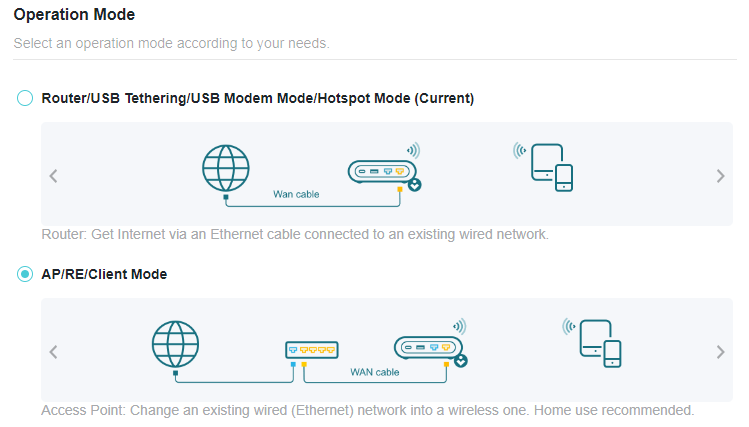
4. Select Access Point and click REBOOT. The settings will take effect only after the router reboots. Internet access will be disabled temporarily.
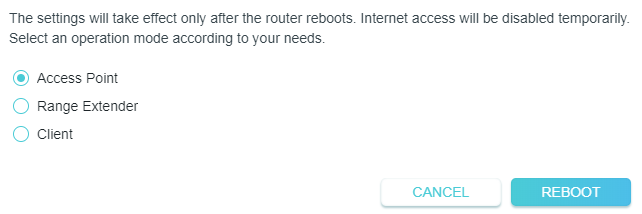
5. Wait until it finishes rebooting and follow instructions to complete the setup.
If the router is working at Range Extender/Client Mode currently, follow the steps to switch the operation mode to Access Point mode.
1. Visit http://tplinkwifi.net, and log in with the username and password you set for the router.
2. Go to Advanced > Network > Network Mode.
3. Select the desired network mode and click SAVE.
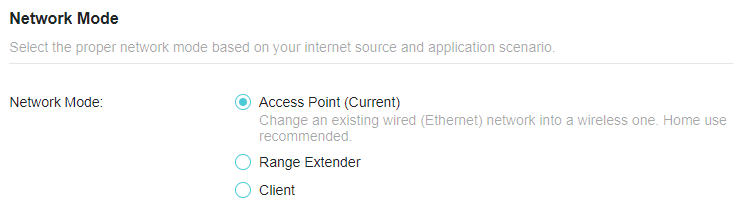
4. Go to Quick Setup and select Access Point, then follow the instructions to complete the setup.
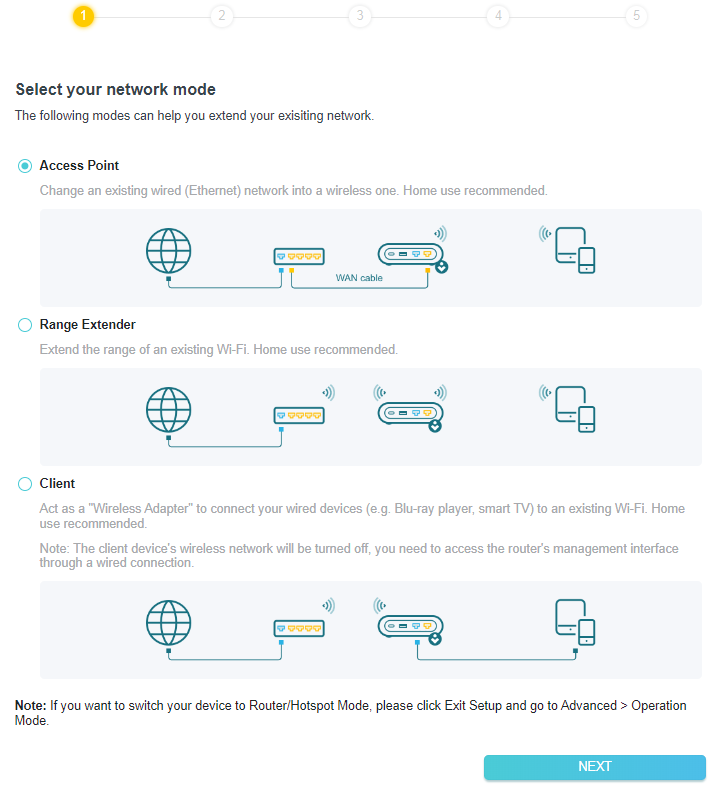
6.2 Network Map
Network Map outlines device connectivity of your network visually and helps you manage general settings of the network.
1. Visit http://tplinkwifi.net, and log in with your TP-Link ID or the password you set for the router.
2. Go to Network Map.
3. Click each network device icon to check and manage general network settings.
• Click Internet to check internet status.
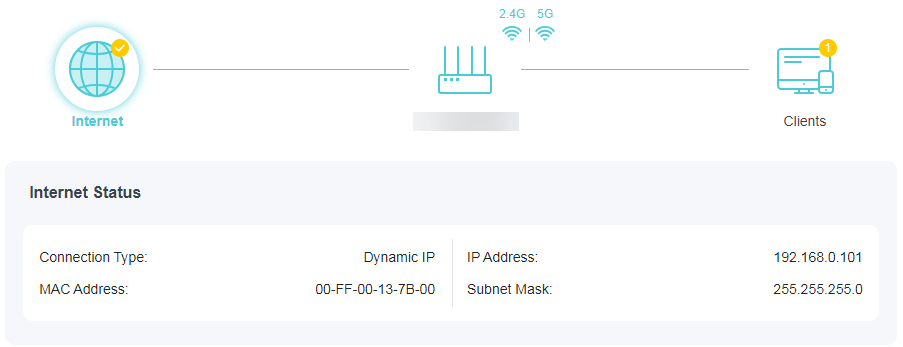
• Click the router to check device status and network settings. You can click Edit to change related settings.
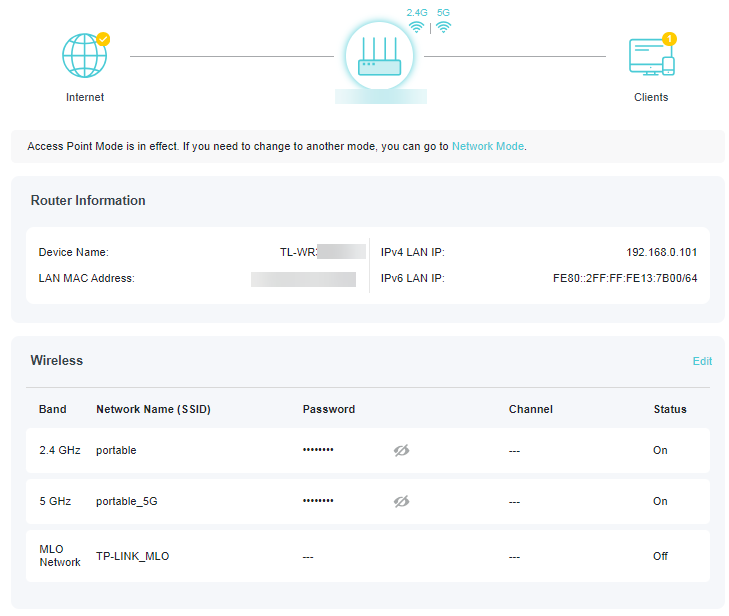
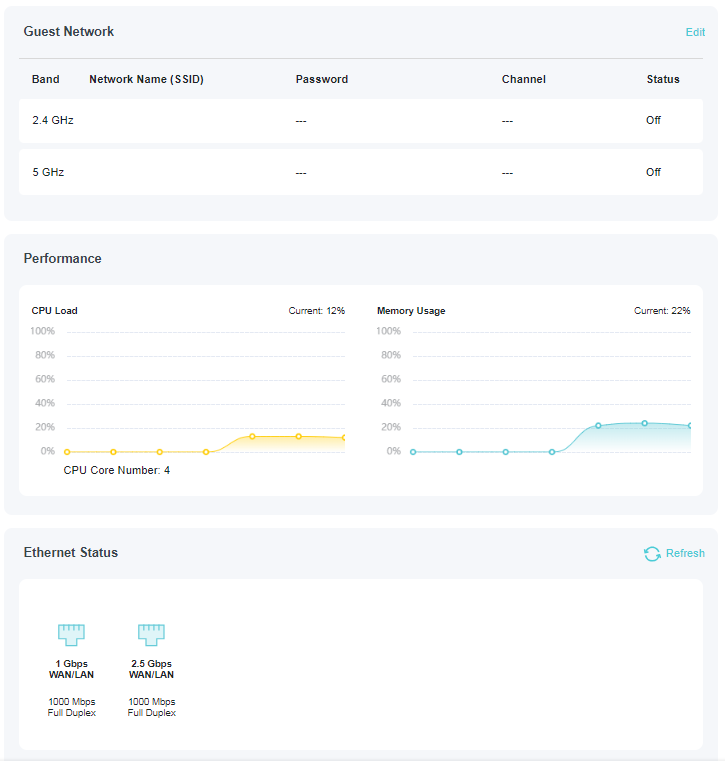
• Click Clients to view the client devices in your network.
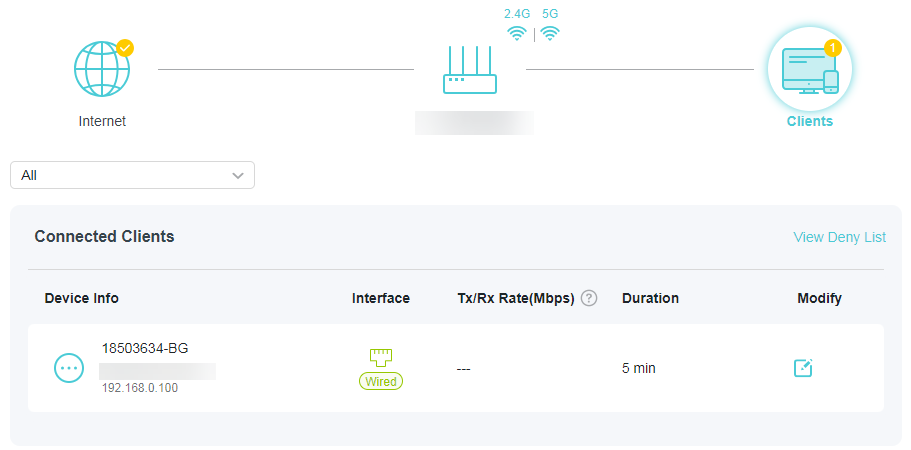
6.3 Wireless
6.3.1 Wireless Settings
1. Visit http://tplinkwifi.net, and log in with your TP-Link ID or the password you set for the router.
2. Go to Wireless > Wireless Settings.
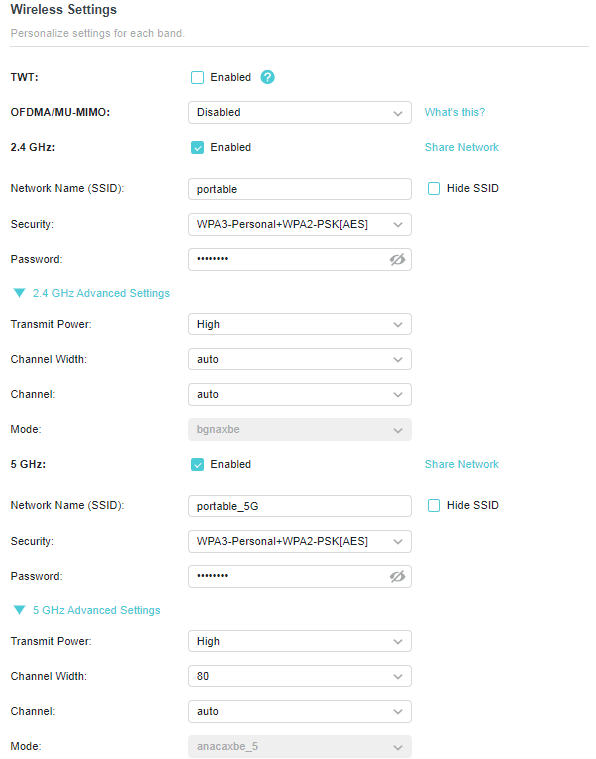
• TWT - Target Wake Time allows 802.11ax routers and clients to negotiate their periods to transmit and receive data packets. Clients only wake up at TWT sessions and remain in sleep mode for the rest of the time, which significantly extend their battery life.
• OFDMA/MU-MIMO - This feature enables multiple users to transmit data simultaneously, and thus greatly improves speed and efficiency. Noted that only when your clients also support OFDMA, can you fully enjoy the benefits.
• 2.4GHz/5GHz - Select this checkbox to enable the 2.4GHz/5GHz wireless network.
• Share Network- Click to save the Wi-Fi settings for sharing.
• Network Name (SSID) - Enter a value of up to 32 characters. The same Name (SSID) must be assigned to all wireless devices in your network.
• Hide SSID - Select this checkbox if you want to hide the network name (SSID) from the Wi-Fi network list. In this case, you need to manually join the network.
• Security - Select an option from the Security drop-down list. We recommend you don’t change the default settings unless necessary.
• Password - Set a password for the wireless network. The value is case-sensitive.
• Transmit Power - Select High, Middle or Low to specify the data transmit power. The default and recommended setting is High.
• Channel Width - Select a channel width (bandwidth) for the wireless network.
• Channel - Select an operating channel for the wireless network. For the 2.4 GHz and 5GHz bands, it is recommended to leave the channel to Auto, if you are not experiencing the intermittent wireless connection issue.
• Mode - You can choose the appropriate “Mixed” mode.
3. Configure the wireless settings for the wireless network and click SAVE.
6.3.2 MLO Network
MLO (Multi-Link Operation) network enables the connected Wi-Fi 7 clients to simultaneously send and receive data across different frequency bands, greatly improving the transmission rate and reliability.
Note: Some models may not have the MLO network. Images may differ from actual products.
1. Go to Wireless > Wireless Settings.
2. Locate the MLO Network section and enable MLO Network.
3. Specify an SSID in Network Name (SSID).
4. Select the Security type. Specify a password if the security type you selected requires it. This value is case-sensitive.
5. You can also click Share Network to share the SSID and password with your guests.
6. If you select Hide SSID, your SSID won’t display when you scan for local wireless networks on your wireless device and you need to manually join the MLO network.
7. Click SAVE to save your settings.
6.3.3 Guest Network
Guest Network allows you to provide Wi-Fi access for guests without disclosing your host network. When you have guests in your house, apartment, or workplace, you can create a guest network for them. In addition, you can customize guest network settings to ensure network security and privacy.
• Create a Guest Network
1. Visit http://tplinkwifi.net, and log in with your TP-Link ID or the password you set for the router.
2. Go to Advanced > Wireless > Guest Network.
3. Enable the 2.4GHz/5GHz guest network according to your needs.
4. Customize the SSID. Don‘t select Hide SSID unless you want your guests to manually input the SSID for guest network access.
5. Select the Security type and customize your own password. If No security is selected, no password is needed to access your guest network.
6. Click SAVE. Now you guests can access your guest network using the SSID and password you set!
• Customize Guest Network Options
1. Visit http://tplinkwifi.net, and log in with your TP-Link ID or the password you set for the router.
2. Go to Advanced > Wireless > Guest Network. Locate the Guest Permissions section.
3. Customize guest network options according to your needs.

• Allow guests to see each other
Tick this checkbox if you want to allow the wireless clients on your guest network to communicate with each other via methods such as network neighbors and Ping.
4. Click SAVE. Now you can ensure network security and privacy!
6.3.4 Wireless Schedule
The wireless function can be automatically off at a specific time when you do not need the wireless function.
1. Visit http://tplinkwifi.net, and log in with your TP-Link ID or the password you set for the router.
2. Go to Advanced > Wireless > Wireless Schedule.
3. Enable the Wireless Schedule function.
4. Click Add to specify a wireless off period during which you need the wireless off automatically, and click SAVE.
Note:
• The effective wireless schedule is based on the time of the router. You can go to Advanced > System > Time to modify the time.
• The wireless network will be automatically turned on after the time period you set.
6.3.5 WPS
WPS (Wi-Fi Protected Setup) can help you to quickly and securely connect to a network. This section will guide you to add a new wireless device to your router’s network quickly via WPS.
Note:
• The WPS function cannot be configured if the wireless function of the router is disabled. Please make sure the wireless function is enabled before configuration.
1. Visit http://tplinkwifi.net, and log in with your TP-Link ID or the password you set for the router.
2. Go to Advanced > Wireless > WPS.
3. Follow one of the following methods to connect your client device to the router’s Wi-Fi network.
Method 1: Using a PIN
• Connects via the Client’s PIN
1. Keep the WPS Status as Enabled and select Client’s PIN.
2. Enter the PIN of your device and click CONNECT. Then your device will get connected to the router.
• Connects via the Router’s PIN
1. Keep the WPS Status as Enabled and select Router’s PIN.
2. Enter the router’s PIN on your personal device. You can also generate a new one.
Note: PIN (Personal Identification Number) is an eight-character identification number preset to each router. WPS supported devices can connect to your router with the PIN.
Method 2: Using the WPS Button on the Web Screen
Click Start on the screen. Within two minutes, enable WPS on your personal device.
A Device-(XX-XX-XX-XX-XX-XX) Connected message should appear on the screen, indicating successful WPS connection.
Note: XX-XX-XX-XX-XX-XX is the MAC address of your device.
Method 3: Using the WPS Button on the Router
Press the router’s WPS button. Within two minutes, enable WPS on your personal device.
6.3.6 Additional Settings
1. Visit http://tplinkwifi.net, and log in with your TP-Link ID or the password you set for the router.
2. Go to Advanced > Wireless > Additional Settings.
3. Configure the advanced settings of your wireless network and click SAVE.
Note: If you are not familiar with the setting items on this page, it’s strongly recommended to keep the provided default values; otherwise it may result in lower wireless network performance.
• WMM - WMM function can guarantee the packets with high-priority messages being transmitted preferentially.
• Short GI - This function reduces the time between data packets to potentially increase the throughput of wireless network.
• AP Isolation - This function isolates all connected wireless stations so that wireless stations cannot access each other through WLAN.
• Airtime Fairness - This function can improve the overall network performance by sacrificing a little bit of network time on your slow devices.
• Beacon Interval - Enter a value between 40-1000 milliseconds for Beacon Interval here. Beacon Interval value determines the time interval of the beacons. The beacons are the packets sent by the router to synchronize a wireless network. The default value is 100.
• RTS Threshold - Here you can specify the RTS (Request to Send) Threshold. If the packet is larger than the specified RTS Threshold size, the router will send RTS frames to a particular receiving station and negotiate the sending of a data frame. The default value is 2346.
• DTIM Interval - This value determines the interval of the Delivery Traffic Indication Message (DTIM). A DTIM field is a countdown field informing clients of the next window for listening to broadcast and multicast messages. When the router has buffered broadcast or multicast messages for associated clients, it sends the next DTIM with a DTIM Interval value. You can specify the value between 1-255 Beacon Intervals. The default value is 1, which indicates the DTIM Interval is the same as Beacon Interval.
• Group Key Update Period - Enter a number of seconds (minimum 30) to control the time interval for the encryption key automatic renewal. The default value is 0, meaning no key renewal.
6.4 Network
6.4.1 Status
1. Visit http://tplinkwifi.net, and log in with the username and password you set for the router.
2. Go to Advanced > Network > Status. You can view the current status information of the router.
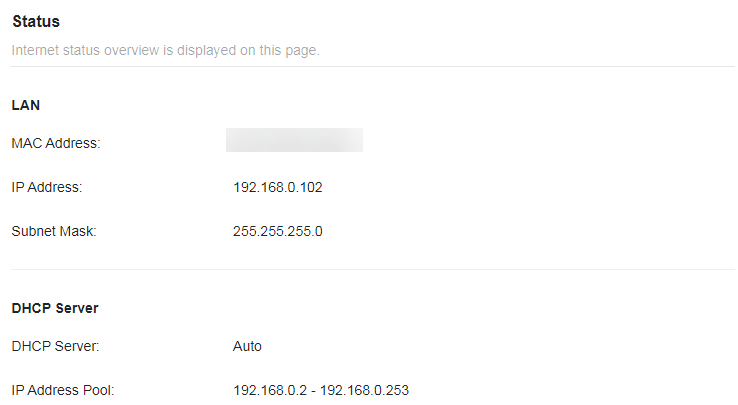
• LAN - This field displays the current settings of the LAN, and you can configure them on the Network > LAN page.
• MAC Address - The physical address of the router.
• IP Address - The LAN IP address of the router.
• Subnet Mask - The subnet mask associated with the LAN IP address.
• DHCP Server - Indicates whether the DHCP server is enabled or disabled. It is enabled by default and the router acts as a DHCP server.
• IP Address Pool - The IP address range for the DHCP server to assign IP addresses.
6.4.2 Network Mode
In Access Point mode, you can quickly switch to Range Extender mode or Client mode with one tap.
1. Visit http://tplinkwifi.net, and log in with the username and password you set for the router.
2. Go to Advanced > Network > Network Mode.
3. Select the desired network mode and click SAVE.
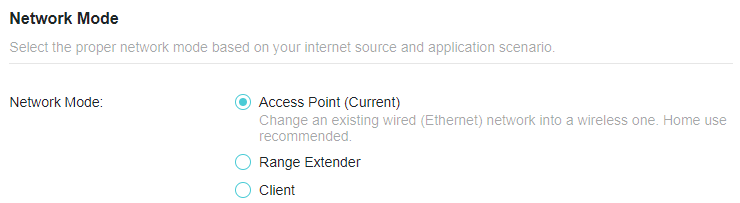
6.4.3 LAN
In Access Point mode, this router is preset with Dynamic IP, which allows it to dynamically obtain an IP address and gateway from the main router/AP. It is recommended that you keep the default LAN settings to avoid IP conflict with the main router/AP or other devices on your local network.
If you want to set a static IP address for the access point, follow the steps below:
1. Visit http://tplinkwifi.net, and log in with the username and password you set for the router.
2. Go to Advanced > Network > LAN.
3. In IP Type, select Static IP.
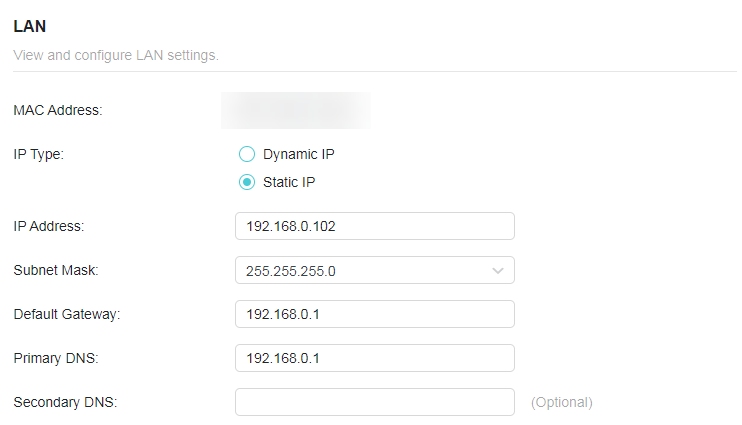
4. Leave other parameters as the default settings.
5. Click SAVE.
Note: After setting a static IP address, you can use the new IP address to log into the web management page besides http:// tplinkwifi.net.
6.4.4 Flow Controller
When enabled, when a device gets overloaded it will send a PAUSE frame to notify the peer device to stop sending data for a specified period of time, thus avoiding the packet loss caused by congestion.
1. Visit http://tplinkwifi.net, and log in with the username and password you set for the router.
2. Go to Advanced > Network > Internet Port. Locate the Flow Controller section.
3. Select the desired option and click SAVE.
6.4.5 DHCP Server
By default, the DHCP (Dynamic Host Configuration Protocol) Server is enabled and the router acts as a DHCP server; it dynamically assigns TCP/IP parameters to client devices from the IP Address Pool. You can change the settings of DHCP Server if necessary, and you can reserve LAN IP addresses for specified client devices.
Note: If you disable the DHCP server and there is no other DHCP server within your LAN, you have to configure the IP address for each client manually.
• To specify the IP address that the router assigns:
1. Visit http://tplinkwifi.net, and log in with your TP-Link ID or the password you set for the router.
2. Go to Advanced > Network > DHCP Server and locate the DHCP Server section.
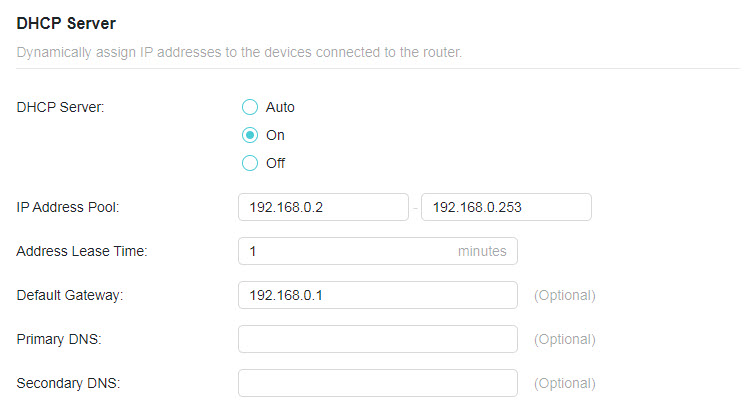
1. Turn on DHCP Server.
2. Enter the starting and ending IP addresses in the IP Address Pool.
3. Enter other parameters if the ISP offers. The Default Gateway is automatically filled in and is the same as the LAN IP address of the router.
4. Click SAVE.
Note: To use the DHCP server function of the router, you must configure all computers on the LAN as Obtain an IP Address automatically.
• To reserve an IP address for a specified client device:
The DHCP server of the router works when it is turned on, or when it is in Auto mode with the DHCP server of the main router/AP disabled. When it is working, you can view the DHCP clients and reserve IP addresses for them.
1. Visit http://tplinkwifi.net, and log in with the username and password you set for the router.
2. Go to Advanced > Network > DHCP Server and locate the Address Reservation section.
3. Click Add in the Address Reservation section.
4. Click VIEW CONNECTED DEVICES and select the you device you want to reserve an IP for. Then the MAC and IP Address will be automatically filled in. You can also enter the MAC and IP address of the client device.
• To check the DHCP client list:
1. Visit http://tplinkwifi.net, and log in with your TP-Link ID or the password you set for the router.
2. Go to Advanced > Network > DHCP Server and locate the DHCP Client List section. You can see the device information of the list.
3. Click Refresh to see the current attached devices.
6.5 USB Storage Device
Insert your USB storage device into the router’s USB port and then access files stored there locally or remotely.
Tips:
• If you use USB hubs, make sure no more than 4 devices are connected to the router.
• If the USB storage device requires using bundled external power, make sure the external power has been connected.
• If you use a USB hard drive, make sure its file system is FAT32, exFat, NTFS or HFS+.
• Before you physically disconnect a USB device from the router, safely remove it to avoid data damage: Go to Advanced > USB > Storage Device and click Remove.
6.5.1 Access the USB Device Locally
Insert your USB storage device into the router’s USB port and then refer to the following table to access files stored on your USB storage device.
| Windows computer |
• Method 1:
• Method 2:
|
|---|---|
| Mac |
1 ) Select Go > Connect to Server.
4 ) When prompted, select the Guest radio box. (If you have set up a username and a password to deny anonymous access to the USB disks, you should select the Registered User radio box. To learn how to set up an account for the access, refer to To Set Up Authentication for Data Security.) |
| Tablet | Use a third-party app for network files management. |
Tips:
You can also access your USB storage device by using your Network/Media Server Name as the server address. Refer to To Customize the Address of the USB Storage Device to learn more.
6.5.2 Customize the Access Settings
By default, all the network clients can access all folders on your USB disk. You can customize your sharing settings by setting a sharing account, sharing specific contents and setting a new sharing address on the router’s web management page.
1. Visit http://tplinkwifi.net, and log in with your TP-Link ID or the password you set for the router.
2. Go to Advanced > USB > Storage Device.
• To Customize the Address of the USB Storage Device
You can customize the server name and use the name to access your USB storage device.
1. In the Access Method session, make sure Samba for Windows Samba for macOS/ Linux is enabled, and enter a Network/Media Server Name as you like, such as MyShare, then click SAVE.
2. Now you can access the USB storage device by visiting \\MyShare (for Windows) or smb://MyShare (for Mac).
• To Only Share Specific Content
Focus on the File Sharing section. Specify sharing folders that you want to share and click SAVE.
• To Set Up Authentication for Data Security
You can set up authentication for your USB storage device so that network clients will be required to enter username and password when accessing the USB storage device.
1. In the File Sharing section, enable Secure Sharing.
2. Click to modify the access account, and pay attention to the default username and password. Accessing as an administrator can read and modify the shared folders while visitors can only read the shared folders.
Note:
1. For Windows users, do not set the sharing username the same as the Windows username. Otherwise, Windows credential mechanism may cause the following problems:
• If the sharing password is also the same as the Windows password, authentication will not work since the Windows will automatically use its account information for USB access.
• If the sharing password is different from the Windows password, the Windows will be unable to remember your credentials and you will always be required to enter the sharing password for USB access.
2. Due to Windows credential mechanism, you might be unable to access the USB disk after changing Authentication settings. Please log out from the Windows and try to access again. Or you can change the address of the USB disk by referring to To Customize the Address of the USB Storage Device.
6.5.3 Media Sharing
The feature of Media Sharing allows you to view photos, play music and watch movies stored on the USB storage device directly from DLNA-supported devices, such as your computer, tablet and PS2/3/4.
Note: Some models may not support this feature. Images may differ from actual products.
1. Visit http://tplinkwifi.net, and log in with your TP-Link ID or the password you set for the router.
2. Go to Advanced > USB > Storage Device.
3. Enable Media Sharing.
4. When your USB storage device is inserted into the router, your DLNA-supported devices (such as your computer and pad) connected to the router can detect and play the media files on the USB storage devices.
5. Refer to the following table for detailed instructions.
| Windows Computer |
Go to Computer > Network, then click the Media Server Name (Model number-share by default) in the Media Devices section.
|
|---|---|
| Tablet | • Use a third-party DLNA-supported player. |
6.6 Access Control
Access Control is used to block or allow specific client devices to access your network (via wired or wireless) based on a list of blocked devices (Deny List) or a list of allowed devices (Allow List).
I want to:
Block or allow specific client devices to access my network (via wired or wireless).
How can I do that?
1. Visit http://tplinkwifi.net, and log in with your TP-Link ID or the password you set for the router.
2. Go to Advanced > Security > Access Control.
3. Toggle on to enable Access Control.
4. Click Change Mode to select the access mode to either block (recommended) or allow the device(s) in the list.
To block specific device(s):
1 ) Select Deny List.
2 ) Click and select devices you want to be blocked, or enter the MAC address manually, and click ADD.
3 ) The Operation Succeeded message will appear on the screen, which means the selected devices have been successfully added to the Deny List.
To allow specific device(s):
1 ) Select Allow List and click CHANGE.
2 ) Your own device is in the Allow List by default and cannot be deleted. Click to add other devices to the Allow List.
• Add connected devices
1 ) Click Select From Device List.
2 ) Select the devices you want to be allowed and click ADD.
3 ) The Operation Succeeded message will appear on the screen, which means the selected devices have been successfully added to the Allow List.
• Add unconnected devices
1 ) Click Add Manually.
2 ) Enter the Device Name and MAC Address of the device you want to be allowed and click ADD.
3 ) The Operation Succeeded message will appear on the screen, which means the device has been successfully added to the Allow List.
Done!
Now you can block or allow specific client devices to access your network (via wired or wireless) using the Deny List or Allow List.
6.7 Firmware Upgrade
TP-Link aims at providing better network experience for users. We will inform you through the web management page if there’s any update firmware available for your router. Also, the latest firmware will be released at the TP-Link official website www.tp-link.com, and you can download it from the Support page for free.
Note:
• Backup your router configuration before firmware upgrade.
• Do NOT turn off the router during the firmware upgrade.
Auto Update
Enable Auto Update and set the update time. The router will update firmware automatically at the specified time when new version is available.
Online Upgrade
1. Visit http://tplinkwifi.net, and log in with your TP-Link ID or the password you set for the router.
2. When the latest firmware is available for your router, the upgrade icon will display in the top-right corner of the page. Click the icon to go to the Firmware Upgrade page. Alternatively, you can go to Advanced > System > Firmware Upgrade, and click CHECK FOR UPGRADES to see whether the latest firmware is released.
3. Click UPGRADE if there is new firmware.
4. Wait a few minutes for the upgrade and reboot to complete.
Tips: If there’s a new and important firmware update for your router, you will see the prompt notification on your computer as long as a web browser is opened. Click UPGRADE, and log in to the web management page with the username and password you set for the router. You will see the Firmware Upgrade page.
Local Upgrade
1. Download the latest firmware file for the router from www.tp-link.com.
2. Visit http://tplinkwifi.net, and log in with your TP-Link ID or the password you set for the router.
3. Go to Advanced > System > Firmware Upgrade.
4. Focus on the Local Upgrade section. Click BROWSE to locate the downloaded new firmware file, and click UPGRADE.
5. Wait a few minutes for the upgrade and reboot to complete.
Note: If you fail to upgrade the firmware for the router, please contact our Technical Support.
6.8 Backup and Restore Configuration Settings
The configuration settings are stored as a configuration file in the router. You can backup the configuration file to your computer for future use and restore the router to a previous settings from the backup file when needed. Moreover, if necessary you can erase the current settings and reset the router to the default factory settings.
1. Visit http://tplinkwifi.net, and log in with your TP-Link ID or the password you set for the router.
2. Go to Advanced > System > Backup & Restore.
• To backup configuration settings:
Click BACK UP to save a copy of the current settings to your local computer. A ‘.bin’ file of the current settings will be stored to your computer.
• To restore configuration settings:
1. Click UPLOAD to locate the backup configuration file stored on your computer, and click RESTORE.
2. Wait a few minutes for the restoring and rebooting.
Note: During the restoring process, do not turn off or reset the router.
• To reset the router except your login password and TP-Link ID:
1. In the Factory Default Restore section, click RESTORE.
2. Wait a few minutes for the resetting and rebooting.
Note:
• During the resetting process, do not turn off the router.
• After reset, you can still use the current login password or the TP-Link ID to log in to the web management page.
• To reset the router to factory default settings:
1. Click FACTORY RESTORE to reset the router.
2. Wait a few minutes for the resetting and rebooting.
Note:
• During the resetting process, do not turn off or reset the router.
• We strongly recommend you backup the current configuration settings before resetting the router.
6.9 TP-Link Cloud Service
TP-Link Cloud service provides a better way to manage your cloud devices. Log in to your router with a TP-Link ID, and you can easily monitor and manage your home network when you are out and about via the Tether app. To ensure that your router stays new and gets better over time, the TP-Link Cloud will notify you when an important firmware upgrade is available. Surely you can also manage multiple TP-Link Cloud devices with a single TP-Link ID.
This section introduces how to register a new TP-Link ID, bind or unbind TP-Link IDs to manage your router, and the Tether app with which you can manage your home network no matter where you may find yourself.
6.9.1 Register a TP-Link ID
If you have skipped the registration during the Quick Setup process, you can:
1. Visit http://tplinkwifi.net, and log in with the password you set for the router.
2. Go to Advanced > TP-Link ID or click TP-Link ID on the very top of the page.
3. Click Sign Up and follow the instructions to register a TP-Link ID.
4. After activating your TP-Link ID, come back to the TP-Link ID page to log in. The TP-Link ID used to log in to the router for the first time will be automatically bound as an Admin.
Note:
• To learn more about the Admin and User TP-Link ID, refer to Manage the User TP-Link IDs.
• Once you have registered a TP-Link ID on the web management page, you can only register another TPLink ID via the Tether APP. Please refer to Log In via Tether to install the app.
• If you want to unbind the admin TP-Link ID from your router, please go to Advanced > TP-Link ID, an click Unbind in the Device Information section.
6.9.2 Change Your TP-Link ID Information
Follow the steps below to change your email address and password of your TP-Link ID as needed.
1. Visit http://tplinkwifi.net, and log in with your TP-Link ID.
2. Go to Advanced > TP-Link ID, and focus on the TP-Link ID section.
• To change your email address:
1. Click behind the Email.
2. Enter the password of your TP-Link ID, then a new email address. And click SAVE.
• To change your password:
1. Click behind the Password.
2. Enter the current password, then a new password twice. And click SAVE.
6.9.3 Manage the User TP-Link IDs
The TP-Link ID used to log in to the router for the first time will be automatically bound as the Owner account. The Owner account can add or remove other TP-Link IDs to or from the same router. All accounts can monitor and manage the router locally or remotely, but only the owner account can:
• Reset the router to its factory default settings either on the web management page or in the Tether app.
• Add/remove other TP-Link IDs to/from the router.
Add TP-Link ID to Manage the Router
1. Visit http://tplinkwifi.net, and log in with your TP-Link ID.
2. Go to Advanced > TP-Link ID, and focus on the Bound TP-Link IDs section.
3. Click , enter another TP-Link ID as needed and click SAVE.
Note: If you need another TP-Link ID, please register a new one via the Tether app. Refer to Manage the Router via the TP-Link Tether App to install the app and register a new TP-Link ID.
4. The new TP-Link ID will be displayed in the Bound TP-Link IDs table.
Remove TP-Link ID(s) from Managing the Router
1. Visit http://tplinkwifi.net, and log in with your TP-Link ID.
2. Go to Advanced > TP-Link ID, and focus on the Bound TP-Link IDs section.
3. Tick Unbind of the TP-Link ID(s) you want to remove.
6.9.4 Manage the Router via the TP-Link Tether App
The Tether app runs on iOS and Android devices, such as smartphones and tablets.
1. Launch the Apple App Store or Google Play store and search “TP-Link Tether” or simply scan the QR code to download and install the app.
2. Launch the Tether app and log in with your TP-Link ID. If you don’t have a TP-Link ID, create one first.
3. Connect your device to the router’s wireless network.
4. Go back to the Tether app, select the model of your router and log in with the password you set for the router.
5. Manage your router as needed.
Note: If you need to remotely access your router from your smart devices, you need to:
• Log in with your TP-Link ID. If you don’t have one, refer to Register a TP-Link ID.
• Make sure your smartphone or tablet can access the internet with cellular data or a Wi-Fi network.
6.10 Change the Login Password
The account management feature allows you to change your login password of the web management page.
Note: If you are using a TP-Link ID to log in to the web management page, the account management feature will be disabled. To manage the TP-Link ID, go to Advanced > TP-Link ID.
1. Visit http://tplinkwifi.net, and log in with your TP-Link ID or the password you set for the router.
2. Go to Advanced > System > Administration and focus on the Change Password section.
3. Enter the old password, then a new password twice (both case-sensitive). Click SAVE.
4. Use the new password for future logins.
6.11 Password Recovery
This feature allows you to recover the login password you set for you router in case you forget it.
Note: If you are using a TP-Link ID to log in to the web management page, the Password Recovery feature will be disabled. To manage the TP-Link ID, go to Advanced > TP-Link ID.
1. Visit http://tplinkwifi.net, and log in with the password you set for the router.
2. Go to Advanced > System > Administration and focus on the Admin Password Recovery section.
3. Click Question Settings to set security question settings.
4. Tick the Enable box of Password Recovery.
5. Specify a mailbox (From) for sending the recovery letter and enter its SMTP Server address. Specify a mailbox (To) for receiving the recovery letter. If the mailbox (From) to send the recovery letter requires encryption, Tick the Enable box of Authentication and enter its username and password.
Tips:
• SMTP server is available for users in most webmail systems. For example, the SMTP server address of Gmail is smtp.gmail.com.
• Generally, Authentication should be enabled if the login of the mailbox requires username and password.
6. Click SAVE.
To recover the login password, please visit http://tplinkwifi.net, click Forgot Password? on the login page and follow the instructions to set a new password.
6.12 Local Management
This feature allows you to limit the number of client devices on your LAN from accessing the router by using the MAC address-based authentication.
1. Visit http://tplinkwifi.net, and log in with your TP-Link ID or the password you set for the router.
2. Go to Advanced > System > Administration and complete the settings In Local Management section as needed.
• Access the router via HTTPS and HTTP:
Tick the Enable box of Local Management via HTTPS to access the router via HTTPS and HTTP, or keep it disabled to access the router only via HTTP.
• Allow all LAN connected devices to manage the router:
Select All Devices for Local Managers.
• Allow specific devices to manage the router:
1. Select Specified Devices for Local Managers and click SAVE.
2. Click Add Device.
3. Click VIEW CONNECTED DEVICES and select the device to manage the router from the Connected Devices list, or enter the MAC address of the device manually.
4. Specify a Description for this entry.
5. Click SAVE.
6.13 System Log
When the router does not work normally, you can save the system log and send it to the technical support for troubleshooting.
• To save the system log locally:
1. Visit http://tplinkwifi.net, and log in your TP-Link ID or the password you set for the router.
2. Go to Advanced > System > System Log.
3. Choose the type and level of the system logs as needed.
4. In the Save Log section, click SAVE TO LOCAL to save the system logs to a local disk.
• To send the system log to a mailbox at a fixed time:
For example, I want to check my router’s working status at a fixed time every day, however, it’s too troublesome to log in to the web management page every time I want to go checking. It would be great if the system logs could be sent to my mailbox at 8 a.m. every day.
1. Visit http://tplinkwifi.net, and log in with your TP-Link ID or the password you set for the router.
2. Go to Advanced > System > System Log.
3. In the Save Log section, click MAIL LOG.
4. Enter the information required:
• Email From: Enter the email address used for sending the system log.
• Select Require Password.
Tips: Generally, Require Password should be selected if the login of the mailbox requires username and password.
• Username: Enter the email address used for sending the system log.
• Email Password: Enter the password to login the sender’s email address.
• SMTP Server: Enter the SMTP server address.
Tips: SMTP server is available for users in most webmail systems. For example, the SMTP server address of Hotmail is smtp-mail.outlook.com.
• Email To: Enter the recipient’s email address, which can be the same as or different from the sender’s email address.
• Select Mail Log Automatically.
Tips: The router will send the system log to the designated email address if this option is enabled.
• Frequency: This determines how often the recipient will receive the system log .
5. Click SAVE.
6.14 Test the Network Connectivity
Diagnostics is used to test the connectivity between the router and the host or other network devices.
1. Visit http://tplinkwifi.net, and log in with your TP-Link ID or the password you set for the router.
2. Go to Advanced > System > Diagnostics.
3. Enter the information:
1 ) Choose Ping or Traceroute as the diagnostic tool to test the connectivity;
• Ping is used to test the connectivity between the router and the tested host, and measure the round-trip time.
• Traceroute is used to display the route (path) your router has passed to reach the tested host, and measure transit delays of packets across an Internet Protocol network.
2 ) Enter the IP Address or Domain Name of the tested host.
3 ) Modify the Ping Count number and the Ping Packet Size. It’s recommended to keep the default value.
4 ) If you have chosen Traceroute, you can modify the Traceroute Max TTL. It’s recommended to keep the default value.
4. Click START to begin the diagnostics.
The figure below indicates the proper connection between the router and the Yahoo server (www.Yahoo.com) tested through Ping.
The figure below indicates the proper connection between the router and the Yahoo server (www.Yahoo.com) tested through Traceroute.
6.15 Set Up System Time
System time is the time displayed while the router is running. The system time you configure here will be used for other time-based functions like Parental Controls. You can choose the way to obtain the system time as needed.
1. Visit http://tplinkwifi.net, and log in with your TP-Link ID or the password you set for the router.
2. Go to Advanced > System > Time Settings.
• To get time from the internet:
1. Enable 24-Hour Time if you want the time to display in a 24-hour way.
2. In the Set Time field, select Get from Internet.
3. Select your local Time Zone from the drop-down list.
4. In the NTP Server I field, enter the IP address or domain name of your desired NTP Server.
5. (Optional) In the NTP Server II field, enter the IP address or domain name of the second NTP Server.
6. Click SAVE.
• To get time from your computer:
1. In the Set Time field, select Get from Managing Device.
2. The time of your computer will then be displayed and click SAVE.
• To manually set the date and time:
1. In the Set Time field, select Manually.
2. Set the current Date (In MM/DD/YYYY format).
3. Set the current Time (In HH/MM/SS format).
4. Click SAVE.
• To set up Daylight Saving Time:
1. Tick the Enable box of Daylight Saving Time.
2. Select the correct Start date and time when daylight saving time starts at your local time zone.
3. Select the correct End date and time when daylight saving time ends at your local time zone.
4. Click SAVE.
6.16 Set the Router to Reboot Regularly
The Scheduled Reboot feature cleans the cache to enhance the running performance of the router.
1. Visit http://tplinkwifi.net, and log in with your TP-Link ID or the password you set for the router.
2. Go to Advanced > System > Reboot.
3. Tick the Enable box of Reboot Schedule.
4. Specify the Reboot Time when the router reboots and Repeat to decide how often it reboots.
5. Click SAVE.
6.17 Control the LED
The LED of the router indicates its activities and status. You can enable the Night Mode feature to specify a time period during which the LED is off.
1. Visit http://tplinkwifi.net, and log in with your TP-Link ID or the password you set for the router.
2. Go to Advanced > System > LED Control.
3. Enable Night Mode.
4. Specify the LED Off time, and the LED will be off during this period every day.
5. Click SAVE.
6.18 Action Switch
The customizable action switch offers you a physical shortcut to control a variety of functions, including Wi-Fi, LED and VPN Merge.
1. Visit http://tplinkwifi.net, and log in with your TP-Link ID or the password you set for the router.
2. Go to Advanced > System > Action Switch.
3. Select a quick control option, and click SAVE.
6.19 ECO Mode
An ECO Mode switch is used to change the power saving mode of the router. To change the ECO Mode, please toggle the Mode Switch on the device to your desired mode.
1. Visit http://tplinkwifi.net, and log in with your TP-Link ID or the password you set for the router.
2. Go to Advanced > System > ECO Mode.
3. Select a preference mode and click SAVE.
• Boost Mode: Favors wireless range and transmission speed but may increase energy consumption and raise device temperature.
• Balance Mode: Automatically balances wireless range and transmission speed while considering energy consumption and device temperature.
• ECO Mode: Saves energy and lowers device temperature by reducing device’s wireless range and transmission speed.
Chapter 7. Configure the Router in
Range Extender Mode
This chapter presents how to configure the various features of the router working in Range Extender mode.
*Features available on the web management page may vary by model and software version.
7.1 Operation Mode
If the router is working at Router/USB Tethering/USB Modem/Hotspot Mode currently, follow the steps to switch the operation mode to Range Extender mode.
1. Visit http://tplinkwifi.net, and log in with your TP-Link ID or the password you set for the router.
2. Go to Advanced > System > Operation Mode.
3. Select AP/RE/Client Mode and click SAVE.
4. Select Range Extender and click REBOOT. The settings will take effect only after the router reboots. Internet access will be disabled temporarily.
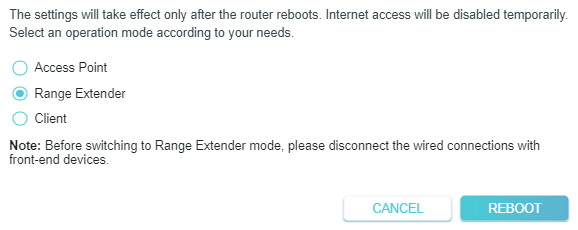
5. Wait until it finishes rebooting and follow instructions to complete the setup.
If the router is working at AP/Client Mode currently, follow the steps to switch the operation mode to Range Extender mode.
1. Visit http://tplinkwifi.net, and log in with the username and password you set for the router.
2. Go to Advanced > Network > Network Mode.
3. Select the desired network mode and click SAVE.
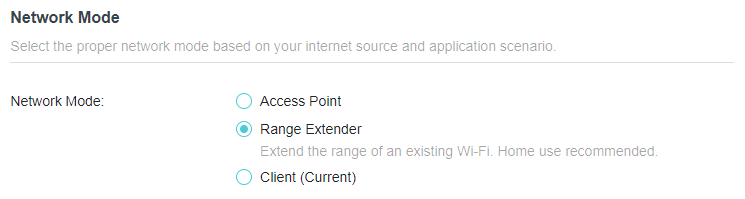
4. Go to Quick Setup and select Range Extender, then follow the instructions to complete the setup.
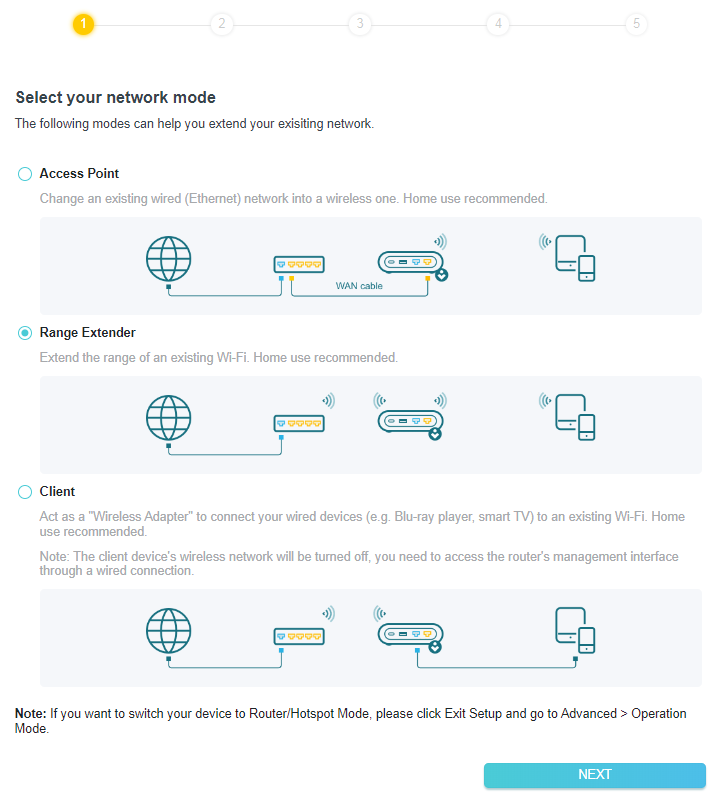
7.2 Network Map
Network Map outlines device connectivity of your network visually and helps you manage general settings of the network.
1. Visit http://tplinkwifi.net, and log in with your TP-Link ID or the password you set for the router.
2. Go to Network Map.
3. Click each network device icon to check and manage general network settings.
• Click Internet to check internet status.
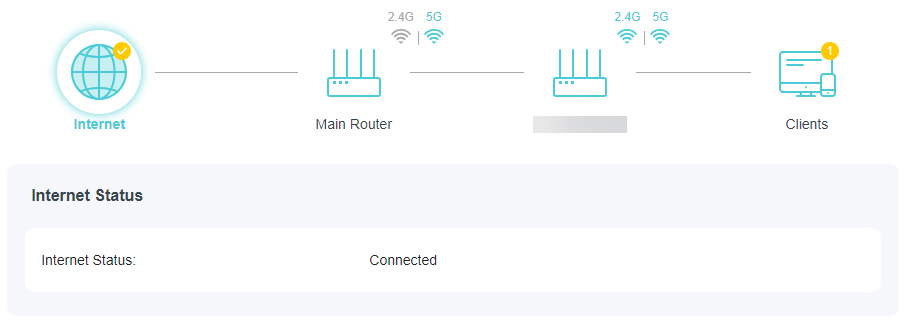
• Click Main Router to check the wireless network information of the connected host router.
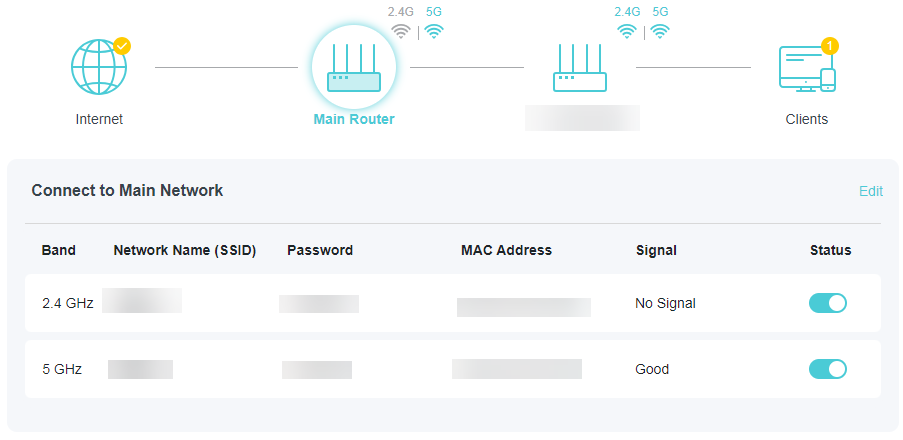
• Click the router to check device status and network settings. You can click Edit to change related settings.
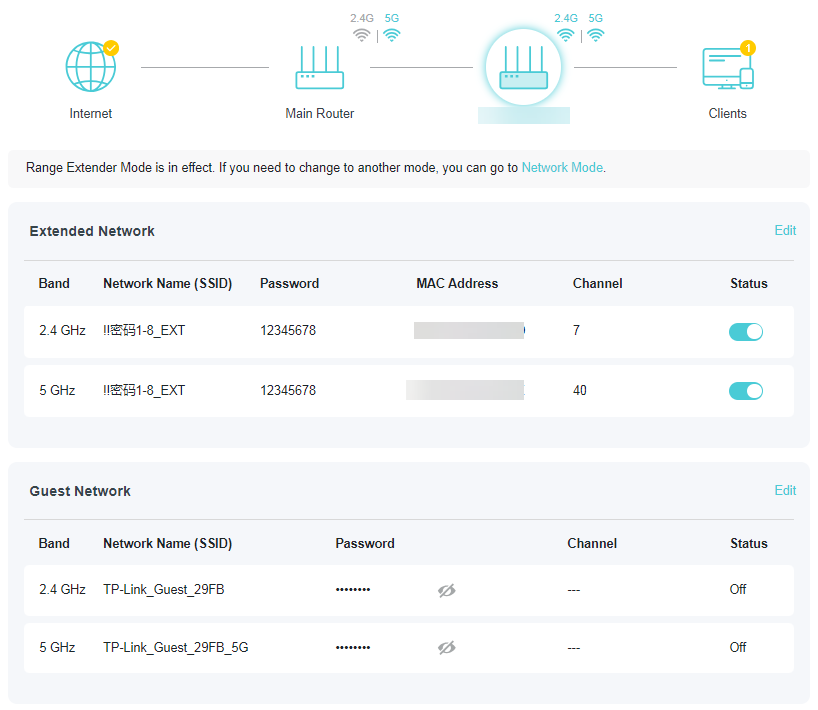
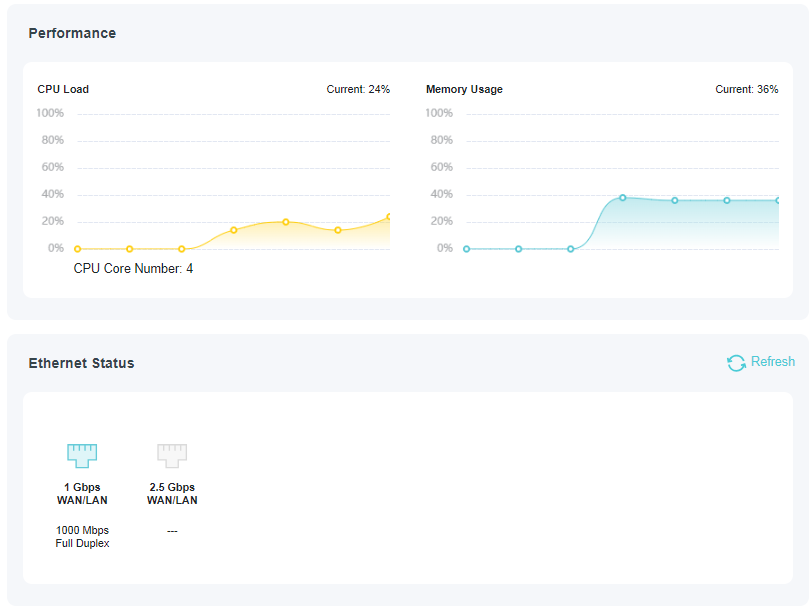
• Click Clients to view the client devices in your network.
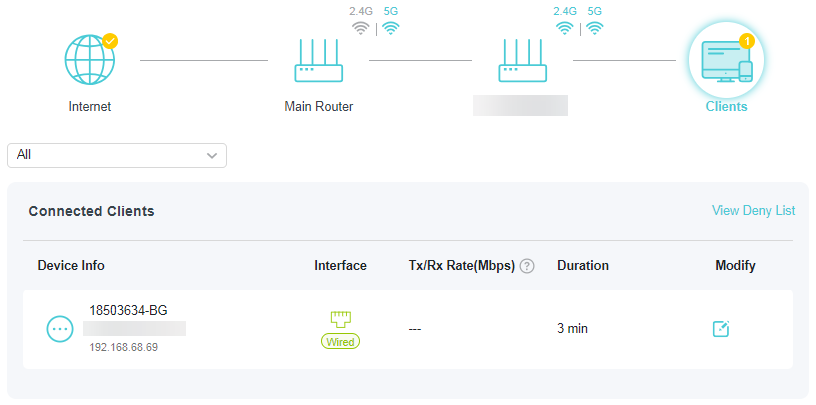
7.3 Wireless
7.3.1 Configure Wireless Network
If you want to extend another main network after Quick Setup, you can refer to this section. Moreover, you can change the wireless settings for your extended networks.
Note: Here we take the configuration of the 5GHz network as an example.
1. Visit http://tplinkwifi.net, and log in with your TP-Link ID or the password you set for the router.
• To extend another host network:
2. Go to Wireless >Wireless Settings.
3. Enable the wireless band, and click Wi-Fi SCANNER to find all available networks.
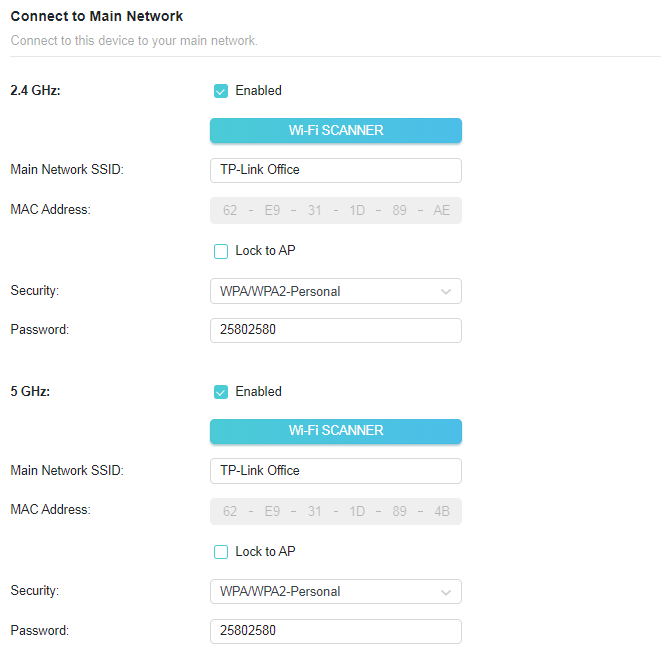
4. Select the main network you want to extend.
Note: If the network you want to extend is on but not listed, please try the following steps.
· Move the router closer to your main router, and rescan for networks.
· You can manually enter the Network Name (SSID) and password of the network you want to extend, and click SAVE.
5. Once a main network is selected, the SSID and security type will be automatically filled in. If the selected network is encrypted, enter the password in the Password field.
6. (Optional) If you enable Lock to AP, the router’s connection will be restricted to the network with this specific MAC address.
7. Click SAVE.
• To enable or disable the extended network:
1. Go to Wireless >Wireless Settings > Extended Network.
2. Extended networks are enabled by default. If you want to disable the wireless function of a certain band, just clear the Enable checkbox. In this case, all the wireless settings of this band will be invalid.
3. Click SAVE.
• To change the wireless network name (SSID):
1. Go to Wireless >Wireless Settings > Extended Network.
2. Create a new SSID in Extended SSID or click COPY MAIN NETWORK SSID. The value is case-sensitive.
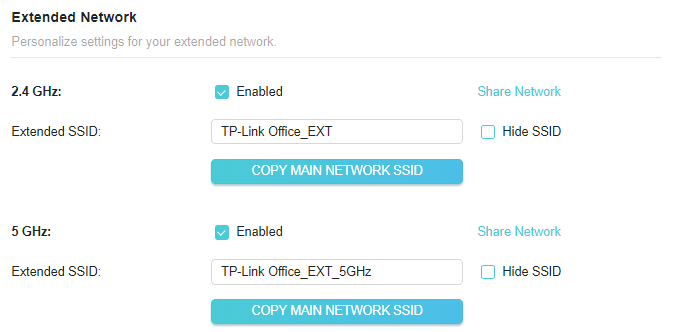
• To hide the SSID of the extended network:
1. Go to Wireless >Wireless Settings > Extended Network.
2. Select Hide SSID, and the corresponding SSID will not be displayed when wireless devices scan for local wireless networks. You need to manually enter the SSID to join the network.
3. Click SAVE.
• To share the extended network:
1. Go to Wireless >Wireless Settings > Extended Network.
2. Click Share Network of the corresponding band, and click Save Picture to share it to your guests.
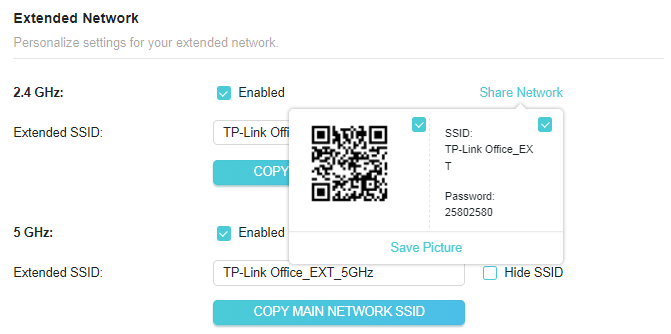
7.3.2 Guest Network
Guest Network allows you to provide Wi-Fi access for guests without disclosing your host network. When you have guests in your house, apartment, or workplace, you can create a guest network for them. In addition, you can customize guest network settings to ensure network security and privacy.
• Create a Guest Network
1. Visit http://tplinkwifi.net, and log in with your TP-Link ID or the password you set for the router.
2. Go to Advanced > Wireless > Guest Network.
3. Enable the 2.4GHz/5GHz guest network according to your needs.
4. Customize the SSID. Don‘t select Hide SSID unless you want your guests to manually input the SSID for guest network access.
5. Select the Security type and customize your own password. If No security is selected, no password is needed to access your guest network.
6. Click SAVE. Now you guests can access your guest network using the SSID and password you set!
• Customize Guest Network Options
1. Visit http://tplinkwifi.net, and log in with your TP-Link ID or the password you set for the router.
2. Go to Advanced > Wireless > Guest Network. Locate the Guest Permissions section.
3. Customize guest network options according to your needs.
• Allow guests to see each other
Tick this checkbox if you want to allow the wireless clients on your guest network to communicate with each other via methods such as network neighbors and Ping.
4. Click SAVE. Now you can ensure network security and privacy!
7.3.3 Wireless Schedule
The wireless function can be automatically off at a specific time when you do not need the wireless function.
1. Visit http://tplinkwifi.net, and log in with your TP-Link ID or the password you set for the router.
2. Go to Advanced > Wireless > Wireless Schedule.
3. Enable the Wireless Schedule function.
4. Click Add to specify a wireless off period during which you need the wireless off automatically, and click SAVE.
Note:
• The effective wireless schedule is based on the time of the router. You can go to Advanced > System > Time to modify the time.
• The wireless network will be automatically turned on after the time period you set.
7.3.4 Additional Settings
1. Visit http://tplinkwifi.net, and log in with your TP-Link ID or the password you set for the router.
2. Go to Advanced > Wireless > Additional Settings.
3. Configure the advanced settings of your wireless network and click SAVE.
Note: If you are not familiar with the setting items on this page, it’s strongly recommended to keep the provided default values; otherwise it may result in lower wireless network performance.
• WMM - WMM function can guarantee the packets with high-priority messages being transmitted preferentially.
• Short GI - This function reduces the time between data packets to potentially increase the throughput of wireless network.
• AP Isolation - This function isolates all connected wireless stations so that wireless stations cannot access each other through WLAN.
• Airtime Fairness - This function can improve the overall network performance by sacrificing a little bit of network time on your slow devices.
• Beacon Interval - Enter a value between 40-1000 milliseconds for Beacon Interval here. Beacon Interval value determines the time interval of the beacons. The beacons are the packets sent by the router to synchronize a wireless network. The default value is 100.
• RTS Threshold - Here you can specify the RTS (Request to Send) Threshold. If the packet is larger than the specified RTS Threshold size, the router will send RTS frames to a particular receiving station and negotiate the sending of a data frame. The default value is 2346.
• DTIM Interval - This value determines the interval of the Delivery Traffic Indication Message (DTIM). A DTIM field is a countdown field informing clients of the next window for listening to broadcast and multicast messages. When the router has buffered broadcast or multicast messages for associated clients, it sends the next DTIM with a DTIM Interval value. You can specify the value between 1-255 Beacon Intervals. The default value is 1, which indicates the DTIM Interval is the same as Beacon Interval.
• Group Key Update Period - Enter a number of seconds (minimum 30) to control the time interval for the encryption key automatic renewal. The default value is 0, meaning no key renewal.
7.4 Network
7.4.1 Status
1. Visit http://tplinkwifi.net, and log in with the username and password you set for the router.
2. Go to Advanced > Network > Status. You can view the current status information of the router.
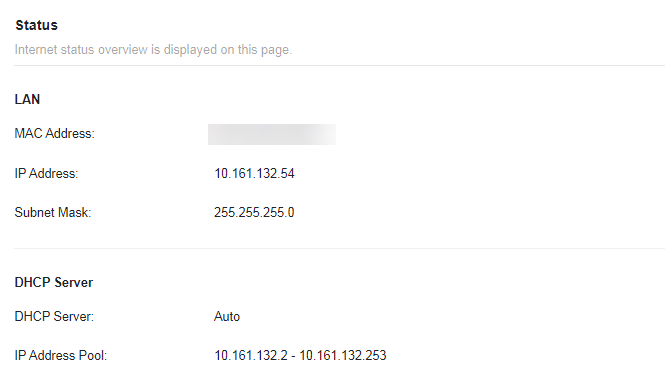
• LAN - This field displays the current settings of the LAN, and you can configure them on the Network > LAN page.
• MAC Address - The physical address of the router.
• IP Address - The LAN IP address of the router.
• Subnet Mask - The subnet mask associated with the LAN IP address.
• DHCP Server - This field displays the current settings of DHCP (Dynamic Host Configuration Protocol) Server, and you can configure them on the Network > DHCP Server page.
• DHCP Server - Indicates whether the DHCP server is enabled or disabled. It is enabled by default and the router acts as a DHCP server.
• IP Address Pool - The IP address range for the DHCP server to assign IP addresses.
7.4.2 Network Mode
In Access Point mode, you can quickly switch to Range Extender mode or Client mode with one tap.
1. Visit http://tplinkwifi.net, and log in with the username and password you set for the router.
2. Go to Advanced > Network > Network Mode.
3. Select the desired network mode and click SAVE.
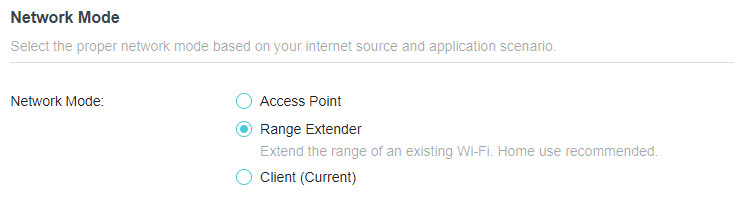
7.4.3 LAN
The router in Range Extender mode is preset with a default LAN IP 192.168.0.254, with which you can log in to the web management page. The LAN IP address, together with the Subnet Mask, also defines the subnet that the connected devices are on. If the IP address conflicts with another device on your local network or your network requires a specific IP subnet, you can change it.
1. Visit http://tplinkwifi.net, and log in with the username and password you set for the router.
2. Go to Advanced > Network > LAN.
3. In IP Type, select Static IP.
4. Enter a new IP Address as needed (such as 192.168.0.252), and leave the Subnet Mask as the default settings .
5. Enter the gateway that is in the same subnet as the IP address. The gateway is usually the LAN IP address of your router.
6. Click SAVE.
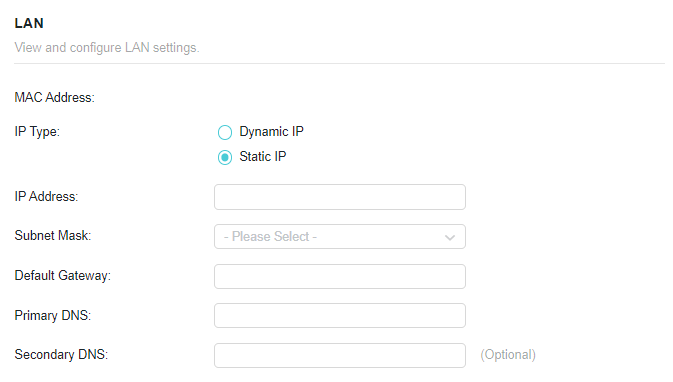
Note:
• If you have changed the IP address, you must use the new IP address to log in.
• If the new IP address you set is not in the same subnet as the old one, the IP address pool in the DHCP Server will be configured automatically, but the Virtual Server and DMZ Host will not take effect until they are re-configured.
7.4.4 DHCP Server
By default, the DHCP (Dynamic Host Configuration Protocol) Server is enabled and the router acts as a DHCP server; it dynamically assigns TCP/IP parameters to client devices from the IP Address Pool. You can change the settings of DHCP Server if necessary, and you can reserve LAN IP addresses for specified client devices.
Note: If you disable the DHCP server and there is no other DHCP server within your LAN, you have to configure the IP address for each client manually.
• To specify the IP address that the router assigns:
1. Visit http://tplinkwifi.net, and log in with your TP-Link ID or the password you set for the router.
2. Go to Advanced > Network > DHCP Server and locate the DHCP Server section.
1. Turn on DHCP Server.
2. Enter the starting and ending IP addresses in the IP Address Pool.
3. Enter other parameters if the ISP offers. The Default Gateway is automatically filled in and is the same as the LAN IP address of the router.
4. Click SAVE.
Note: To use the DHCP server function of the router, you must configure all computers on the LAN as Obtain an IP Address automatically.
• To reserve an IP address for a specified client device:
The DHCP server of the router works when it is turned on, or when it is in Auto mode with the DHCP server of the main router/AP disabled. When it is working, you can view the DHCP clients and reserve IP addresses for them.
1. Visit http://tplinkwifi.net, and log in with the username and password you set for the router.
2. Go to Advanced > Network > DHCP Server and locate the Address Reservation section.
3. Click Add in the Address Reservation section.
4. Click VIEW CONNECTED DEVICES and select the you device you want to reserve an IP for. Then the MAC and IP Address will be automatically filled in. You can also enter the MAC and IP address of the client device.
• To check the DHCP client list:
1. Visit http://tplinkwifi.net, and log in with your TP-Link ID or the password you set for the router.
2. Go to Advanced > Network > DHCP Server and locate the DHCP Client List section. You can see the device information of the list.
3. Click Refresh to see the current attached devices.
7.5 USB Storage Device
Insert your USB storage device into the router’s USB port and then access files stored there locally or remotely.
Tips:
• If you use USB hubs, make sure no more than 4 devices are connected to the router.
• If the USB storage device requires using bundled external power, make sure the external power has been connected.
• If you use a USB hard drive, make sure its file system is FAT32, exFat, NTFS or HFS+.
• Before you physically disconnect a USB device from the router, safely remove it to avoid data damage: Go to Advanced > USB > Storage Device and click Remove.
7.5.1 Access the USB Device Locally
Insert your USB storage device into the router’s USB port and then refer to the following table to access files stored on your USB storage device.
| Windows computer |
• Method 1:
• Method 2:
|
|---|---|
| Mac |
1 ) Select Go > Connect to Server.
4 ) When prompted, select the Guest radio box. (If you have set up a username and a password to deny anonymous access to the USB disks, you should select the Registered User radio box. To learn how to set up an account for the access, refer to To Set Up Authentication for Data Security.) |
| Tablet | Use a third-party app for network files management. |
Tips:
You can also access your USB storage device by using your Network/Media Server Name as the server address. Refer to To Customize the Address of the USB Storage Device to learn more.
7.5.2 Customize the Access Settings
By default, all the network clients can access all folders on your USB disk. You can customize your sharing settings by setting a sharing account, sharing specific contents and setting a new sharing address on the router’s web management page.
1. Visit http://tplinkwifi.net, and log in with your TP-Link ID or the password you set for the router.
2. Go to Advanced > USB > Storage Device.
• To Customize the Address of the USB Storage Device
You can customize the server name and use the name to access your USB storage device.
1. In the Access Method session, make sure Samba for Windows Samba for macOS/ Linux is enabled, and enter a Network/Media Server Name as you like, such as MyShare, then click SAVE.
2. Now you can access the USB storage device by visiting \\MyShare (for Windows) or smb://MyShare (for Mac).
• To Only Share Specific Content
Focus on the File Sharing section. Specify sharing folders that you want to share and click SAVE.
• To Set Up Authentication for Data Security
You can set up authentication for your USB storage device so that network clients will be required to enter username and password when accessing the USB storage device.
1. In the File Sharing section, enable Secure Sharing.
2. Click to modify the access account, and pay attention to the default username and password. Accessing as an administrator can read and modify the shared folders while visitors can only read the shared folders.
Note:
1. For Windows users, do not set the sharing username the same as the Windows username. Otherwise, Windows credential mechanism may cause the following problems:
• If the sharing password is also the same as the Windows password, authentication will not work since the Windows will automatically use its account information for USB access.
• If the sharing password is different from the Windows password, the Windows will be unable to remember your credentials and you will always be required to enter the sharing password for USB access.
2. Due to Windows credential mechanism, you might be unable to access the USB disk after changing Authentication settings. Please log out from the Windows and try to access again. Or you can change the address of the USB disk by referring to To Customize the Address of the USB Storage Device.
7.5.3 Media Sharing
The feature of Media Sharing allows you to view photos, play music and watch movies stored on the USB storage device directly from DLNA-supported devices, such as your computer, tablet and PS2/3/4.
Note: Some models may not support this feature. Images may differ from actual products.
1. Visit http://tplinkwifi.net, and log in with your TP-Link ID or the password you set for the router.
2. Go to Advanced > USB > Storage Device.
3. Enable Media Sharing.
4. When your USB storage device is inserted into the router, your DLNA-supported devices (such as your computer and pad) connected to the router can detect and play the media files on the USB storage devices.
5. Refer to the following table for detailed instructions.
| Windows Computer |
Go to Computer > Network, then click the Media Server Name (Model number-share by default) in the Media Devices section.
|
|---|---|
| Tablet | • Use a third-party DLNA-supported player. |
7.6 Access Control
Access Control is used to block or allow specific client devices to access your network (via wired or wireless) based on a list of blocked devices (Deny List) or a list of allowed devices (Allow List).
I want to:
Block or allow specific client devices to access my network (via wired or wireless).
How can I do that?
1. Visit http://tplinkwifi.net, and log in with your TP-Link ID or the password you set for the router.
2. Go to Advanced > Security > Access Control.
3. Toggle on to enable Access Control.
4. Click Change Mode to select the access mode to either block (recommended) or allow the device(s) in the list.
To block specific device(s):
1 ) Select Deny List.
2 ) Click and select devices you want to be blocked, or enter the MAC address manually, and click ADD.
3 ) The Operation Succeeded message will appear on the screen, which means the selected devices have been successfully added to the Deny List.
To allow specific device(s):
1 ) Select Allow List and click CHANGE.
2 ) Your own device is in the Allow List by default and cannot be deleted. Click to add other devices to the Allow List.
• Add connected devices
1 ) Click Select From Device List.
2 ) Select the devices you want to be allowed and click ADD.
3 ) The Operation Succeeded message will appear on the screen, which means the selected devices have been successfully added to the Allow List.
• Add unconnected devices
1 ) Click Add Manually.
2 ) Enter the Device Name and MAC Address of the device you want to be allowed and click ADD.
3 ) The Operation Succeeded message will appear on the screen, which means the device has been successfully added to the Allow List.
Done!
Now you can block or allow specific client devices to access your network (via wired or wireless) using the Deny List or Allow List.
7.7 Firmware Upgrade
TP-Link aims at providing better network experience for users. We will inform you through the web management page if there’s any update firmware available for your router. Also, the latest firmware will be released at the TP-Link official website www.tp-link.com, and you can download it from the Support page for free.
Note:
• Backup your router configuration before firmware upgrade.
• Do NOT turn off the router during the firmware upgrade.
Auto Update
Enable Auto Update and set the update time. The router will update firmware automatically at the specified time when new version is available.
Online Upgrade
1. Visit http://tplinkwifi.net, and log in with your TP-Link ID or the password you set for the router.
2. When the latest firmware is available for your router, the upgrade icon will display in the top-right corner of the page. Click the icon to go to the Firmware Upgrade page. Alternatively, you can go to Advanced > System > Firmware Upgrade, and click CHECK FOR UPGRADES to see whether the latest firmware is released.
3. Click UPGRADE if there is new firmware.
4. Wait a few minutes for the upgrade and reboot to complete.
Tips: If there’s a new and important firmware update for your router, you will see the prompt notification on your computer as long as a web browser is opened. Click UPGRADE, and log in to the web management page with the username and password you set for the router. You will see the Firmware Upgrade page.
Local Upgrade
1. Download the latest firmware file for the router from www.tp-link.com.
2. Visit http://tplinkwifi.net, and log in with your TP-Link ID or the password you set for the router.
3. Go to Advanced > System > Firmware Upgrade.
4. Focus on the Local Upgrade section. Click BROWSE to locate the downloaded new firmware file, and click UPGRADE.
5. Wait a few minutes for the upgrade and reboot to complete.
Note: If you fail to upgrade the firmware for the router, please contact our Technical Support.
7.8 Backup and Restore Configuration Settings
The configuration settings are stored as a configuration file in the router. You can backup the configuration file to your computer for future use and restore the router to a previous settings from the backup file when needed. Moreover, if necessary you can erase the current settings and reset the router to the default factory settings.
1. Visit http://tplinkwifi.net, and log in with your TP-Link ID or the password you set for the router.
2. Go to Advanced > System > Backup & Restore.
• To backup configuration settings:
Click BACK UP to save a copy of the current settings to your local computer. A ‘.bin’ file of the current settings will be stored to your computer.
• To restore configuration settings:
1. Click UPLOAD to locate the backup configuration file stored on your computer, and click RESTORE.
2. Wait a few minutes for the restoring and rebooting.
Note: During the restoring process, do not turn off or reset the router.
• To reset the router except your login password and TP-Link ID:
1. In the Factory Default Restore section, click RESTORE.
2. Wait a few minutes for the resetting and rebooting.
Note:
• During the resetting process, do not turn off the router.
• After reset, you can still use the current login password or the TP-Link ID to log in to the web management page.
• To reset the router to factory default settings:
1. Click FACTORY RESTORE to reset the router.
2. Wait a few minutes for the resetting and rebooting.
Note:
• During the resetting process, do not turn off or reset the router.
• We strongly recommend you backup the current configuration settings before resetting the router.
7.9 TP-Link Cloud Service
TP-Link Cloud service provides a better way to manage your cloud devices. Log in to your router with a TP-Link ID, and you can easily monitor and manage your home network when you are out and about via the Tether app. To ensure that your router stays new and gets better over time, the TP-Link Cloud will notify you when an important firmware upgrade is available. Surely you can also manage multiple TP-Link Cloud devices with a single TP-Link ID.
This section introduces how to register a new TP-Link ID, bind or unbind TP-Link IDs to manage your router, and the Tether app with which you can manage your home network no matter where you may find yourself.
7.9.1 Register a TP-Link ID
If you have skipped the registration during the Quick Setup process, you can:
1. Visit http://tplinkwifi.net, and log in with the password you set for the router.
2. Go to Advanced > TP-Link ID or click TP-Link ID on the very top of the page.
3. Click Sign Up and follow the instructions to register a TP-Link ID.
4. After activating your TP-Link ID, come back to the TP-Link ID page to log in. The TP-Link ID used to log in to the router for the first time will be automatically bound as an Admin.
Note:
• To learn more about the Admin and User TP-Link ID, refer to Manage the User TP-Link IDs.
• Once you have registered a TP-Link ID on the web management page, you can only register another TPLink ID via the Tether APP. Please refer to Log In via Tether to install the app.
• If you want to unbind the admin TP-Link ID from your router, please go to Advanced > TP-Link ID, an click Unbind in the Device Information section.
7.9.2 Change Your TP-Link ID Information
Follow the steps below to change your email address and password of your TP-Link ID as needed.
1. Visit http://tplinkwifi.net, and log in with your TP-Link ID.
2. Go to Advanced > TP-Link ID, and focus on the TP-Link ID section.
• To change your email address:
1. Click behind the Email.
2. Enter the password of your TP-Link ID, then a new email address. And click SAVE.
• To change your password:
1. Click behind the Password.
2. Enter the current password, then a new password twice. And click SAVE.
7.9.3 Manage the User TP-Link IDs
The TP-Link ID used to log in to the router for the first time will be automatically bound as the Owner account. The Owner account can add or remove other TP-Link IDs to or from the same router. All accounts can monitor and manage the router locally or remotely, but only the owner account can:
• Reset the router to its factory default settings either on the web management page or in the Tether app.
• Add/remove other TP-Link IDs to/from the router.
Add TP-Link ID to Manage the Router
1. Visit http://tplinkwifi.net, and log in with your TP-Link ID.
2. Go to Advanced > TP-Link ID, and focus on the Bound TP-Link IDs section.
3. Click , enter another TP-Link ID as needed and click SAVE.
Note: If you need another TP-Link ID, please register a new one via the Tether app. Refer to Manage the Router via the TP-Link Tether App to install the app and register a new TP-Link ID.
4. The new TP-Link ID will be displayed in the Bound TP-Link IDs table.
Remove TP-Link ID(s) from Managing the Router
1. Visit http://tplinkwifi.net, and log in with your TP-Link ID.
2. Go to Advanced > TP-Link ID, and focus on the Bound TP-Link IDs section.
3. Tick Unbind of the TP-Link ID(s) you want to remove.
7.9.4 Manage the Router via the TP-Link Tether App
The Tether app runs on iOS and Android devices, such as smartphones and tablets.
1. Launch the Apple App Store or Google Play store and search “TP-Link Tether” or simply scan the QR code to download and install the app.
2. Launch the Tether app and log in with your TP-Link ID. If you don’t have a TP-Link ID, create one first.
3. Connect your device to the router’s wireless network.
4. Go back to the Tether app, select the model of your router and log in with the password you set for the router.
5. Manage your router as needed.
Note: If you need to remotely access your router from your smart devices, you need to:
• Log in with your TP-Link ID. If you don’t have one, refer to Register a TP-Link ID.
• Make sure your smartphone or tablet can access the internet with cellular data or a Wi-Fi network.
7.10 Change the Login Password
The account management feature allows you to change your login password of the web management page.
Note: If you are using a TP-Link ID to log in to the web management page, the account management feature will be disabled. To manage the TP-Link ID, go to Advanced > TP-Link ID.
1. Visit http://tplinkwifi.net, and log in with your TP-Link ID or the password you set for the router.
2. Go to Advanced > System > Administration and focus on the Change Password section.
3. Enter the old password, then a new password twice (both case-sensitive). Click SAVE.
4. Use the new password for future logins.
7.11 Admin Password Recovery
This feature allows you to recover the login password you set for you router in case you forget it.
Note: If you are using a TP-Link ID to log in to the web management page, the Password Recovery feature will be disabled. To manage the TP-Link ID, go to Advanced > TP-Link ID.
1. Visit http://tplinkwifi.net, and log in with the password you set for the router.
2. Go to Advanced > System > Administration and focus on the Admin Password Recovery section.
3. Click Question Settings to set security question settings.
4. Tick the Enable box of Password Recovery.
5. Specify a mailbox (From) for sending the recovery letter and enter its SMTP Server address. Specify a mailbox (To) for receiving the recovery letter. If the mailbox (From) to send the recovery letter requires encryption, Tick the Enable box of Authentication and enter its username and password.
Tips:
• SMTP server is available for users in most webmail systems. For example, the SMTP server address of Gmail is smtp.gmail.com.
• Generally, Authentication should be enabled if the login of the mailbox requires username and password.
6. Click SAVE.
To recover the login password, please visit http://tplinkwifi.net, click Forgot Password? on the login page and follow the instructions to set a new password.
7.12 Local Management
This feature allows you to limit the number of client devices on your LAN from accessing the router by using the MAC address-based authentication.
1. Visit http://tplinkwifi.net, and log in with your TP-Link ID or the password you set for the router.
2. Go to Advanced > System > Administration and complete the settings In Local Management section as needed.
• Access the router via HTTPS and HTTP:
Tick the Enable box of Local Management via HTTPS to access the router via HTTPS and HTTP, or keep it disabled to access the router only via HTTP.
• Allow all LAN connected devices to manage the router:
Select All Devices for Local Managers.
• Allow specific devices to manage the router:
1. Select Specified Devices for Local Managers and click SAVE.
2. Click Add Device.
3. Click VIEW CONNECTED DEVICES and select the device to manage the router from the Connected Devices list, or enter the MAC address of the device manually.
4. Specify a Description for this entry.
5. Click SAVE.
7.13 System Log
When the router does not work normally, you can save the system log and send it to the technical support for troubleshooting.
• To save the system log locally:
1. Visit http://tplinkwifi.net, and log in your TP-Link ID or the password you set for the router.
2. Go to Advanced > System > System Log.
3. Choose the type and level of the system logs as needed.
4. In the Save Log section, click SAVE TO LOCAL to save the system logs to a local disk.
• To send the system log to a mailbox at a fixed time:
For example, I want to check my router’s working status at a fixed time every day, however, it’s too troublesome to log in to the web management page every time I want to go checking. It would be great if the system logs could be sent to my mailbox at 8 a.m. every day.
1. Visit http://tplinkwifi.net, and log in with your TP-Link ID or the password you set for the router.
2. Go to Advanced > System > System Log.
3. In the Save Log section, click MAIL LOG.
4. Enter the information required:
• Email From: Enter the email address used for sending the system log.
• Select Require Password.
Tips: Generally, Require Password should be selected if the login of the mailbox requires username and password.
• Username: Enter the email address used for sending the system log.
• Email Password: Enter the password to login the sender’s email address.
• SMTP Server: Enter the SMTP server address.
Tips: SMTP server is available for users in most webmail systems. For example, the SMTP server address of Hotmail is smtp-mail.outlook.com.
• Email To: Enter the recipient’s email address, which can be the same as or different from the sender’s email address.
• Select Mail Log Automatically.
Tips: The router will send the system log to the designated email address if this option is enabled.
• Frequency: This determines how often the recipient will receive the system log .
5. Click SAVE.
7.14 Test the Network Connectivity
Diagnostics is used to test the connectivity between the router and the host or other network devices.
1. Visit http://tplinkwifi.net, and log in with your TP-Link ID or the password you set for the router.
2. Go to Advanced > System > Diagnostics.
3. Enter the information:
1 ) Choose Ping or Traceroute as the diagnostic tool to test the connectivity;
• Ping is used to test the connectivity between the router and the tested host, and measure the round-trip time.
• Traceroute is used to display the route (path) your router has passed to reach the tested host, and measure transit delays of packets across an Internet Protocol network.
2 ) Enter the IP Address or Domain Name of the tested host.
3 ) Modify the Ping Count number and the Ping Packet Size. It’s recommended to keep the default value.
4 ) If you have chosen Traceroute, you can modify the Traceroute Max TTL. It’s recommended to keep the default value.
4. Click START to begin the diagnostics.
The figure below indicates the proper connection between the router and the Yahoo server (www.Yahoo.com) tested through Ping.
The figure below indicates the proper connection between the router and the Yahoo server (www.Yahoo.com) tested through Traceroute.
7.15 Set Up System Time
System time is the time displayed while the router is running. The system time you configure here will be used for other time-based functions like Parental Controls. You can choose the way to obtain the system time as needed.
1. Visit http://tplinkwifi.net, and log in with your TP-Link ID or the password you set for the router.
2. Go to Advanced > System > Time Settings.
• To get time from the internet:
1. Enable 24-Hour Time if you want the time to display in a 24-hour way.
2. In the Set Time field, select Get from Internet.
3. Select your local Time Zone from the drop-down list.
4. In the NTP Server I field, enter the IP address or domain name of your desired NTP Server.
5. (Optional) In the NTP Server II field, enter the IP address or domain name of the second NTP Server.
6. Click SAVE.
• To get time from your computer:
1. In the Set Time field, select Get from Managing Device.
2. The time of your computer will then be displayed and click SAVE.
• To manually set the date and time:
1. In the Set Time field, select Manually.
2. Set the current Date (In MM/DD/YYYY format).
3. Set the current Time (In HH/MM/SS format).
4. Click SAVE.
• To set up Daylight Saving Time:
1. Tick the Enable box of Daylight Saving Time.
2. Select the correct Start date and time when daylight saving time starts at your local time zone.
3. Select the correct End date and time when daylight saving time ends at your local time zone.
4. Click SAVE.
7.16 Set the Router to Reboot Regularly
The Scheduled Reboot feature cleans the cache to enhance the running performance of the router.
1. Visit http://tplinkwifi.net, and log in with your TP-Link ID or the password you set for the router.
2. Go to Advanced > System > Reboot.
3. Tick the Enable box of Reboot Schedule.
4. Specify the Reboot Time when the router reboots and Repeat to decide how often it reboots.
5. Click SAVE.
7.17 Control the LED
The LED of the router indicates its activities and status. You can enable the Night Mode feature to specify a time period during which the LED is off.
1. Visit http://tplinkwifi.net, and log in with your TP-Link ID or the password you set for the router.
2. Go to Advanced > System > LED Control.
3. Enable Night Mode.
4. Specify the LED Off time, and the LED will be off during this period every day.
5. Click SAVE.
7.18 Action Switch
The customizable action switch offers you a physical shortcut to control a variety of functions, including Wi-Fi, LED and VPN Merge.
1. Visit http://tplinkwifi.net, and log in with your TP-Link ID or the password you set for the router.
2. Go to Advanced > System > Action Switch.
3. Select a quick control option, and click SAVE.
7.19 ECO Mode
An ECO Mode switch is used to change the power saving mode of the router. To change the ECO Mode, please toggle the Mode Switch on the device to your desired mode.
1. Visit http://tplinkwifi.net, and log in with your TP-Link ID or the password you set for the router.
2. Go to Advanced > System > ECO Mode.
3. Select a preference mode and click SAVE.
• Boost Mode: Favors wireless range and transmission speed but may increase energy consumption and raise device temperature.
• Balance Mode: Automatically balances wireless range and transmission speed while considering energy consumption and device temperature.
• ECO Mode: Saves energy and lowers device temperature by reducing device’s wireless range and transmission speed.
Chapter 8. Configure the Router in
Client Mode
This chapter presents how to configure the various features of the router working in Range Extender mode.
*Features available on the web management page may vary by model and software version.
8.1 Operation Mode
If the router is working at Router/USB Tethering/USB Modem/Hotspot Mode currently, follow the steps to switch the operation mode to Client mode.
1. Visit http://tplinkwifi.net, and log in with your TP-Link ID or the password you set for the router.
2. Go to Advanced > System > Operation Mode.
3. Select AP/RE/Client Mode and click SAVE.
4. Select Client and click REBOOT. The settings will take effect only after the router reboots. Internet access will be disabled temporarily.
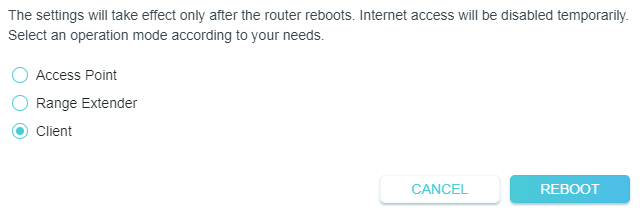
5. Wait until it finishes rebooting and follow instructions to complete the setup.
If the router is working at AP/Client Mode currently, follow the steps to switch the operation mode to Client mode.
1. Visit http://tplinkwifi.net, and log in with the username and password you set for the router.
2. Go to Advanced > Network > Network Mode.
3. Select the desired network mode and click SAVE.
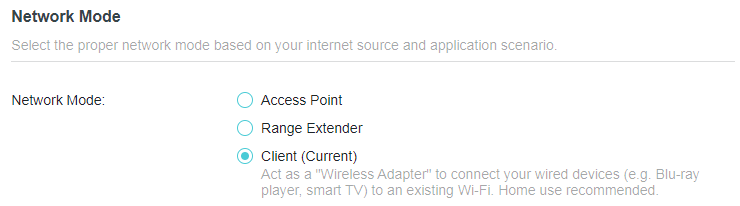
4. Go to Quick Setup and select Client, then follow the instructions to complete the setup.
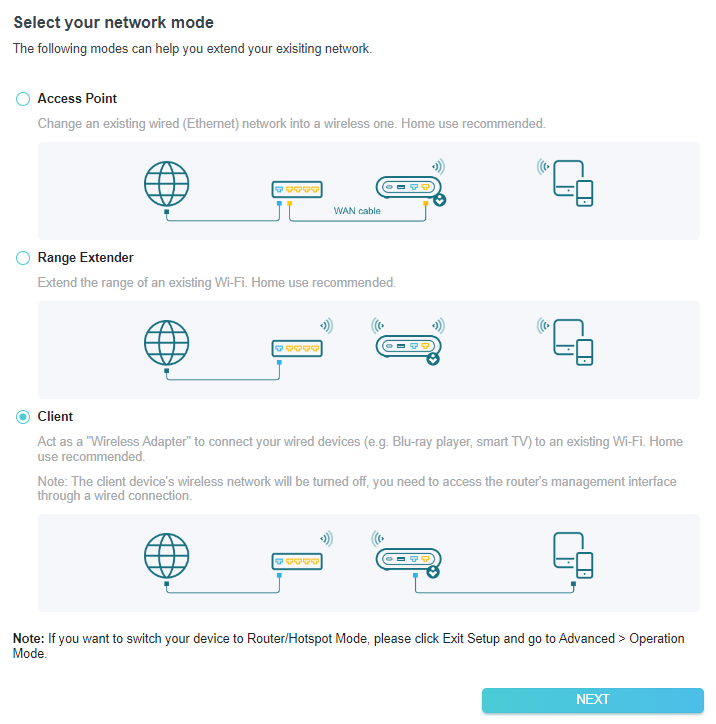
8.2 Network Map
Network Map outlines device connectivity of your network visually and helps you manage general settings of the network.
1. Visit http://tplinkwifi.net, and log in with your TP-Link ID or the password you set for the router.
2. Go to Network Map.
3. Click each network device icon to check and manage general network settings.
• Click Internet to check internet status.
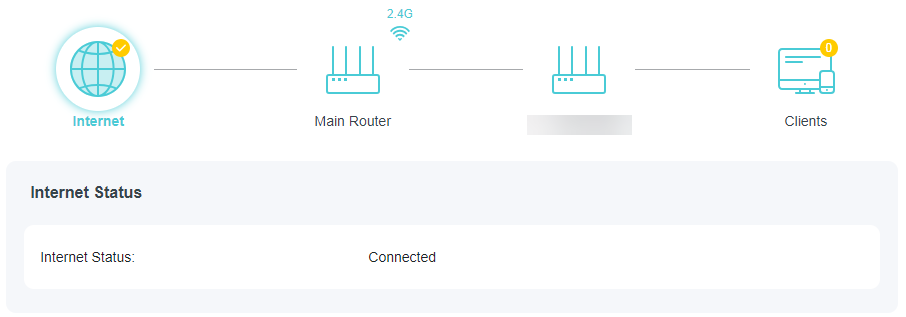
• Click Main Router to check the wireless network information of the connected host router.
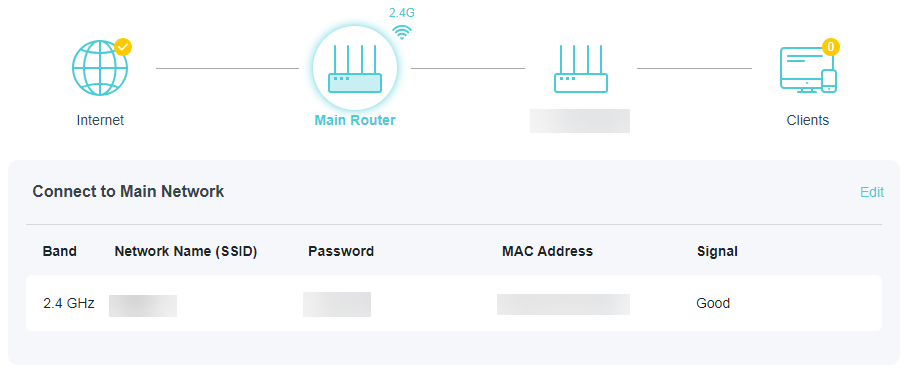
• Click the router to check device status and network settings. You can click Edit to change related settings.
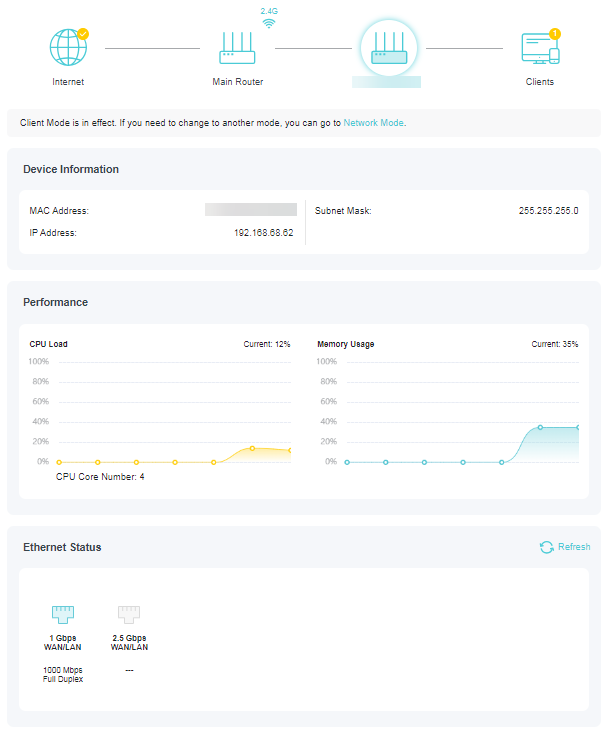
• Click Clients to view the client devices in your network.
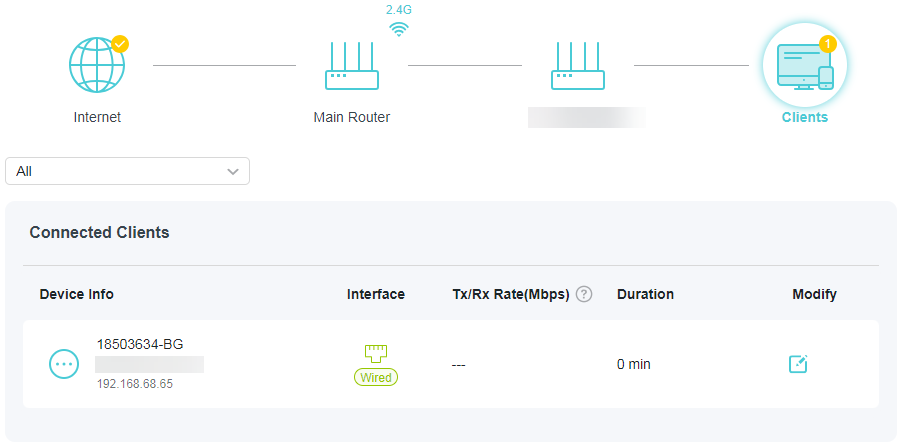
8.3 Wireless
8.3.1 Configure Wireless Network
If you want to connect another main network after Quick Setup, you can refer to this section.
Note: Here we take the configuration of the 2.4GHz network as an example.
1. Visit http://tplinkwifi.net, and log in with your TP-Link ID or the password you set for the router.
• To change the main network:
2. Go to Wireless.
3. Find Wireless Band, select a wireless band and click Wi-Fi SCANNER to find all available networks.
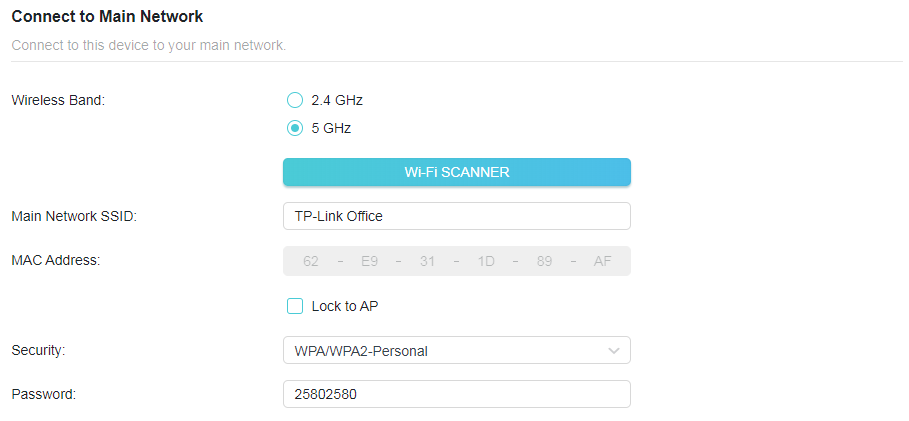
4. Select the main network you want to extend.
Note: If the network you want to extend is on but not listed, please try the following steps.
· Move the router closer to your main router, and rescan for networks.
· You can manually enter the Network Name (SSID) and password of the network you want to extend, and click SAVE.
5. Once a main network is selected, the SSID and security type will be automatically filled in. If the selected network is encrypted, enter the password in the Password field.
6. (Optional) If you enable Lock to AP, the router’s connection will be restricted to the network with this specific MAC address.
7. Click SAVE.
8.4 Network
8.4.1 Status
1. Visit http://tplinkwifi.net, and log in with the username and password you set for the router.
2. Go to Advanced > Network > Status. You can view the current status information of the router.
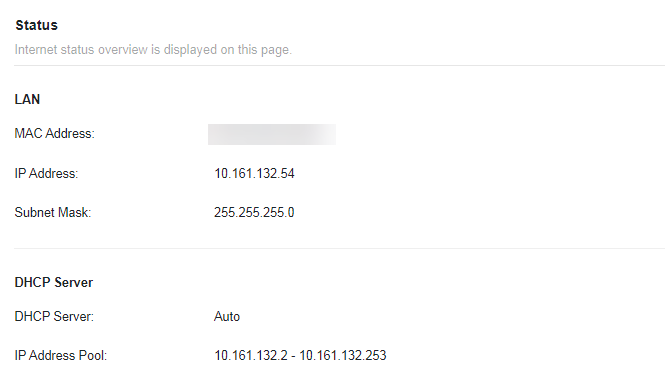
• LAN - This field displays the current settings of the LAN, and you can configure them on the Network > LAN page.
• MAC Address - The physical address of the router.
• IP Address - The LAN IP address of the router.
• Subnet Mask - The subnet mask associated with the LAN IP address.
• DHCP Server - This field displays the current settings of DHCP (Dynamic Host Configuration Protocol) Server, and you can configure them on the Network > DHCP Server page.
• DHCP Server - Indicates whether the DHCP server is enabled or disabled. It is enabled by default and the router acts as a DHCP server.
• IP Address Pool - The IP address range for the DHCP server to assign IP addresses.
8.4.2 Network Mode
In Access Point mode, you can quickly switch to Range Extender mode or Client mode with one tap.
1. Visit http://tplinkwifi.net, and log in with the username and password you set for the router.
2. Go to Advanced > Network > Network Mode.
3. Select the desired network mode and click SAVE.
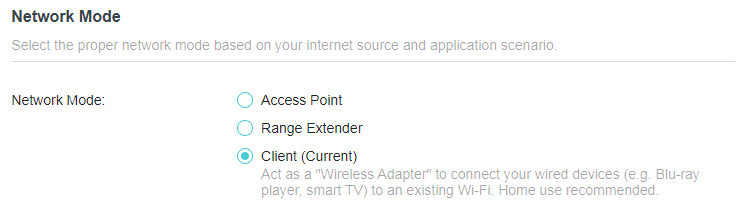
8.4.3 LAN
The router in Range Extender mode is preset with a default LAN IP 192.168.0.254, with which you can log in to the web management page. The LAN IP address, together with the Subnet Mask, also defines the subnet that the connected devices are on. If the IP address conflicts with another device on your local network or your network requires a specific IP subnet, you can change it.
1. Visit http://tplinkwifi.net, and log in with the username and password you set for the router.
2. Go to Advanced > Network > LAN.
3. In IP Type, select Static IP.
4. Enter a new IP Address as needed (such as 192.168.0.252), and leave the Subnet Mask as the default settings .
5. Enter the gateway that is in the same subnet as the IP address. The gateway is usually the LAN IP address of your router.
6. Click SAVE.
Note:
• If you have changed the IP address, you must use the new IP address to log in.
• If the new IP address you set is not in the same subnet as the old one, the IP address pool in the DHCP Server will be configured automatically, but the Virtual Server and DMZ Host will not take effect until they are re-configured.
8.4.4 Flow Controller
When enabled, when a device gets overloaded it will send a PAUSE frame to notify the peer device to stop sending data for a specified period of time, thus avoiding the packet loss caused by congestion.
1. Visit http://tplinkwifi.net, and log in with your TP-Link ID or the password you set for the router.
2. Go to Advanced > Network > LAN. Locate the Flow Controller section.
3. Select the desired option and click SAVE.
8.4.5 DHCP Server
By default, the DHCP (Dynamic Host Configuration Protocol) Server is enabled and the router acts as a DHCP server; it dynamically assigns TCP/IP parameters to client devices from the IP Address Pool. You can change the settings of DHCP Server if necessary, and you can reserve LAN IP addresses for specified client devices.
Note: If you disable the DHCP server and there is no other DHCP server within your LAN, you have to configure the IP address for each client manually.
• To specify the IP address that the router assigns:
1. Visit http://tplinkwifi.net, and log in with your TP-Link ID or the password you set for the router.
2. Go to Advanced > Network > DHCP Server and locate the DHCP Server section.
3. Turn on DHCP Server.
4. Enter the starting and ending IP addresses in the IP Address Pool.
5. Enter other parameters if the ISP offers. The Default Gateway is automatically filled in and is the same as the LAN IP address of the router.
6. Click SAVE.
Note: To use the DHCP server function of the router, you must configure all computers on the LAN as Obtain an IP Address automatically.
• To reserve an IP address for a specified client device:
The DHCP server of the router works when it is turned on, or when it is in Auto mode with the DHCP server of the main router/AP disabled. When it is working, you can view the DHCP clients and reserve IP addresses for them.
1. Visit http://tplinkwifi.net, and log in with the username and password you set for the router.
2. Go to Advanced > Network > DHCP Server and locate the Address Reservation section.
3. Click Add in the Address Reservation section.
4. Click VIEW CONNECTED DEVICES and select the you device you want to reserve an IP for. Then the MAC and IP Address will be automatically filled in. You can also enter the MAC and IP address of the client device.
• To check the DHCP client list:
1. Visit http://tplinkwifi.net, and log in with your TP-Link ID or the password you set for the router.
2. Go to Advanced > Network > DHCP Server and locate the DHCP Client List section. You can see the device information of the list.
3. Click Refresh to see the current attached devices.
8.5 USB Storage Device
Insert your USB storage device into the router’s USB port and then access files stored there locally or remotely.
Tips:
• If you use USB hubs, make sure no more than 4 devices are connected to the router.
• If the USB storage device requires using bundled external power, make sure the external power has been connected.
• If you use a USB hard drive, make sure its file system is FAT32, exFat, NTFS or HFS+.
• Before you physically disconnect a USB device from the router, safely remove it to avoid data damage: Go to Advanced > USB > Storage Device and click Remove.
8.5.1 Access the USB Device Locally
Insert your USB storage device into the router’s USB port and then refer to the following table to access files stored on your USB storage device.
| Windows computer |
• Method 1:
• Method 2:
|
|---|---|
| Mac |
1 ) Select Go > Connect to Server.
4 ) When prompted, select the Guest radio box. (If you have set up a username and a password to deny anonymous access to the USB disks, you should select the Registered User radio box. To learn how to set up an account for the access, refer to To Set Up Authentication for Data Security.) |
| Tablet | Use a third-party app for network files management. |
Tips:
You can also access your USB storage device by using your Network/Media Server Name as the server address. Refer to To Customize the Address of the USB Storage Device to learn more.
5.5.2 Customize the Access Settings
By default, all the network clients can access all folders on your USB disk. You can customize your sharing settings by setting a sharing account, sharing specific contents and setting a new sharing address on the router’s web management page.
1. Visit http://tplinkwifi.net, and log in with your TP-Link ID or the password you set for the router.
2. Go to Advanced > USB > Storage Device.
• To Customize the Address of the USB Storage Device
You can customize the server name and use the name to access your USB storage device.
1. In the Access Method session, make sure Samba for Windows Samba for macOS/ Linux is enabled, and enter a Network/Media Server Name as you like, such as MyShare, then click SAVE.
2. Now you can access the USB storage device by visiting \\MyShare (for Windows) or smb://MyShare (for Mac).
• To Only Share Specific Content
Focus on the File Sharing section. Specify sharing folders that you want to share and click SAVE.
• To Set Up Authentication for Data Security
You can set up authentication for your USB storage device so that network clients will be required to enter username and password when accessing the USB storage device.
1. In the File Sharing section, enable Secure Sharing.
2. Click to modify the access account, and pay attention to the default username and password. Accessing as an administrator can read and modify the shared folders while visitors can only read the shared folders.
Note:
1. For Windows users, do not set the sharing username the same as the Windows username. Otherwise, Windows credential mechanism may cause the following problems:
• If the sharing password is also the same as the Windows password, authentication will not work since the Windows will automatically use its account information for USB access.
• If the sharing password is different from the Windows password, the Windows will be unable to remember your credentials and you will always be required to enter the sharing password for USB access.
2. Due to Windows credential mechanism, you might be unable to access the USB disk after changing Authentication settings. Please log out from the Windows and try to access again. Or you can change the address of the USB disk by referring to To Customize the Address of the USB Storage Device.
5.5.3 Media Sharing
The feature of Media Sharing allows you to view photos, play music and watch movies stored on the USB storage device directly from DLNA-supported devices, such as your computer, tablet and PS2/3/4.
Note: Some models may not support this feature. Images may differ from actual products.
1. Visit http://tplinkwifi.net, and log in with your TP-Link ID or the password you set for the router.
2. Go to Advanced > USB > Storage Device.
3. Enable Media Sharing.
4. When your USB storage device is inserted into the router, your DLNA-supported devices (such as your computer and pad) connected to the router can detect and play the media files on the USB storage devices.
5. Refer to the following table for detailed instructions.
| Windows Computer |
Go to Computer > Network, then click the Media Server Name (Model number-share by default) in the Media Devices section.
|
|---|---|
| Tablet | • Use a third-party DLNA-supported player. |
8.6 Firmware Upgrade
TP-Link aims at providing better network experience for users. We will inform you through the web management page if there’s any update firmware available for your router. Also, the latest firmware will be released at the TP-Link official website www.tp-link.com, and you can download it from the Support page for free.
Note:
• Backup your router configuration before firmware upgrade.
• Do NOT turn off the router during the firmware upgrade.
Auto Update
Enable Auto Update and set the update time. The router will update firmware automatically at the specified time when new version is available.
Online Upgrade
1. Visit http://tplinkwifi.net, and log in with your TP-Link ID or the password you set for the router.
2. When the latest firmware is available for your router, the upgrade icon will display in the top-right corner of the page. Click the icon to go to the Firmware Upgrade page. Alternatively, you can go to Advanced > System > Firmware Upgrade, and click CHECK FOR UPGRADES to see whether the latest firmware is released.
3. Click UPGRADE if there is new firmware.
4. Wait a few minutes for the upgrade and reboot to complete.
Tips: If there’s a new and important firmware update for your router, you will see the prompt notification on your computer as long as a web browser is opened. Click UPGRADE, and log in to the web management page with the username and password you set for the router. You will see the Firmware Upgrade page.
Local Upgrade
1. Download the latest firmware file for the router from www.tp-link.com.
2. Visit http://tplinkwifi.net, and log in with your TP-Link ID or the password you set for the router.
3. Go to Advanced > System > Firmware Upgrade.
4. Focus on the Local Upgrade section. Click BROWSE to locate the downloaded new firmware file, and click UPGRADE.
5. Wait a few minutes for the upgrade and reboot to complete.
Note: If you fail to upgrade the firmware for the router, please contact our Technical Support.
8.7 Backup and Restore Configuration Settings
The configuration settings are stored as a configuration file in the router. You can backup the configuration file to your computer for future use and restore the router to a previous settings from the backup file when needed. Moreover, if necessary you can erase the current settings and reset the router to the default factory settings.
1. Visit http://tplinkwifi.net, and log in with your TP-Link ID or the password you set for the router.
2. Go to Advanced > System > Backup & Restore.
• To backup configuration settings:
Click BACK UP to save a copy of the current settings to your local computer. A ‘.bin’ file of the current settings will be stored to your computer.
• To restore configuration settings:
1. Click UPLOAD to locate the backup configuration file stored on your computer, and click RESTORE.
2. Wait a few minutes for the restoring and rebooting.
Note: During the restoring process, do not turn off or reset the router.
• To reset the router except your login password and TP-Link ID:
1. In the Factory Default Restore section, click RESTORE.
2. Wait a few minutes for the resetting and rebooting.
Note:
• During the resetting process, do not turn off the router.
• After reset, you can still use the current login password or the TP-Link ID to log in to the web management page.
• To reset the router to factory default settings:
1. Click FACTORY RESTORE to reset the router.
2. Wait a few minutes for the resetting and rebooting.
Note:
• During the resetting process, do not turn off or reset the router.
• We strongly recommend you backup the current configuration settings before resetting the router.
8.8 TP-Link Cloud Service
TP-Link Cloud service provides a better way to manage your cloud devices. Log in to your router with a TP-Link ID, and you can easily monitor and manage your home network when you are out and about via the Tether app. To ensure that your router stays new and gets better over time, the TP-Link Cloud will notify you when an important firmware upgrade is available. Surely you can also manage multiple TP-Link Cloud devices with a single TP-Link ID.
This section introduces how to register a new TP-Link ID, bind or unbind TP-Link IDs to manage your router, and the Tether app with which you can manage your home network no matter where you may find yourself.
8.8.1 Register a TP-Link ID
If you have skipped the registration during the Quick Setup process, you can:
1. Visit http://tplinkwifi.net, and log in with the password you set for the router.
2. Go to Advanced > TP-Link ID or click TP-Link ID on the very top of the page.
3. Click Sign Up and follow the instructions to register a TP-Link ID.
4. After activating your TP-Link ID, come back to the TP-Link ID page to log in. The TP-Link ID used to log in to the router for the first time will be automatically bound as an Admin.
Note:
• To learn more about the Admin and User TP-Link ID, refer to Manage the User TP-Link IDs.
• Once you have registered a TP-Link ID on the web management page, you can only register another TPLink ID via the Tether APP. Please refer to Log In via Tether to install the app.
• If you want to unbind the admin TP-Link ID from your router, please go to Advanced > TP-Link ID, an click Unbind in the Device Information section.
8.8.2 Change Your TP-Link ID Information
Follow the steps below to change your email address and password of your TP-Link ID as needed.
1. Visit http://tplinkwifi.net, and log in with your TP-Link ID.
2. Go to Advanced > TP-Link ID, and focus on the TP-Link ID section.
• To change your email address:
1. Click behind the Email.
2. Enter the password of your TP-Link ID, then a new email address. And click SAVE.
• To change your password:
1. Click behind the Password.
2. Enter the current password, then a new password twice. And click SAVE.
8.8.3 Manage the User TP-Link IDs
The TP-Link ID used to log in to the router for the first time will be automatically bound as the Owner account. The Owner account can add or remove other TP-Link IDs to or from the same router. All accounts can monitor and manage the router locally or remotely, but only the owner account can:
• Reset the router to its factory default settings either on the web management page or in the Tether app.
• Add/remove other TP-Link IDs to/from the router.
Add TP-Link ID to Manage the Router
1. Visit http://tplinkwifi.net, and log in with your TP-Link ID.
2. Go to Advanced > TP-Link ID, and focus on the Bound TP-Link IDs section.
3. Click , enter another TP-Link ID as needed and click SAVE.
Note: If you need another TP-Link ID, please register a new one via the Tether app. Refer to Manage the Router via the TP-Link Tether App to install the app and register a new TP-Link ID.
4. The new TP-Link ID will be displayed in the Bound TP-Link IDs table.
Remove TP-Link ID(s) from Managing the Router
1. Visit http://tplinkwifi.net, and log in with your TP-Link ID.
2. Go to Advanced > TP-Link ID, and focus on the Bound TP-Link IDs section.
3. Tick Unbind of the TP-Link ID(s) you want to remove.
8.9 Change the Login Password
The account management feature allows you to change your login password of the web management page.
Note: If you are using a TP-Link ID to log in to the web management page, the account management feature will be disabled. To manage the TP-Link ID, go to Advanced > TP-Link ID.
1. Visit http://tplinkwifi.net, and log in with your TP-Link ID or the password you set for the router.
2. Go to Advanced > System > Administration and focus on the Change Password section.
3. Enter the old password, then a new password twice (both case-sensitive). Click SAVE.
4. Use the new password for future logins.
8.10 Password Recovery
This feature allows you to recover the login password you set for you router in case you forget it.
Note: If you are using a TP-Link ID to log in to the web management page, the Password Recovery feature will be disabled. To manage the TP-Link ID, go to Advanced > TP-Link ID.
1. Visit http://tplinkwifi.net, and log in with the password you set for the router.
2. Go to Advanced > System > Administration and focus on the Admin Password Recovery section.
3. Click Question Settings to set security question settings.
4. Tick the Enable box of Password Recovery.
5. Specify a mailbox (From) for sending the recovery letter and enter its SMTP Server address. Specify a mailbox (To) for receiving the recovery letter. If the mailbox (From) to send the recovery letter requires encryption, Tick the Enable box of Authentication and enter its username and password.
Tips:
• SMTP server is available for users in most webmail systems. For example, the SMTP server address of Gmail is smtp.gmail.com.
• Generally, Authentication should be enabled if the login of the mailbox requires username and password.
6. Click SAVE.
To recover the login password, please visit http://tplinkwifi.net, click Forgot Password? on the login page and follow the instructions to set a new password.
8.11 Local Management
This feature allows you to limit the number of client devices on your LAN from accessing the router by using the MAC address-based authentication.
1. Visit http://tplinkwifi.net, and log in with your TP-Link ID or the password you set for the router.
2. Go to Advanced > System > Administration and complete the settings In Local Management section as needed.
• Access the router via HTTPS and HTTP:
Tick the Enable box of Local Management via HTTPS to access the router via HTTPS and HTTP, or keep it disabled to access the router only via HTTP.
• Allow all LAN connected devices to manage the router:
Select All Devices for Local Managers.
• Allow specific devices to manage the router:
1. Select Specified Devices for Local Managers and click SAVE.
2. Click Add Device.
3. Click VIEW CONNECTED DEVICES and select the device to manage the router from the Connected Devices list, or enter the MAC address of the device manually.
4. Specify a Description for this entry.
5. Click SAVE.
8.12 System Log
When the router does not work normally, you can save the system log and send it to the technical support for troubleshooting.
• To save the system log locally:
1. Visit http://tplinkwifi.net, and log in your TP-Link ID or the password you set for the router.
2. Go to Advanced > System > System Log.
3. Choose the type and level of the system logs as needed.
4. In the Save Log section, click SAVE TO LOCAL to save the system logs to a local disk.
• To send the system log to a mailbox at a fixed time:
For example, I want to check my router’s working status at a fixed time every day, however, it’s too troublesome to log in to the web management page every time I want to go checking. It would be great if the system logs could be sent to my mailbox at 8 a.m. every day.
1. Visit http://tplinkwifi.net, and log in with your TP-Link ID or the password you set for the router.
2. Go to Advanced > System > System Log.
3. In the Save Log section, click MAIL LOG.
4. Enter the information required:
• Email From: Enter the email address used for sending the system log.
• Select Require Password.
Tips: Generally, Require Password should be selected if the login of the mailbox requires username and password.
• Username: Enter the email address used for sending the system log.
• Email Password: Enter the password to login the sender’s email address.
• SMTP Server: Enter the SMTP server address.
Tips: SMTP server is available for users in most webmail systems. For example, the SMTP server address of Hotmail is smtp-mail.outlook.com.
• Email To: Enter the recipient’s email address, which can be the same as or different from the sender’s email address.
• Select Mail Log Automatically.
Tips: The router will send the system log to the designated email address if this option is enabled.
• Frequency: This determines how often the recipient will receive the system log .
5. Click SAVE.
8.13 Test the Network Connectivity
Diagnostics is used to test the connectivity between the router and the host or other network devices.
1. Visit http://tplinkwifi.net, and log in with your TP-Link ID or the password you set for the router.
2. Go to Advanced > System > Diagnostics.
3. Enter the information:
1 ) Choose Ping or Traceroute as the diagnostic tool to test the connectivity;
• Ping is used to test the connectivity between the router and the tested host, and measure the round-trip time.
• Traceroute is used to display the route (path) your router has passed to reach the tested host, and measure transit delays of packets across an Internet Protocol network.
2 ) Enter the IP Address or Domain Name of the tested host.
3 ) Modify the Ping Count number and the Ping Packet Size. It’s recommended to keep the default value.
4 ) If you have chosen Traceroute, you can modify the Traceroute Max TTL. It’s recommended to keep the default value.
4. Click START to begin the diagnostics.
The figure below indicates the proper connection between the router and the Yahoo server (www.Yahoo.com) tested through Ping.
The figure below indicates the proper connection between the router and the Yahoo server (www.Yahoo.com) tested through Traceroute.
8.14 Set Up System Time
System time is the time displayed while the router is running. The system time you configure here will be used for other time-based functions like Parental Controls. You can choose the way to obtain the system time as needed.
1. Visit http://tplinkwifi.net, and log in with your TP-Link ID or the password you set for the router.
2. Go to Advanced > System > Time Settings.
• To get time from the internet:
1. Enable 24-Hour Time if you want the time to display in a 24-hour way.
2. In the Set Time field, select Get from Internet.
3. Select your local Time Zone from the drop-down list.
4. In the NTP Server I field, enter the IP address or domain name of your desired NTP Server.
5. (Optional) In the NTP Server II field, enter the IP address or domain name of the second NTP Server.
6. Click SAVE.
• To get time from your computer:
1. In the Set Time field, select Get from Managing Device.
2. The time of your computer will then be displayed and click SAVE.
• To manually set the date and time:
1. In the Set Time field, select Manually.
2. Set the current Date (In MM/DD/YYYY format).
3. Set the current Time (In HH/MM/SS format).
4. Click SAVE.
• To set up Daylight Saving Time:
1. Tick the Enable box of Daylight Saving Time.
2. Select the correct Start date and time when daylight saving time starts at your local time zone.
3. Select the correct End date and time when daylight saving time ends at your local time zone.
4. Click SAVE.
8.15 Set the Router to Reboot Regularly
The Scheduled Reboot feature cleans the cache to enhance the running performance of the router.
1. Visit http://tplinkwifi.net, and log in with your TP-Link ID or the password you set for the router.
2. Go to Advanced > System > Reboot.
3. Tick the Enable box of Reboot Schedule.
4. Specify the Reboot Time when the router reboots and Repeat to decide how often it reboots.
5. Click SAVE.
8.16 Control the LED
The LED of the router indicates its activities and status. You can enable the Night Mode feature to specify a time period during which the LED is off.
1. Visit http://tplinkwifi.net, and log in with your TP-Link ID or the password you set for the router.
2. Go to Advanced > System > LED Control.
3. Enable Night Mode.
4. Specify the LED Off time, and the LED will be off during this period every day.
5. Click SAVE.
8.17 Action Switch
The customizable action switch offers you a physical shortcut to control a variety of functions, including Wi-Fi, LED and VPN Merge.
1. Visit http://tplinkwifi.net, and log in with your TP-Link ID or the password you set for the router.
2. Go to Advanced > System > Action Switch.
3. Select a quick control option, and click SAVE.
8.18 ECO Mode
An ECO Mode switch is used to change the power saving mode of the router. To change the ECO Mode, please toggle the Mode Switch on the device to your desired mode.
1. Visit http://tplinkwifi.net, and log in with your TP-Link ID or the password you set for the router.
2. Go to Advanced > System > ECO Mode.
3. Select a preference mode and click SAVE.
• Boost Mode: Favors wireless range and transmission speed but may increase energy consumption and raise device temperature.
• Balance Mode: Automatically balances wireless range and transmission speed while considering energy consumption and device temperature.
• ECO Mode: Saves energy and lowers device temperature by reducing device’s wireless range and transmission speed.
Chapter 9. HomeShield
Customize your home network with enhanced security using a kit of features built in TP-Link HomeShield. Whether protecting your sensitive data or limiting the access of kids and guests, TP-Link HomeShield provides you the tools you need to fully manage your network.
*Some models may not support this feature. Images may differ from actual products.
*For an easier way to check your home network protection system, you can download the Tether app to enjoy full Homeshield Pro feature.
9.1 Network Check
Scan your whole network to help analyze and optimize your network.
Note: Some models may not support this feature. Images may differ from actual products.
1. Visit http://tplinkwifi.net, and log in with your TP-Link ID or the password you set for the router.
2. Go to Advanced > HomeShield > Network Check.
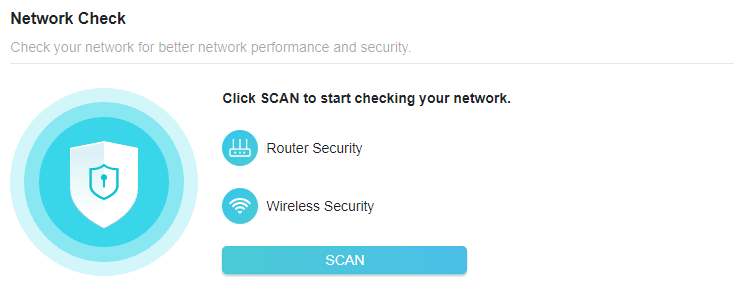
3. Click SCAN.
4. Optimize your network according to the tips.
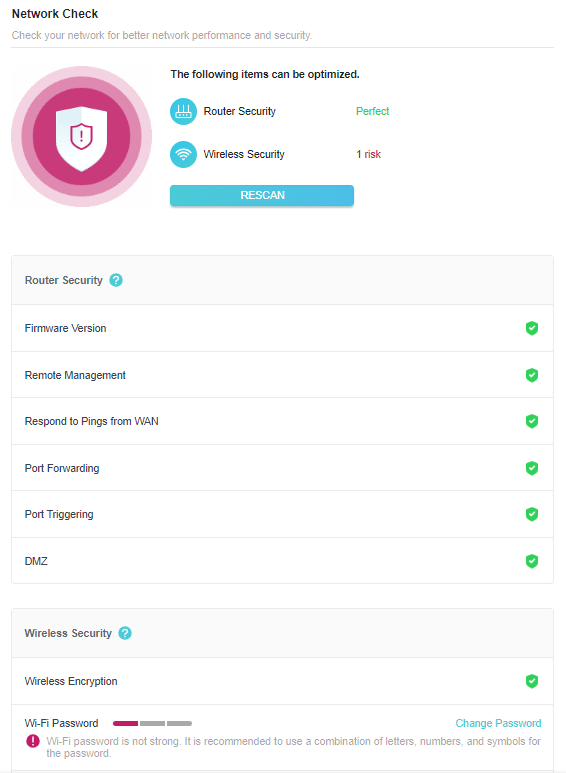
9.2 Parental Controls
Parental Controls allows you to set up unique restrictions on internet access for each member of your family. You can block inappropriate content, set daily limits for the total time spent online and restrict internet access to certain times of the day.
1. Visit http://tplinkwifi.net, and log in with your TP-Link ID or the password you set for the router.
2. Go to Advanced > HomeShield > Parental Controls.
Note: Some models that do not support HomeShield, please go to Advanced > Parental Controls. Images may differ from actual products.
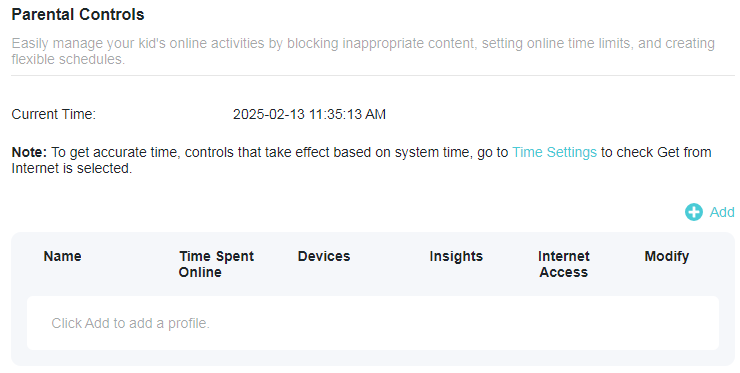
3. Click  to create a profile for a family member.
4. Add basic profile information.
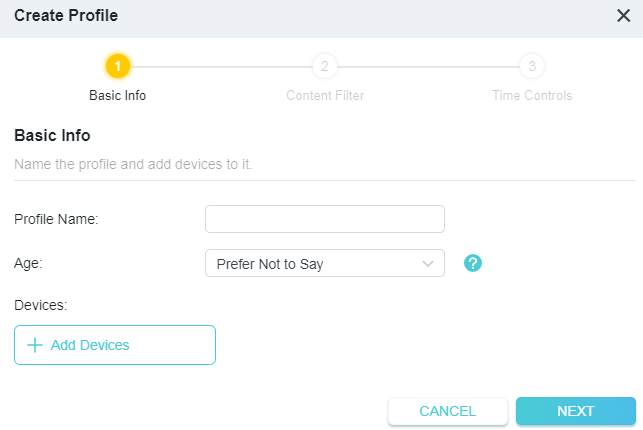
1 ) Enter a name for the profile to make it easier to identify. Set the age to get the corresponding filter level.
2 ) Click + Add Devices.
3 ) Select the devices that belong to this family member. Access restrictions will be applied to these devices. Click Add when finished.
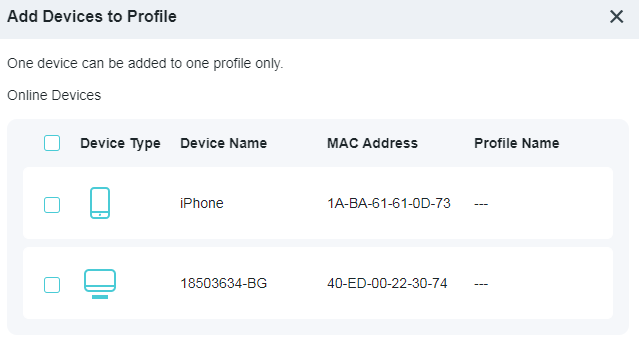
Note: Only devices that have previously been connected to your router’s network are listed here. If you are unable to find the device you want to add, connect it to your network and then try again.
4 ) Click NEXT
5. Block content for this profile.
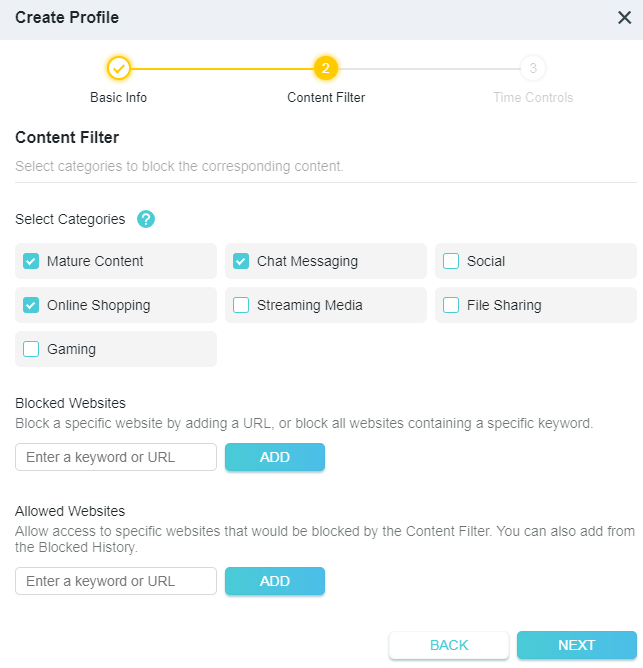
1 ) Select the content categories to block in the Content Filter list.
2 ) You can also block a specific website or add allowed websites. Enter a keyword (for example, “Facebook”) or a URL (for example, “www.facebook.com”), then click Add.
3 ) Click NEXT.
6. Set time restrictions on internet access.
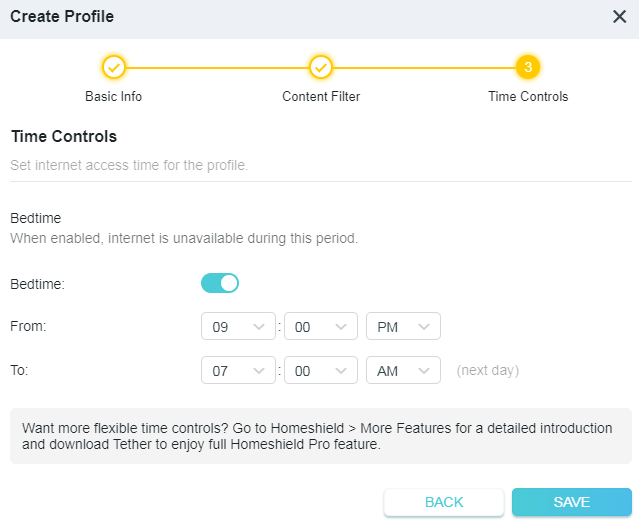
1 ) Enable Bedtime and use the up/down arrows or enter times in the fields. Devices under this profile will be unable to access the internet during this time period.
2 ) Click SAVE.
3 ) After adding a profile, you can click the Insight icon to check the detailed visited history, and pause the network for this profile anytime.
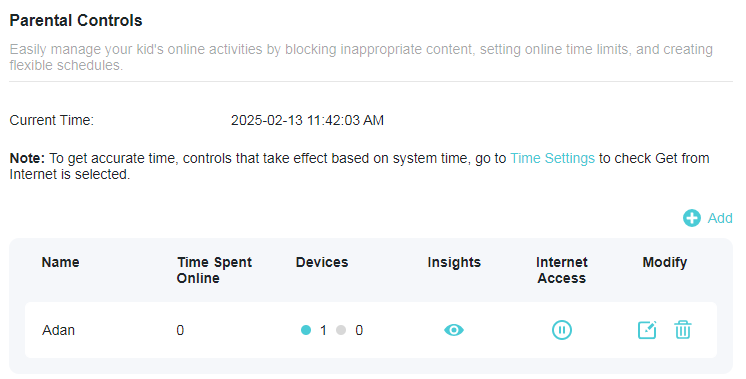
Note: You can go to Advanced > HomeShield > More Features for a detailed introduction and download Tether to enjoy full Homeshield Pro feature.
9.3 QoS
QoS (Quality of Service) allows you to prioritize connection of specific devices for a set duration. Devices set as high priority will be allocated more bandwidth and so continue to run smoothly even when there is heavy traffic on the network.
1. Visit http://tplinkwifi.net, and log in with your TP-Link ID or the password you set for the router.
2. Go to Advanced > HomeShield > QoS.
Note: Some models that do not support HomeShield, please go to Advanced > QoS. Images may differ from actual products.
3. Enable QoS to set the total bandwidth. Then click SAVE.
4. Enable High Priority for the desired device and set its effective time.
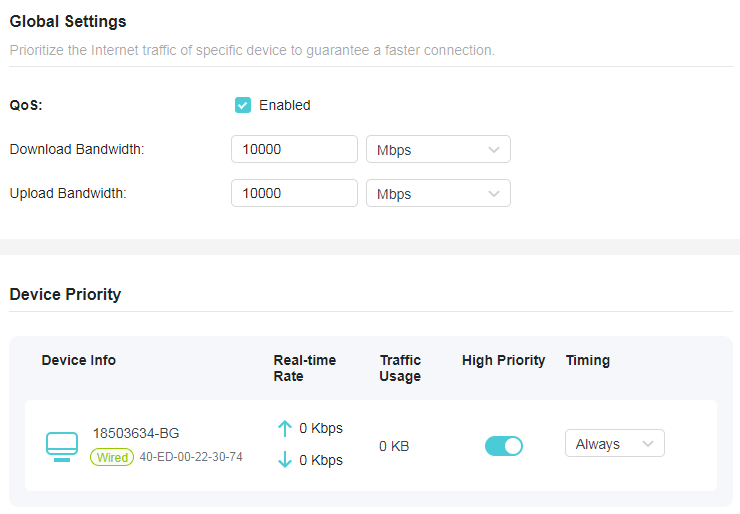
9.4 More Features
Download the Tether app and subscribe to enjoy the full features of HomeShield.
Note: Some models may not support this feature. Images may differ from actual products.
1. Visit http://tplinkwifi.net, and log in with your TP-Link ID or the password you set for the router.
2. Go to Advanced > HomeShield > More Features.
3. Follow the web instructions to get full features of HomeShield.
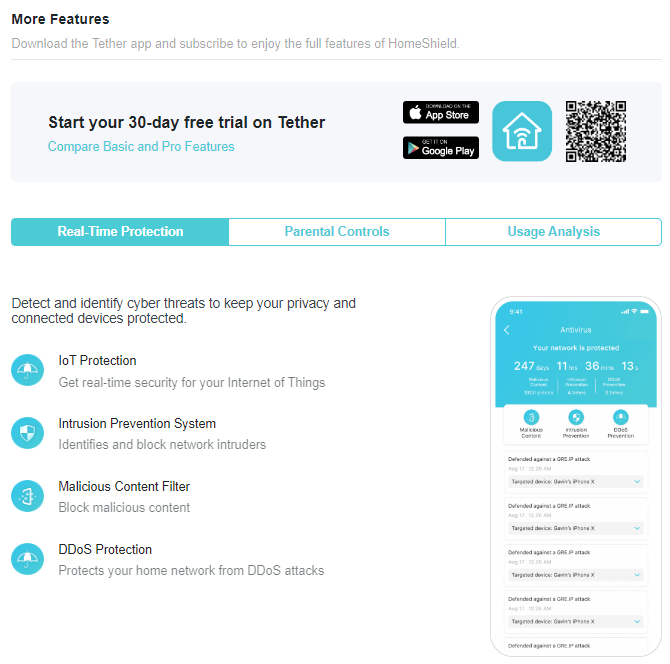
FAQ
Q1. What should I do if there is no internet access?
• Check if the internet is working normally by connecting a computer/phone directly to the current network. If it is not, contact your internet service provider. If you’re in a hotel room or on a trade show, the internet may be limited and requires that you authenticate for the service or purchase the internet access.
• If you are using a cable modem, power off your modem for about 5 minutes, then power it on and check the internet. If your modem has more than one Ethernet port, keep other ports unconnected.
• Log in to the web management page, and go to the Network Map page to check whether the internet IP address is valid or not. If it’s valid, go to Advanced > Network > Internet > Network Connection Priority. Click the Settings icon  of your internet connection type, then go to Advanced Settings > DNS Address and select Use the Following DNS Addresses, set the primary DNS to 8.8.8.8, and set the secondary DNS to 8.8.4.4. If it is not, check the hardware connection or contact your internet service provider. For some models, you can go to Advanced > Network > Internet, click Advanced Settings, select Use the Following DNS Addresses, set the primary DNS to 8.8.8.8, and set the secondary DNS to 8.8.4.4. If it is not, check the hardware connection or contact your internet service provider.
Q2. What should I do if I forget my Wi-Fi password?
• If you have not changed the default wireless password, it can be found on the label of the router.
• Connect a computer directly to the LAN port of the router using an Ethernet cable. Log in to the router’s web management page at http://tplinkwifi.net, and go to the Wireless page to retrieve or reset your wireless password.
Q3. What should I do if I forget my login password of the web management page?
• If you are using a TP-Link ID to log in, click Forgot Password? on the login page and then follow the instructions to reset it.
• Alternatively, press and hold the RESET button for about 6 seconds reset the router. Then visit http://tplinkwifi.net to create a new login password.
Q4. What should I do if my wireless signal is unstable or weak?
It may be caused by too much interference.
• Set your wireless channel to a different one.
• Choose a location with less obstacles that may block the signal between the router and the main AP. An open corridor or a spacious location is ideal.
• Move the router to a new location away from Bluetooth devices and other household electronics, such as cordless phone, microwave, and baby monitor, to minimize signal interference.
• When in Range Extender mode, the ideal location to place the router is halfway between your main AP and the Wi-Fi dead zone. If that is not possible, place the router closer to your main AP to ensure stable performance.
Q5. What should I do if I cannot enter the captive portal when the router is set to Hotspot mode?
• If the portal login page didn’t open during the Quick Setup process, connect your smartphone or computer to the router, then open any website, and you will be redirected to the portal login page.
• If some public hotspots limit the number of devices each customer can access by MAC address, do the following:
1. Connect a smartphone to the public hotspot’s Wi-Fi. Find the smartphone’s MAC address on its Wi-Fi list, and write the MAC address down.
2. Log in to the web management page of the router and go to Advanced > Network > Internet > Network Connection Priority > Hotspot Settings > Router MAC Address. Select Use Custom MAC Address, enter the MAC address that your smartphone uses to connect to the public hotspot’s Wi-Fi, and click SAVE. For some models, you can go to Advanced > Network > Internet > Router MAC Address. Select Use Custom MAC Address, enter the MAC address that your smartphone uses to connect to the public hotspot’s Wi-Fi, and click SAVE.
Q6. What should I do if I want to change the router’s network mode?
Option 1. Log in to the web management page of the router and go to Advanced > System > Operation Mode and follow the instructions to complete the setup.
Option 2. Log in to the web management page of the router and click Change Mode, then follow the instructions to complete the setup.