
Scarica per Archer MR402-Outdoor
Modelli e versioni variano a seconda dell'area geografica.
Per prodotti in uso in Italia, utilizzare solo risorse presenti sul sito
http://www.tp-link.it .
È strettamente necessario verificare modello e versione hardware prima di scaricare ed installare ogni firmware.
- Product Overview
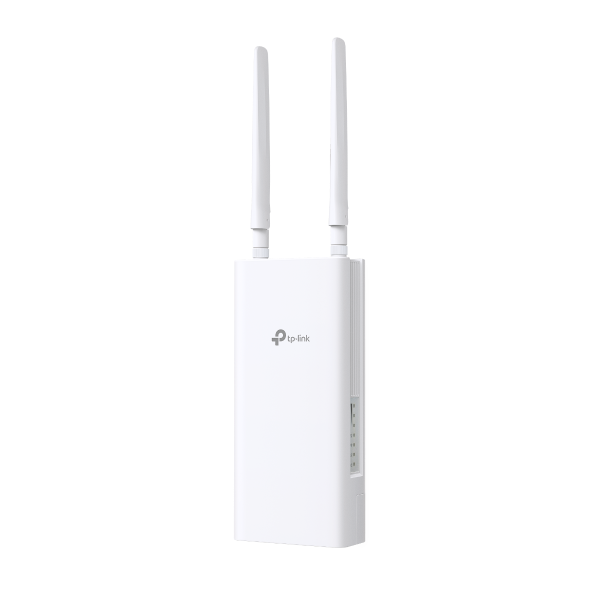 Router 4G Outdoor Wi-Fi Dual Band AC1200
ISP File
An ISP file upgrade can update ISP information into the latest verison to improve it's current compatibility.
To Upgrade
IMPORTANT: To prevent upgrade failures, please read the following before proceeding with the upgrade process
- Please upgrade ISP file from the local TP-Link official website of the purchase location for your TP-Link device, otherwise it will be against the warranty. Please click here to change site if necessary.
- Please verify the hardware version of your device for the firmware version. Wrong ISP file upgrade may damage your device and void the warranty. (Normally V1.x=V1)
Come identificare modello e versione hardware di un prodotto TP-Link? - Do NOT turn off the power during the upgrade process, as it may cause permanent damage to the product.
- To avoid wireless disconnect issue during ISP file upgrade process, it's recommended to upload ISP file with wired connection unless there is no LAN/Ethernet port on your TP-Link device.
- It's recommended that users stop all Internet applications on the computer, or simply disconnect Internet line from the device before the upgrade.
- Use decompression software such as WinZIP or WinRAR to extract the file you download before the upgrade.
|
ISP_upgrade_MR2 series(EU) |
Download | |
|---|---|---|
| Data di pubblicazione: 2025-11-19 | Lingua: English | Dimensioni file: 28.39 KB |
Sistema operativo: Windows/Mac OS/Linux |
||
|
|
||
Setup Video
-
How to mount TP-Link 4G LTE Outdoor router
This video guides you step by step to mount a TP-Link 4G LTE Outdoor Router to a pole, a wall or a window, using TL-MR100-Outdoor as an example. The images may differ from actual products.
More Fold -
How to Configure TP-Link 4G LTE Outdoor Router
This video guides you step by step to configure a TP-Link 4G LTE Outdoor Router using TL-MR100-Outdoor as an example. The images may differ from actual products.
More Fold
FAQs
- How to Change Your TP-Link Device Admin Password
- Come identificare modello e versione hardware di un prodotto TP-Link?
- Come identifico il modello del prodotto per il quale ho bisogno di assistenza?
- How to configure IPv6 of TP-Link Wireless 3G/4G/5G Router
- No internet connection when the TP-Link 5G/4G Router is working with a SIM card
- How to connect computers/phones to a wireless network
- Cosa devo fare se non ricevo l'e-mail quando registro l'account cloud o reimposto la password?
- Why do I need to give Local Network permission to TP-Link apps in iOS devices?
- How to reset TP-Link Wireless 4G LTE Router to factory defaults
- What should I do if no APN profile or wrong APN profile is detected by TP-Link Wireless LTE Router?
- How to set up TP-Link 5G/4G Router on web management page
- Troubleshooting Guide of DDNS function on TP-Link Wi-Fi Router, LTE Gateway Router or Deco Router
- How to find serial number on TP-Link devices
- How to log in to web management page of TP-Link 5G/4G Router
- How to configure Address Reservation of TP-Link Wireless N 4G LTE Router (new logo)
- How to bind IP Address and MAC Address of TP-Link Wireless N 4G LTE Router (new logo)
- How to troubleshoot if I have low speed with TP-Link Wireless 4G LTE Router working as 3G 4G Router Mode
- How to troubleshoot if remote management does not work on LTE Gateway Router with 3G/4G Router mode
- TP-Link LTE Router keeps disconnecting
- 4G 5G Routers (Including Deco, LTE Gateway and MiFi) have no Internet due to 464XLAT technology used by some operators (e.g., Jio, Globe)
- How to set up Access Control for website blocking with TP-Link Wireless N 4G LTE Router (new logo)
- How can I check if my SIM card is working via phone?
- How to select 4G band manually on the web interface of LTE Gateway Routers
- The Weak Security and Privacy Warning on the iOS14 or iOS15
- What should I do if my TP-Link 4G LTE Router cannot detect SIM card?
- How to check the 4G band working on our smartphones
- How to configure data settings of TP-Link Wireless N 4G LTE Router in 3G/4G Router Mode (new logo)
- How to set up Port Forwarding feature on TP-Link Wireless N 4G LTE Router (new UI)
- How to configure Dynamic DNS of TP-Link Wireless N 4G LTE Router (new logo)
- How to configure local and remote management rule of TP-Link Wireless N 4G LTE Router (new logo)
- How do I install a SIM card for my 4G Wi-Fi router or Mobile Wi-Fi?
Emulator
Versione Firmware |
Working Mode |
Lingua |
|
|---|---|---|---|
251119(EU) |
- |
English |
Nota:
1. Questo simulatore è un'interfaccia web virtuale che consente di provare le funzionalità dell'interfaccia di gestione web del dispositivo TP-Link desiderato. Per dettagli relativi a caratteristiche e specifiche di prodotto consultare la pagina del prodotto.
2. Si prega di verificare che la versione del vostro firmware corrisponda alla versione mostrata sull'interfaccia del simulatore. Ogni versione firmware ha la propria interfaccia e funzionalità. Non tutte le versioni firmware sono presenti nel simulatore.
3. Le funzionalità mostrate sono a scopo illustrativo, la loro disponibilità può variare in base a regolamentazioni locali. Per maggiori informazioni sulle specifiche consultare la pagina del prodotto.