
How to back up and restore the configuration file of TP-Link Deco Whole Home Wi-Fi System
 25190
25190Introduction
This FAQ article introduces how to back up the current configuration information on the deco, including network configuration, advanced function configuration, etc. When configuring a new deco under the same account, you can also directly copy the information from the backup file.
Requirements
- Currently only Deco X50 supports this feature, more models will support with future update
- Download and install the Deco app(version 3.8.3 or above)

Configuration
Scenario 1: Backup configuration settings
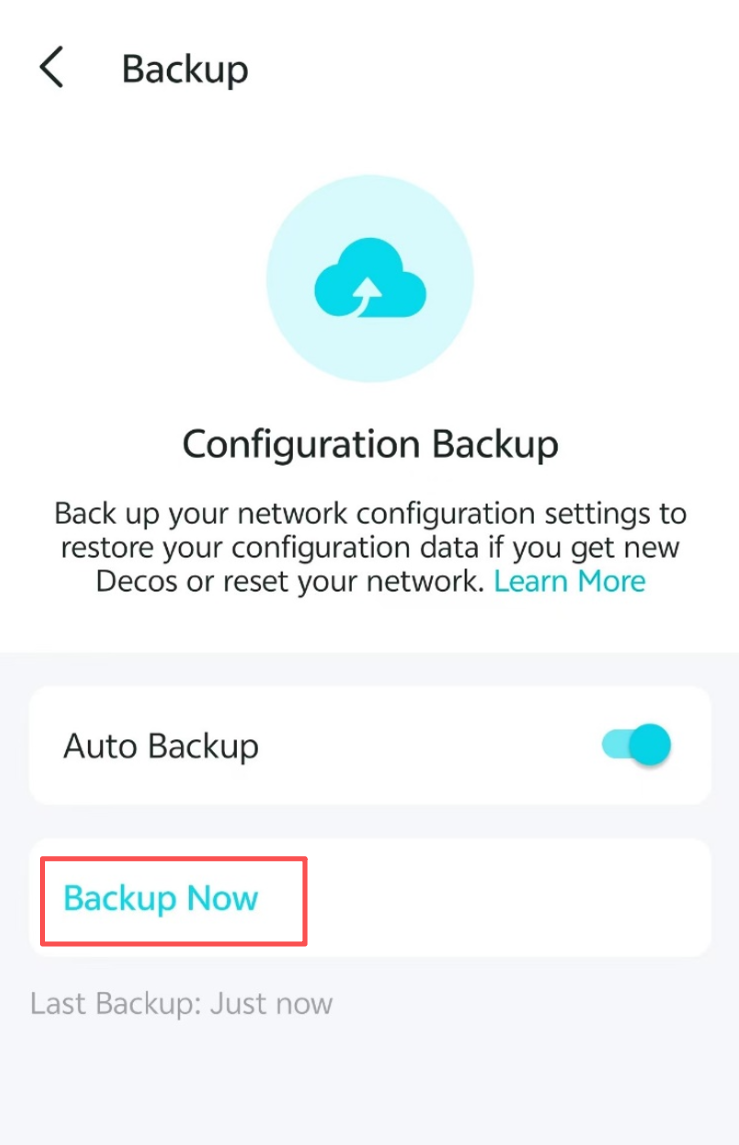
Go to Deco app > more > system > Backup page to turn on Auto Backup or click Backup Now.
Scenario 2: Copy configuration settings
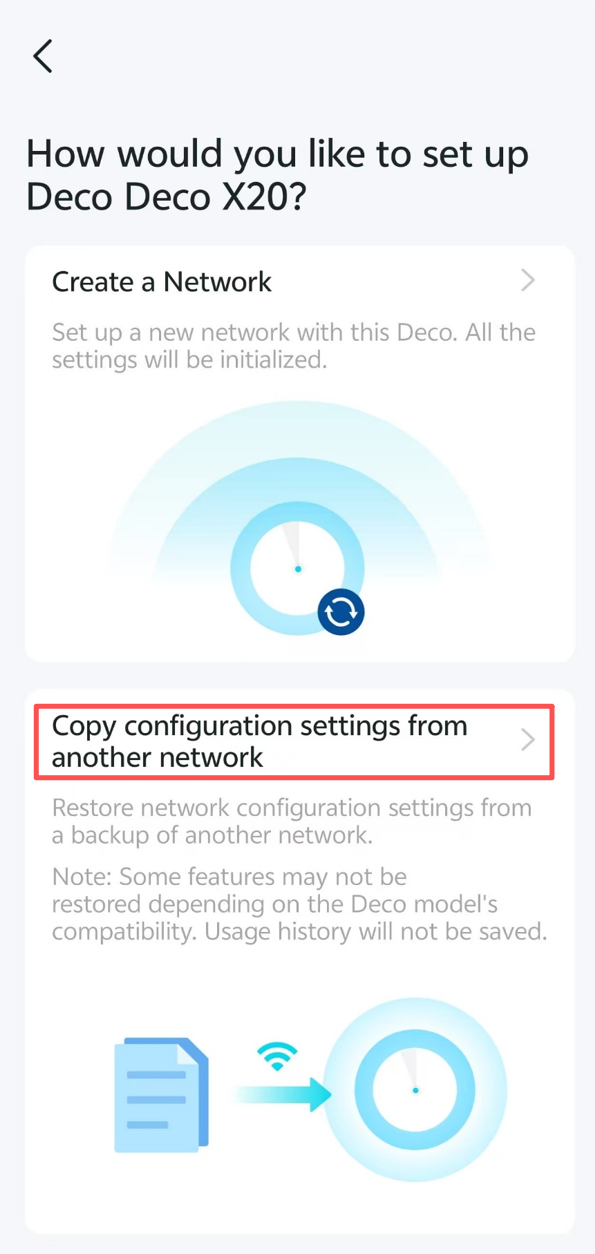
After reset or firmware update, click Copy configuration settings from another network during the process of setting the deco.
QA
Q1: During the data backup phase, where is the user's configuration information stored?
A1: The user's configuration information will be stored in the local Deco app and TP-Link's cloud server, respectively. The former will be deleted when the app is deleted.
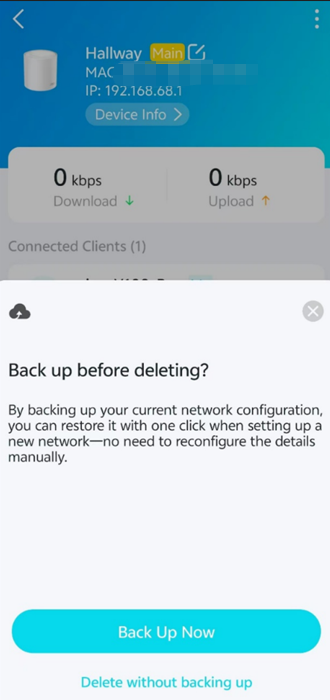
Q2: In addition to finding this function directly in the system options, where else can users access this backup function?
A2: When the user tries to delete the deco unit, the app will pop up a prompt to remind the user whether to use the backup function.
Q3: Can I use the Storage Sharing function without a TP-Link cloud account?
A3: Yes, this function does not require a TP-Link cloud account..
Get to know more details of each function and configuration please go to Download Center to download the manual of your product.
Questa faq è utile?
Your feedback helps improve this site.
_Overview_normal_20211225093612j.png)