
How to configure the TP-Link DSL Modem Router as a 3G/4G Router
 95214
95214Introduction
This article provides step-by-step instructions to configure your TP-Link DSL Modem Router as a 3G/4G router via the web management page and the Tether app.
The TP-Link DSL Modem Router supports 3G/4G connectivity via a compatible USB modem, functioning either as a primary internet source (via a SIM card) or as an automatic failover backup when the main WAN connection is unavailable.
Requirements
- One device that can open web browsers (e.g., a computer). Or a smartphone or tablet with the Tether app installed by visiting the Google Play Store or App Store.
- Power on the TL-Link DSL Modem Router and wait for it to reboot completely.
- A compatible 3G/4G modem with a SIM card inserted.
Configuration
Note: Here, Archer VR2100 is taken as an example. The actual interface and function options shown in this FAQ may vary slightly from those of your product model. For more details, please refer to your router's User Guide.
Method 1: Via the web management page
Step 1. Plug your USB modem into the modem router's USB port.
Step 2. Connect the device to the TP-Link DSL Modem Router wirelessly or wiredly, and open a browser to visit tplinkmodem.net or 192.168.1.1 to log in to the web management page.
Step 3. Once signed in to the web management page, select your Region and Time Zone, then click Next. Navigate to Advanced > Operation Mode, choose 3G/4G Router Mode, and click Save.
After the modem router is successfully rebooted, the settings will take effect.
If the modem is already installed without a prior reset, access the Advanced settings directly to make adjustments.
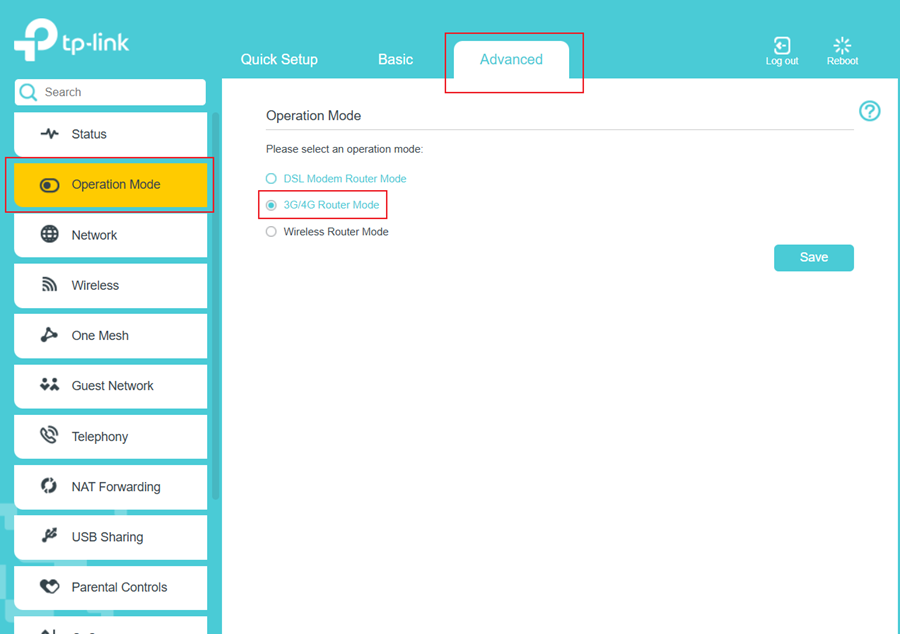
Step 4. Log in to the web management page again, then go to Advanced > USB Sharing > 3G/4G Settings.
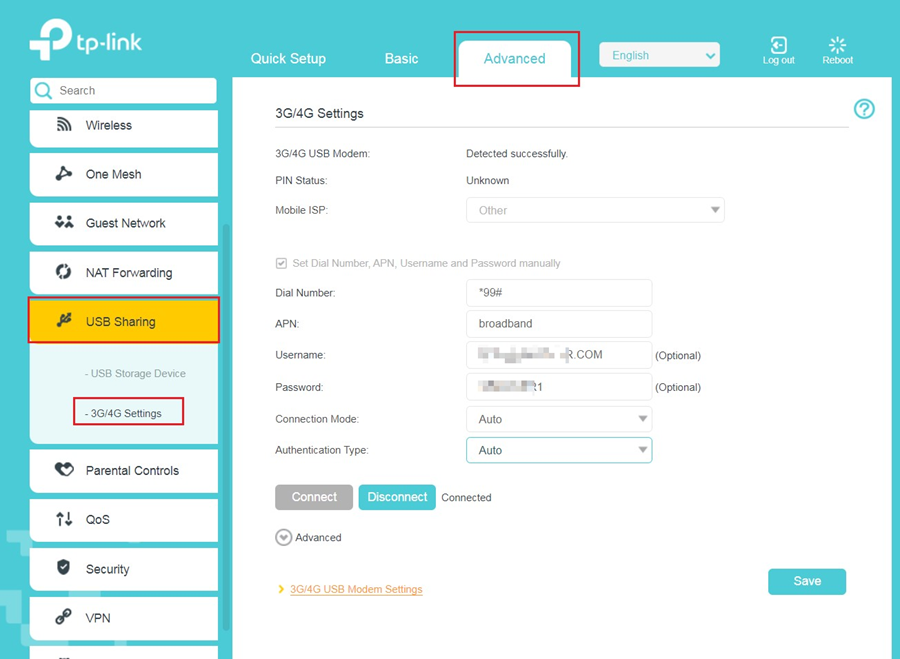
Step 5. Verify that your 3G/4G USB Modem is successfully detected.
Note: If your 3G/4G USB modem is incompatible with the modem router, it will not be identified. Find the 3G/4G Compatibility List on the web page. If your USB modem is incompatible, contact our technical support.
Step 6. Verify that the modem router has correctly recognized your Mobile ISP. When your Mobile ISP is correct, you can enjoy the internet!
Otherwise, select the box Set the Dial Number, APN, Username, and Password manually and enter the information provided by your 3G/4G network service provider.
Step 7. Select the Connection Mode. The default mode is Auto. You can choose On Demand or Manually.
- If you choose Manually, you need to click the Connect or Disconnect button to turn on or off the internet manually.
- If you choose On Demand, the network will automatically turn off when there is no internet request in Max Idle Time, and turn on again when you try to connect to the internet.
Step 8. Click Advanced to access more configuration options if needed.
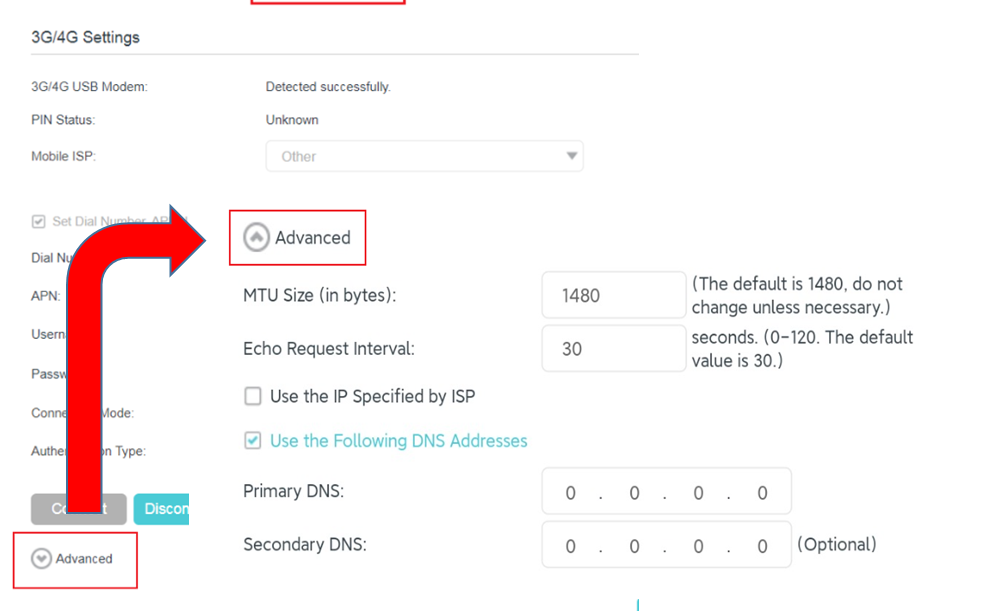
Step 9. Click Save to apply the settings.
Method 2: Via the Tether app
Step 1. Plug your USB modem into the modem router's USB port.
Step 2. Connect the phone that downloads the Tether app to the TP-Link DSL Modem Router’s Wi-Fi, and open the app to select your TP-Link modem router from the device list. Follow the app to install it in the DSL modem router mode.
If the modem router is already installed without a prior reset, go directly to Step 3.
Step 3. Go to More > Operation Mode, select 3G/4G Router, and click Apply. Then wait for the modem router to finish rebooting.
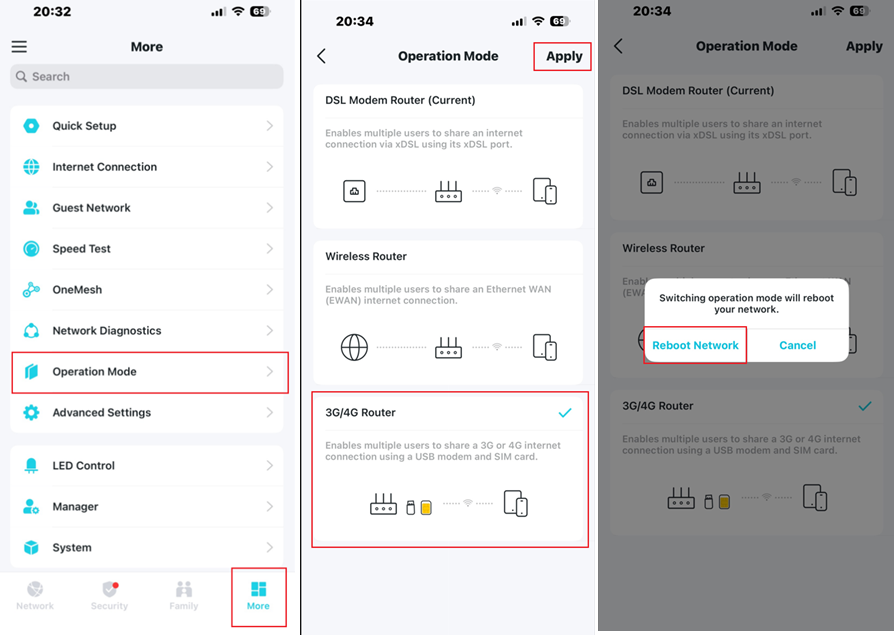
Step 4. Go to More > Advanced Settings > 3G/4G Settings to verify that your 3G/4G USB Modem is successfully identified.
Note: If your 3G/4G USB modem is incompatible with the modem router, it will not be identified. Find the 3G/4G Compatibility List on the web page. If your USB modem is incompatible, contact our technical support.
Step 5. Verify that the modem router has correctly recognized your Mobile ISP. When your Mobile ISP is correct, you can enjoy the internet!
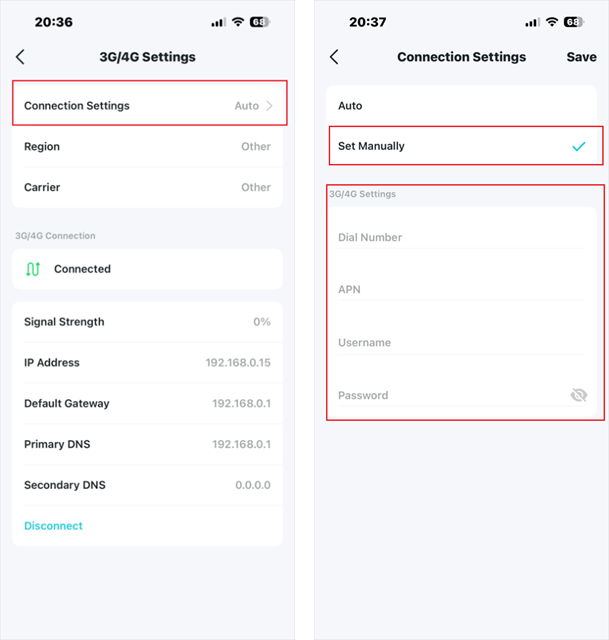
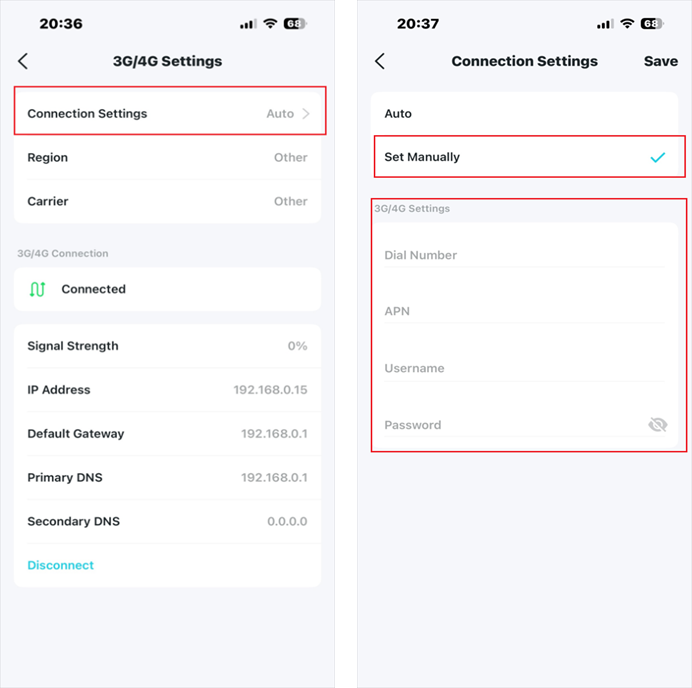
Otherwise, click Connection Settings, select Set Manually, then create a new APN profile by entering the information provided by your 3G/4G network service provider and click Save to apply the changes.
Method 1: Via the web management page
Step 1. Plug the 3G/4G USB modem into the USB port of your modem router.
Step 2. Connect the computer to the TP-Link DSL Modem Router wirelessly or wiredly, and open a browser to visit tplinkmodem.net or 192.168.1.1 to log in to the web management page.
Step 3. Go to Advanced > USB Sharing > 3G/4G Settings, and select the Enable 3G/4G as a backup solution for Internet access checkbox.
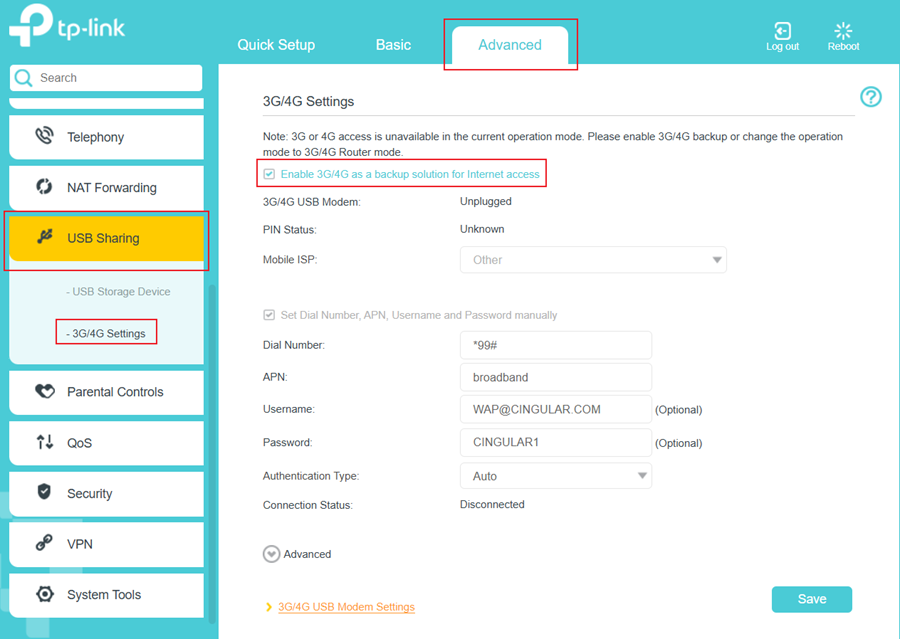
Step 4. Verify that your 3G/4G USB Modem is successfully identified.
Note: If your 3G/4G USB modem is incompatible with the modem router, it will not be identified. Find the 3G/4G Compatibility List on the web page. If your USB modem is incompatible, contact our technical support.
Step 5. Verify that the modem router has correctly recognized your Mobile ISP. When your Mobile ISP is configured correctly, you have successfully set up 3G/4G network as a backup for internet access.
Otherwise, select the box Set the Dial Number, APN, Username, and Password manually and enter the information provided by your 3G/4G network service provider.
Step 6. Click Advanced to access more configuration options if needed.
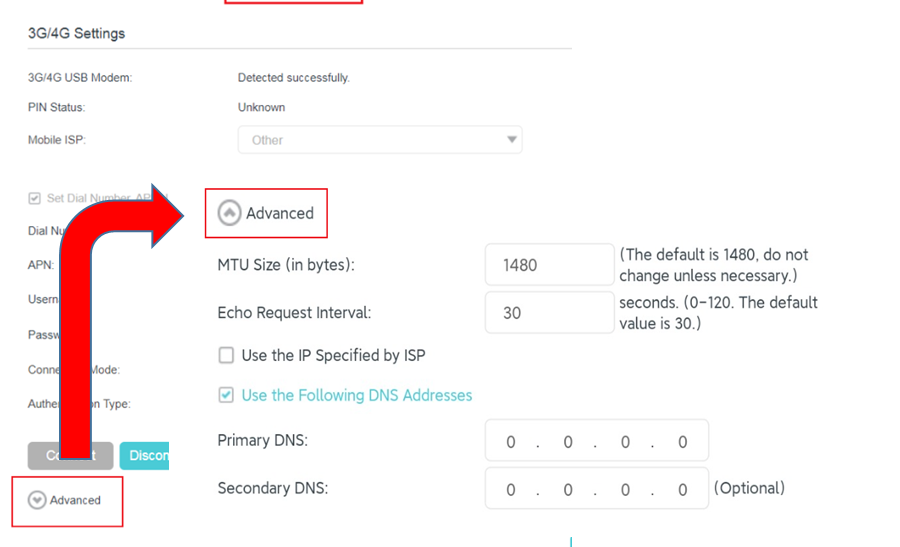
Step 7. Click Save to apply the settings.
Method 2: Via the Tether app
Step 1. Plug your USB modem into the modem router's USB port.
Step 2. Connect the phone that downloads the Tether app to the TP-Link DSL Modem Router’s Wi-Fi, then open the Tether app and log in to the modem router using the device password.
Step 3. Tap More > Advanced Settings > 3G/4G Settings, click Enable 3G/4G backup, then enable 3G/4G Backup.
Note: If your 3G/4G USB modem is incompatible with the modem router, it will not be identified. Find the 3G/4G Compatibility List on the web page. If your USB modem is incompatible, contact our technical support.
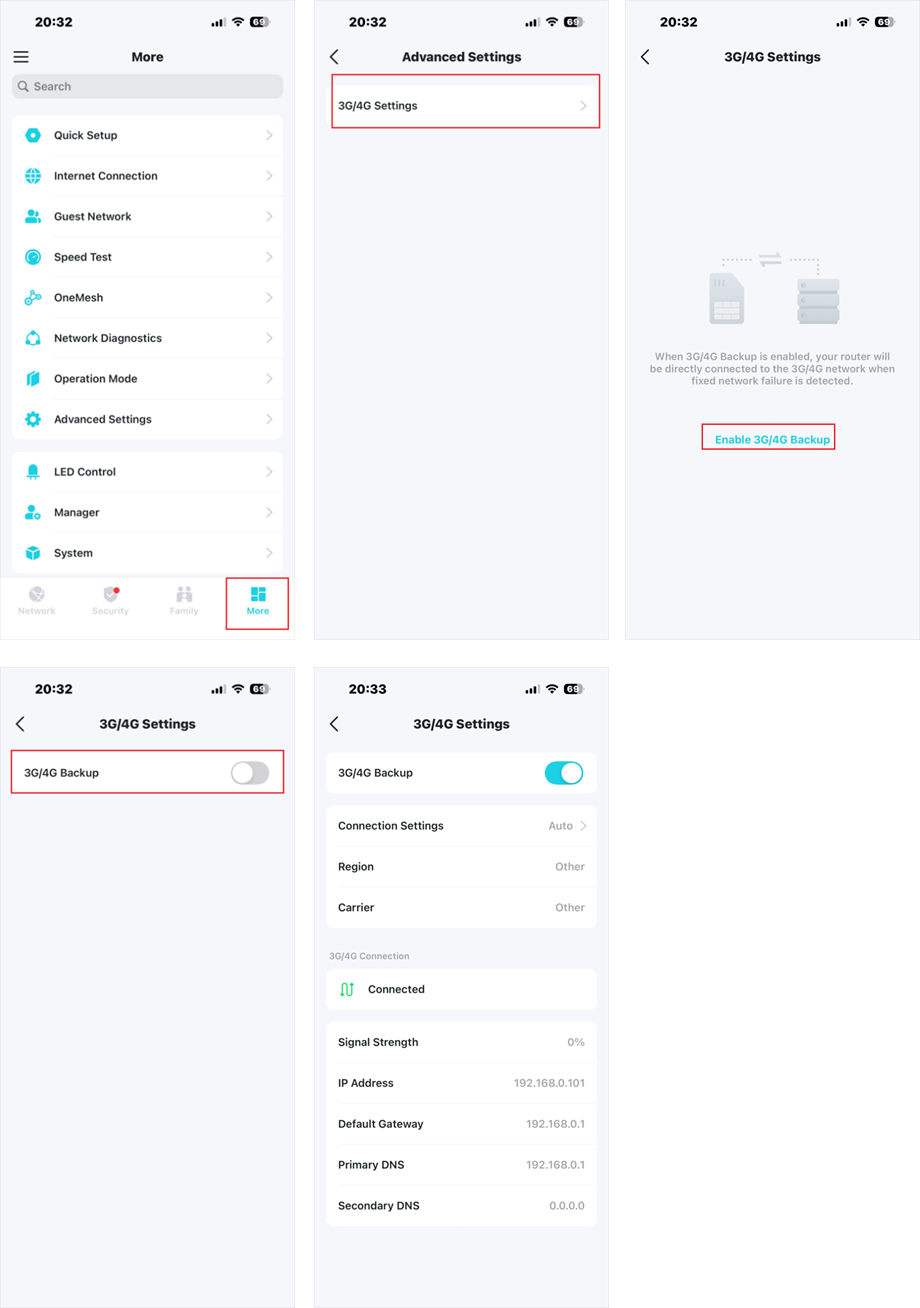
Step 4. Verify that the modem router has correctly recognized your Mobile ISP. When your Mobile ISP is correct, you can enjoy the internet!
Otherwise, click Connection Settings, select Set Manually, then create a new APN profile by entering the information provided by your 3G/4G network service provider and click Save to apply the changes.
QA
Q1: What should I do if the 3G/4G modem cannot be detected?
A1: First, confirm the modem is functional by testing it in a computer’s USB port. Then ensure it’s on the approved compatibility list. If the issue persists, contact the technical support for further troubleshooting.
Get to know more details of each function and configuration. Please go to the Download Center to download the manual for your product.
A fost util acest FAQ?
Părerea ta ne ajută să îmbunătățim acest site.