
Why port forwarding feature is not working on TP-Link ISP-Customized Router?
 7013
7013Introduction
This article provides some suggestions for troubleshooting potential causes of failed port forwarding.
Troubleshooting
Tip 1. The port forwarding settings are correct
- If you want to use a special WAN, you need to choose it as the interface. Ensure that the correct WAN is chosen.
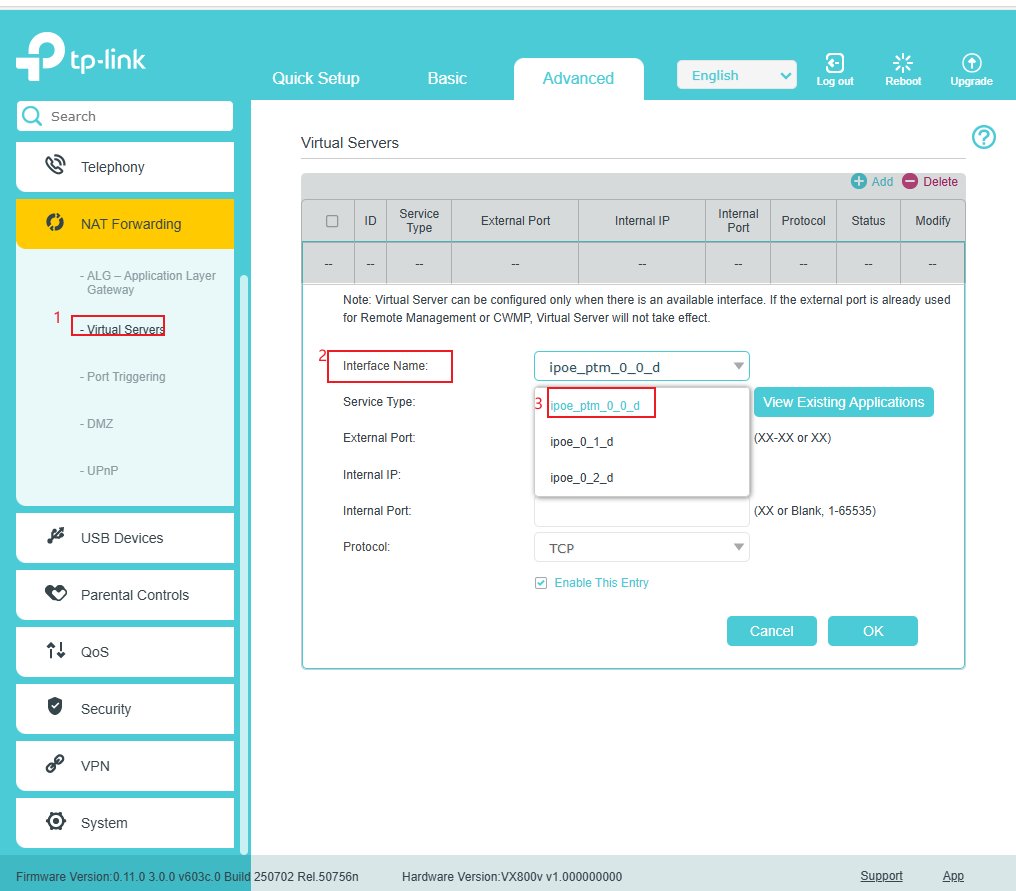
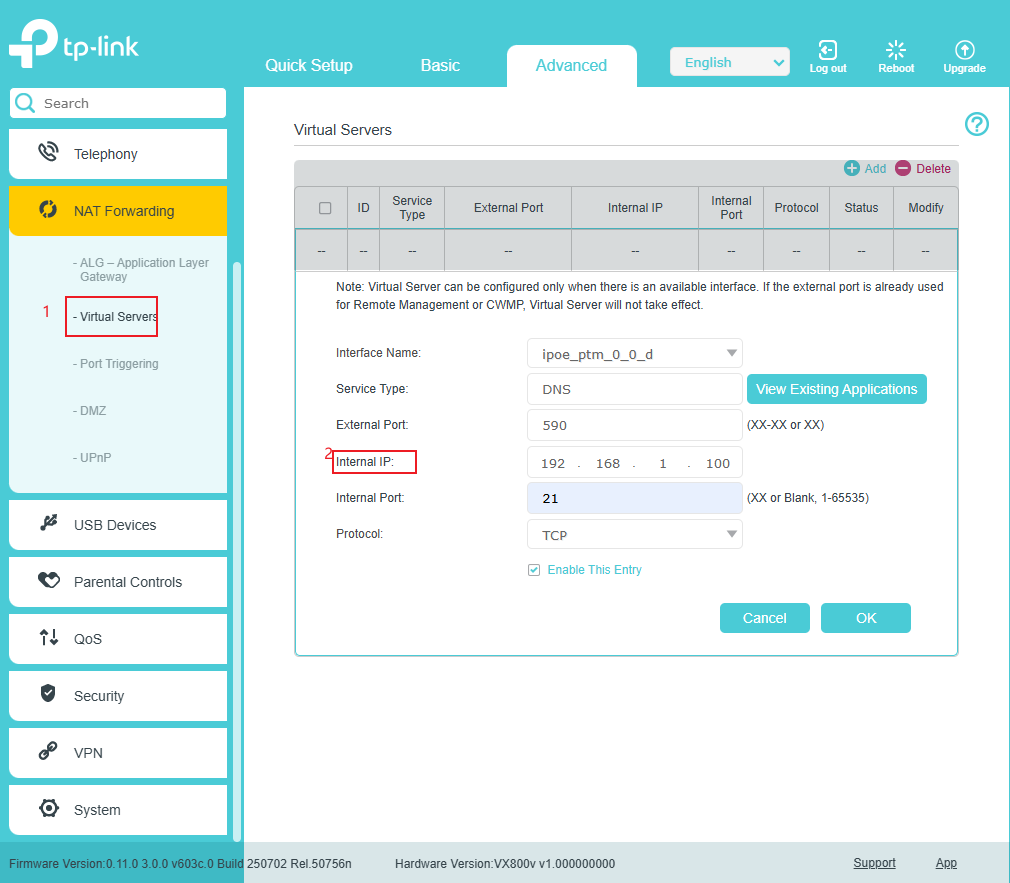
- Ensure that the internal IP address is the actual IP of the target device. It is recommended to use a static IP.
Tip 2. The target device is online in the local network
You may use the ping command to confirm whether the device is reachable. Example: ping 192.168.1.100. The corresponding service (e.g., Web service, FTP, remote desktop) should be enabled on the device.
Tip 3. WAN interface has the WAN IP
Ensure that you can get a reply from the WAN IP via the ping command.
Tip 4. No dual routing problem
To avoid the dual routing problem, it's suggested to use a single router instead of an optical network terminal and a router. It is recommended to set up a bridge mode or configure port forwarding on the upper-level device as well.
Tip 5. No firewall issue
To determine whether the Windows firewall or third-party security software is blocking port access, temporarily disable the firewall for testing to confirm whether it is a firewall issue.
Tip 6. The port is not occupied by the other services
To determine whether other services occupy the port, you may follow the instructions below to test:
Step 1. Open the command line interface.
Step 2. Use the command below to check if this port is occupied in the server.
netstat -ano | findstr :xx (for windows) ,sudo lsof -i :xx(linux&mac)
- Example for Windows
netstat -ano | findstr :80
- Example for Linux & Mac
sudo lsof -i :80
Step 3. If there is a process ID listed in result of step 2’s command, use the below command to end the process, then check whether the port forwarding works.
taskkill /PID xxxx /F
Note: xxxx is the ID of the process.
Here is an example for windows:
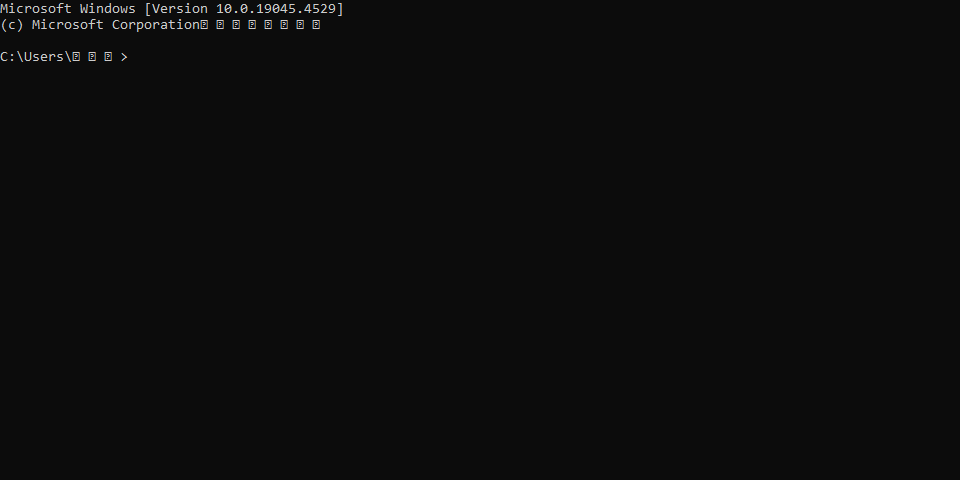
Step 1. Open the command line interface by searching CMD.

Step 2. Input command
netstat -ano | findstr :8080

Step 3. Input command
taskkill /PID 36316 /f
Note: (PID 36316 is the process ID on the right).

Is this faq useful?
Your feedback helps improve this site.



TP-Link Community
Still need help? Search for answers, ask questions, and get help from TP-Link experts and other users around the world.